ROZETKA is Ukraine’s largest online retailer and marketplace. Besides its own range, thousands of third-party sellers trade here: stores, manufacturers, importers and distributors. For a business it means access to a huge audience without spending on your own advertising — but also strict requirements for product listings, availability and order processing speed. Here is how to become a seller, what to prepare and what to watch so the marketplace actually makes you money.
Who Can Sell on ROZETKA
Sellers must be sole proprietors (FOP) of the 2nd or 3rd group or companies with a current account in a Ukrainian bank. FOPs of the 1st group and individuals without business registration cannot work with the marketplace. You also need your own stock: the marketplace rates sellers by cancellations and shipping speed.
How Much It Costs to Sell on ROZETKA
The main charge is a commission on each sale, which depends on the product category: lower for electronics, higher for clothing, cosmetics or children’s goods. Depending on the contract, there may also be a connection fee or a monthly payment, plus optional services such as promotion, fulfillment and ROZETKA Delivery. Rates change from time to time, so check the current terms for your category in the seller account or with a manager before registering.
Tip: calculate the margin of every product in advance, including commission, delivery and returns. Low-margin products often lose money on marketplaces.
How to Become a Seller: Step by Step
Step 1. Register in the seller account
Fill in the form in the sellers’ section of the ROZETKA website: business details, contacts, product categories. A manager will then contact you to clarify your range.
Step 2. Store name and logo
The name must not contain the word ROZETKA, other brands’ names or contact details. Keep the logo simple, in 2–3 colors, so it reads well at small sizes.
Step 3. Product catalog in XML
Products are sent to the marketplace as an XML (YML) price list. You can get one in several ways:
- generate it with a module of your online store platform;
- export it from inventory software;
- build it in price list generator services;
- for a small range, create listings manually in the seller account.
Step 4. Product listings
Listing quality determines whether shoppers find your products in search and filters:
- a title following “type — brand — model — key attribute”;
- the right category and completed attributes — filters depend on them;
- a description in Ukrainian (and Russian if needed);
- photos on a light background without watermarks or other logos, around 1000 px wide is recommended;
- accurate price and quantity.
Step 5. Documents and contract
You will need your business details and a bank certificate confirming the account; companies also need documents on the director’s appointment. The contract is signed electronically with a qualified e-signature.
Step 6. Store activation
After the catalog is checked and the contract is signed, the store is activated and your products appear on the site. From application to first impressions usually takes from a few days to a few weeks, depending on how ready your catalog is.
How to Create an XML Price List in PriceCreator
If you have no website or software that generates XML, you can build a price list for ROZETKA in the PriceCreator service. Its interface changes over time, but the logic stays the same.
Instructions for creating a price list for ROZETKA in Pricecreator
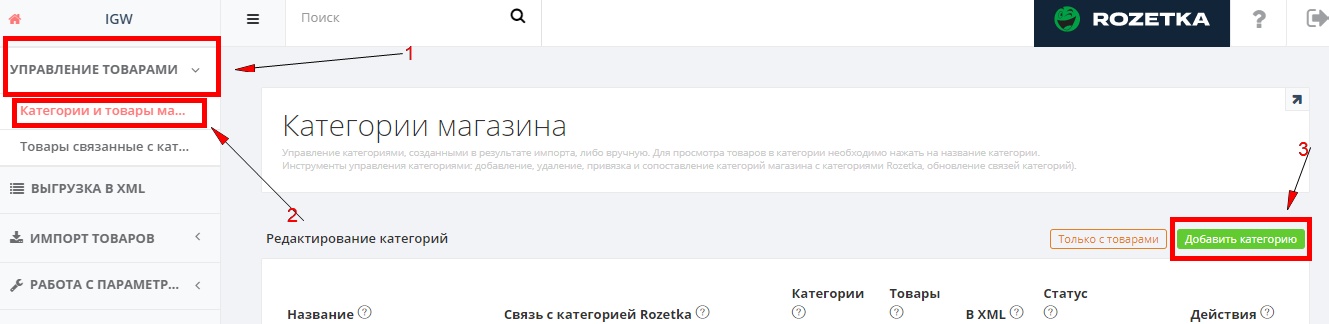
After registering on the service, you get to the main page of Pricecreator, and then find the top line “product management” in the menu on the right side of the page, click on it and select the “categories and store products” section. After that, press the green “Add category” button. A category field will open, which must be filled in before creating product cards.
We create a product category
For example, you sell women’s bags and other accessories. To begin with, you need to decide on two types of categories – for you and for “Rozetka”. The category for you can be named anything you like: for example, “my handbags”. To determine the correct category for “Sockets”:
- go to the official website,
- type “Women’s bags” into the search bar
- filter products so that they are only from ROZETKA, without other sellers,
- click on the product card,
- look at the name of the category without indicating the brand – this is what you need.

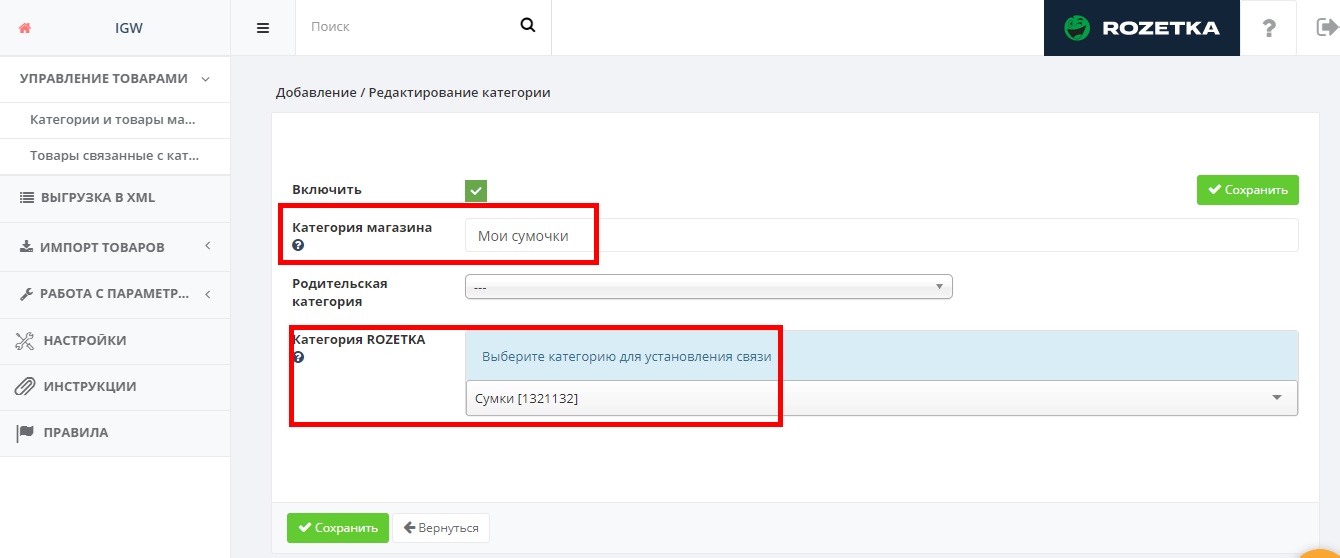
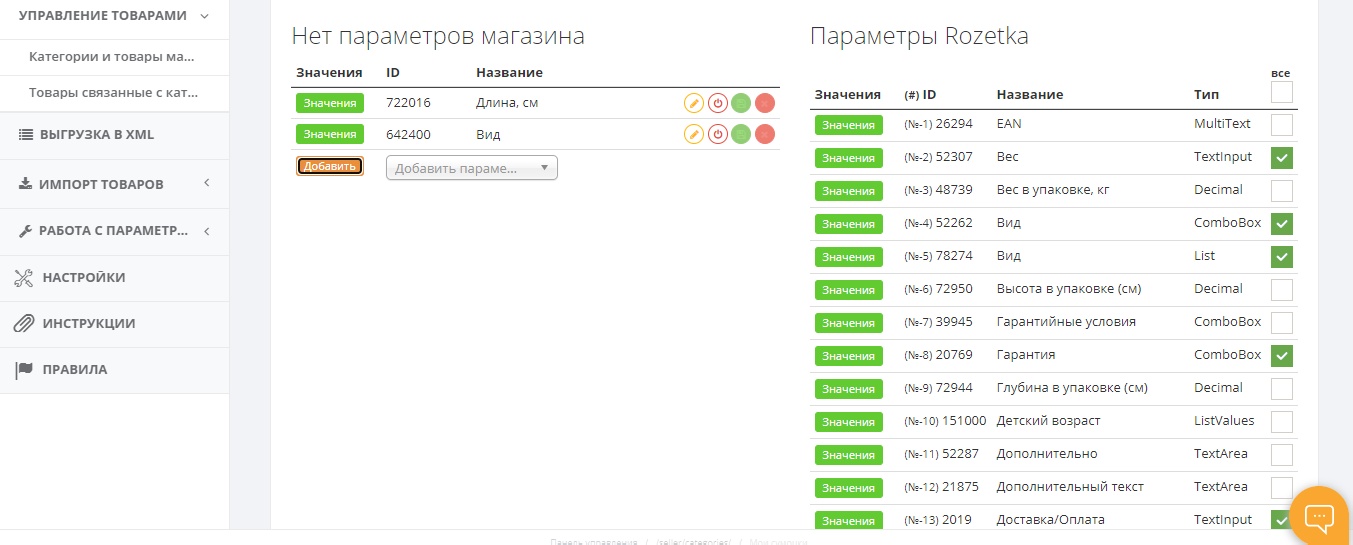
When you specify both categories and press the “Save” button, all the possible parameters that are available on the site for the specified category will appear on the right side of the page. These parameters will be in the product cards of the created category. Some of them are prescribed manually, some can be selected from the proposed lists. Leave the checkmarks opposite the parameters (at least two) that you plan to specify.
A list of your store’s settings will appear on the left. You can also choose one or more from the proposed list, if they are not in the list of “Sockets” parameters, and they are important for your products.
After that, press the “Save” button again. The category is ready.
We create product cards
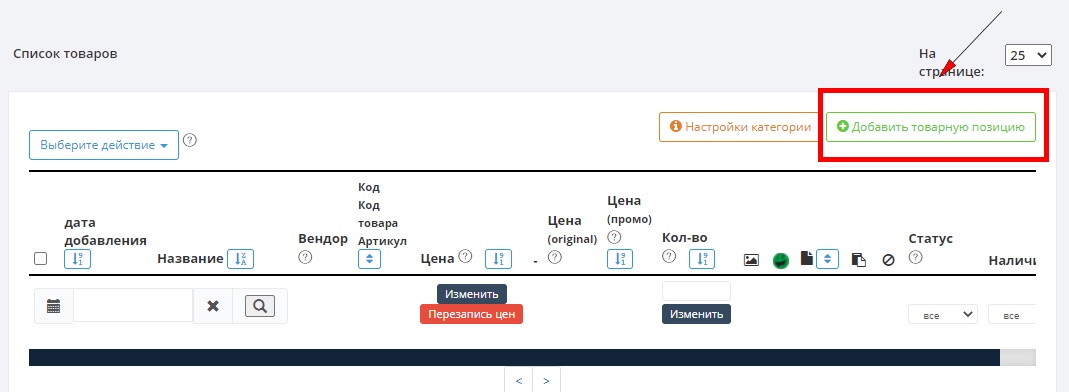
After creating a category, return to the “Categories and store products” section. You see a new category in the list and click on the icon with the image of the basket. After that, the category opens and you can add product cards. To do this, click on the “Add item” button.

How to fill out a product card
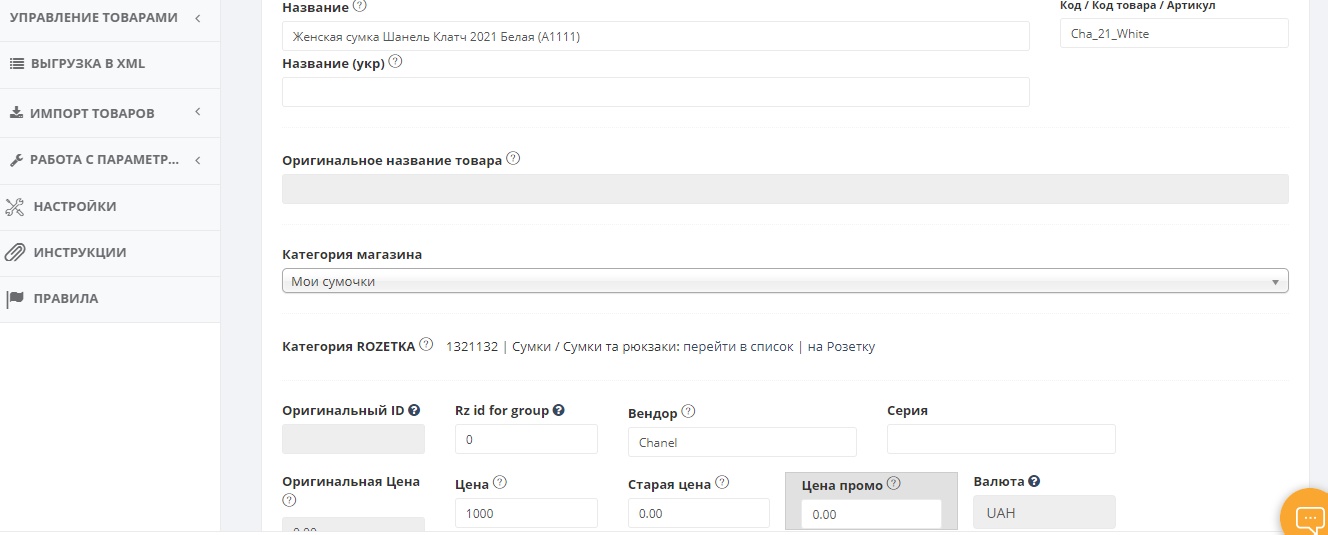
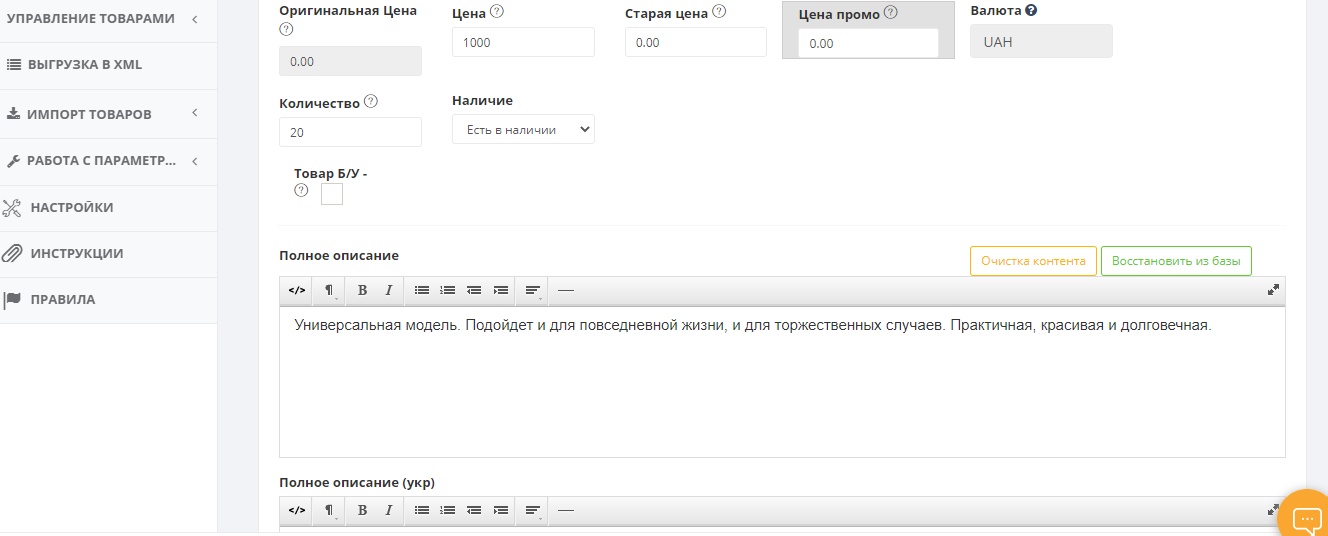
The card has mandatory and optional fields. Since mandatory fields are not marked with the usual asterisk ( * ), before filling out the card, read this list, in which we will mark mandatory fields in red and optional fields in green, as well as briefly describe the requirements for filling them out:
- “Name”. It is created in the format Type-Brand-Model-Color-Characteristics-Article.
- “Ukrainian name”.
- “Code / Product code / Article” – a set of letters and / or numbers that you use to identify your products.
- Vendor – brand name or manufacturer.
- Price.
- Number.
- Availability.
- Full description in Russian.
- Full description in Ukrainian.
After filling in all the fields, click the “Save” button, after which a list of “Outlets” and your store parameters specified when creating the category will open.
Specify all the necessary parameters and click the “Save characteristics” button. If any of the “Sockets” options are redundant or you want to add additional ones, click the “Customize” button at the bottom of the “Selected options to show” list.

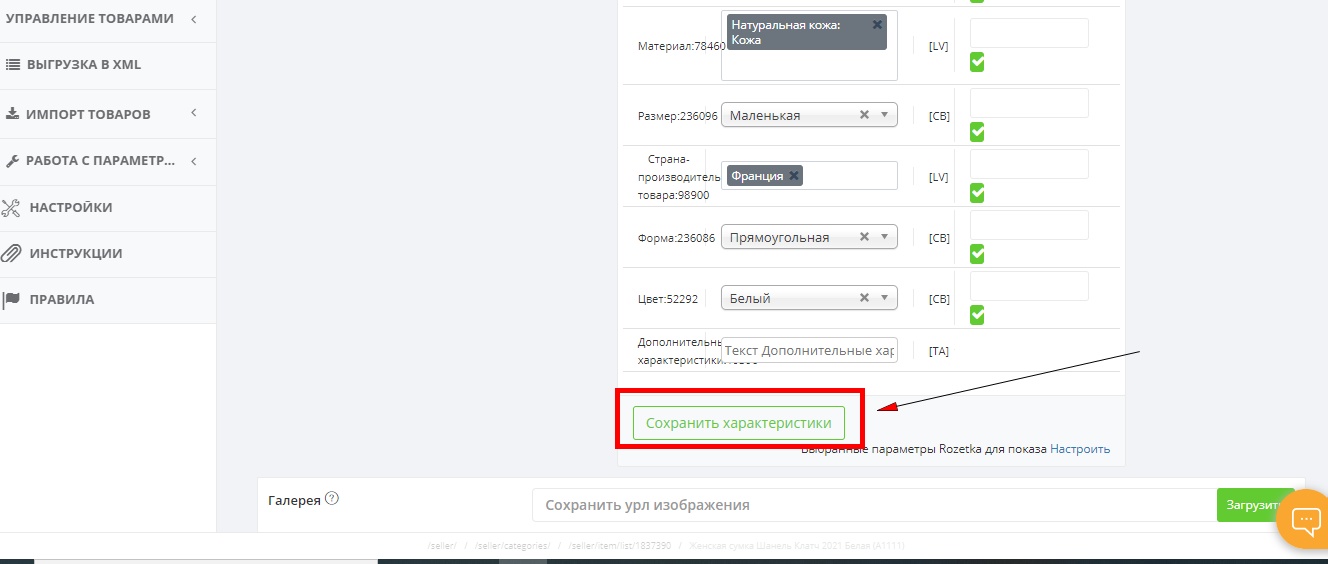
Under the button “Save characteristics” there is a field for uploading product photos: you can specify a URL, drag or select a photo from your PC.
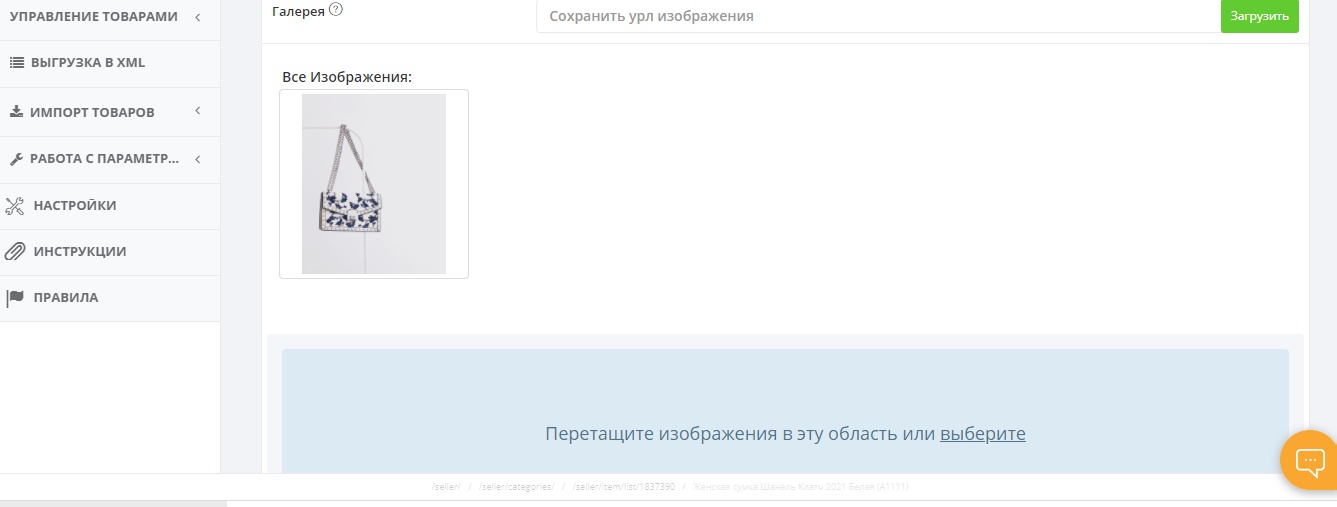
There should be at least 1 photo in the product card. Maximum – 15 photos. Everything is clear, not blurred. Image sizes – from 200 to 4000 px in width and height, optimal – 1000 px. Acceptable file formats -.jpeg/.jpg,.gif,.png. The maximum size is 10 MB.
How to convert product cards into XML format
Select the “Export to XML” menu item, after which a list of all your products will open. To add products to the XML upload, check the corresponding column. Then contact the new seller manager by calling or emailing him to have the items moderated.

Order Handling Requirements
- Confirm orders quickly. Slow responses to buyers lower your seller rating.
- Do not cancel orders because of missing stock. Frequent cancellations can lead to restrictions on your store.
- Offer convenient payment and delivery and pass on the waybill number on time.
- Respond to reviews and questions, especially negative ones.
How Not to Sell Something You Do Not Have
The most common problem for sellers who trade on ROZETKA, Prom, their own website and offline at the same time is stock mismatches. An item sold in the shop is still “in stock” on the marketplace. The fix is to update stock and prices on every platform from one source. The Rozetka integration in HugeProfit imports orders into the CRM, sends stock and prices to the marketplace, and returns statuses and waybills back.
Is It Worth Selling on ROZETKA
Yes, if your prices are competitive, the goods are in stock and you can process orders quickly. The marketplace brings traffic that is hard to get with your own ads, but it takes part of your margin. Track profit by channel and keep on ROZETKA only the products that really earn there.
FAQ
Can I sell on ROZETKA without a FOP?
No, sellers must be FOPs of the 2nd–3rd group or companies.
How long does onboarding take?
Reviewing the application and documents usually takes a few business days; the total time depends on how ready your catalog is.
How do I upload many products?
With an XML price list that the marketplace regularly refreshes from a URL, or through an integration with your inventory software.
Read also: