Ringostat Integration Setup
Go to the Ringostat website: Connect.
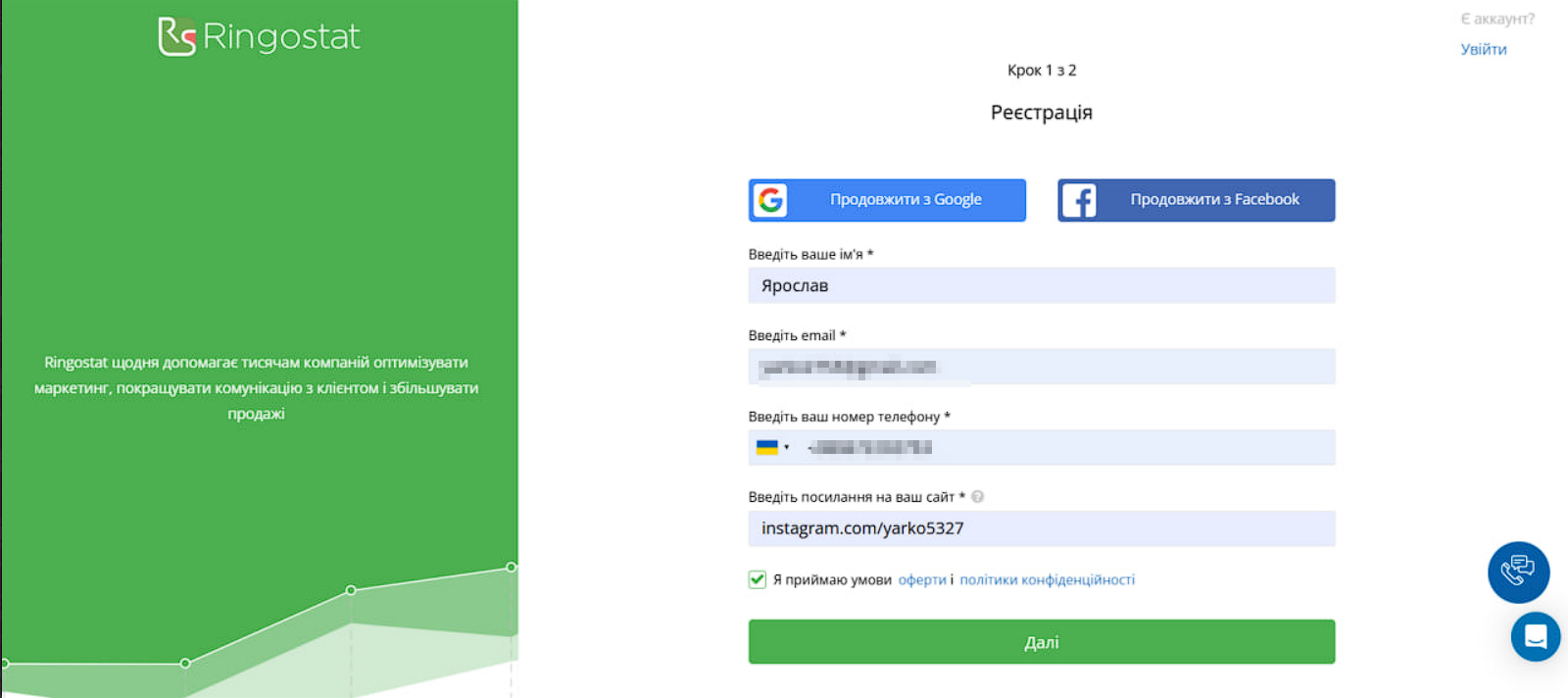
Fill in the registration data.
Confirm the account via email.
Then Ringostat representatives will contact you and help with further detailed account configuration.
To connect the integration in the HugeProfit interface, go to Settings -> Integrations -> Ringostat. Connect:
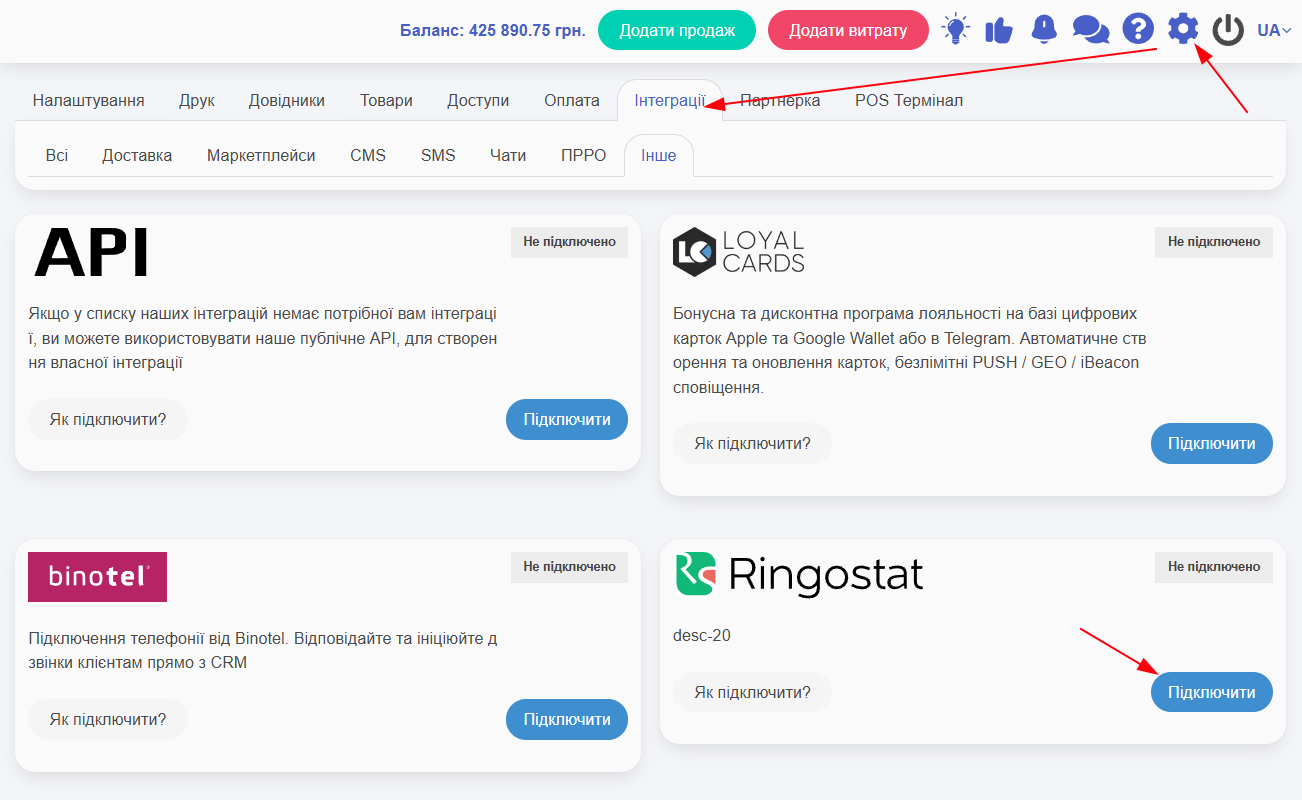
Fill in the data:
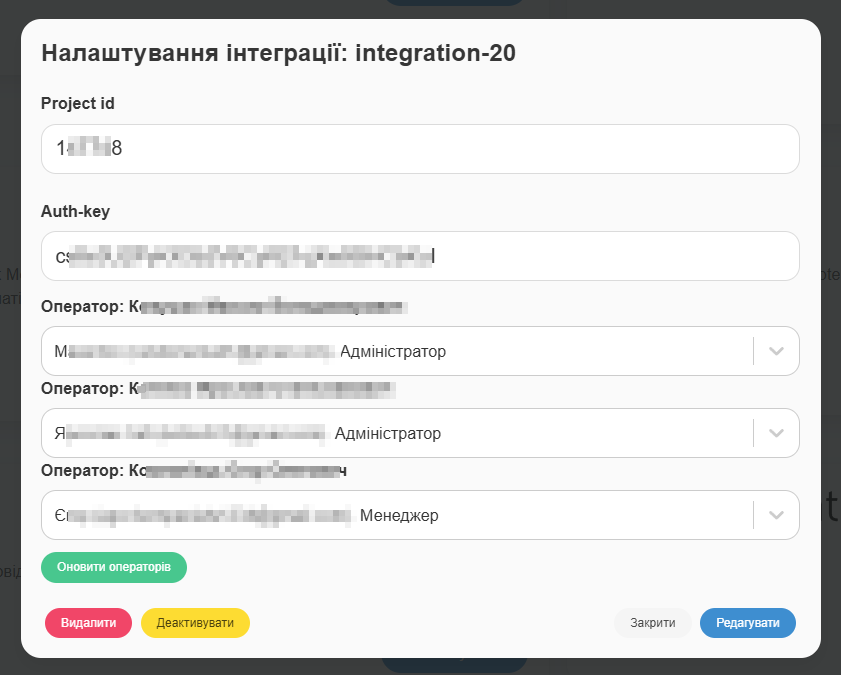
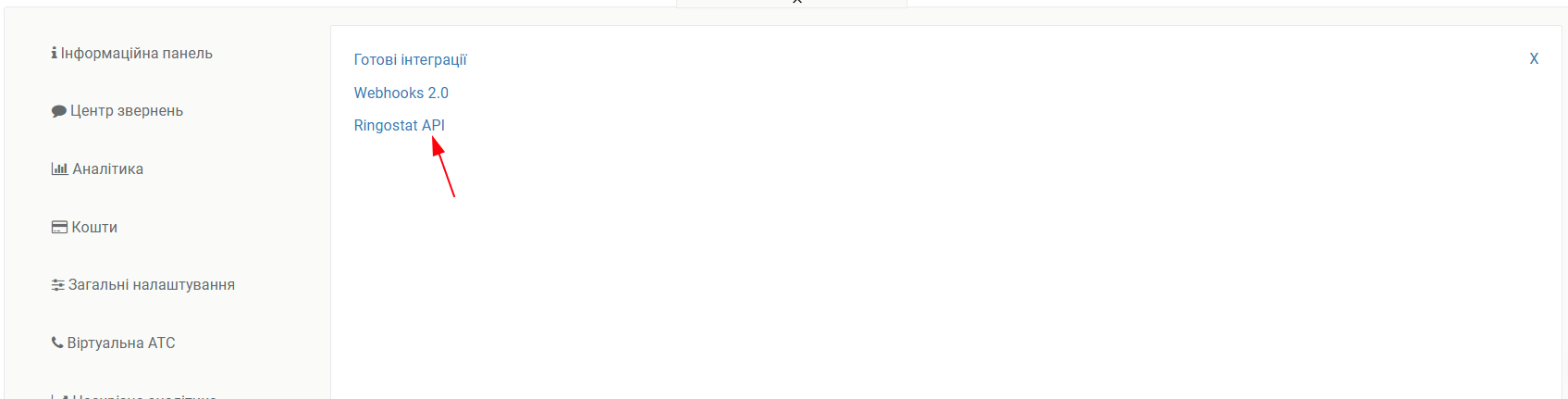
You can find the Project ID and Auth-key on the Ringostat website.
Find the relevant project, expand it -> Integrations -> Ringostat API:
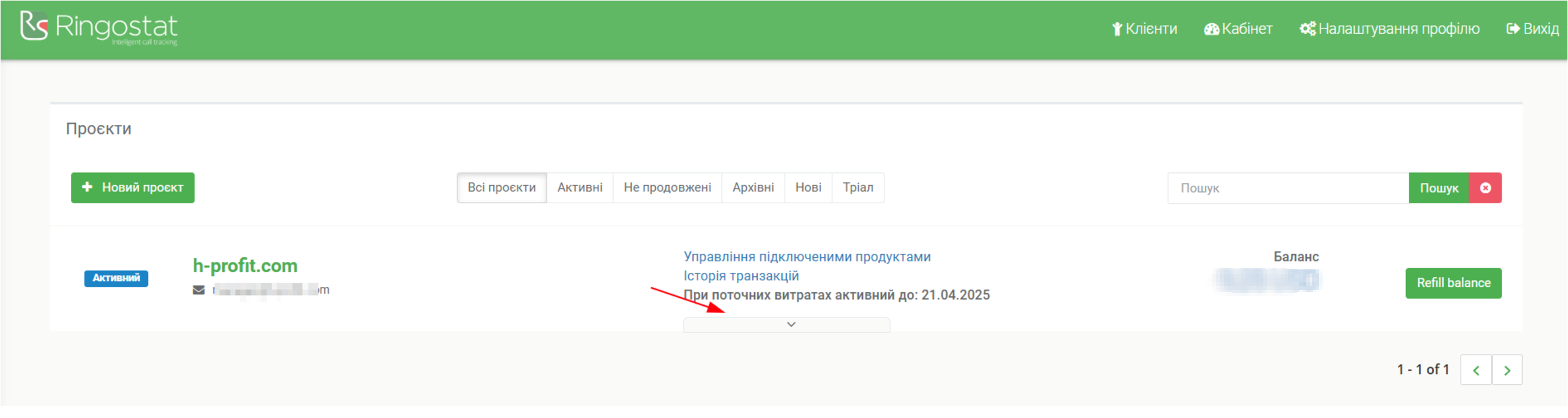
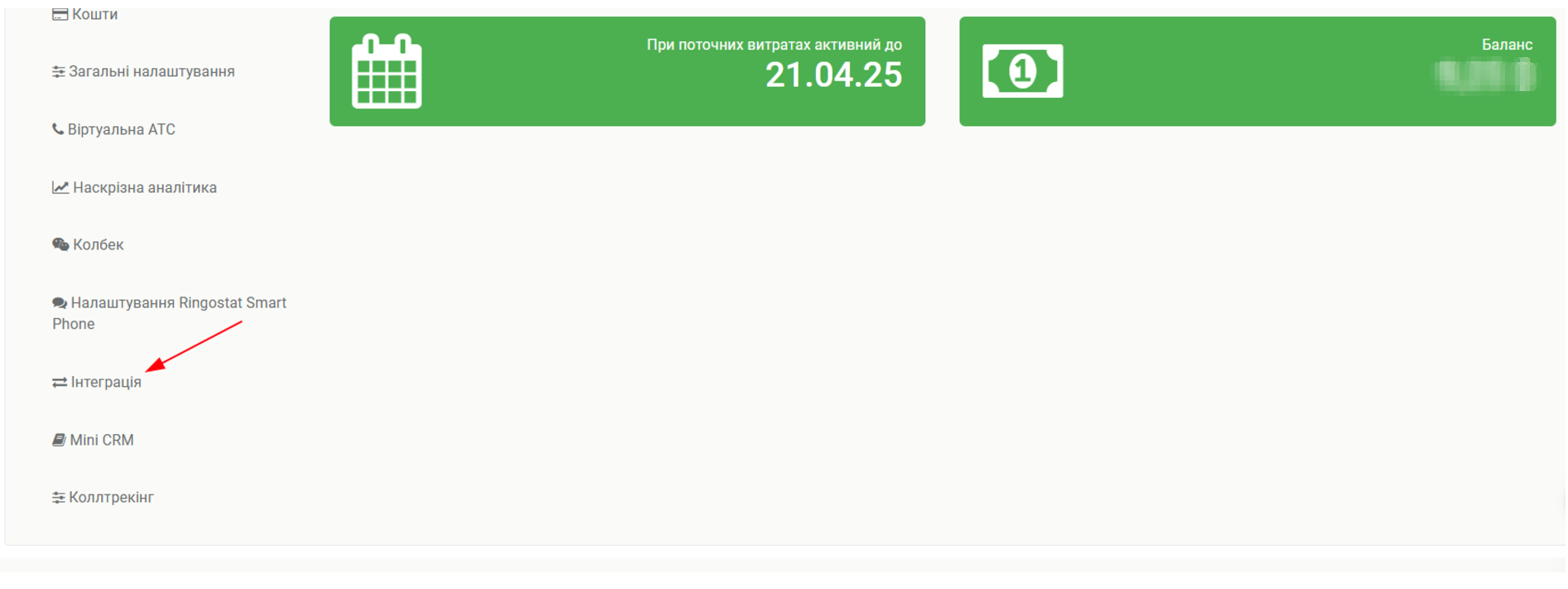
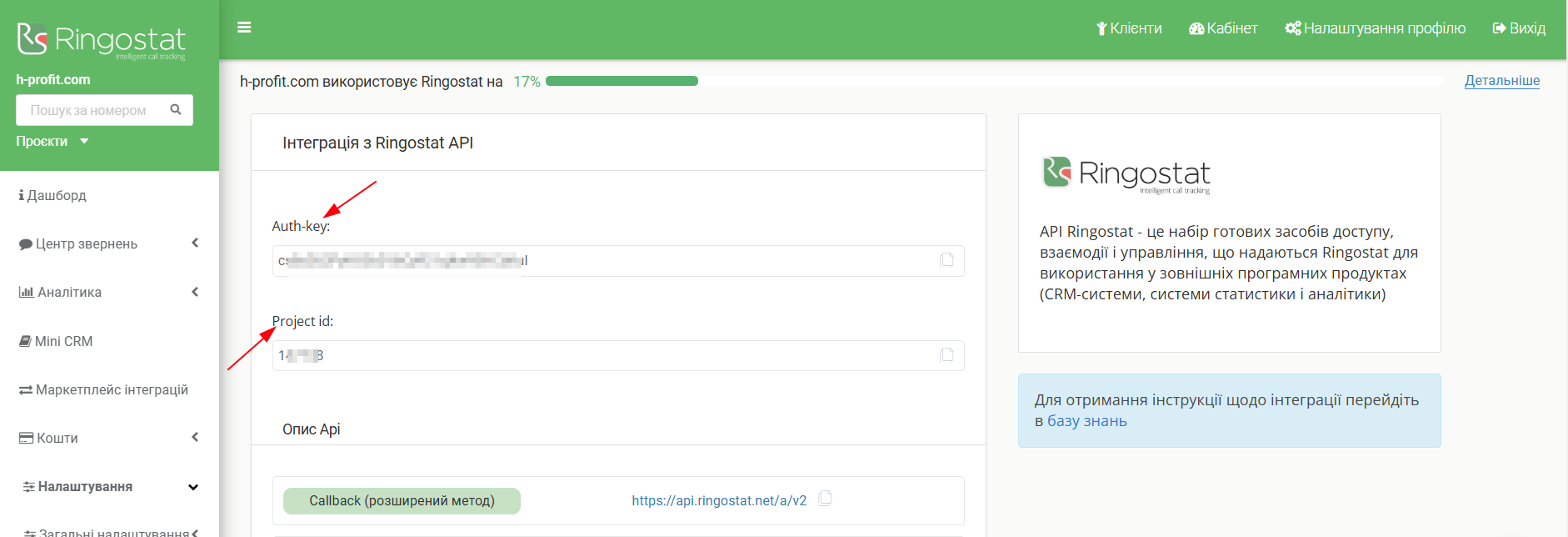
Take the Auth-key and Project ID:
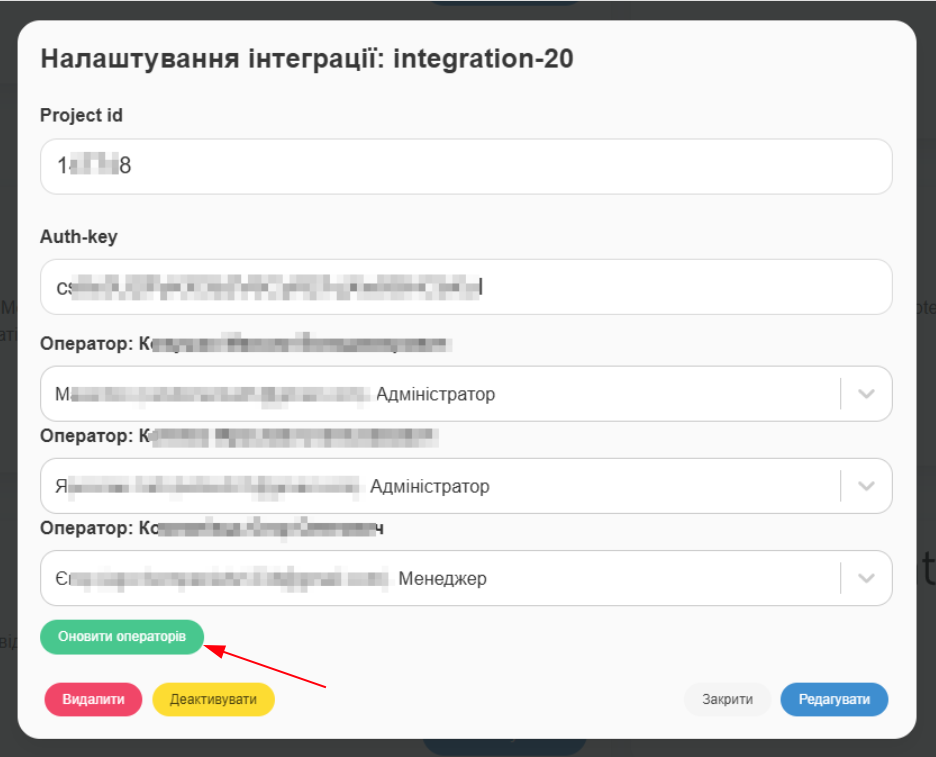
Operators are created in the interface with the help of Ringostat tech support.
If operators were created after the integration, you can pull in newly created ones by clicking “Update Operators”:
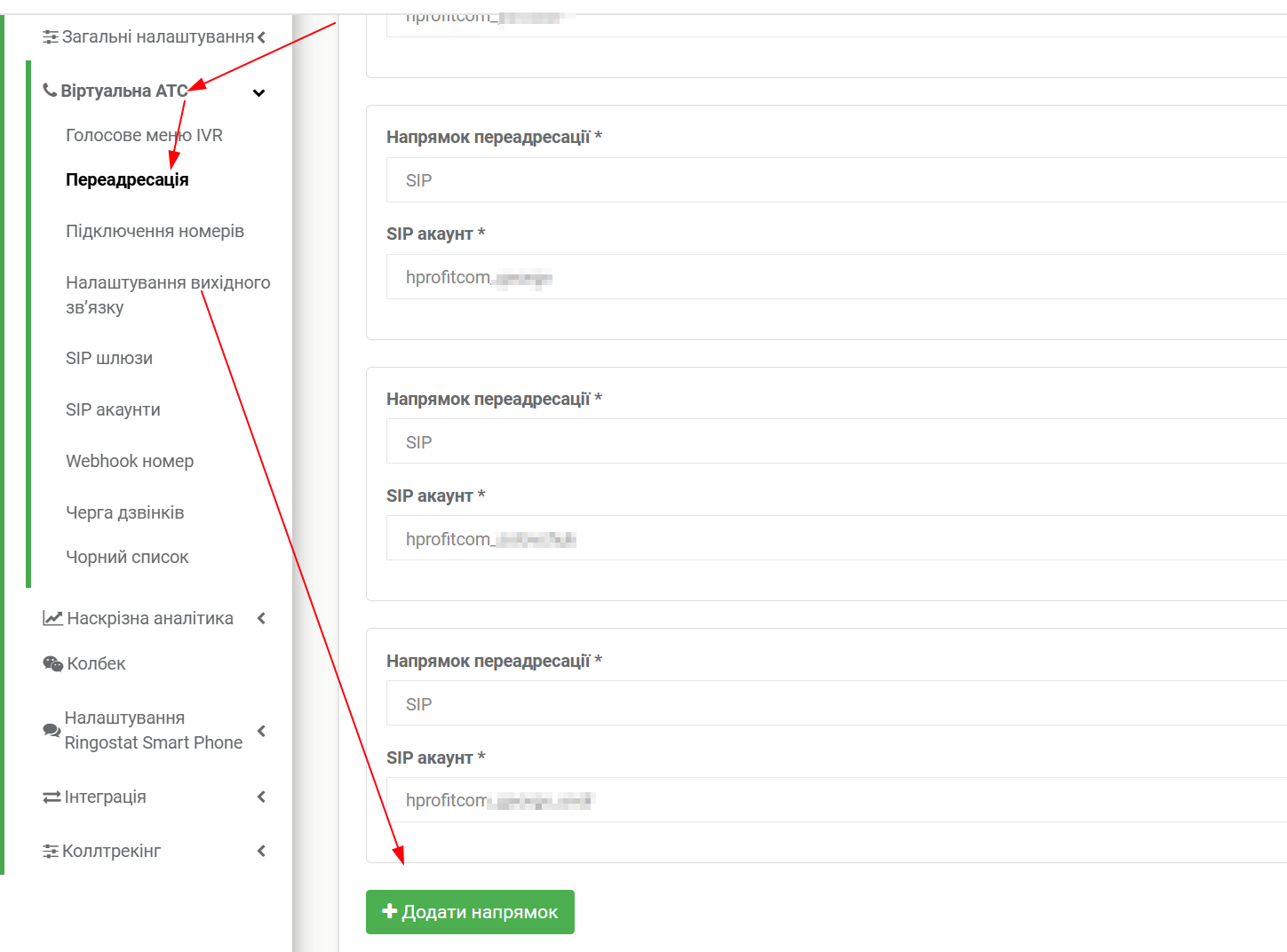
To allow operators not only to initiate calls but also to receive them, forwarding must be configured:
Softphone Configuration
Download one of the suitable softphones:
Instructions for ALL SIP clients
Installing and setting up Ringostat Smart Phone
Configuring Zoiper 5 for Windows
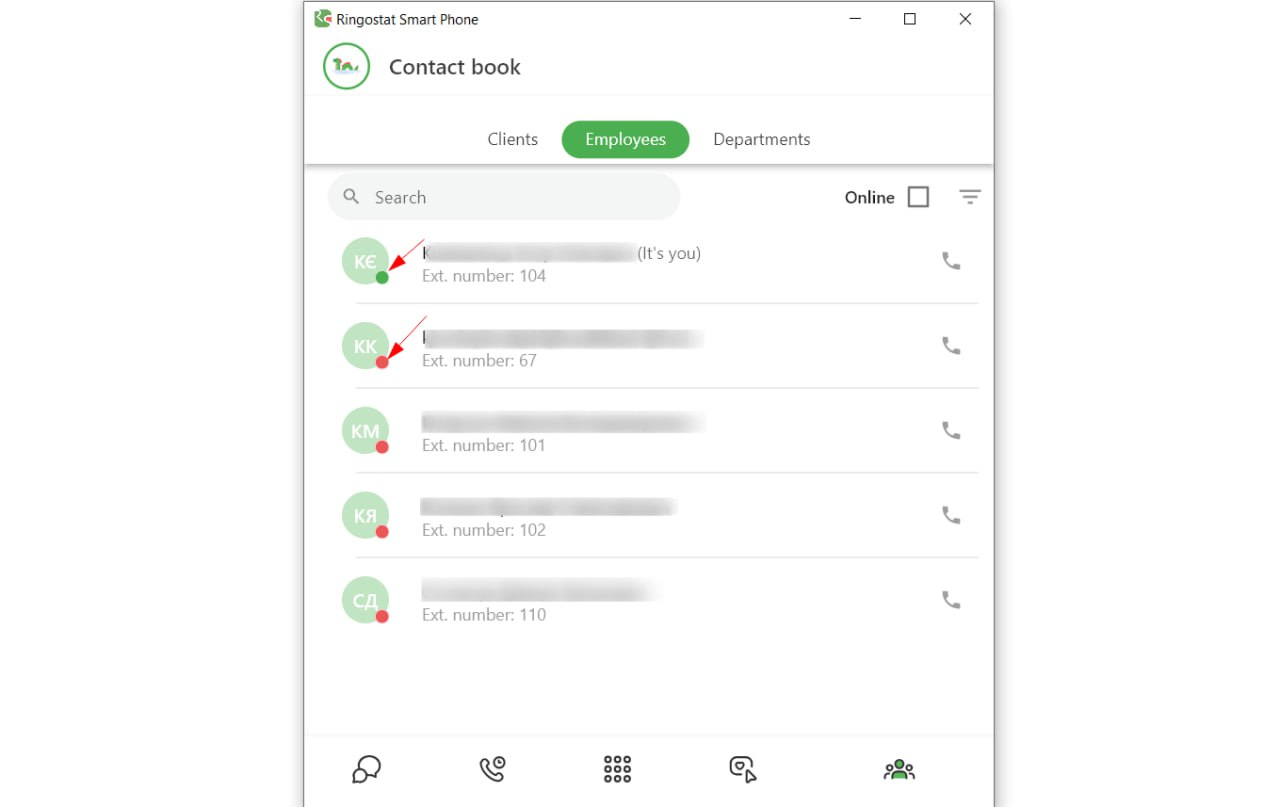
The operator must be online to make and receive calls:
Working in the HugeProfit System
Outgoing Call
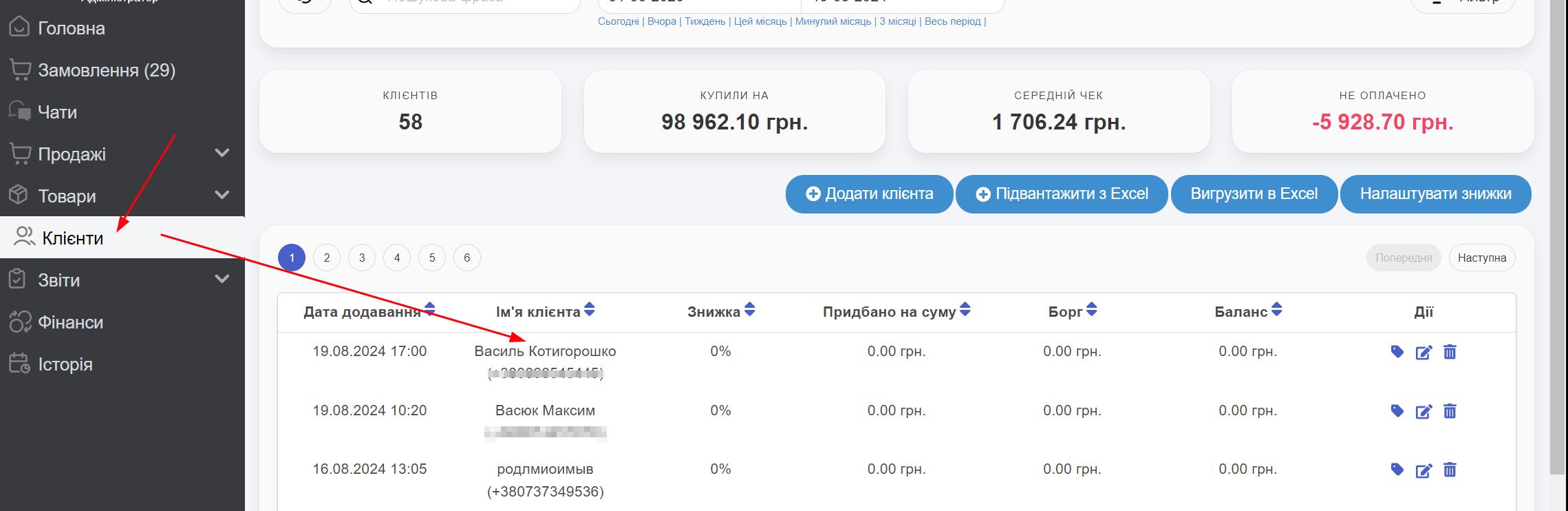
To call a client, go to the Clients section and select the appropriate client:
Click the Ringostat icon and select an operator (only those who are online will be displayed):
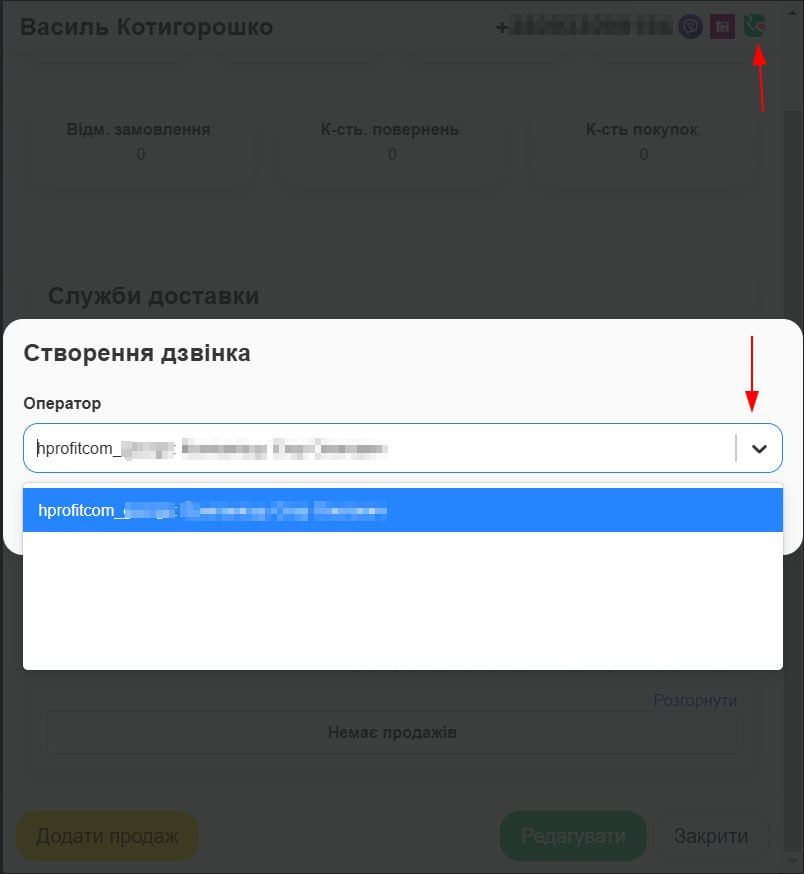
If the operator is online but still not listed, close the modal window and open it again.
Click “Answer” in the softphone. The call goes to the internal Ringostat number, and then a call is initiated to the client’s number:
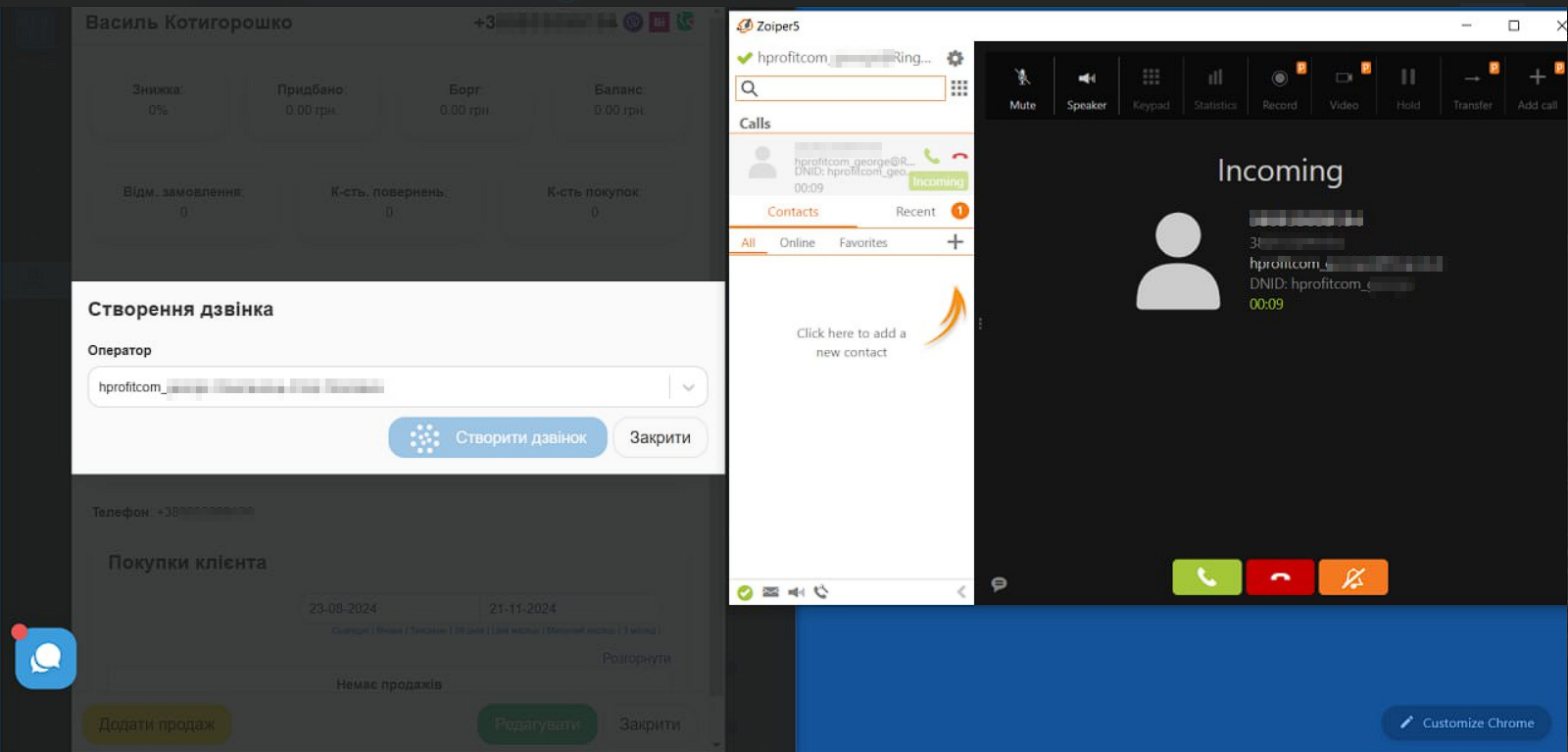
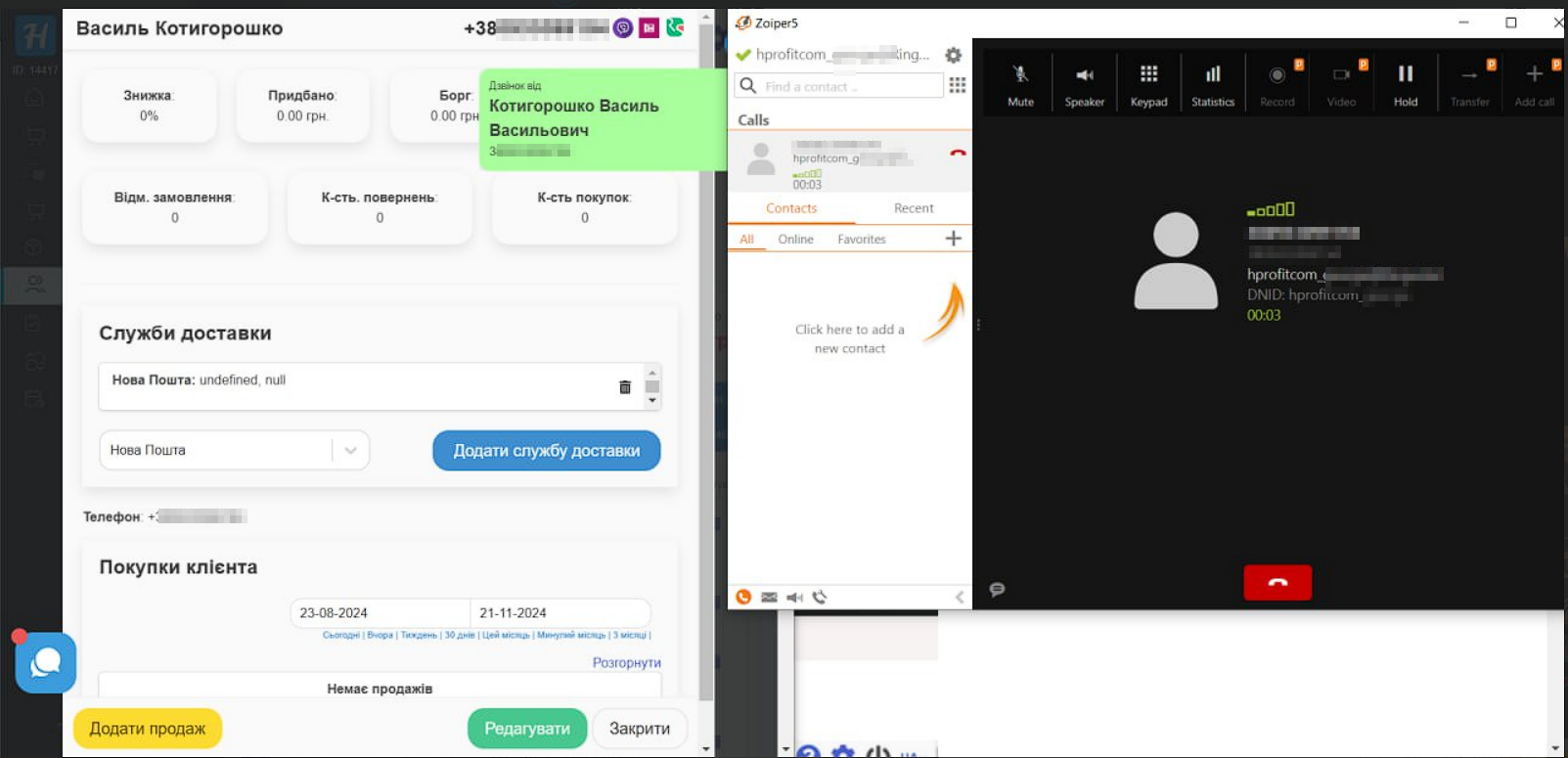
At the same time, the account owner will see who answered the call
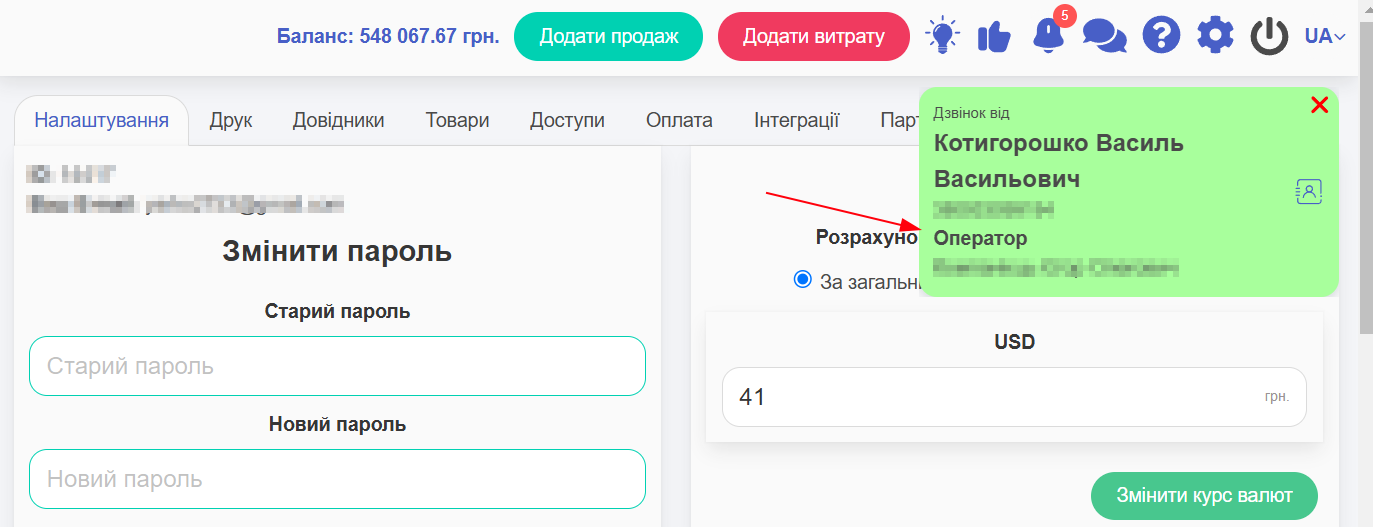
Incoming Call
All sub-users who are connected as operators will receive the call. Whoever clicks “Answer” will be the one talking 😉
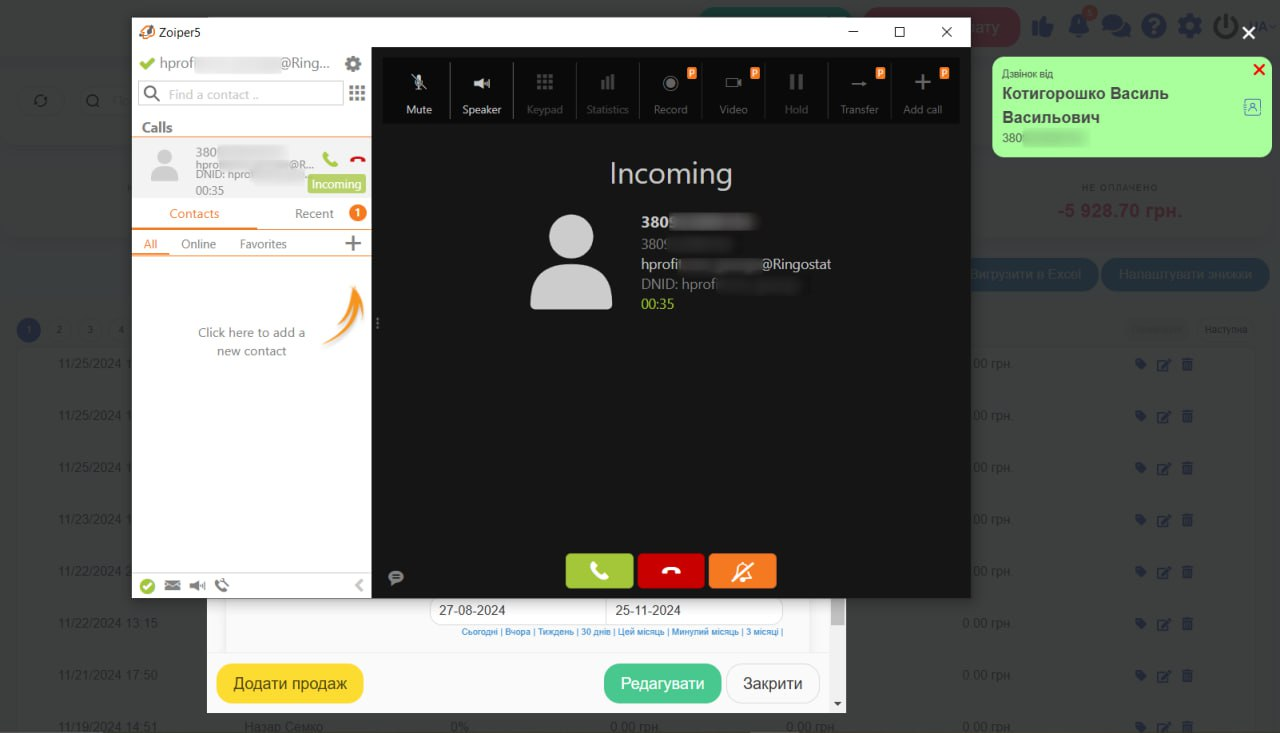
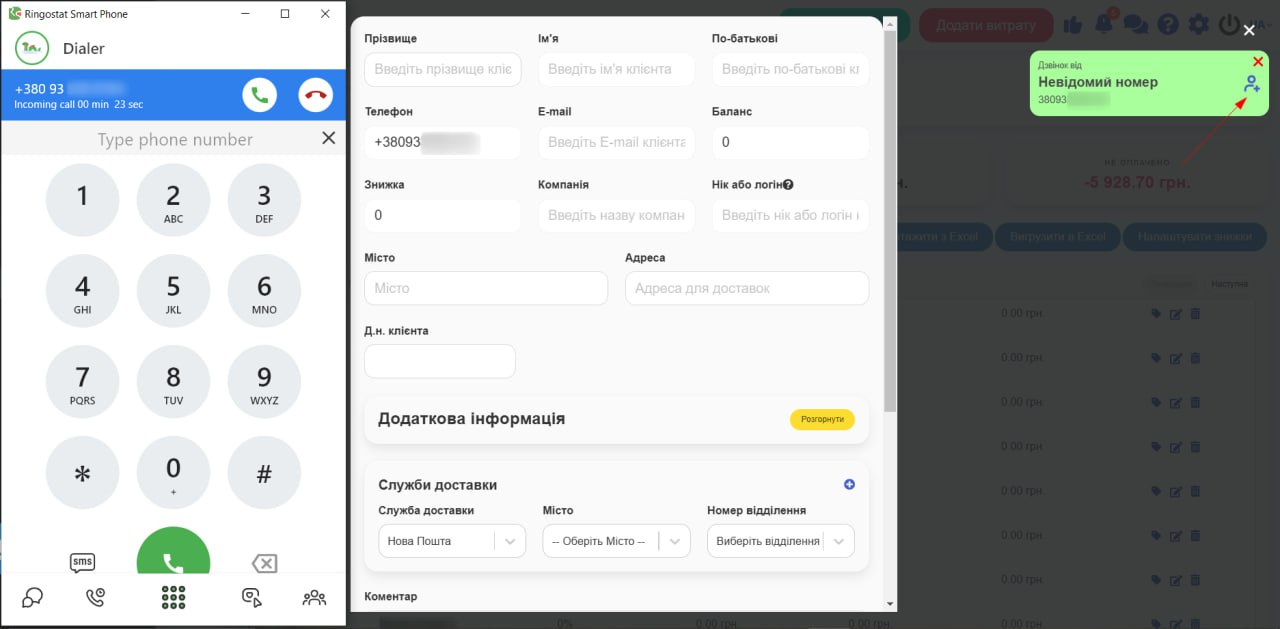
By clicking on the contacts button, the client’s card will open, where you can enter some information or start creating a sale:
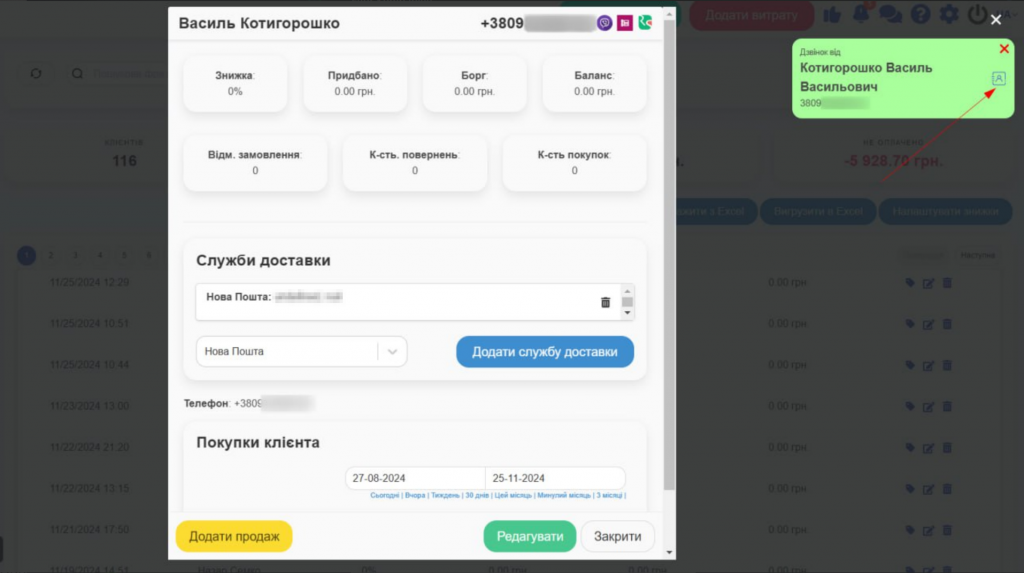
If the number is unknown, you can create a card for it: