Private store: access codes
You can lock your store to outsiders: visitors without a code see only an entry screen, and the site, catalog, and prices open after they enter a code or follow a personal link. It's a handy way to work with wholesale clients or a private customer club, or to show the store to partners before the official launch.
When you need this
- Wholesale prices. A separate store with wholesale prices that only your wholesale clients can see.
- Private club. A sale or new arrivals only for regular customers or community members.
- Pre-launch test. Show the finished site to partners, bloggers, or your team while it's closed to everyone else.
💡 A private store isn't the same as an unpublished one. No one but you can see an unpublished store. A private store is published and fully working, but only for people who have a code. For more on publishing, see Draft, preview, publishing.
How to lock your store
- Open the site editor (Edit website on the store card) → Settings and scroll down to the Access protection section.
- Turn on Lock the site — access by code only.
- Click + Add access code. A 6-character code is generated automatically. You can replace it with your own, for example
OPT2026. - In the Label (for yourself) field, note who the code is for: “Wholesale clients”, “Blogger — new arrivals review”. Customers don't see the label.
- If needed, set Expires on: the code works through the end of that day.
- Click Save draft, then Publish.
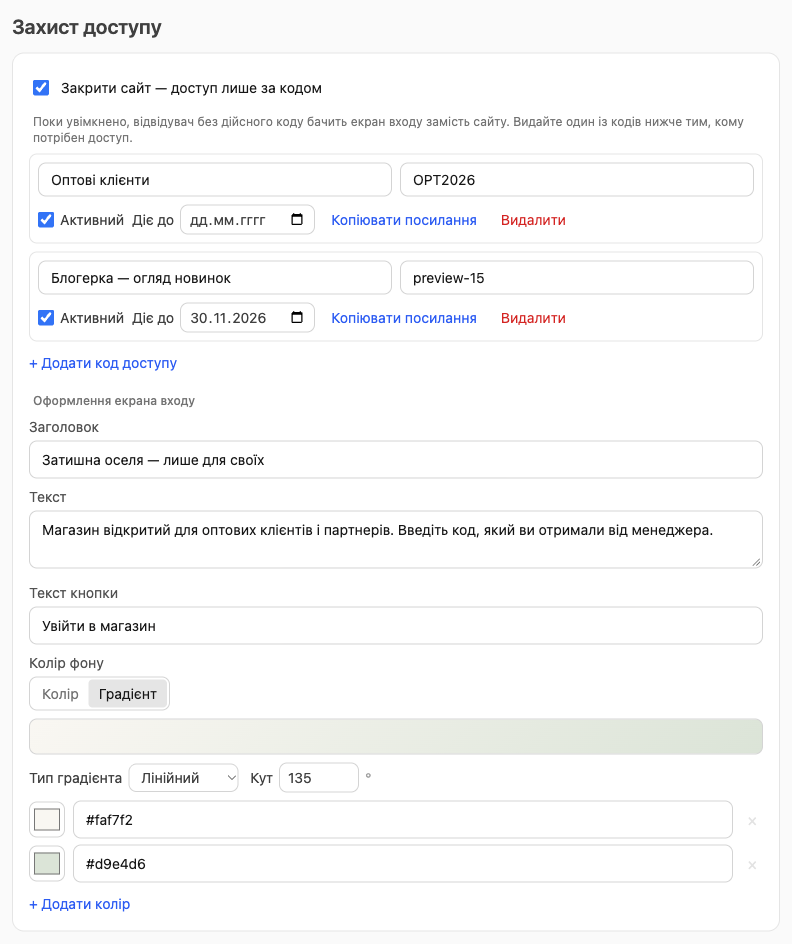
⚠️ Protection takes effect only after you publish. While the changes are in the draft, the site stays open to everyone, as before.
How to give a customer access
There are two ways. Choose whichever is more convenient:
- Code. Send the customer the code itself. They open the site, enter the code on the entry screen, and click the button.
- Link. Click Copy link next to the code to copy an address like
https://your-store.h-profit.shop/?access=CODE. The customer follows it and goes straight to the site without entering anything.
After signing in, the browser remembers access for 180 days, so the customer doesn't need to enter the code again. On another device or browser, they enter the code once more.
💡 The code is case-sensitive: OPT2026 and opt2026 are different codes, and it must be entered without spaces. If a customer says the code “doesn't work”, ask them to check upper and lowercase letters and extra spaces, or send them the link.
Give different codes to different groups or people. Then you can take access away from one without affecting the others.
What visitors without a code see
Instead of the site, they see an entry screen with the store logo, a heading, text, a code field, and a button. The catalog, prices, and pages aren't shown, and checkout isn't possible.
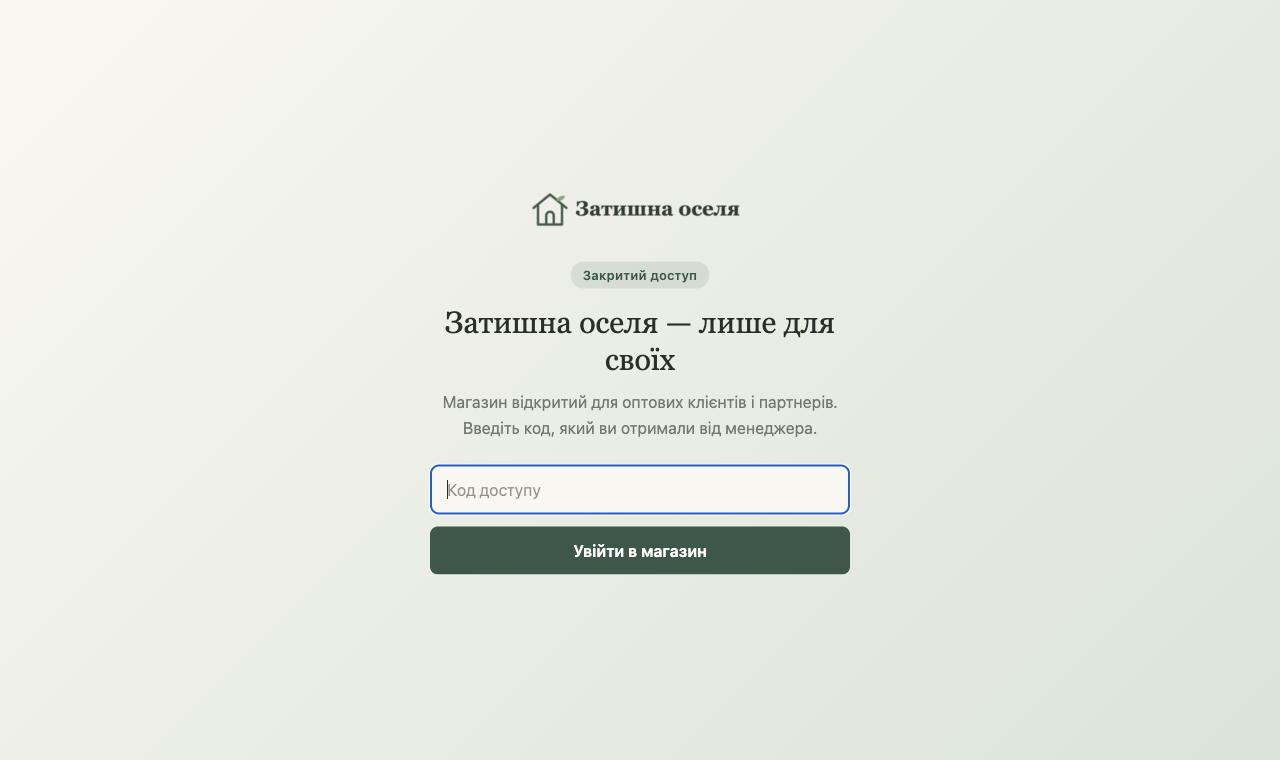
If someone enters a wrong or turned-off code, “Invalid access code” appears below the field.
Entry screen design
In the same section, in the Entry screen design block:
- Heading: “This site is available by code” by default;
- Text: an explanation for customers, for example, where to get a code;
- Button text: “Submit” by default;
- Background color: a single color (the Color tab) or a Gradient, linear or radial, with an angle and several colors. If no background is set, your theme colors are used.
How to take access away
- Temporarily: uncheck Active next to the code. Turn it back on, and access returns.
- Permanently: click Delete.
- Automatically: set a date in Expires on. After that date, the code stops working on its own.
After you publish, customers with this code see the entry screen again the next time they navigate the site. If such a customer is in the middle of checkout, they can't complete the order: a message says that access to the store is closed.
⚠️ If you just change the code text (for example, from OPT2026 to OPT2027), people who already signed in with the old code keep their access. The new text applies only to new sign-ins. To take access away from everyone, turn off or delete the code and create a new one.
To open the store to everyone, uncheck Lock the site — access by code only and publish. Your codes are kept, so you can use them again.
FAQ
Can I see my site without a code?
Yes. If you're signed in to the site editor in this browser, the site opens as usual. To see the entry screen the way customers do, open the store in an incognito window.
How many codes can I create?
There's no limit. When you have more than 10 codes, the list in the editor is split into pages.
Do search engines index a private store?
No. Search engine crawlers see only the entry screen, so your products and pages won't get into search. For more on indexing, see SEO and indexing.
Can I lock only part of the catalog?
No, a code locks the whole site. If you need to show some products to everyone and others only to “insiders”, create a separate store for the private audience.