
Block reference
All the blocks you can build store pages from, and what you can set up in each one. To add a block: site editor → Pages → a page → the Add block list on the left.
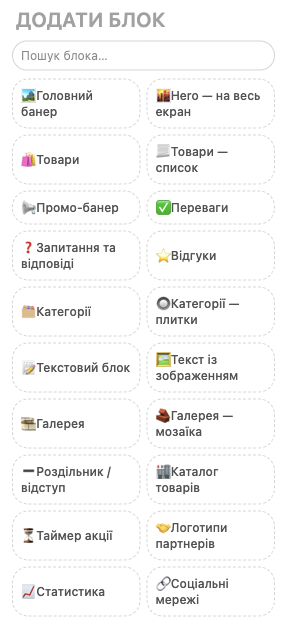
Every block has a Hide this block on mobile checkbox.
Banners and promotions
| Block | What it's for | Settings |
|---|---|---|
| “Hero banner” | A large banner or slider at the top of the page | Slides: eyebrow text, headline, subheadline, button text and link, background image, a separate mobile image (optional), image display (fill with cropped edges / fit whole image), text color. Autoplay and interval (1.5–20 s). Banner height set separately for desktop and mobile (auto, compact, standard, tall). More in the article about banners |
| “Hero — full screen” | The same, but a large banner, about 70% of the screen height (no more than 700 px) | Slides: eyebrow text, headline, subheadline, button text and link, background image. Autoplay and interval (1.5–20 s) |
| “Promo banner” | A strip with a promotion or announcement | Heading, text, button, image, background color (primary/secondary) |
| “Promo countdown” | A countdown to the end of a promotion | Eyebrow text, heading, subheadline, end date (2026-12-31T23:59:00), button, background color |
Products and categories
| Block | What it's for | Settings |
|---|---|---|
| “Products” | A product selection as tiles | Title, category (empty means all products), number of products, grid or carousel, how many products are visible in the carousel (1–6) |
| “Products — list” | A product selection as a list | Title, category, number of products |
| “Categories” | Category tiles | Title, parent category (empty means top-level categories), number of categories |
| “Categories — tiles” | The same in a different design | The same |
| “Product catalog” | The full catalog: categories on the side, search, filters, pagination | It has practically no settings of its own: the “Title” field isn't displayed on the page (it's only for search engines), and products start right at the top. It's already on the /catalog page. The catalog layout and filters are set up separately; see “Categories and catalog layout” |
| “Product card” | The product page itself: photos and video, price, variants, buttons, description, specifications, additional fields, related products | Image gallery (“Main photo + thumbnails” or “Slider”); Product page sections: show/hide, rename, and reorder breadcrumbs, description, bundle contents / better together, product code (SKU), additional fields from HugeProfit, custom text, related products and their number (2–8). Breadcrumbs and related products always stay in a fixed spot. Available only on the “Product page” and on individual product pages. More in “Products on the site” |
Text and images
| Block | What it's for | Settings |
|---|---|---|
| “Text block” | Any text: delivery terms, about the company, terms of sale | A heading and formatted text: bold, italic, headings, lists, quote, link, color, images in the text (see the “Text editor” section below) |
| “Text with image” | Text next to an image | Heading, text, image, image on the right or left, width (narrow/balanced/wide), aspect ratio (as in file, 1:1, 4:3, 3:4, 16:9), fit (crop edges / contain whole image), button |
| “Gallery” | A photo grid with full-screen viewing | Heading, number of columns (2–5), images with a caption for search engines (Alt text) |
| “Gallery — mosaic” | A gallery in a mosaic layout | The same |
Trust and contacts
| Block | What it's for | Settings |
|---|---|---|
| “Advantages” | Why people buy from you | Section title; items: emoji icon, title, text |
| “Stats” | Numbers: “5 years”, “10,000 customers” | Heading; value and label |
| “Reviews” | Customer reviews (you enter them yourself) | Heading; author, text, rating 1–5; grid or carousel |
| “FAQ” | Frequently asked questions with expandable answers | Heading; question and answer |
| “Partner logos” | Brands you work with, or “recommended by” | Heading, logo size; logo, name, link |
| “Social media” | Icon links | Heading; platform (Facebook, Instagram, Telegram, Viber, TikTok, YouTube, Email, Phone, Other) and link / email / phone |
Layout
| Block | What it's for | Settings |
|---|---|---|
| “Divider / spacing” | Empty space or a line between blocks | Height (small/medium/large), divider line |
Text editor
You can write formatted text in many blocks: “Text block”, “Text with image”, banner and countdown subheadlines, “Promo banner” text, “Advantages” items, answers in “FAQ”, reviews, and the “Custom text” section on the product page.
- Formatting toolbar: bold, italic, underline, strikethrough, normal text, H2 and H3 headings, quote, lists, link 🔗, text color 🎨, and ✕ to clear formatting.
- The
</>button on the right of the toolbar (View/edit as HTML) shows the text as HTML code. You can fix it by hand or paste a ready-made snippet. To return to the normal view and apply the changes, click</>again. - Image in text: in
</>mode, paste the line<img src="https://…/photo.jpg" alt="image description">where you need it. The image must already be hosted online (the link starts withhttps://); you can't insert a file straight from your computer this way.
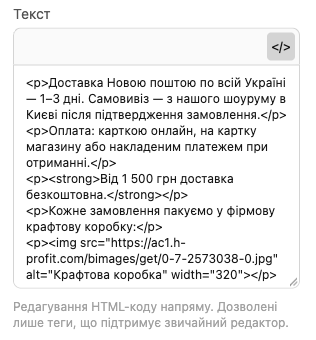
⚠️ Only the tags the regular formatting toolbar can create are allowed, plus images. Everything else (tables, embedded videos, scripts, styles) is removed on save, leaving only the text. Changes in </> mode apply only after you click </> again.
How changes get to the site, and what to do if you still see the old version after publishing, is covered in “Draft, preview, publishing”.
💡 Customer reviews for specific products and a newsletter signup form aren't supported yet. The “Reviews” block holds reviews you add yourself.