Home page and banners
The home page is the first thing a customer sees. Here's how to add a hero banner with slides, product selections, a promo banner, and a promo countdown to it.
Open the site editor → Pages → the home page (first in the list). How the editor works is covered in the “Pages” article.
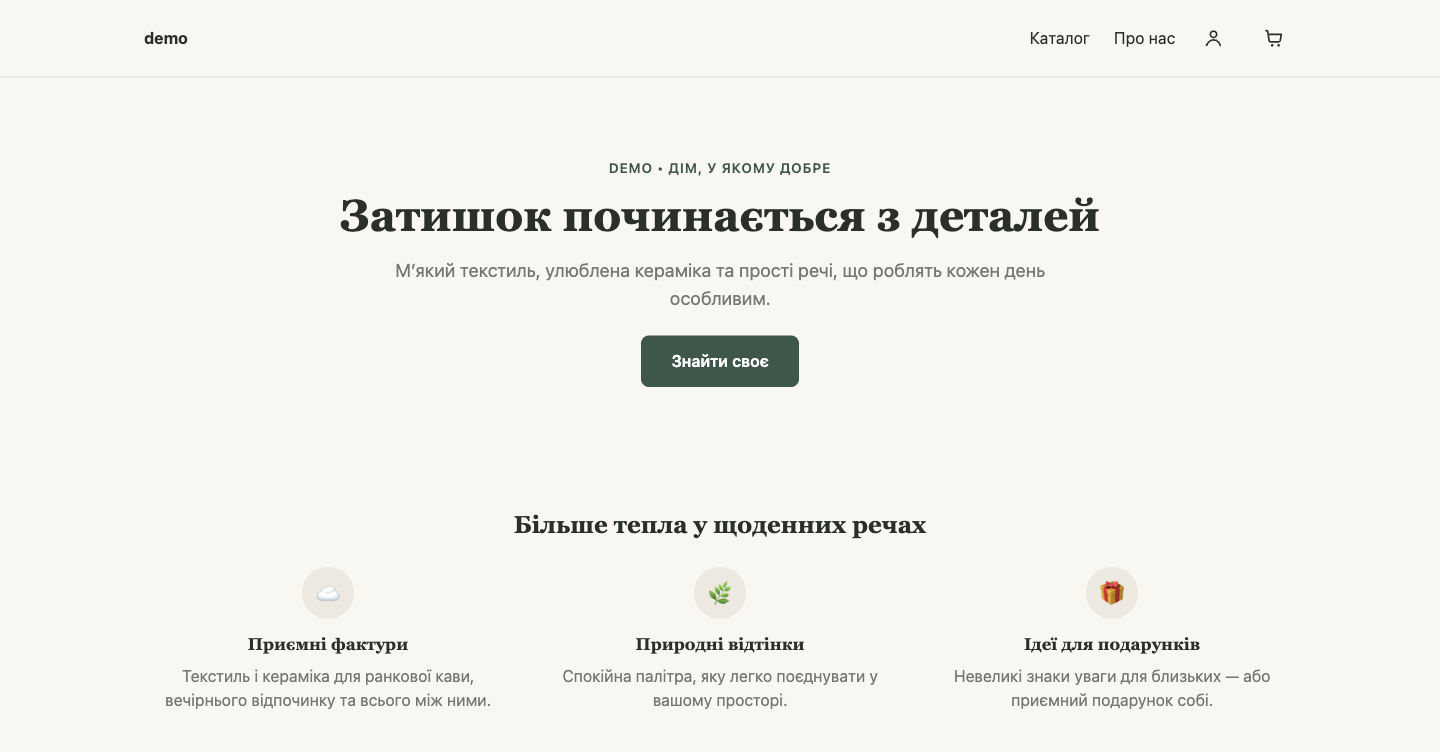
A typical home page
A good layout for most stores, from top to bottom:
- “Hero banner”: a big heading, your offer, and a “Browse catalog” button.
- “Advantages”: 3–4 reasons to buy from you, such as delivery, warranty, payment.
- “Products”: bestsellers or new arrivals.
- “Categories”: tiles for your main sections.
- “Promo banner” or “Promo countdown”: your current promotion.
- “Reviews” and “FAQ”.
⚠️ A new store is created with a sample home page. Replace all the sample texts with your own and delete the blocks that don't fit, including the “10% off your first order” banner (the site has no promo codes).
Hero banner and slider
- In the block list, click Hero banner.
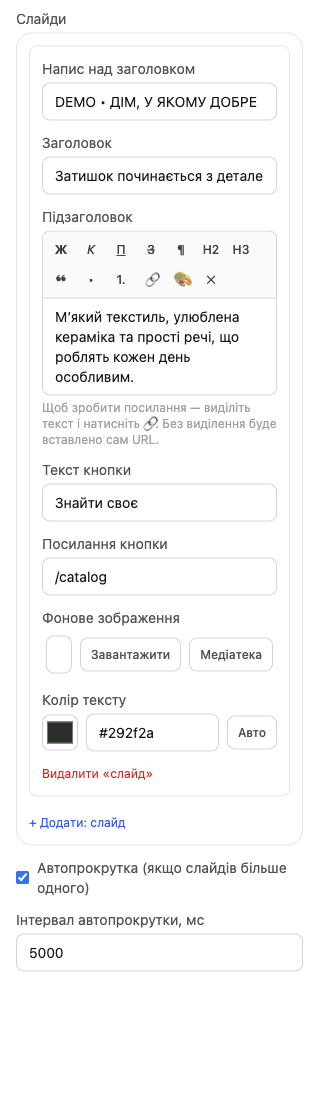
- On the right, in the Slides section, fill in the fields of the first slide:
- Eyebrow text: a short line above the headline, for example the store name or “New this season”;
- Headline and Subheadline;
- Button text and Button link: for example, “Go to catalog” and
/catalog; - Background image: Upload or Media library. Without an image, the banner has a colored background;
- Mobile image (optional): a separate image for phones (see below);
- Image display: Fill (crop edges) or Fit whole image (see below);
- Text color: pick one that reads well on the image, or leave it at Auto.
- To make a slider, click + Add: slide and fill in the next slide.
- Autoplay (if more than one slide) switches slides on its own, and Autoplay interval, ms sets how often (5000 = 5 seconds). Customers can also flip slides with the arrows.
- Below the slides, set Banner height (desktop) and Banner height (mobile) (see below).
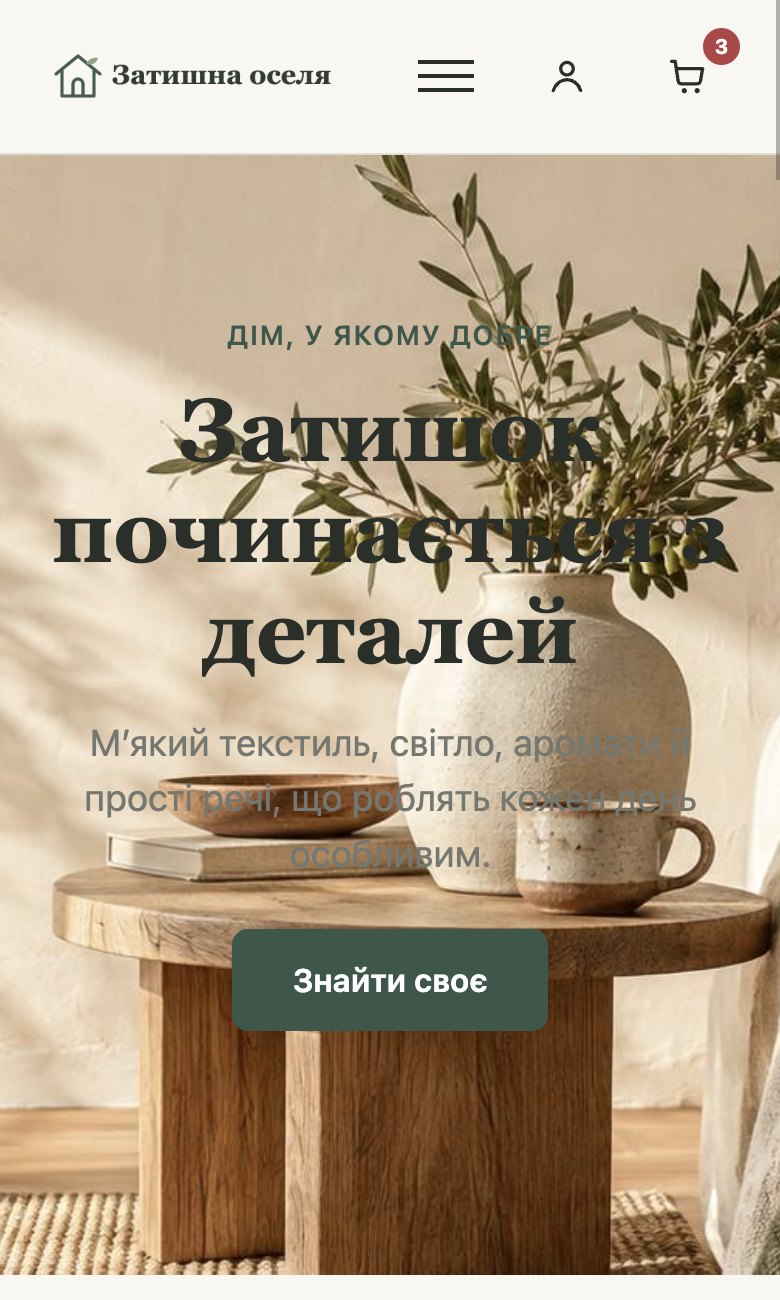
💡 For the banner background, use landscape photos at least 1600 px wide and up to 4 MB. Keep the key subject near the center: in “Fill” mode, the edges of the image are cropped, especially on phones.
Banner size, cropping, and a photo for phones
If your banner image gets cropped or the banner looks too big or too small, adjust its size.
| Field | What it does |
|---|---|
| Banner height (desktop) | Auto (fit content): the height follows the slide text, as before (default). Compact, Standard, Tall: the banner is at least about 360, 480, and 640 px high. |
| Banner height (mobile) | Same as desktop (default) or a separate height for phones: Compact, Standard, Tall, about 320, 420, and 560 px. |
| Image display (in each slide) | Fill (crop edges): the image fills the whole banner, and whatever doesn't fit is cropped (default). Fit whole image: the image shows in full, uncropped; if its proportions don't match the banner, empty bars remain at the edges. |
| Mobile image (optional) (in each slide) | A separate image shown only on phones, for example a portrait shot instead of a wide one. If you don't set it, phones show the main background image. |
- The height is a minimum: if a slide has a lot of text, the banner grows taller to fit it.
- For Fit whole image mode, choose the Standard or Tall height: with Auto (fit content), the banner is short and the image comes out small.
- Image heavily cropped on phones? Upload a separate Mobile image (optional), portrait or square, with the key subject in the center.
💡 Height, cropping, and the mobile photo can be set only in the Hero banner block. The Hero — full screen block doesn't have these fields: its height is fixed at about 70% of the screen height, but no more than 700 px.
There's also the Hero — full screen block: the same banner with slides, but large, filling almost the whole screen. It suits stores with beautiful photos.
Product selections
The Products block shows products from your HugeProfit catalog, always with current prices and availability.
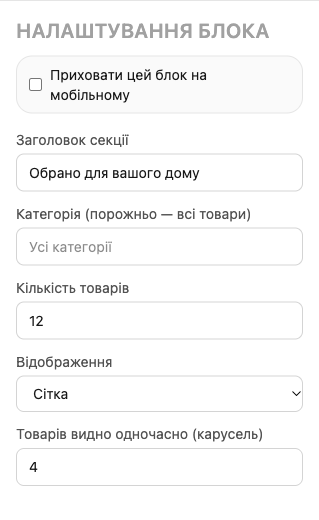
- Section title: for example, “Bestsellers”.
- Category: which category to take products from. Leave it empty for products from the whole catalog.
- Number of products: how many to show.
- Display: Grid or Carousel (a scrollable strip). For a carousel, set Products visible at once.
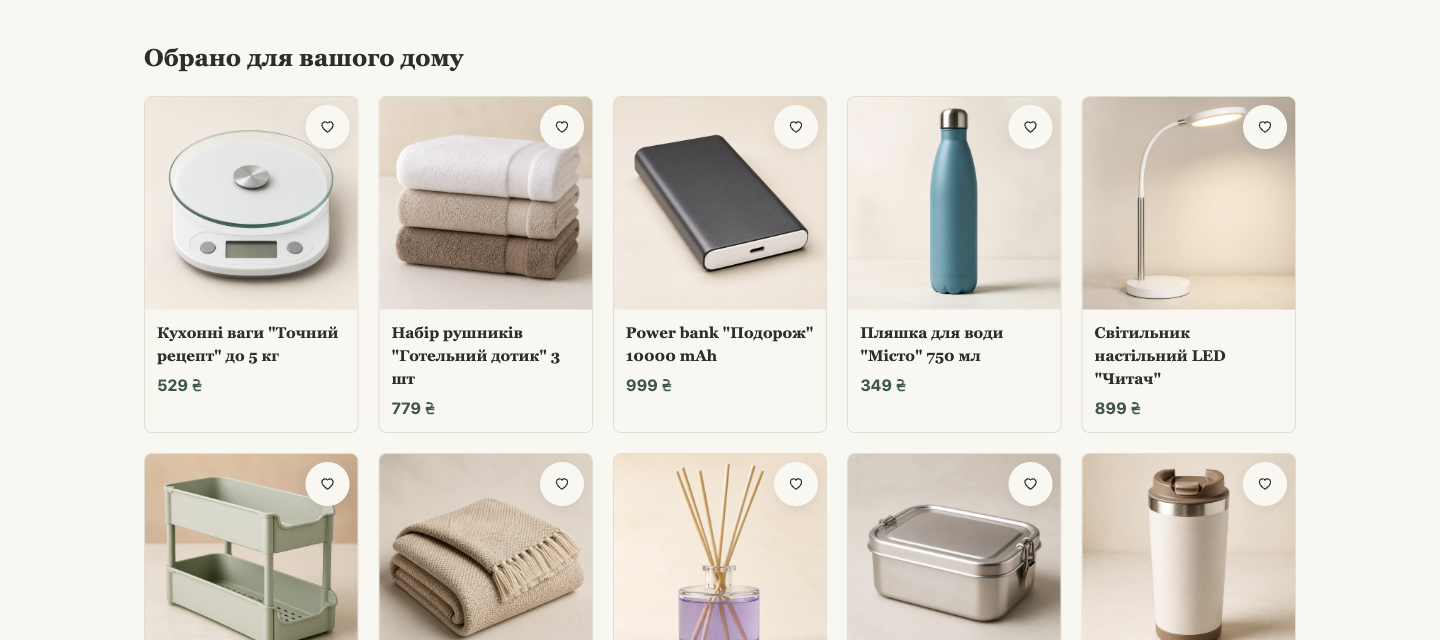
💡 You can't pick specific products by hand: a selection is built from a category. Want a “Bestsellers” block with particular products? Create a separate “Bestsellers” category in HugeProfit and add the products you need to it.
The Products — list block is the same, but products appear as a list instead of tiles.
Promo banner
The Promo banner block is a strip with a heading, text, a button, and (optionally) an image. It works for promotions, seasonal offers, and announcements.
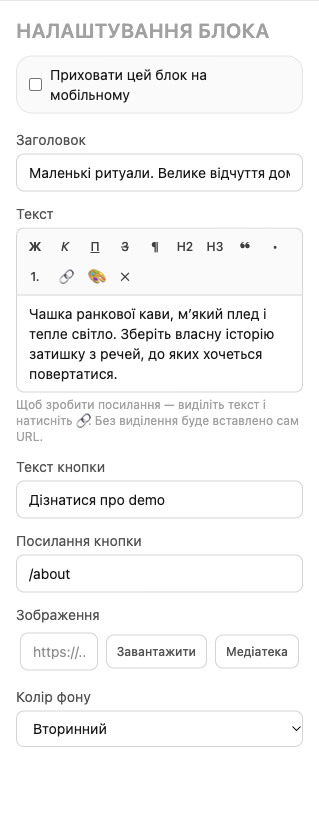

Background color: Primary is your bright brand color, and Secondary is the calmer secondary color from your theme.
Promo countdown
The Promo countdown block shows a countdown to the end date of a promotion (days, hours, minutes, seconds) and a button.
- Enter the End date in the
YYYY-MM-DDTHH:MM:SSformat, for example2026-12-31T23:59:00. - When time runs out, the countdown is replaced with “Promotion ended”. Remember to remove the block after the promotion.
FAQ and reviews
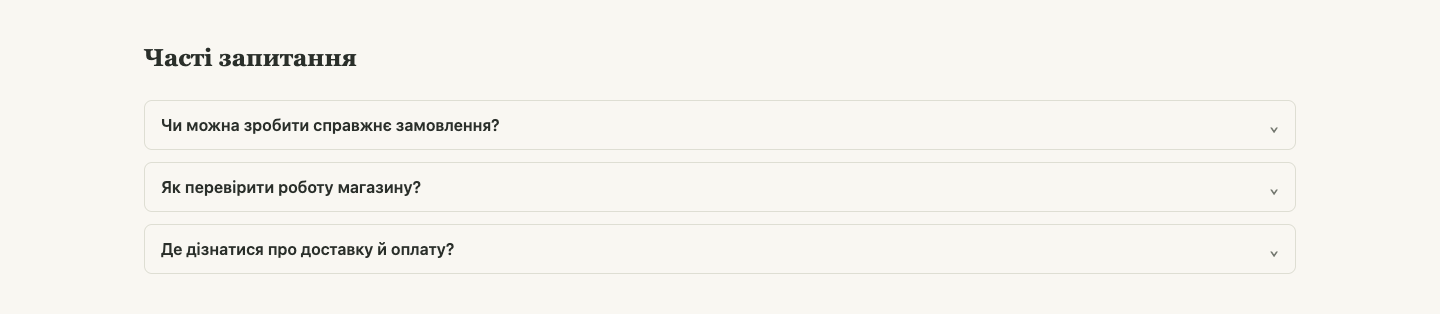
- FAQ: a list of questions; the answer expands when clicked. Add the questions customers ask most about delivery, payment, and returns.
- Reviews: reviews you enter yourself, with an author, text, and a rating from 1 to 5. You can show them as a grid or a carousel.
The full list of blocks and their settings is in the “Block reference” article.