Delivery and cash on delivery
Customers choose delivery right at checkout: Nova Poshta, Ukrposhta, or Meest with city and branch search, as well as pickup, local, nationwide, or international delivery, or your own method. The choice goes into the order in HugeProfit, and you work with it as usual from there.
There are two kinds of delivery methods in the store:
- Carriers: Nova Poshta, Ukrposhta, Meest. They work through an integration in HugeProfit: the customer searches for their city and branch, and you then create a waybill (TTN). You turn them on in HugeProfit, in the store settings.
- Pickup, local, nationwide, and international delivery, and your own methods: no carrier integration. The customer just chooses the method and enters an address if needed. You turn them on in the site editor.
Nova Poshta, Ukrposhta, Meest
How to turn them on
- Connect the carrier in HugeProfit: Settings → Integration → Delivery tab. If you already ship with Nova Poshta through HugeProfit, you have this integration.
- Open Online store → Settings.
- In the Delivery methods section, turn on the carriers you need.
- In the Cash on delivery available for section, turn on the carriers for which you allow payment on delivery.
- Click Edit (save).
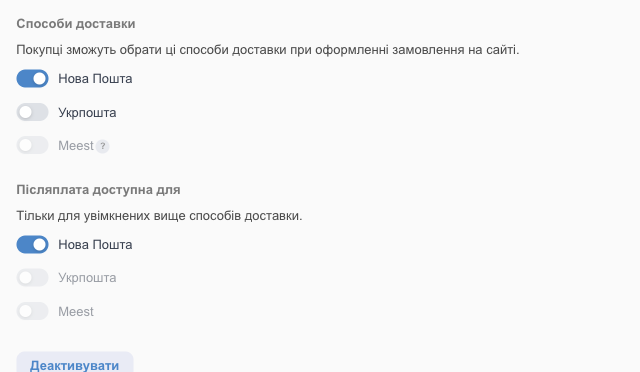
💡 A gray (inactive) carrier means its integration isn't connected yet. Hover over the "?" icon next to it to see a hint.
What the customer chooses
| Carrier | Options |
|---|---|
| Nova Poshta | "To a branch": city (search) and branch or parcel locker (search by number or address). "To an address" (courier): region, city, street, building, apartment |
| Ukrposhta | Branch: the customer enters the branch's 5-digit postal code |
| Meest | Branch: city and branch |
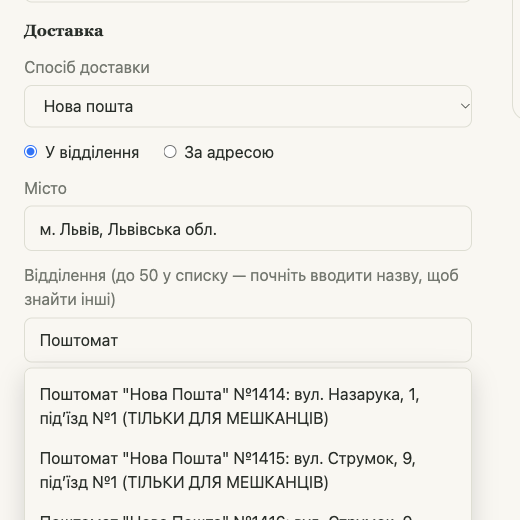
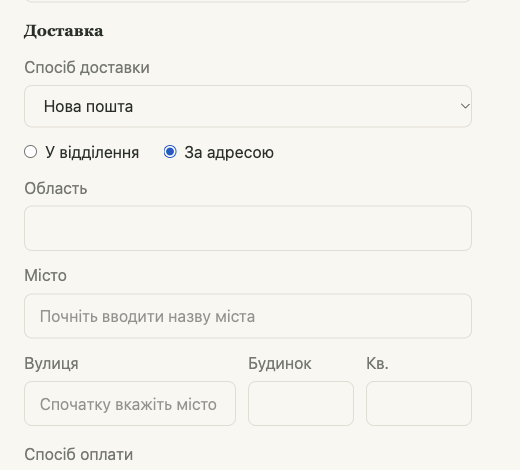
Customers with an account can pick an address from previous orders with Use a saved address. Only Nova Poshta, Ukrposhta, and Meest addresses are saved.
Pickup, local delivery, and other methods
Site editor → Settings → Delivery methods (at checkout) section. It's right below the payment methods.
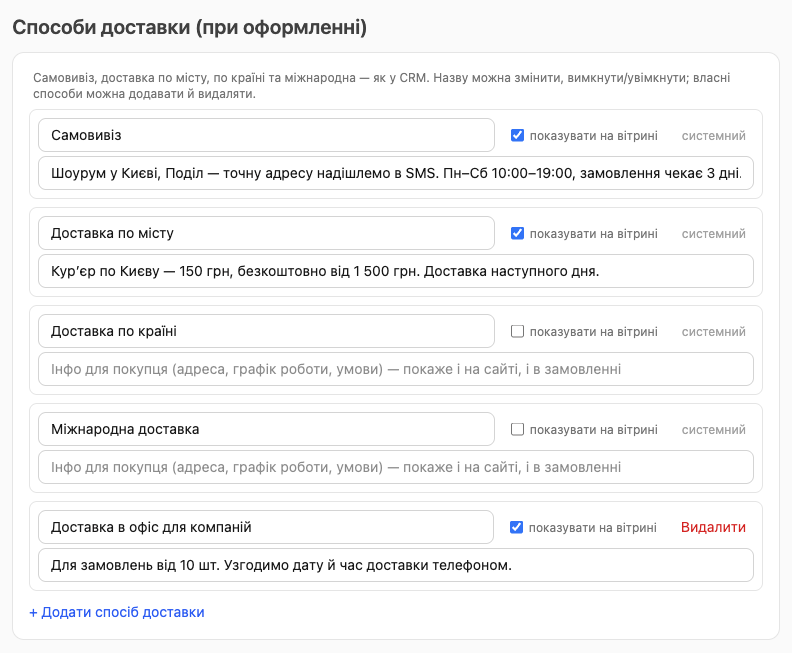
There are already four built-in methods here (marked built-in): you can rename them and turn them on or off, but not delete them.
| Method | What the customer enters |
|---|---|
| Pickup | Nothing; they just choose the method. Put the pickup point address and hours in the description: the customer sees them at checkout |
| Local delivery | The required Delivery address field (city, street, building) |
| Nationwide delivery | Same: the Delivery address field |
| International delivery | Same: the Delivery address field |
| Your own method | Same: the Delivery address field |
How to set them up
- Check show at checkout next to the methods you need. All four are off at first: customers don't see them until you turn them on.
- Change the name if you like; it's exactly what the customer sees. For example, "Pickup from our Podil warehouse".
- In the second field, write information for the customer: address, hours, cost, or other terms. It appears below the list of delivery methods when the customer chooses this method, and it goes into the order in HugeProfit.
- To add your own method, click + Add delivery method and enter a name and description. You can delete your own methods with the Delete button. A custom method without a name isn't saved.
- Save draft → Publish.
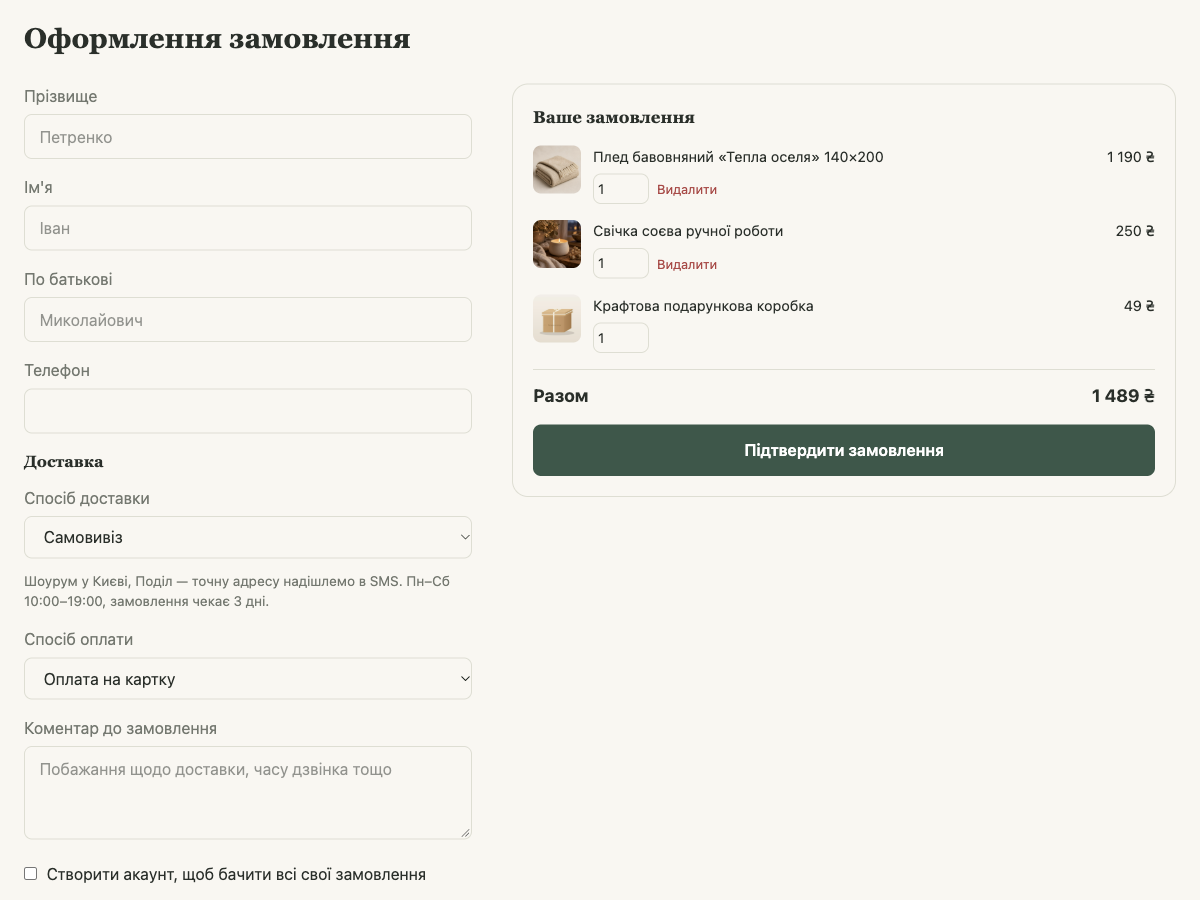
💡 You can combine these methods with carriers: in the Delivery method list, the customer will see Nova Poshta or Ukrposhta, pickup, and your own methods. Or you can do without integrations entirely, for example, with just pickup and local delivery.
What it looks like in HugeProfit
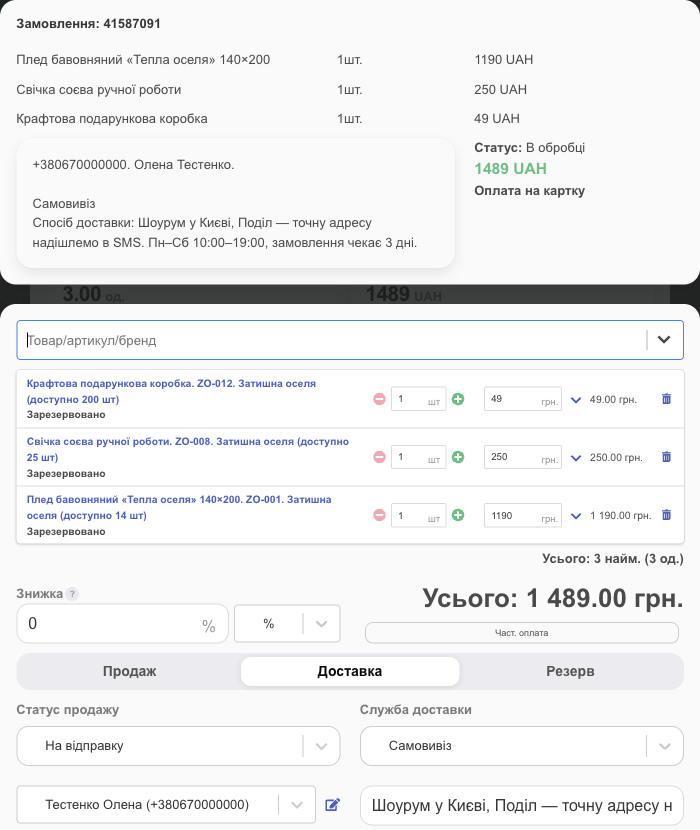
- The order keeps the delivery type: "Pickup", "Delivery around the city", "Delivery by country", or "International". Your own methods go into the order with the type "Other".
- The method's description (and, for a custom method, its name too) is saved as "Delivery method", and the address the customer entered is saved as the delivery address.
- You see all of this when you click Confirm the order: at the top of the sale window there's an order block with the delivery type and description, and Delivery Service and the Shipping Information/Tracking # field are filled in automatically. In the order list, these methods don't get a separate delivery line; an address appears there only when the customer entered a city and address.
- The name in the store doesn't affect the delivery type in HugeProfit: a renamed Pickup will still be "Pickup" in the order.
If no method is turned on
If no carrier and no method in the site editor is turned on, checkout shows a single Delivery address text field where the customer enters an address by hand.
Cash on delivery
The Pay on delivery (COD) method appears at checkout only when the customer chose Nova Poshta, Ukrposhta, or Meest and that carrier is turned on in Cash on delivery available for. If the customer chooses a carrier without cash on delivery (COD), this method disappears from the list automatically.
⚠️ For pickup, local, nationwide, and international delivery, and your own methods, payment on delivery isn't offered. If you take payment in person, add your own payment method, for example "Cash at pickup" (see Payment methods and online payment).
What happens next with delivery
- The chosen delivery method, city, and branch (or address) are recorded in the order in HugeProfit.
- The store doesn't create waybills: for Nova Poshta, Ukrposhta, and Meest, you create one in HugeProfit as for any order. After that, the waybill number appears for the customer on the order page and in "My orders".
- Delivery cost isn't calculated in the store and isn't added to the order total, either for carriers or for your own methods. The customer pays the carrier for delivery at its rates or as you've agreed. Describe the terms on the "Delivery and payment" page, and for your own methods, in the method's description too.
What the seller does next is covered in the guide on creating waybills and tracking delivery in the CRM.