
Delivery and waybills in HugeProfit: shipping, tracking, COD
How to ship an order: a sale with delivery, client addresses, prepayment and cash on delivery (COD), creating a Nova Poshta, Ukrposhta, Meest, or Rozetka Delivery waybill (TTN) right in HugeProfit, tracking the parcel, collecting COD (including in bulk), and what to do if the parcel isn't picked up.
💡 To create waybills right in HugeProfit, connect a delivery service: Settings → Integration (see Nova Poshta, Ukrposhta, Meest, Rozetka Delivery). Without an integration, you can enter a waybill created in the service's account or at a branch into the sale manually. HugeProfit will still track Nova Poshta, Ukrposhta, and Meest parcels.
The shipping flow
| Status | What it means | How it changes |
|---|---|---|
| Packaging | Being picked at the warehouse (if packing is turned on) | Manually or after packing |
| Awaiting dispatch | Waiting for a waybill and dispatch | When you create a sale on the Delivery tab |
| On delivery | The parcel is on its way. This tab also includes sales with the Transferred to delivery service and Waiting at the branch statuses | Automatically from waybill tracking or with the Send parcel button |
| Collect COD | The client received the parcel and paid COD; you need to collect the money | Automatically, if the sale is on the C.O.D account |
| Refusal to receive / Rejection | The client didn't pick it up, and the parcel is being returned | Automatically from tracking |
| Sold | Delivered and paid | After delivery is completed or COD is collected |
You can add your own statuses (for example, “Confirm address”). See Statuses and channels.
1. A sale with delivery
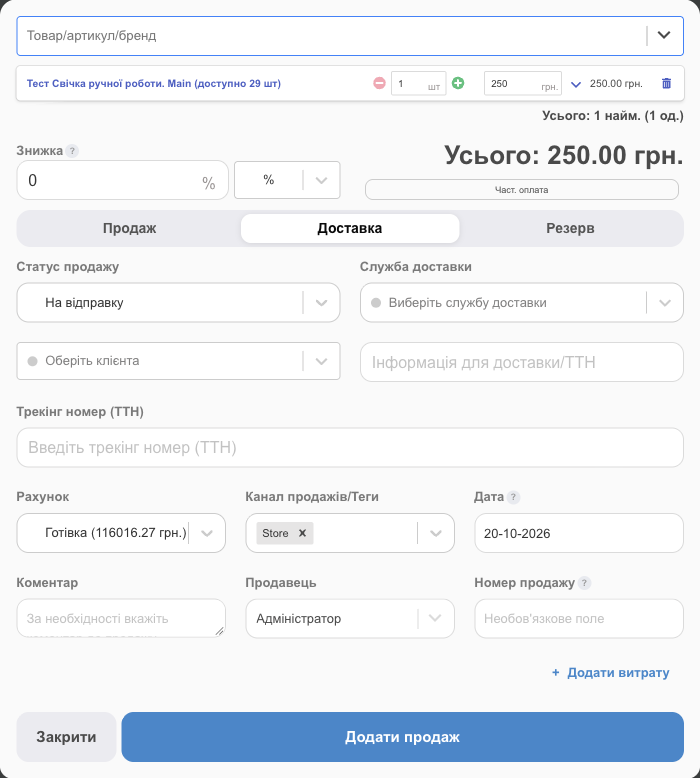
Open the sale window any way you like: + Sale at the top of the page, Add Sale under a product in the list, or by scanning a barcode. Then go to the Delivery tab. Products, prices, and discounts are filled in the same way as in a regular sale.
- Sale Status: usually Awaiting dispatch.
- Delivery Service: Nova Poshta, Ukrposhta, Meest, Rozetka, as well as Justin, Delivery Auto, Pickup, Delivery around the city, Delivery across Ukraine, and International. HugeProfit creates waybills for services with an integration; for the others, the service only records the delivery method.
- Client: find one by phone or name, or create a new one (Create: …). Delivery services require a last name, first name, and phone number.
- The recipient's branch or address; for other services, the Shipping Information/Tracking # field, where you can enter any shipping details.
- Tracking number (waybill): use it if the waybill was already created in the service's app or account, or at a branch. For services with an integration, there's a Create … shipment label button next to it. You can create the waybill without saving the sale; the number fills in the field but is saved together with the sale, so don't forget to click Add Sale.
- Account: on the Delivery tab, HugeProfit automatically sets C.O.D. This shows that the money is still with the delivery service, not with you. If the client has already paid in full, choose the account the money went to.
Orders from websites and marketplaces arrive with delivery details already filled in. You confirm them in the Orders module.
Client delivery addresses
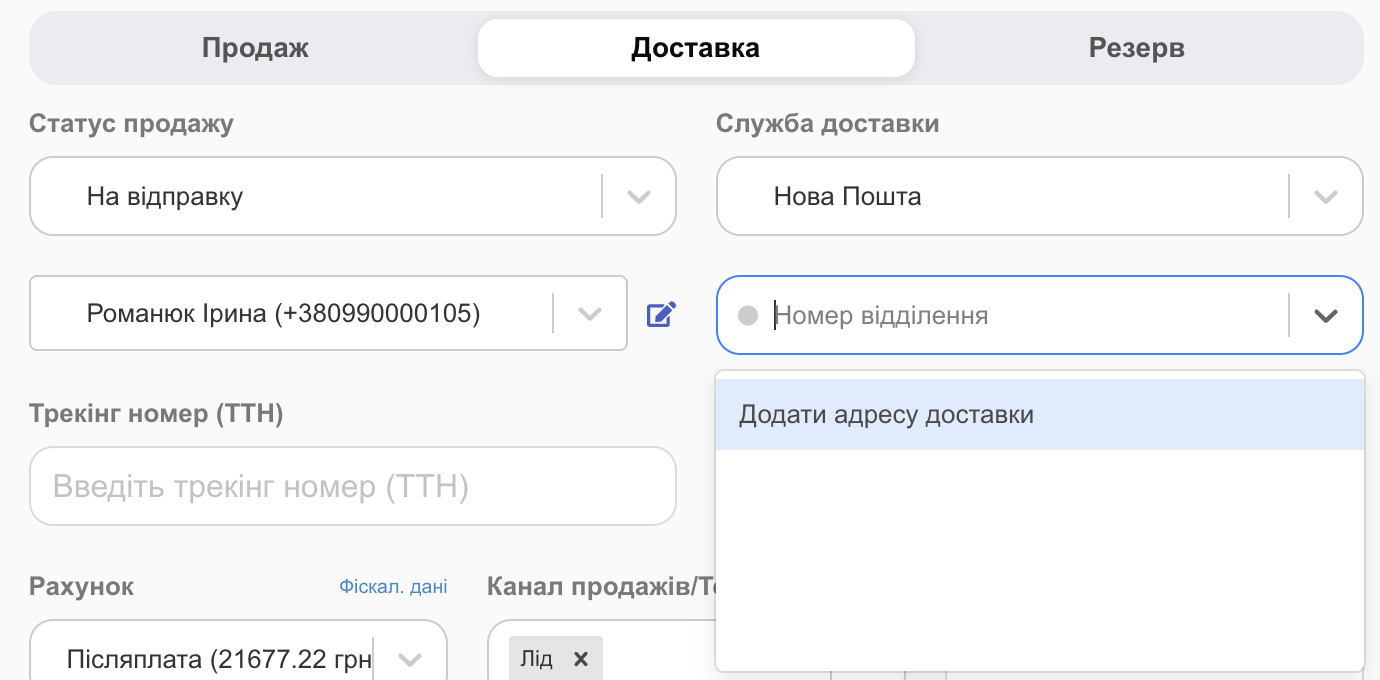
HugeProfit remembers each client's addresses (city and branch). Next time, just select the client and the branch fills in automatically. If the client wants the parcel delivered somewhere else:
- Click the branch field in the sale window.
- Select Add delivery address in the list.
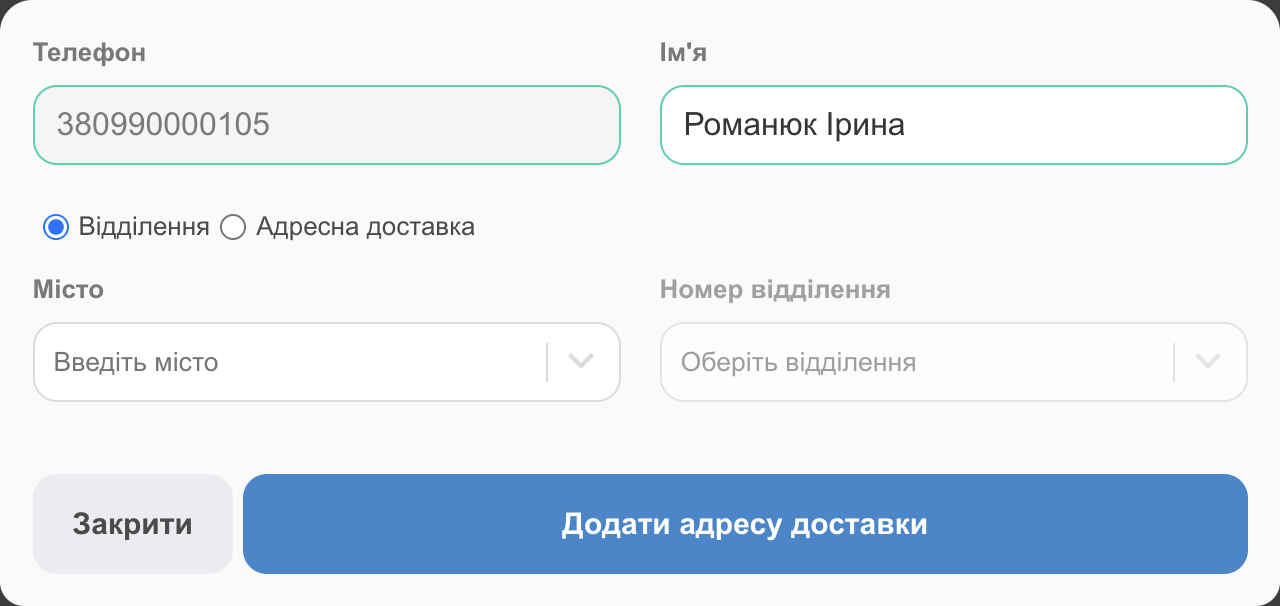
- The phone number comes from the client's card. Enter the recipient's first and last name, choose Branch (city and branch number) or Address delivery, and click Add delivery address. The new address fills in the sale and stays in the client's card.
You can also manage addresses in the client's card → Delivery Services → Add delivery service. There's no limit on the number of addresses.
Prepayment and COD together
The client paid part of the amount upfront and will pay the rest on delivery:
- On the Delivery tab, click Partial payment, then enter the Prepayment Amount and choose To Account: where the money went (card, cash).
- The sale stays on the C.O.D account. HugeProfit shows Balance: … to the C.O.D account.
- In the waybill, choose Remittance (or Payment Control) for the remaining amount. That's exactly what the client will pay at the branch.
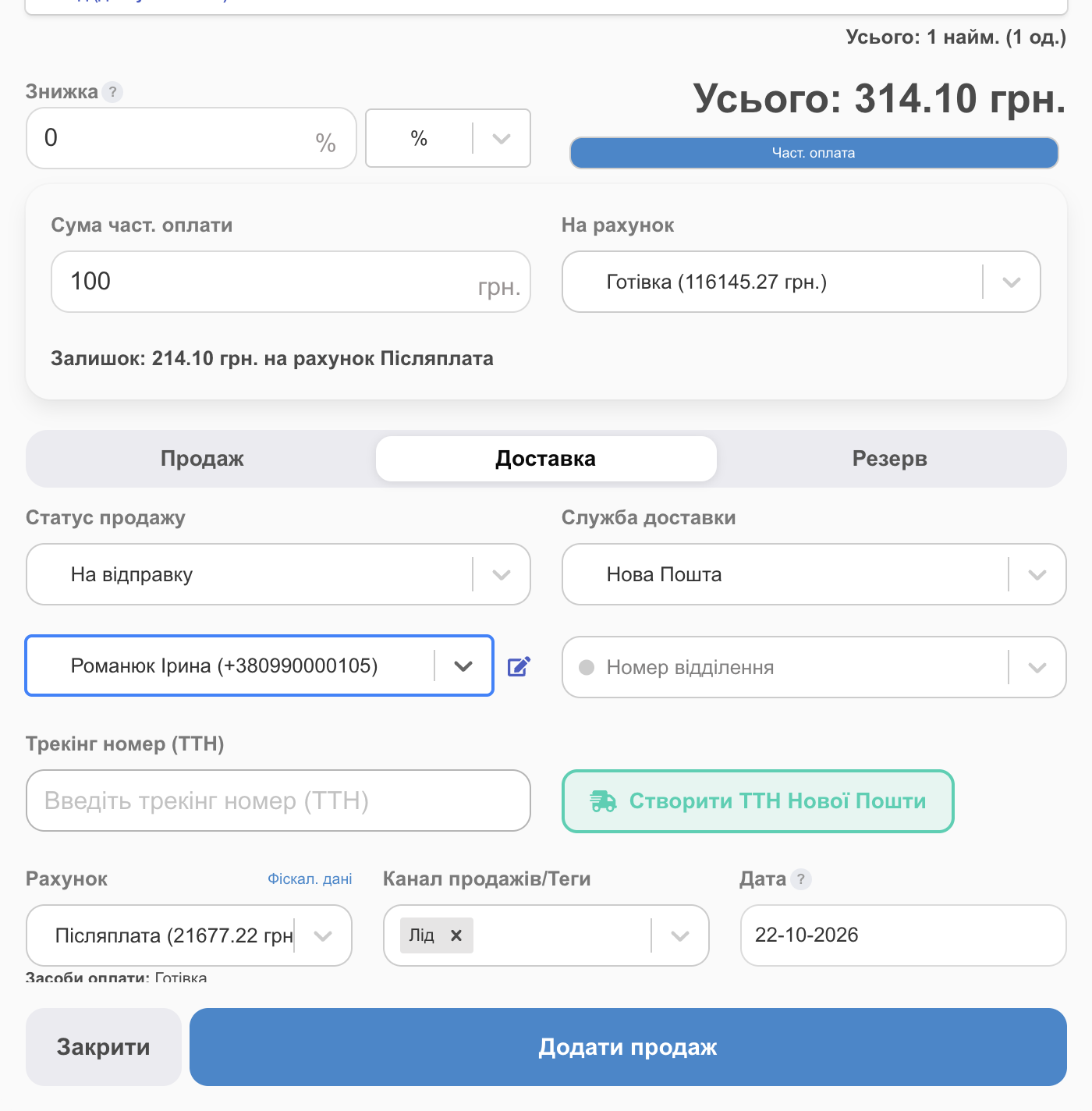
The prepayment shows up in the account right away, and the rest stays on C.O.D until you collect it (see “Collect COD” below).
2. The Send parcel/Finish window
All shipping actions are in one window: Sales → Awaiting dispatch (or On delivery) → 🚚 Send parcel/Finish in the sale row. The window shows the recipient, the products with SKUs and barcodes, the amount, a comment, expenses, and these buttons:
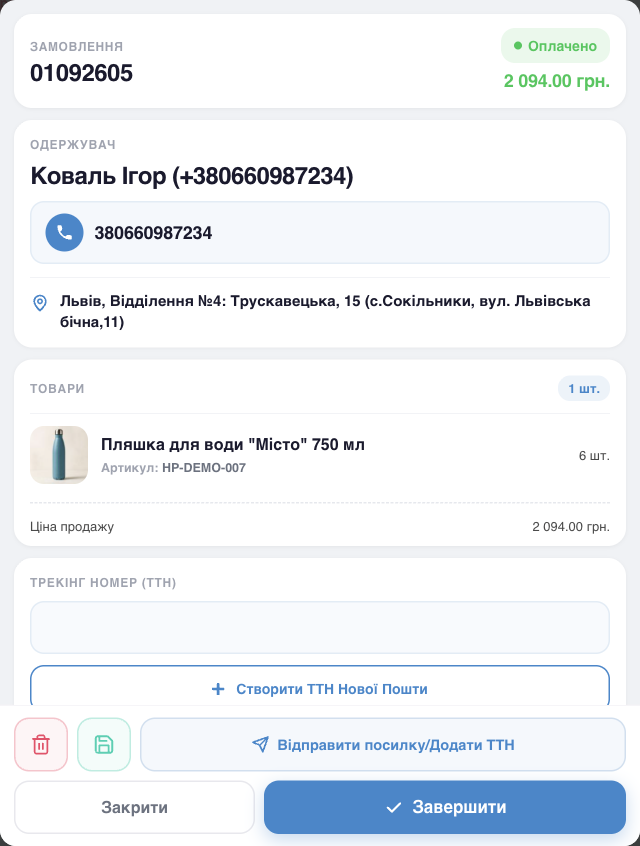
| Button | What it does |
|---|---|
| Create NovaPoshta shipment label (Ukrposhta, Meest, Rozetka) | Opens the waybill form for the service selected in the sale (see below). |
| Waybill field + Send parcel/Add tracking number | Records a waybill you've already created (in the service's account or at a branch). The sale moves to On delivery, and from then on the status updates from tracking. |
| Finish | The parcel was received. HugeProfit asks Has the package already been delivered to the customer? → Parcel delivered. If the sale is on the C.O.D account, it immediately asks you to choose the account the money went to. |
| Sale documents (invoice, receipt). See Printing documents. | |
| Expenses | The cost of delivery or packing, if you pay for it. It reduces the profit of this particular sale. If you spend the same amount on every parcel (for example, packing), it's easier to add it automatically with an auto-expense that uses the Delivery Service condition. |
| 🗑 | Delete the sale (for example, if the shipment was canceled). The product goes back to the warehouse, and any partial payment is removed from the account. |
| Close | Don't change anything: the parcel hasn't been sent yet. |
Create a Nova Poshta waybill
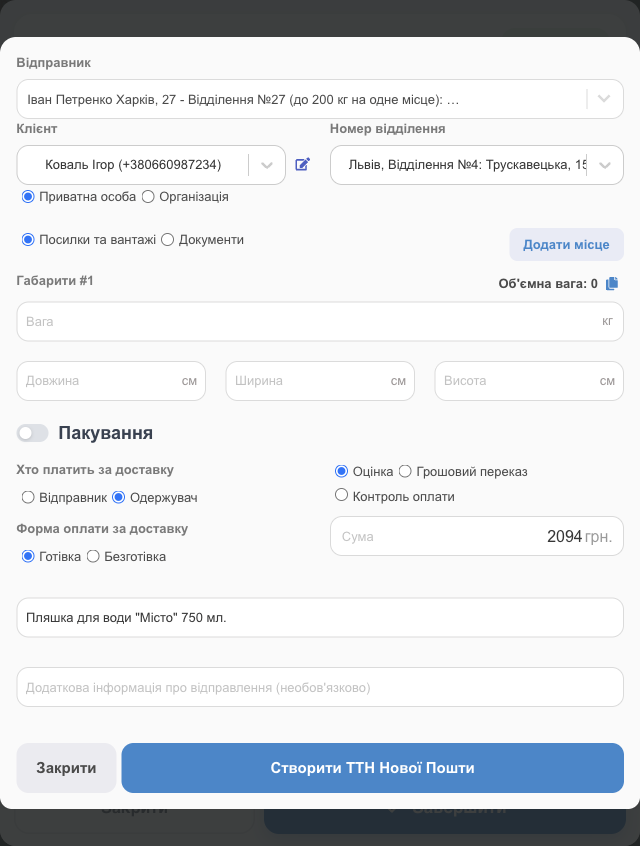
Click Create NovaPoshta shipment label. If a client is selected in the sale, their details and address are already filled in.
| Field | What to enter |
|---|---|
| Sender | Your contact and the branch you ship from (from the integration settings; you can choose another one, for example a different sole proprietor (FOP)). It can be filled in automatically; see below. |
| Client | The recipient: Private person or Organization; ✎ edits the details. The recipient can differ from the buyer, for example when a gift is ordered for someone else. You can add a new recipient right here: enter their phone number, and the client card opens. Fill in the last and first name. |
| Post Office Number / address | A branch, a parcel locker, or address delivery. |
| Parcels and cargoes / Documents | The shipment type. Add parcel adds more boxes. |
| Dimensions, Weight | Length, width, height (cm) and weight (kg); HugeProfit calculates the volumetric weight. For a single box, you can leave the dimensions blank, and the minimum standard dimensions are sent. For several boxes, each one needs dimensions; to avoid retyping identical values, copy them from the first box. |
| Packaging | Packaging from Nova Poshta. |
| Who pays for delivery, Form of payment for delivery | Sender or recipient; cash or cashless. |
| Declared value / Remittance / Payment Control | Declared value: the product is already paid for, and you enter its declared value. Remittance: COD, the exact amount the client must pay. Payment Control: COD credited to your bank account (requires a contract with Nova Poshta). If the sale is on the C.O.D account, Declared value is unavailable and the COD amount fills in automatically: the sale amount minus the partial payment. HugeProfit remembers your choice between remittance and payment control for future waybills. |
| Description | What's in the parcel (up to 120 characters; up to 50 for Ukrposhta and Meest) and additional information. To fill it in automatically, see the Nova Poshta integration settings. |
💡 In an account with a foreign currency, the declared value and the COD amount are passed to the waybill in hryvnias (UAH). If the amount is wrong, correct it in the form manually.
Click Create NovaPoshta shipment label. The Waybill created successfully! window appears with:
- the waybill number;
- for Nova Poshta, what exactly was created: Delivery: Declared value, Remittance, or Payment Control. Double-check: if you expected COD but see Declared value, the branch won't collect payment for the product from the client;
- Shipping cost and Estimated delivery date;
- Add to expenses: shown when you create the waybill in the sale window and the sender pays for delivery. The delivery cost is recorded as a sale expense and reduces its profit. The checkbox remembers your choice;
- Printing prints the waybill, and Done saves the number to the sale.
You can open and print the waybill again later (Open waybill). For Nova Poshta, you can also Create courier pickup. For Ukrposhta, Meest, and Rozetka Delivery, the form and the window after creation are similar; see the articles on those services.
In bulk: select the sales → Status → Send parcels.
Which sender goes into the waybill
If the Access (optional) block is filled in for senders in the integration settings (Nova Poshta, Ukrposhta, Meest, Rozetka Delivery), HugeProfit picks the sender automatically, in this order: the employee creating the waybill → the sale's sales channel → the warehouse all the sale's products come from. The sender is filled in at the first step where exactly one sender matches. If none does, the Sender field stays empty and you choose manually; you can also change a sender that was filled in. The channel and warehouse are taken into account when you create the waybill in the sale window; in the Send parcel/Finish window, only the employee is.
Employees see only the senders they have access to (or those available to everyone). If there are none, creating a waybill from the sale window shows Unfortunately, you are not assigned to any delivery service. Contact your administrator. For setup, see the Nova Poshta article, section “Automatic sender selection and employee access”.
3. Tracking
If a sale has a waybill, HugeProfit tracks the parcel on its own (roughly every half hour) and updates the status: in transit, On delivery; received, Sold or Collect COD; refused, Refusal to receive. Nova Poshta, Ukrposhta, and Meest waybills are tracked even without a connected integration: just enter the number in the sale. Rozetka Delivery requires the integration.
The status changes automatically, even if you didn't click Send parcel. If a sale is in a custom status marked Final status, tracking no longer changes it.
The waybill in the sale row
- Click the waybill number to open a panel with the parcel details. For Nova Poshta, it shows the status, origin and destination, weight and number of boxes, declared value and delivery cost, the type (Declared value, Remittance, or Payment Control), who pays, and, for a parcel at a branch, a Paid storage block with the start date, cost, and Auto-return date. You can copy the number.
- Next to the number, 👁 opens tracking on the delivery service's website; with a connected integration, you can also print and open the waybill.
While a parcel is waiting at a branch, labels appear above the sale number:
| Label | When |
|---|---|
| Waiting at the post office since … | The parcel has been at the branch for more than a day (the date is when it arrived). |
| Paid storage is coming soon … (yellow) | 2 days before paid storage starts (Nova Poshta). |
| Paid storage … (red) | Paid storage has already started (Nova Poshta). |
| Auto-return soon … / Auto-return … | The date when Nova Poshta returns the parcel to the sender is approaching or has arrived. |
In notifications, you can turn on reminders: when a parcel has been waiting at a branch for more than a day, and 3 days before paid storage or auto-return. The Paid storage of product and Parcel auto-return filters in the sales list find these parcels, so you can remind the client before the parcel heads back.
If there's no waybill
Without a waybill, HugeProfit doesn't know where the parcel is, so you change the status yourself. When the service tells you the client picked up the parcel, open the sale in Awaiting dispatch or On delivery → 🚚 → Finish → Parcel delivered. For COD, HugeProfit immediately asks you to choose the account to move the money to from C.O.D.
4. Collect COD
When the client pays COD, the sale moves to the Collect COD tab, and the money sits on the C.O.D account. Once the money reaches you:
- In the sale row, click Collect COD
- Choose the account the money went to (cash, card, FOP bank account). HugeProfit shows Withdraw from the account, The transfer fee (the service's transfer fee), and Will be credited to the account.
- Confirm. The sale becomes Sold, and the money moves from C.O.D to your account. The sale date doesn't change; it stays the date the sale was created.
Several COD payments at once
This is handy when the service transfers money for many parcels in a single payment:
- On the Collect COD tab, check the sales (the checkbox in the header selects all on the page).
- Payment → Collect COD
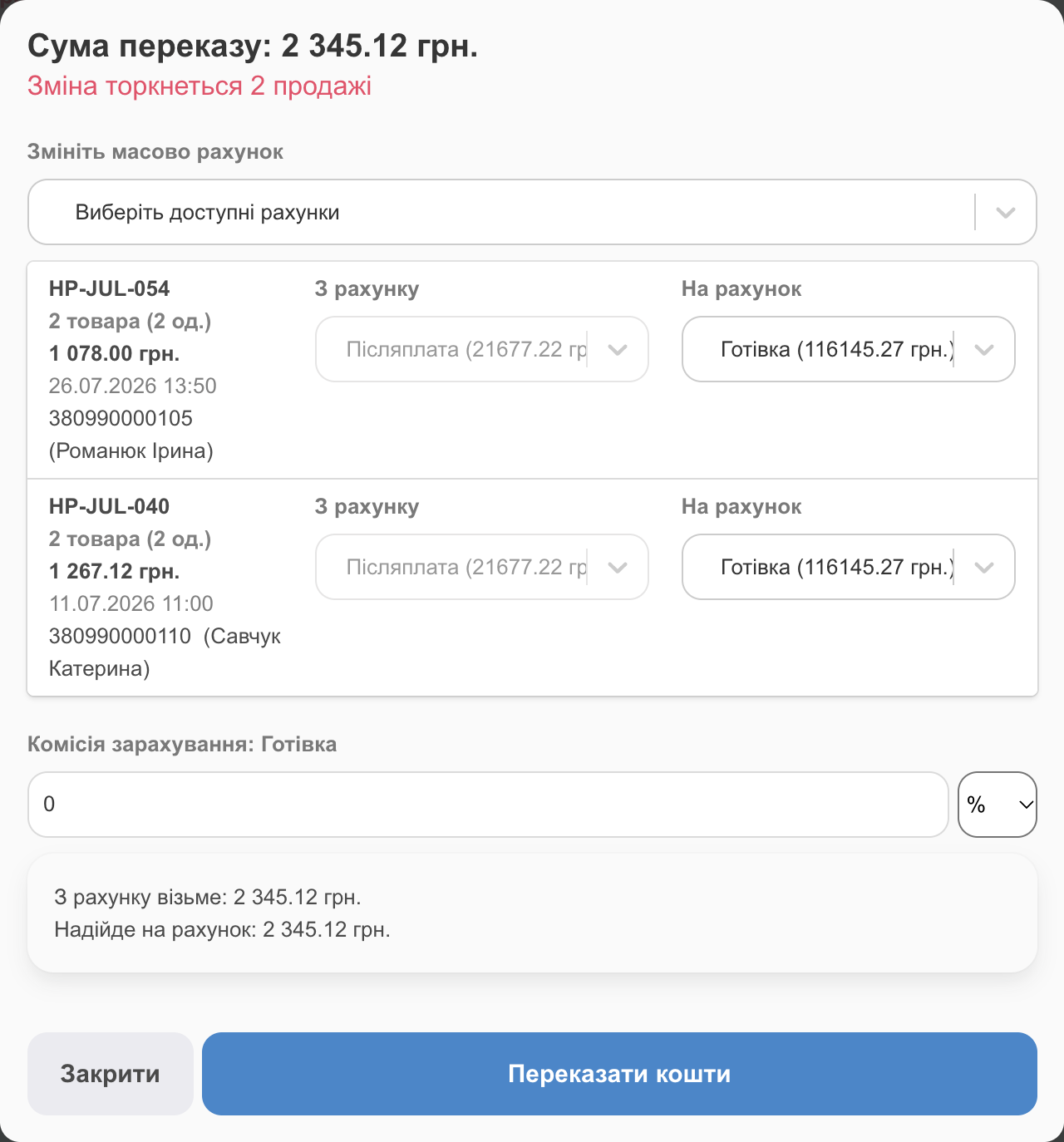
- At the top of the window, you'll see the Transfer amount and how many sales will change. Change your account in bulk sets one account for all of them; or choose To Account separately in each sale row (From Account is C.O.D).
- The transfer fee for the account: a percentage applies to each sale; Fixed is the total fee, which HugeProfit splits among the sales (you can adjust the split manually).
- Check Withdraw from the account and Will be credited to the account, then click Transfer Money.
✅ A rule to keep things in check: the C.O.D account should hold only the total of parcels that are still in transit or at a branch. You sent 3 parcels at 1,000 UAH each, so C.O.D shows 3,000 UAH. The clients picked them up and the money arrived: collect the COD, and C.O.D drops to 0. Learn more in Accounts and transactions.
To move sales that aren't on C.O.D to another account (for example, from Not paid to a card), use Payment → Change account.
If the parcel isn't picked up
If the sale has a waybill, HugeProfit moves it to Refusal to receive automatically, and a tab with that name and a count appears in the sales menu. When the parcel comes back to you, process a return:
- turn on Return the item to the warehouse? if the product is undamaged;
- enter the return shipping cost in Additional refund costs, so reports show how much refusals cost you.
All returns are on the Refunds tab in the Sales module.
FAQ
The parcel is at the branch, but the status doesn't change
Make sure the waybill number in the sale has no typos and that the sale isn't in a custom status marked Final status. For Rozetka Delivery, the integration must be active (see Troubleshooting). The status updates at intervals, not instantly.
Can I ship with a service that isn't among the integrations?
Yes: choose the Other service, enter the details in Shipping Information/Tracking # along with the waybill number, and change the status manually.
How do I ship on behalf of another sole proprietor?
Connect another delivery service integration with the other account's API key (Add another integration) and choose the sender in the waybill form.
Bulk waybill creation, parcel tracking, and COD are the core of a CRM with Nova Poshta. For connection settings, see the Nova Poshta article.