
Serial numbers, batches, and expiration dates in HugeProfit
A stock of “Smartphone X: 12 pcs” is really twelve devices with different IMEIs. “Sour cream: 60 pcs” is several batches with different expiration dates. Stock detalization lets you see the specific units behind the total: serial numbers, batches, expiration dates, their own cost price, and their location in the warehouse. You can then sell exactly the unit you hand to the customer.
When you need it
- Warranty. A client comes back with a device, and the serial number shows that it's your sale and when it happened.
- Expiration dates. You have several batches in stock, and HugeProfit highlights the one that expires first.
- Different purchase prices. A unit with its own cost price gives you the exact profit on that unit.
- Where a product is. You can assign each unit a storage location.
The key idea: you don't have to mark up all your stock
Detalization doesn't replace regular stock and doesn't require you to list every single piece. If you have 100 units in the warehouse and entered serial numbers for 12, the other 88 stay as plain stock, and HugeProfit shows Unassigned: 88. The units can't add up to more than the stock, but they don't have to equal it either.
There's no separate “turn on serial tracking for this product” switch: as soon as a product has at least one unit, detalization works for it. No units, and the product works as before. Start with the product group where you really need it (electronics, perishables) and leave the rest alone.
Step 1. Choose what to track
Settings → Products → Serial tracking. The field list is shared by all products.
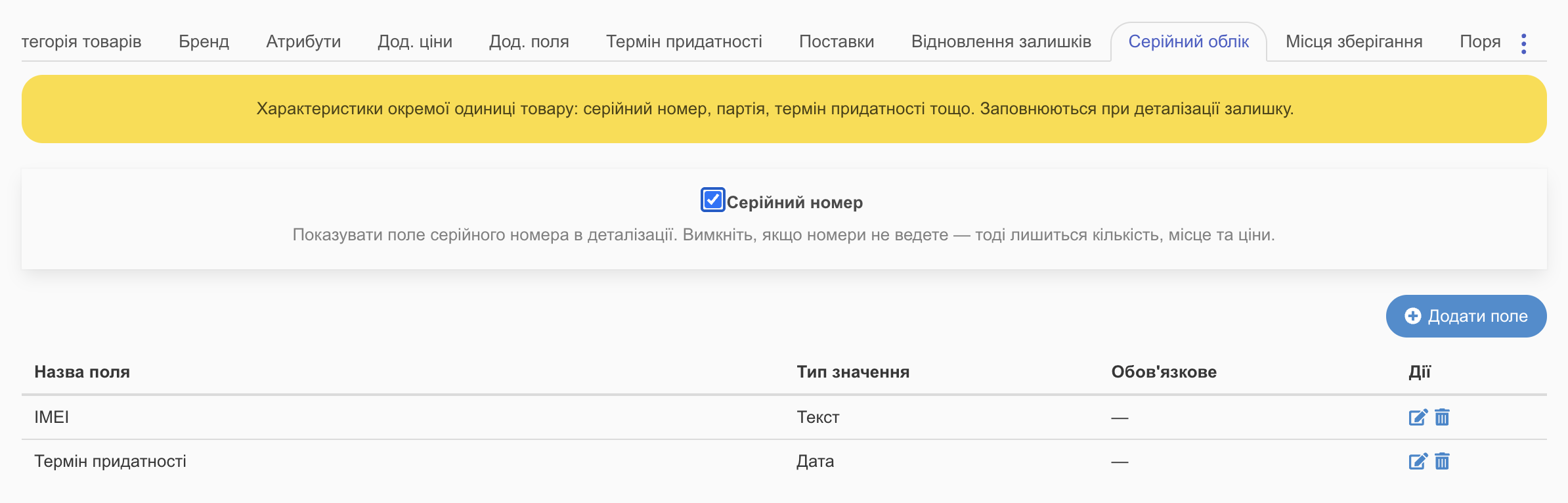
- Serial number: shows the serial number field in detalization. If you don't track numbers (groceries, cosmetics, supplies), turn it off: quantity, location, and prices remain.
- Add field: your own attributes. Set the Field name (IMEI, batch number, expiration date, color) and the Value type, Text or Date. With Required, a unit can't be saved without it.
- You can have as many fields as you like. You can rename a field at any time, and the values you entered are kept under the new name.
Step 2. Split stock into units
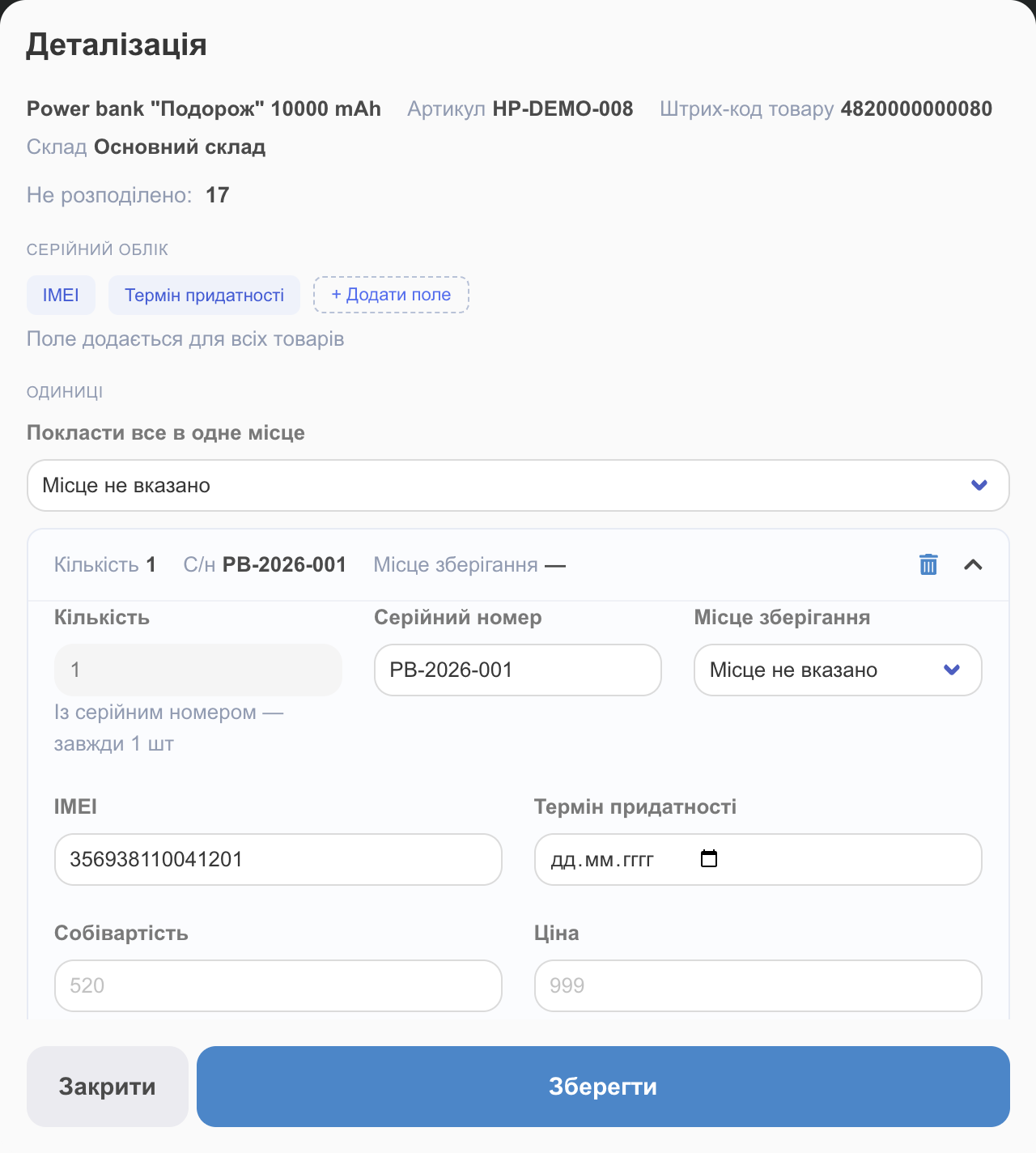
Open detalization from the product card: the Detalization button in the warehouse row, next to the trash can.
- Add unit.
- Enter the quantity, the Serial number (if you track them), your custom attributes, and optionally the Storage location.
- Cost price and Price are optional: if you leave them empty, they're taken from the product. Fill them in when this particular unit or batch cost a different amount.
- Save.
Rules to know
- A serial number is always 1 pc. As soon as you enter a number, the quantity becomes 1 and is locked (With a serial number — always 1 pc). To change the quantity, clear the number.
- A serial number is unique across the whole account. You can't save the same number twice, even for a different product. A batch number (your own text field) can repeat as often as you like.
- The quantity must be greater than zero. A row with zero won't save: HugeProfit expands it and highlights it.
- Copy previous values copies the batch, date, and location from the previous row (the serial number isn't copied).
- Put everything in one location sets the same location for all units. Or scan the location tag right in the open window (see Storage locations).
Expiration dates: HugeProfit reminds you
Detalization deliberately has no dedicated “expiration date” field: any of your fields of the Date type works as one. Fill it in for your units, and a colored badge appears next to the product in the product list with the field name and the earliest date (from the unit that expires first). You can have several date fields, for example “Expiration date” and “Calibration date”; the badge shows which one it refers to.
Set how many days in advance to warn you in Settings → Products → Expiration date. The Expiration date filter in the product list finds these products.
Sell a specific unit
When you add a product with marked-up units to a sale, HugeProfit immediately asks you to Choose a stock unit, showing the number, location, attributes, price, and how many are available. The price is the unit's own price or at the product's price.
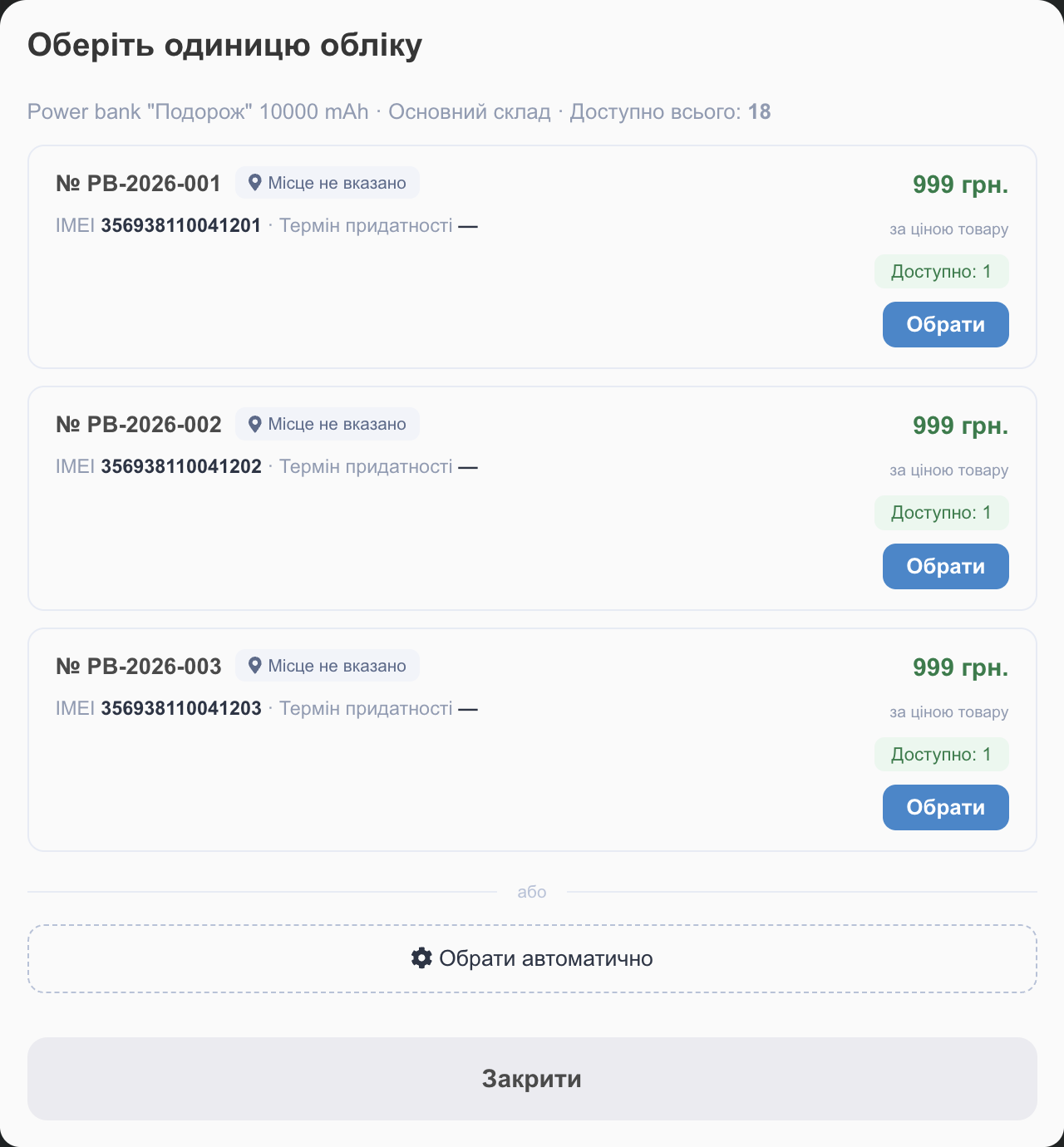
- Click Select next to the unit you need, and its number appears in the product row (for example, “No. PB-2026-002 · IMEI: …”).
- Choose automatically: HugeProfit picks a unit itself, following the write-off order (FIFO, LIFO).
- The sold unit is written off specifically, and profit is calculated from its cost price, if one is set.
- You can see the serial number in the sale card, in the expanded sales list (Expand sales), and when editing.
- A return or deleting the sale puts the product back into that same unit: the device with the same number is back in stock.
In marketplace orders, reserves, and the API, nobody is there to choose, so the unit is taken automatically by FIFO.
When you move marked-up products to another warehouse, you can choose in the stock move exactly which units go (Choose units); serial numbers move with the product.
Serial numbers from a shipment
Has your supplier sent a list of serial numbers while the goods are still on the way? In the shipment form, each product row has detalization, and the units you enter there become “expected”:
- they aren't counted in stock and aren't available for sale, because the goods haven't arrived yet;
- the product card's Description tab shows an Expected in shipment section;
- the shipment row shows how many units have already been entered;
- when you receive the shipment, the expected units automatically become warehouse units, so you don't need to enter anything again.
Two shipments with the same product don't interfere with each other. If a shipment is canceled or deleted, the numbers you entered go back to “expected” and are used when you receive it again.
Where detalization doesn't work
- Bundles: their stock is calculated from their components (see Variants, bundles, services);
- Services: they aren't written off from a warehouse;
- Dropshipping warehouses: they don't track stock.
Where to start
- In settings, add only the fields you'll actually fill in, one or two.
- Take one product group where the problem is most pressing.
- Mark up its current stock.
- From then on, units will come in with each new shipment.
Having part of your stock marked up and part not is a normal way to work, not a transitional stage.
Related guides: storage locations, warehouses and stock, product settings. Batch and serial number tracking is part of the CRM for electronics stores.