
How to record a shipment from a supplier in HugeProfit
A shipment is a purchase of goods: it increases stock, sets the cost price of each batch, accounts for delivery costs, and shows how much you owe the supplier.
Shipment list
Products → Shipments. The totals are at the top: Shipments, Expected in the amount of, Received for the sum of, Not paid, Involved / Not involved. Filter by product, status, warehouse, supplier, payment, currency, or account.
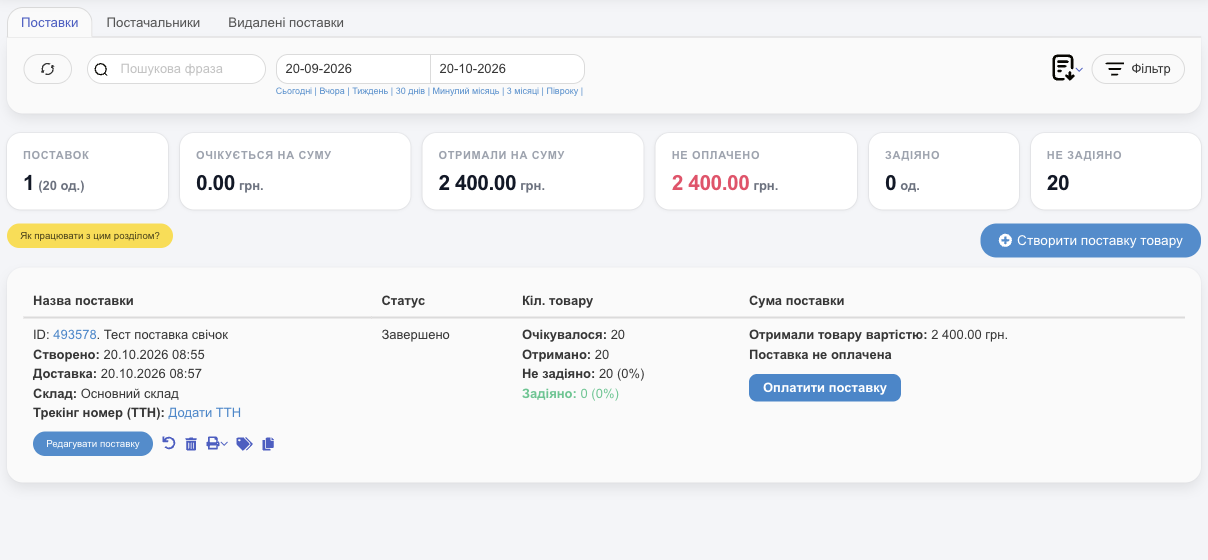
- Pending means the goods are still in transit; Complete means they've been received into the warehouse.
- Involved is how many units from this shipment have already been sold (taken off stock); Not involved is how many are still in the warehouse.
- In each row: Add tracking number, Complete Shipment / Edit Shipment, Pay For Shipment, Pay For Delivery, Printing Price Tags / Labels.
- The Deleted shipments tab: you can restore a deleted shipment.
- The download icon on the filter bar offers Download the PDF report / Download the Excel report, a list of the filtered shipments with amounts, payments, and statuses, and Shipments summary, which lists the products received in those shipments (see below).
- 🖨 in a row prints the shipment: With purchase prices, With sale prices, or Without prices (for a stock clerk, for example). An employee without the Income information right can print only with sale prices. If Settings → Printing → Shipments has several documents, or a document has a fixed price, a document picker opens instead of the menu. See Printing documents.
Shipments summary: what you received
Need to check with a supplier or accountant exactly what arrived over a week or across several shipments? Check the shipments in their rows (the checkbox in the header selects every shipment on the page). A Shipments summary button appears above the list:
- Click Shipments summary.
- If needed, turn on Split by shipments.
- Choose Excel or PDF.
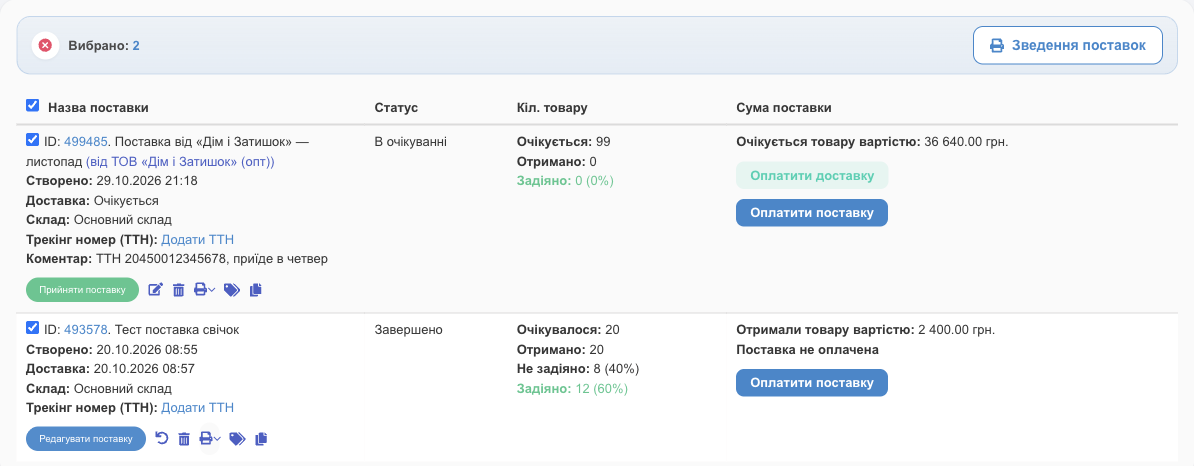
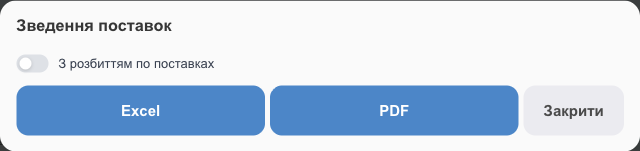
- The document includes only the quantity actually received. Without the split, there's one row per product: the quantity from all shipments combined, with the weighted average purchase price. With the split, each shipment gets its own table with the supplier, warehouse, and date.
- If nothing is checked, the same summary is available from the download icon on the filter bar: it covers all shipments matching the current filters and period.
- Only employees with the Income information right see prices and amounts in the document.
- The checkboxes, the button, and the download icon are available with the Download shipments documents right (Employees and access rights).
- You can customize the document's columns, header, and title: Settings → Printing → the Shipments summary tab.
Creating and receiving
For step-by-step instructions with screenshots, see Quick start, step 6. In short:
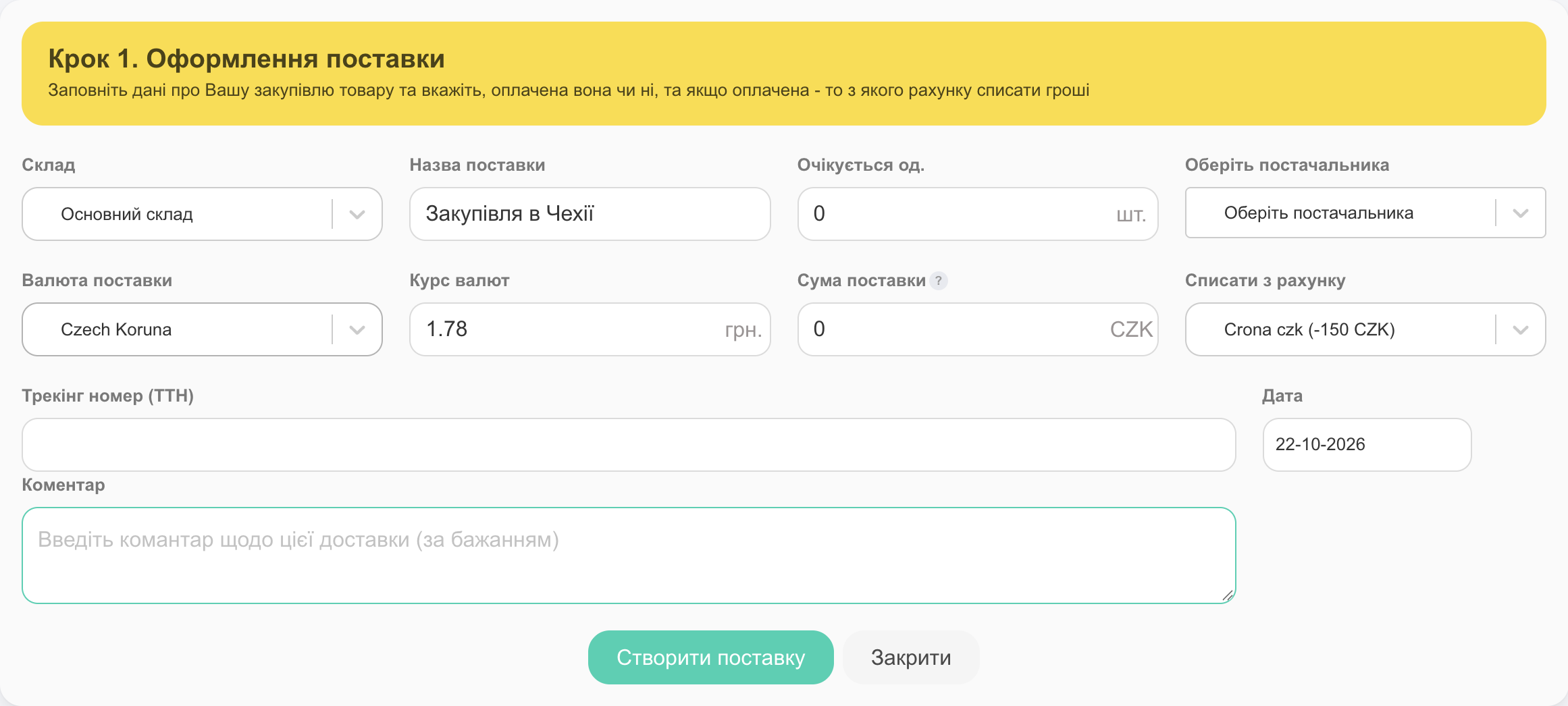
- Create Shipment → warehouse, name, supplier, Shipment Currency, amount, payment account (or Not paid), waybill (TTN), date.
- Products: search or use Upload from Excel (your own template), then enter the quantity and Purchase Price. You can create a new product right here.
- When the goods arrive, click Complete Shipment: enter how many you received (it can be fewer than ordered) and the storage location (you can scan the location tag), then the delivery cost and payment, then review the selling prices.
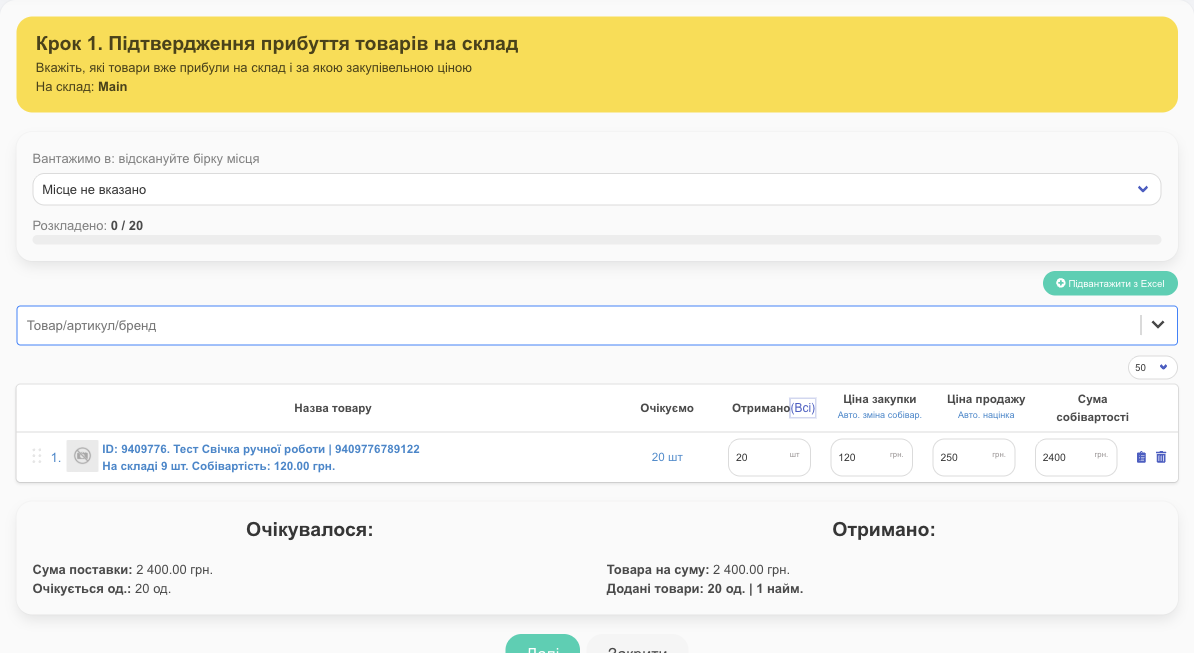
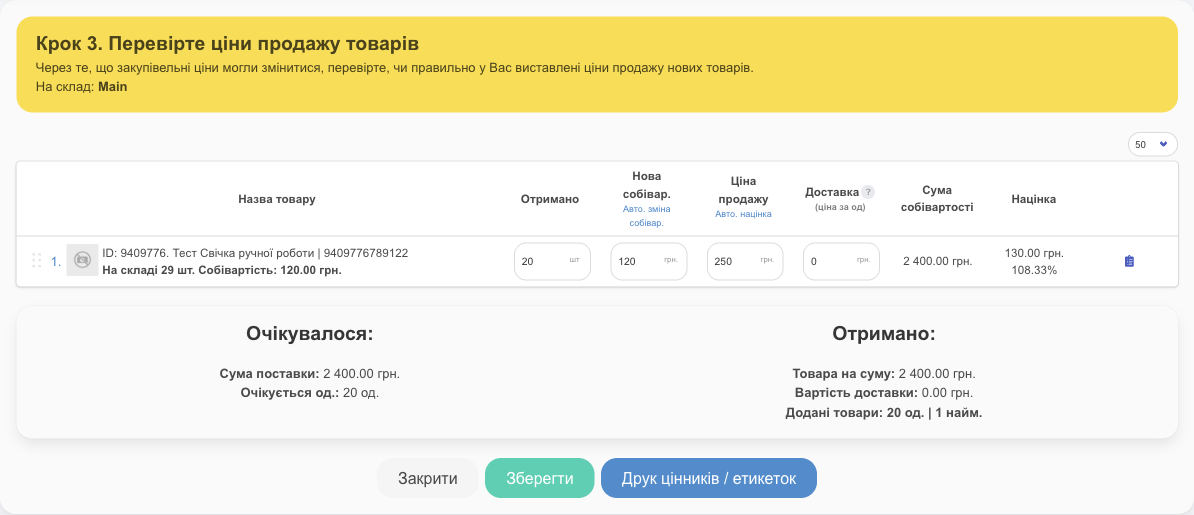
- Auto. cost of sales and Auto. markup above the columns recalculate the cost price or selling price for all products in the shipment at once (for example, selling price = cost price + delivery + N%).
- Delivery is split among the shipment's products in proportion to each line's total (purchase price × quantity) and added to their cost price. The delivery payment is recorded as an expense in the "Delivery of supplies" category.
- ⚠️ A product added during receiving, rather than at the second step of creating the shipment, doesn't get its share of delivery in its cost price. Add all products up front at the Products step.
- Only employees with the Editing the sale price in a shipment right see the Selling Price and Auto. markup columns in the shipment form; the purchase price and cost price require the Editing the cost price in a shipment right. This way a stock clerk can receive goods without changing prices.
- Currency: if you buy in dollars or euros, set the shipment currency, and the cost price is converted to hryvnias at the exchange rate. Step by step: see "Buying in a foreign currency" below.
Buying in a foreign currency
Do you buy goods in dollars, euros, or zlotys but sell in hryvnias? HugeProfit stores the purchase price in the foreign currency and calculates the cost price and profit in hryvnias. For a full walkthrough with a sample calculation, see Multiple currencies.
- Currency account. Cash Flow → Transactions → Add New Account → choose the account currency (for example, US dollar). In shipments, you can choose only currencies you have an account in.
- Exchange rate. Settings → Exchange Rates: At the general rate (one rate for all shipments, which can update automatically) or Shipment rate (a separate rate in each shipment). See Account settings. Without a rate, cost price and profit will be calculated incorrectly.
- Shipment. At the first step, choose the Shipment Currency. An Exchange Rates field appears for this shipment (prefilled with the general rate, which you can change), and Shipment amount and From account switch to the shipment currency. Enter purchase prices in the shipment currency. If a product already has a cost price in hryvnias, enter its purchase price in the foreign currency.
- Payment. The shipment amount is fixed in its currency, so you can pay for the shipment only from an account in that same currency. The same goes for delivery: Charge for delivery from the account offers only accounts in the shipment currency. If you paid for delivery in hryvnias, convert the amount to the shipment currency at the exchange rate.
- Selling prices at the last step of receiving are entered in the base currency (hryvnias).
How profit is calculated. Exchange rate 41.50, purchase price $25, selling price 1,390 UAH. Cost price: 25 × 41.50 = 1,037.50 UAH. Profit on the sale: 1,390 − 1,037.50 = 352.50 UAH.
💡 You can sell only in your account's base currency (usually the hryvnia). Currency affects only purchases and currency accounts.
Shipment card and payment
Click a shipment ID to open its card: expected / received / involved, dates, warehouse, files (delivery notes, invoices: Add file), the product list, and payment.
- Unload reports exports the shipment document as PDF or Excel (products, quantities, purchase prices).
- Assign to locations: if you track storage locations, put the received products on racks and shelves (you can scan the location tag).
- If the supplier sent the goods by a delivery service, add the waybill (Add tracking number in the row), and the list will show the parcel's Tracking status.
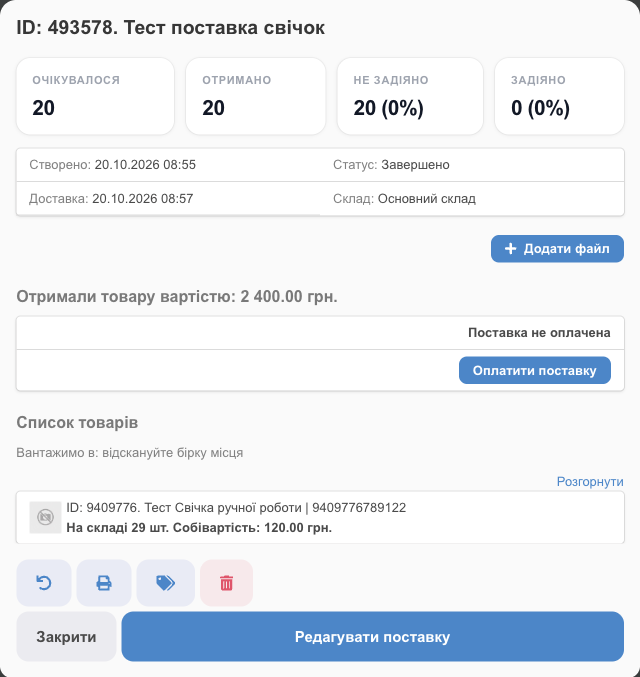
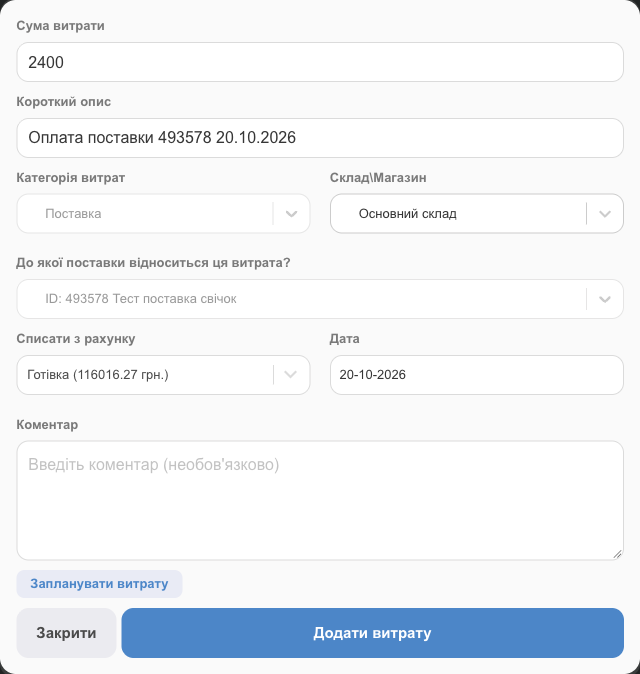
Pay For Shipment creates an expense in the Shipment category, linked to this shipment and paid from the selected account. You can pay in installments; the status shows Not paid, Paid, or Overpayment.
Suppliers
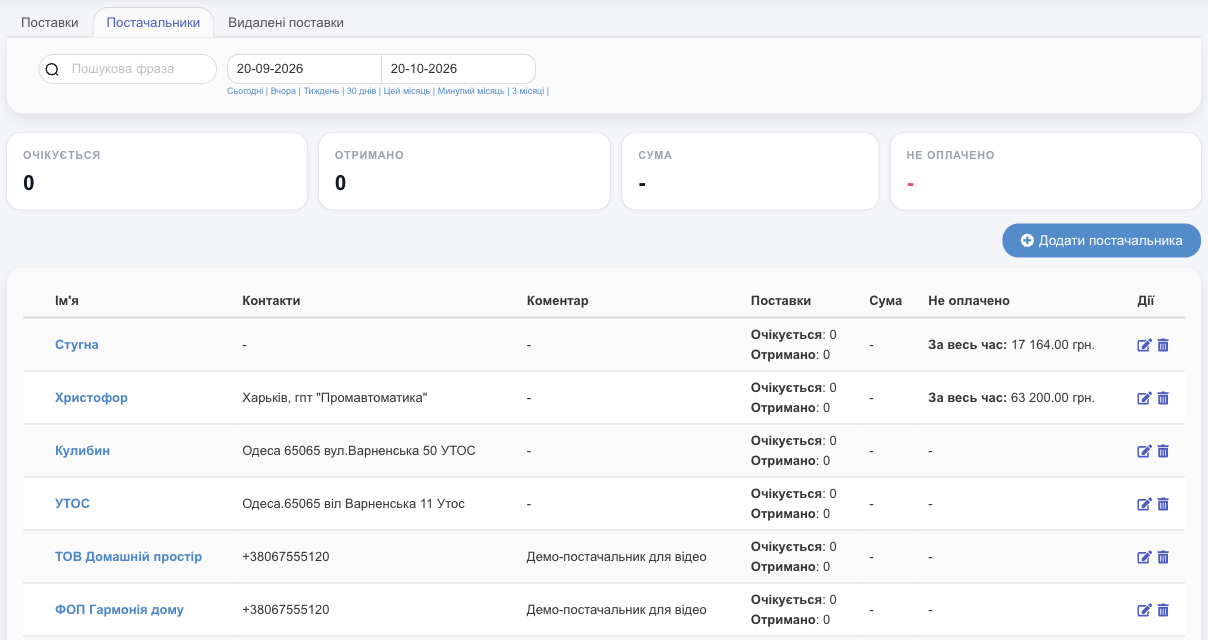
The Suppliers tab: name, contacts, comment, how many shipments are expected and received, the all-time total, and the debt (Not paid). Add supplier: name (company name), phone, address, comment. Click a supplier to see all their shipments; in the product card, the Product by suppliers tab shows who you bought it from and at what price.
Purchasing based on sales velocity
Not sure how much to order? Turn on Purchase mode in the product list: HugeProfit calculates the recommended quantity and creates a shipment from the checked products. See Products.
Together, shipments, purchase mode, and supplier payments make up purchase management in HugeProfit.