
Cashier panel and POS terminal in HugeProfit
The cashier panel is a simplified screen for fast in-store sales: large product cards, a cart, and checkout in a few taps. It works well on a tablet or a touchscreen all-in-one, with a barcode scanner and a bank POS terminal.
How to open it
Left menu → Cashier panel. The ← arrow in the top-left corner takes you back to the main interface. You can turn this module off in Settings → System modules.
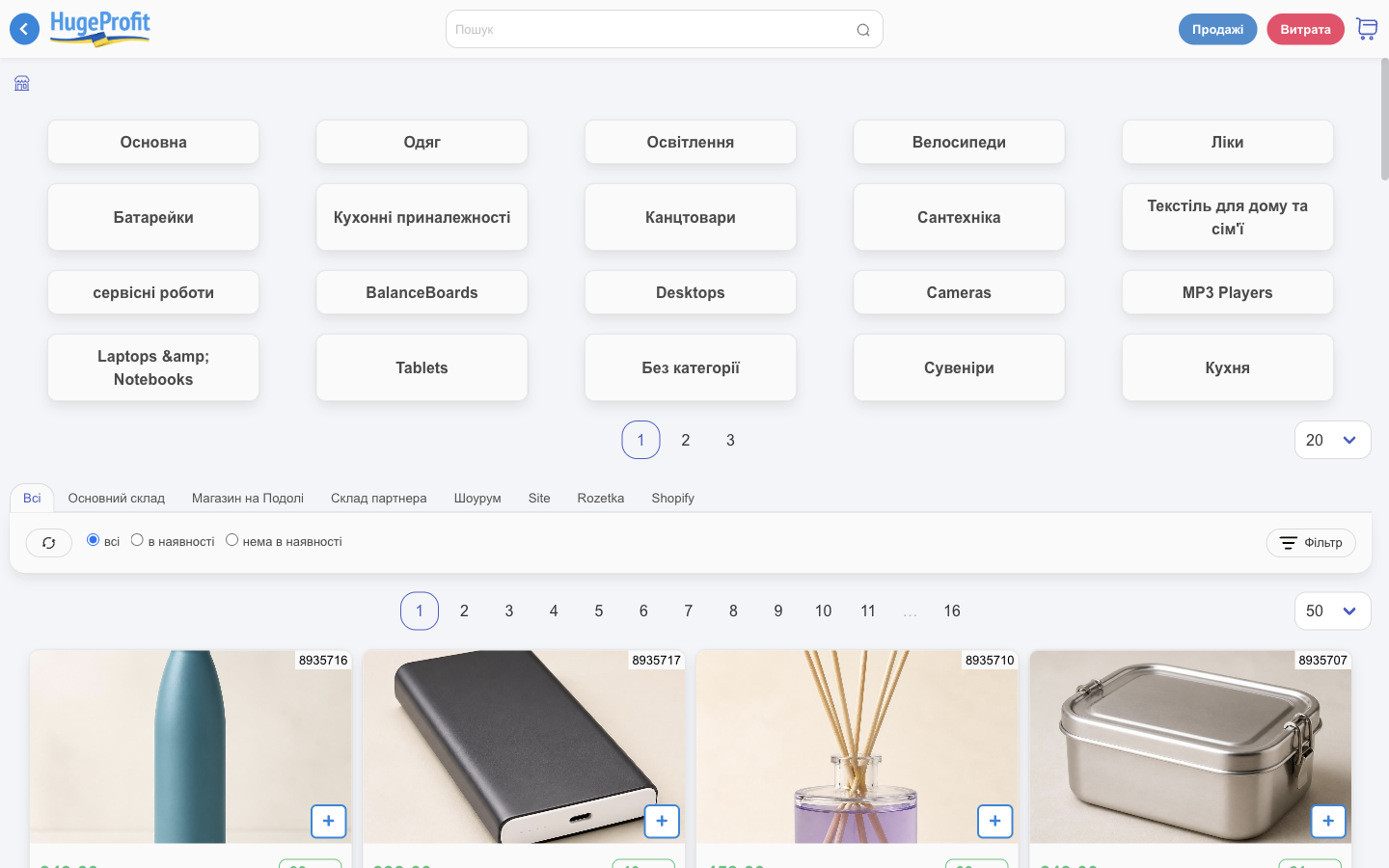
Choosing products
- Categories appear as tiles at the top. Tap one to show only the products in that category.
- Warehouses appear as tabs. Use In stock / Out of Stock and Filter to narrow by brand, price, product type, and attributes.
- Search at the top finds products by name, SKU, or barcode (a scanner enters the code for you).
- Each card shows the photo, ID, price, stock, SKU, and warehouse. The + button adds the product to the cart; after that, −/+ change the quantity.
Cart and payment
The cart icon in the top-right corner (with the item count) opens the Add sale panel:
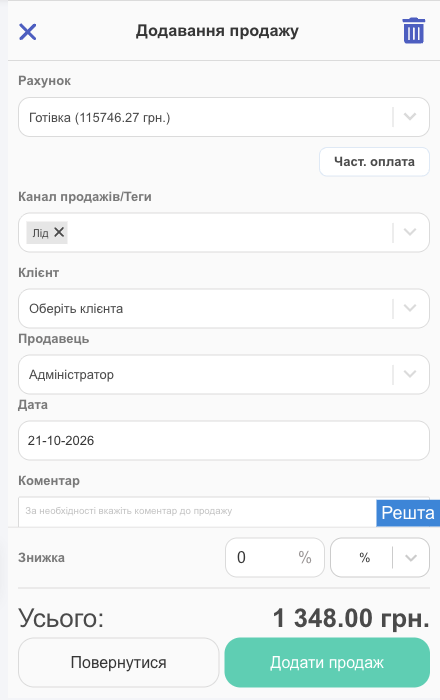
- Account (cash, card), Partial payment, Sales channel/Tags, Client, Seller, Date, Comment.
- Discount: a percentage or a fixed amount.
- Change: enter the amount the customer hands over, and the cashier sees the change due.
- Add Sale saves the sale; you can then print or fiscalize the receipt. 🗑 at the top clears the cart.
The Sales and Expense buttons at the top open the cashier's sales list and a quick expense (for example, cash taken out of the register).
💡 Create a separate employee for the cashier with the Cashier group: they will see only their own warehouse and cash account (see Employees and access rights).
POS terminal (card payments)
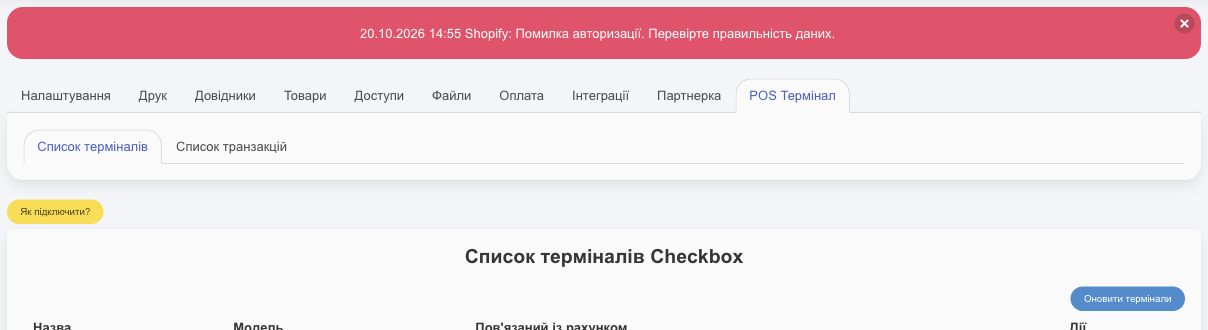
HugeProfit can send the amount to a bank POS terminal through Checkbox, so the cashier doesn't have to type it in. Go to Settings → POS Terminal (available only for accounts from Ukraine). If the tab is missing, turn on the POS Terminal module in System modules.
- Connect the Checkbox software cash register (PRRO) (Fiscalization) and the terminal in your Checkbox account. Instructions are under How to connect?.
- Click Reload terminals. Your Checkbox terminals appear in List of Checkbox terminals.
- Use Link an account to a terminal to choose the HugeProfit account that receives payments from this terminal. The list shows only accounts of the Payment account (IBAN) type. If the one you need isn't there, create such an account in Accounts.
- The browser must be able to reach the Checkbox app on the register computer. If the browser asks for permission to access the local network (for Checkbox PayLink), allow it.
- In the sale, select this account and click Pay by terminal → choose the terminal → Send. HugeProfit waits for the payment (Pending payment) and, once it succeeds, saves the sale with the RRN transaction.
If the client doesn't pay, an error appears after a while with a Repeat payment button, which sends the amount to the terminal again. After a successful payment, the RRN and the receipt details are saved in the sale (the transaction number appears in the sale view) and are included in the fiscal receipt. They are also used by eCheck, a receipt in the buyer's banking app (set it up in the PRRO article, “eCheck” section).
Paying the remaining balance. If the client made a prepayment earlier and pays the rest by card at the register, enter the Partial payment in the sale and select the account linked to the terminal as the sale account. Pay by terminal then asks what to send: The entire amount or Without partial payment (the remaining balance only).
The Transaction list tab shows all terminal payments. Click a sale to open it, or click a transaction ID to see the receipt details.
⚠️ Sometimes the terminal accepts the payment but HugeProfit fails to save the transaction. You'll see an error message and the RRN transaction. Don't send the amount to the terminal again: the money has already been charged. Write down the RRN and click Save Error. Repeat. If that doesn't help, contact support with this RRN.
Cashier panel, scanner, POS terminal, and fiscal receipts: everything a retail location needs. Learn more about HugeProfit's software for stores.