
Warehouses and stock in HugeProfit: control, storage locations, batches
How to run several warehouses and stores, what changes stock, how to adjust stock by hand, what a reserve is, storage locations and serial tracking, how HugeProfit picks which batch to write off, and how to roll stock back to an earlier date.
Warehouses
In HugeProfit, a warehouse is any place where you keep products: a warehouse, a store, a showroom, “at a partner's.” Each warehouse has its own stock, and prices and cost prices can differ between warehouses.
- Add a warehouse: Products → ⊕ to the right of the warehouse tabs.
- Edit or delete: open the warehouse tab and click the ⚙ gear on it.
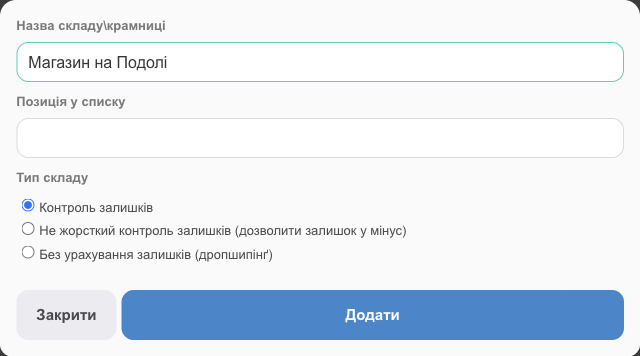
| Field | What it means |
|---|---|
| Warehouse/store name | The warehouse name in lists, sales, and reports. |
| Position In The List | The order of the warehouse tabs (a lower number goes further left). |
| Stock control | You can't sell more than you have: HugeProfit won't let you save the sale. This is the recommended mode. |
| Soft stock control (allow negative stock) | The sale is saved even if the product isn't in stock yet, and stock goes negative. Useful if you sell before you receive the goods. |
| Excluding Balances (dropshipping) | Stock isn't tracked at all (shown as ∞). For products your supplier ships. |
⚠️ You can only delete an empty warehouse: first move the products to another warehouse (Stock moves). You can't delete your last warehouse.
You can limit an employee to specific warehouses; see Employees and access rights. For marketplaces and websites that sell from several warehouses at once, there's a virtual warehouse, which you set up in the integration (Integrations).
What changes stock
| Action | Stock |
|---|---|
| Shipment (received) | Goes up |
| Sale | Goes down |
| Reserve, order in progress | The product is set aside: physically in the warehouse but not available for sale |
| Return | Goes up |
| Stock move | Goes down in one warehouse and up in another |
| Stocktaking | Becomes whatever you counted |
| Manufacturing | Components are written off and the finished product is added |
| Write-off | Goes down (defects, spoilage, internal use) |
| Manual change (Add/Remove) | Whatever you enter |
You can see every change in the product card: Info → Movement of stock. The Balances as of date button is there too: pick a date to see how much of the product was in each warehouse at that moment.
How to read stock
In the Available column, stock can look like 29/30 (6):
- 29: free, available to sell;
- 30: physically in the warehouse (1 unit is set aside in a reserve or for an order);
- (6): expected from shipments that haven't been received yet.
Click the number to open Information on reserves and supplies: which sales and orders hold a reserve and which shipments are on the way. You can also Release the reserves here if a reserve is stuck.
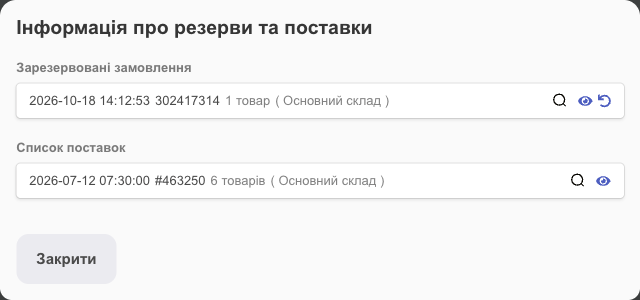
Example: a marketplace order
- You have 5 pcs in stock, and an order for 2 pcs comes in from Prom. The order reserves 2 pcs: the Available column shows 3/5, and 3 is sent to Prom (and other connected marketplaces).
- While the order is reserved, you recount the product and find 6 pcs. Adjust the stock to 6: it becomes 4/6, and 4 is sent to Prom.
- If you confirm the order, 2 pcs are written off and 4 remains, with no fraction. If you decline it, the reserve is released, 6 remains, and 6 is sent to Prom.
Adjust stock by hand
- In the product list, click Add/Remove under the stock.
- Either enter the new stock in Units in Stock, or choose Decrease / Add and enter by how much.
- Write a Comment explaining the change. It will show in the history.
- Click the confirmation button. It says exactly what will happen, for example Remove 2 items.
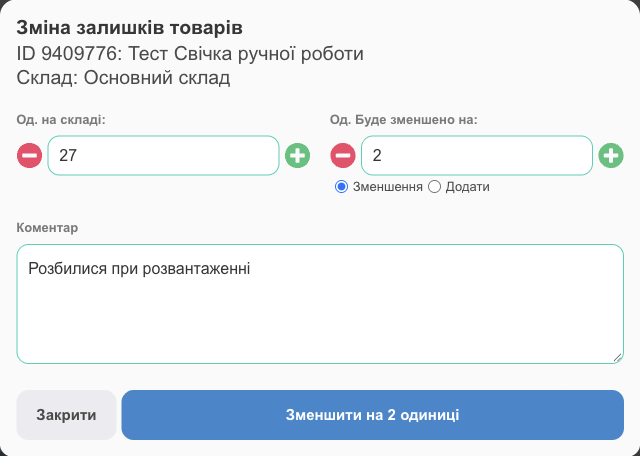
💡 Manual changes are for small corrections. If a product is spoiled, record a Write-off, and after a recount, do a Stocktaking. That way your reports show where the goods went.
For many products at once: select them → Edit → Change Stock. Note: all selected products get the same quantity, and their old stock is overwritten.
To copy products to another warehouse (with zero stock, so you can receive them later): select them → Print & export → Copy to warehouse.
Storage locations
If your warehouse is large, split it into locations: room → rack → shelf → bin. Each location gets a barcode: print the tag and scan it to put products straight onto a shelf or to see what's on it. Settings: Settings → Products → Storage locations.
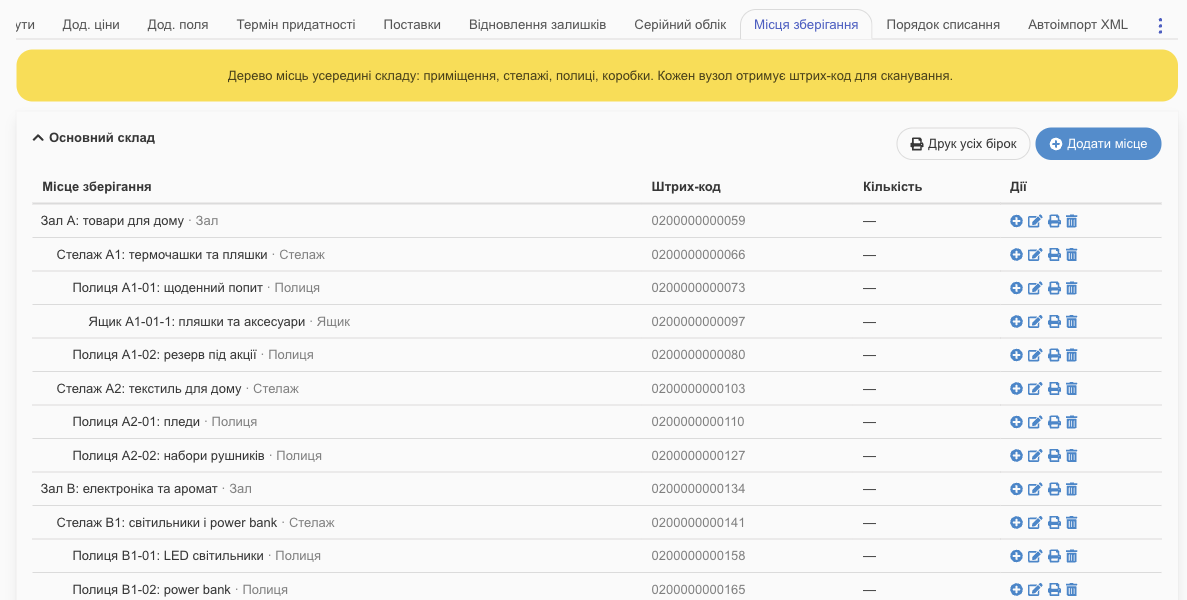
For step-by-step instructions on the location tree, printing tags, putting products away, moving stock between shelves, and stocktaking by shelf, see Storage locations.
Detalization and serial tracking
Detalization splits a product's stock in a warehouse into stock units: how many pieces are in which location, with which serial numbers, batches, expiration dates, and their own cost price or price. Open it with the Detalization button in the warehouse row of the product card. You can mark up only part of the stock; the rest shows as Unassigned.
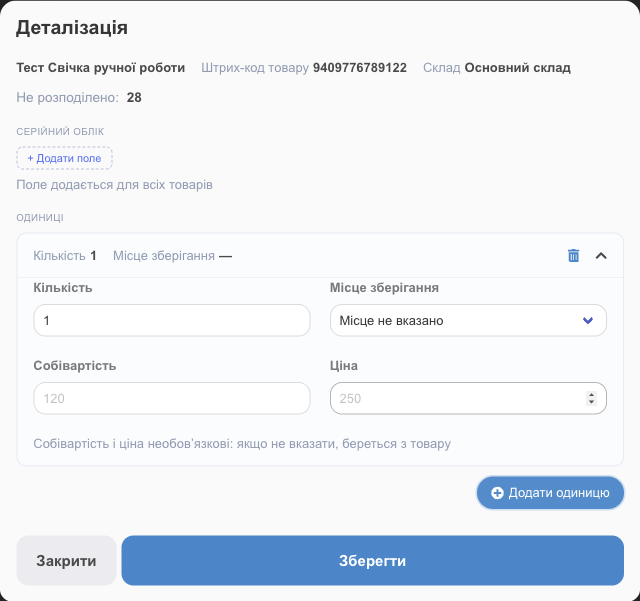
To learn how to set up fields, track serial numbers and expiration dates, sell a specific unit, and enter numbers from a shipment, see Serial tracking and batches.
Which batch is written off first
If a product arrived in several shipments at different prices, HugeProfit remembers each batch. Set the write-off order in Settings → Products → Write-off order:
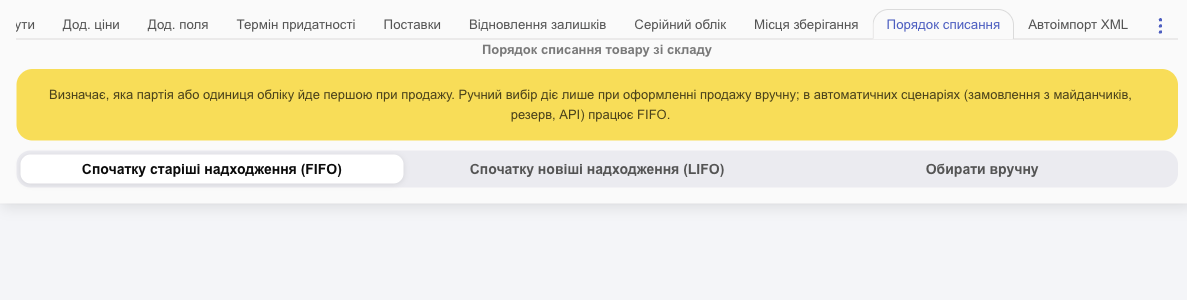
- Oldest arrivals first (FIFO): the default;
- Newest arrivals first (LIFO);
- Choose manually: you choose the batch in the sale. This applies only to sales you create by hand; marketplace orders, reserves, and the API always use FIFO.
The batch determines the cost price, and therefore the profit on the sale. For products with marked-up units, HugeProfit asks you to choose a unit in the sale, and Choose automatically picks one in this order; see Serial tracking and batches.
Restore stock to an earlier date
If your stock got messed up (a bad import, a bulk change), you can roll it back to any moment within the last week: Settings → Products → Stock restore.
- Choose the Date and time to restore stock to and the Warehouse.
- Under What to restore, check Stock, Prices, and/or Cost price.
- Run check: HugeProfit shows how many items will change and how.
- If everything looks right, confirm the restore.
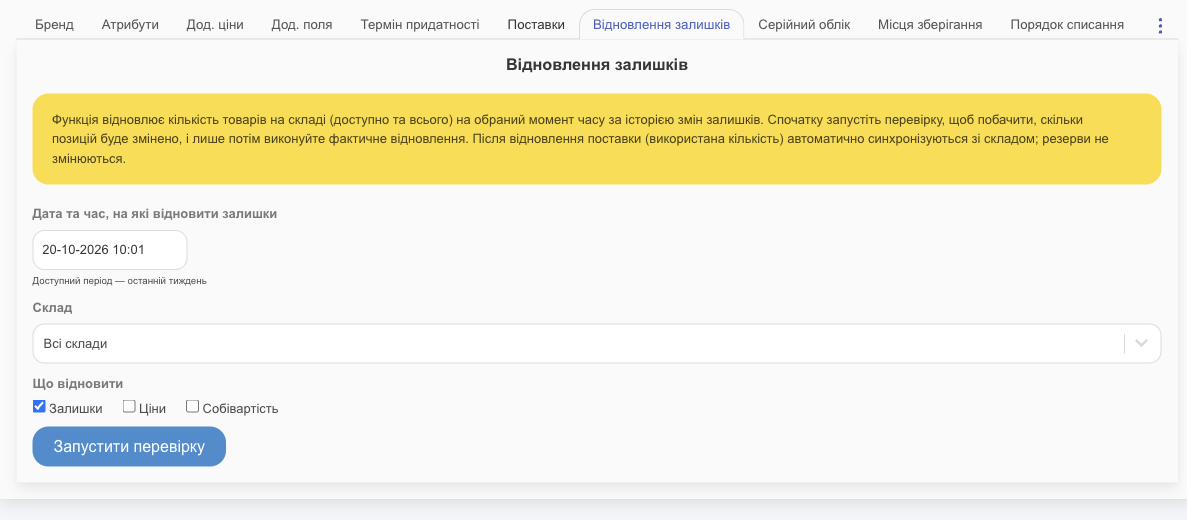
⚠️ Current values are overwritten, and you can't undo a restore automatically. Reserves don't change, and the used quantity in shipments is synced with the warehouse.
Minimum stock and expiration dates
- Minimum stock is set in the product card, or for whole categories or brands in Settings → Products → Min. stock. The Requires purchase filter finds products below the minimum, and the Telegram bot can remind you about them.
- Expiration dates: in Settings → Products → Expiration date, set how many days in advance to warn you before a product expires.
Multiple warehouses, stock control, and batch tracking are key features of HugeProfit's warehouse management software.