
HugeProfit interface: menu, top bar, and mobile version
How HugeProfit is laid out: the left menu with system modules, the top bar with quick-action buttons, notifications, and the profile menu. Plus what the service looks like on a phone and how to remove clutter from the menu.
Overview
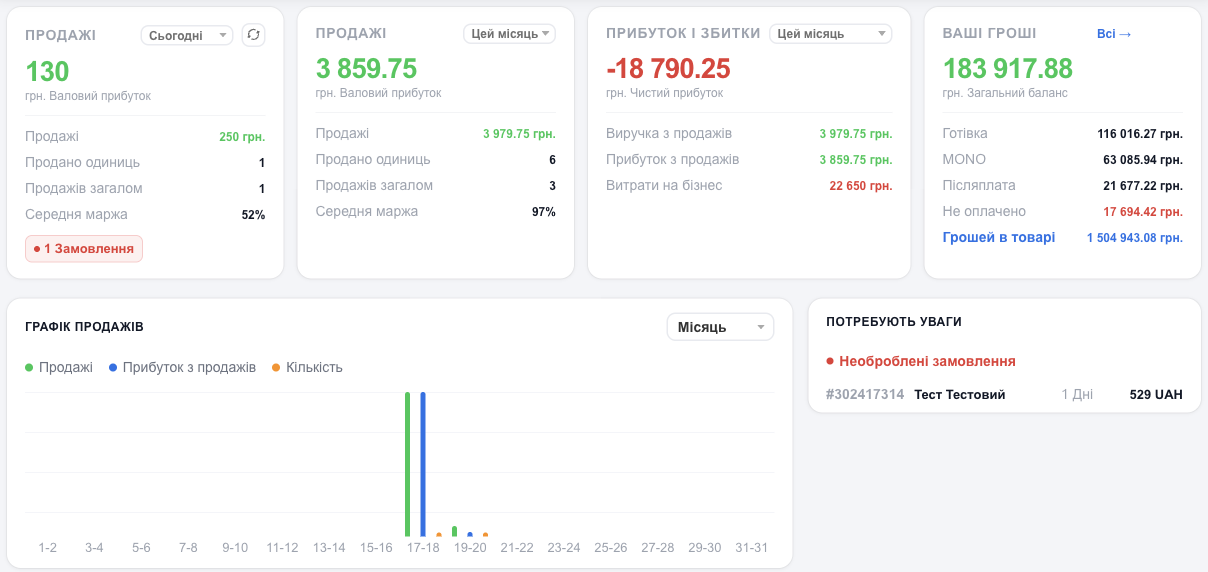
Left menu
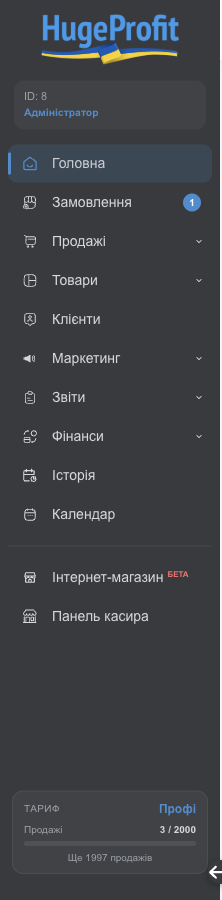
- At the top: your account number (ID) and your role, such as Administrator. You'll need the account number when you contact support.
- Modules. Items with a ⌄ arrow have submenus. Click the arrow to expand one.
- Counters. Next to Orders is the number of new unprocessed orders. In the Sales submenu, each status shows how many sales it currently holds (for example, Awaiting dispatch (15)).
- Plan: at the bottom you see your plan name, how many sales you've used this month, and how many are left. Click it to go to payment. See Plans and billing.
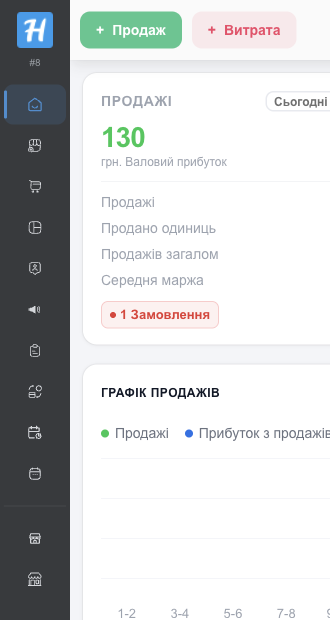
- The ← arrow in the bottom corner collapses the menu to icons, leaving more room for tables. The → arrow expands it again.
Menu modules
| Module | What it contains |
|---|---|
| Dashboard | Totals: sales, profit, money, a chart, tasks. Learn more |
| Orders | Orders from websites and marketplaces that still need processing. Learn more |
| Sales | All sales; the submenu groups them by status: Reserved, Packaging, Awaiting dispatch, On delivery, Collect COD, Refunds, and your own custom statuses. Learn more |
| Products | Catalog and stock; the submenu has Shipments, Moving, Stocktaking, Manufacturing, Write off. Learn more |
| Clients | Client database, purchase history, discounts. Learn more |
| Marketing | Marketing campaigns, Promotions, Client discounts, Broadcasts. Learn more |
| Reports | Profit by product, category, brand, employee, and finances. Learn more |
| Cash Flow | Transactions: accounts, expenses, income, transfers; Payment links (if you've connected online payments). Learn more |
| History | Who changed what in the account. Learn more |
| Calendar | Tasks, reminders, scheduled payments. Learn more |
| Chats | Messages from Telegram, Viber, Instagram, and OLX. Appears once you connect a messenger. Learn more |
| Online store | Your online store website, built on your HugeProfit products. Learn more |
| Cashier panel | Fast checkout at the register in your store. Learn more |
💡 You can turn off modules you don't use, and they'll disappear from the menu: Settings → System modules. Employees see only the modules you've allowed them, so the menu may look different for different people.
Top bar

- + Sale: a new sale from any page. Learn more
- + Expense: a new expense from any page. Learn more
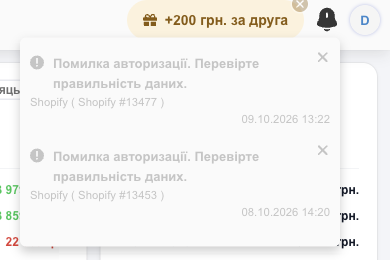
- +200 UAH per friend: the partner program. Invite a friend and get a bonus. The × hides the button. Learn more
- Bell: notifications.
- Circle with a letter: the profile menu.
If you're signed in as an employee, your warehouse name appears next to the buttons.
Notifications
The bell shows important events, such as integration errors (an authorization error asking you to check your credentials means the marketplace access key is no longer valid). The × hides a notification.
Telegram notifications and push notifications to the app are set up separately: Settings → Notifications. See Account settings.
Profile menu
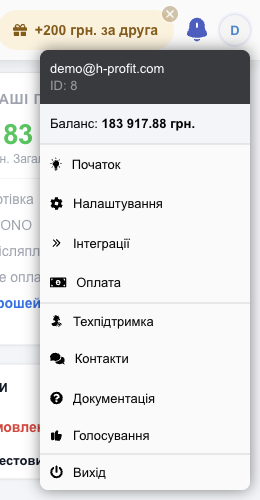
| Item | What it does |
|---|---|
| Email and ID | The account you're signed in to. Click the ID to copy it. |
| Balance | The total across all accounts; click it to open Transactions. Visible only to users allowed to view the balance. |
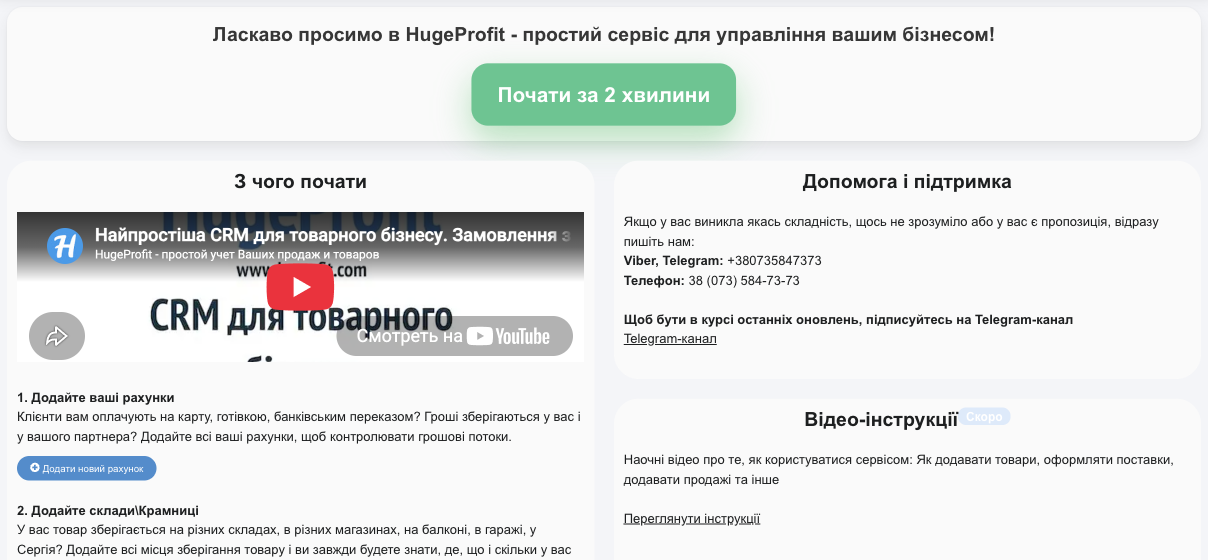
| Start | The getting-started page: accounts, warehouses, products, sales, payments, reports, with a button for each step. |
| Settings | All account settings. Learn more |
| Integration | Connecting marketplaces, websites, delivery services, banks, and software cash registers (PRRO). Learn more |
| Payment | Your HugeProfit plan and billing. Learn more |
| Support | Chat with HugeProfit support. |
| Contacts | Other ways to reach us. |
| Documentation | This documentation. |
| Voting | Vote for the features we should build next. |
| Logout | Sign out of the account on this device. |
In-page help
- The yellow How to work with this section? button appears in many modules. It opens articles and videos about that specific module.
- The ? icon next to a field gives a short explanation of what to enter.
- The blue button with a cloud in the bottom-left corner opens a chat with support.
HugeProfit on your phone
HugeProfit works in your phone's browser and in the Android and iPhone app, with the same account and data.
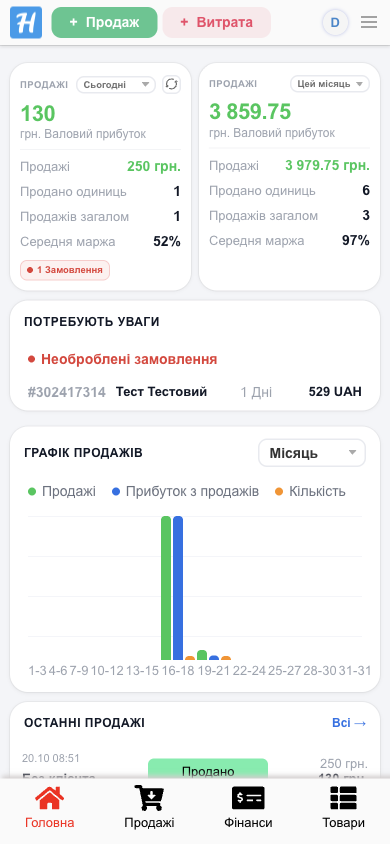
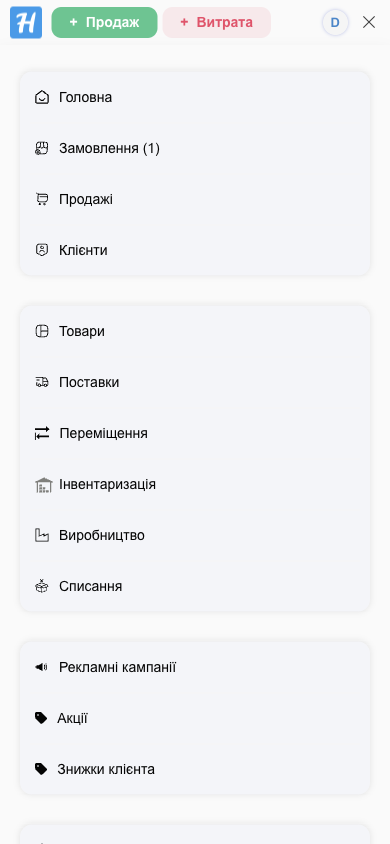
- At the top are the same + Sale and + Expense buttons, the profile menu, and the ☰ button, which opens all modules.
- At the bottom is the bottom menu with four modules for quick access. By default these are Dashboard, Sales, Cash Flow, Products (cashiers get Clients instead of Dashboard).
- On a phone, the partner program button is in the profile menu.
- To change the modules in the bottom menu, go to Settings → Notifications → Customizing the bottom menu of your phone → Edit. Select the modules you want (up to 4) and choose a position from 1 to 4 for each. Reset to default restores the standard set.
Learn more: Mobile app.
Interface language
HugeProfit is available in Ukrainian, English, Polish, and Russian. To change the language, go to Settings → Profile → Change language.