
Accounts and transactions in HugeProfit
Finance → Transactions is where all your business's money lives: the balance of each account (cash register, card, sole proprietor (FOP) account) and all income, expenses, and transfers for the period. Every sale, expense, shipment, and return is recorded here automatically.
Accounts
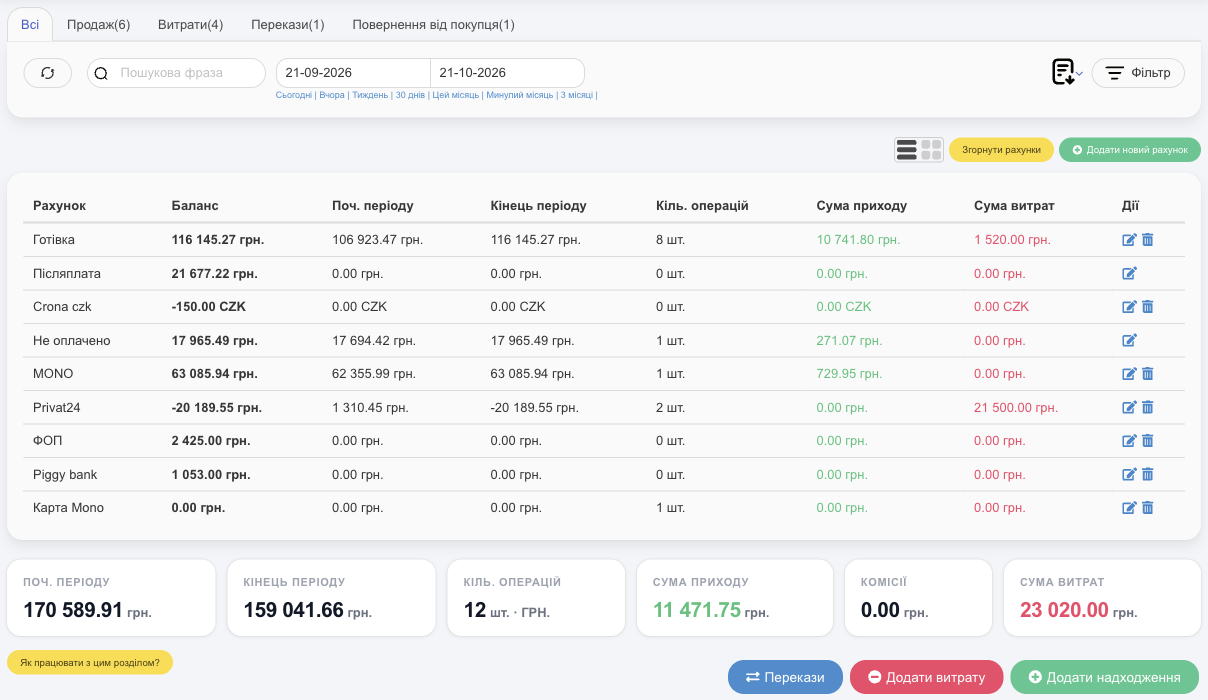
- For each account: the current Balance, Start Period and End of period, No. of transactions, Income amount, and Expenditure amount. ✎ edits an account, and 🗑 deletes it (only an empty account).
- Below the table are the totals for all accounts combined, including Commission.
- Collapse accounts / Unfold accounts, and a view switch (table or cards).
- Accounts in another currency (for example, CZK) are shown in their own currency. Sales are recorded only in the account's main currency; foreign currency accounts are for purchasing in that currency. See Multicurrency.
- An account balance can go negative if expenses exceed income; HugeProfit doesn't block such operations.
System accounts
- C.O.D: money for cash on delivery (COD) shipments that is still with the delivery service. When you collect it, Collect COD moves the amount to your account (see Delivery).
- Not paid: sales on credit and balances left after a partial payment. You can see individual clients' debts in Clients.
These accounts can't be deleted.
New account
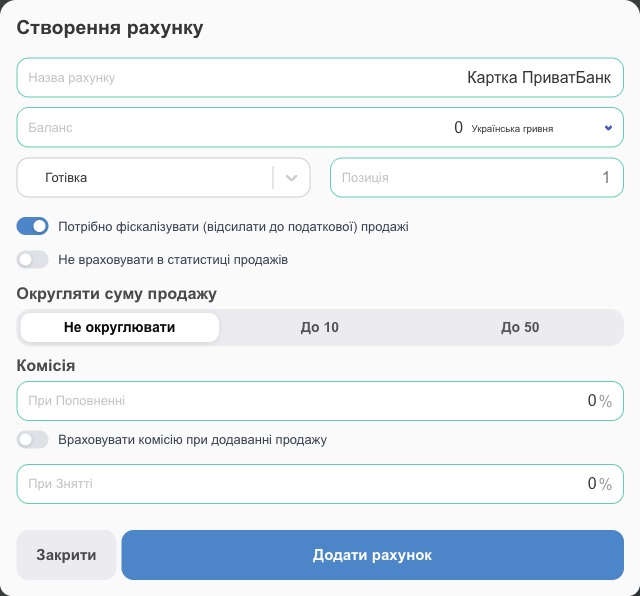
Add New Account: enter the name, opening balance and currency, the type (Cash, Payment card, or Payment account (IBAN)), the position in the list, and also:
- It is necessary to fiscalize (send to the tax office) sales: sales to this account are fiscalized through the software cash register (PRRO);
- Do not include in sales statistics;
- Round up the sale amount: Up to 10 or Up to 50 (cash only);
- Commission When Replenishing and When Withdrawing (for example, 1.3% for card acquiring), and Consider commission when adding sales. Example: the bank charges 2% for terminal payments, so a 100 UAH card sale brings in 98 UAH. With this option on, HugeProfit records exactly that: 98 UAH to the account and a 2 UAH fee, which reduces the sale's profit. If the fee is already built into your price and you don't track it separately, you can leave the option off.
How to keep your accounts right
Your accounts in HugeProfit should mirror where your money actually is. Then the balance in the app will always match your cash register and bank.
- Cash: a separate account for each cash register or store.
- Cards: one account per card (monobank, PrivatBank…), so you can see how much is on each.
- IBAN: FOP or company bank accounts.
- C.O.D: a transit account for parcel money that's still with the delivery service. It should hold only the total of parcels in transit. You sent 3 parcels at 1,000 UAH each, so C.O.D shows 3,000 UAH; the clients picked them up and the money arrived: collect the COD (you can do it in bulk), and C.O.D drops to 0. You also need this account to fiscalize COD on delivery.
- Not paid: client debts and balances left after a partial payment.
Day-to-day operations
- A sale: in the Account field, choose the account the money actually went to. This marks the sale as paid.
- Money not from a sale (an owner's contribution, a loan, a client's advance payment): Add funds.
- Owner withdrawing profit: an expense with a category of the Not to be recognized in Income type. The money leaves the account, but profit doesn't go down (see Expenses).
- Money moved (cash collection, card withdrawal): Transfers.
Sales on credit and paying off debts
If a client takes the product now and pays later, record the sale to the Not paid account. The amount appears in red in the sale, and the debt shows in the client's card and in the Not paid total of the Clients module. When the client pays, click the account name in the sale row and choose the account the money went to. For several sales at once, select them → Payment → Change account. For a partially paid sale, use ⋯ → Finish payment.
Checking a cashier's register
Create a separate cash account for each cashier and give them access to that account only (Access rights). At the end of the shift, reconcile the account balance with the cash in the register and transfer it to the main account, so the cashier starts from zero the next day.
Transactions
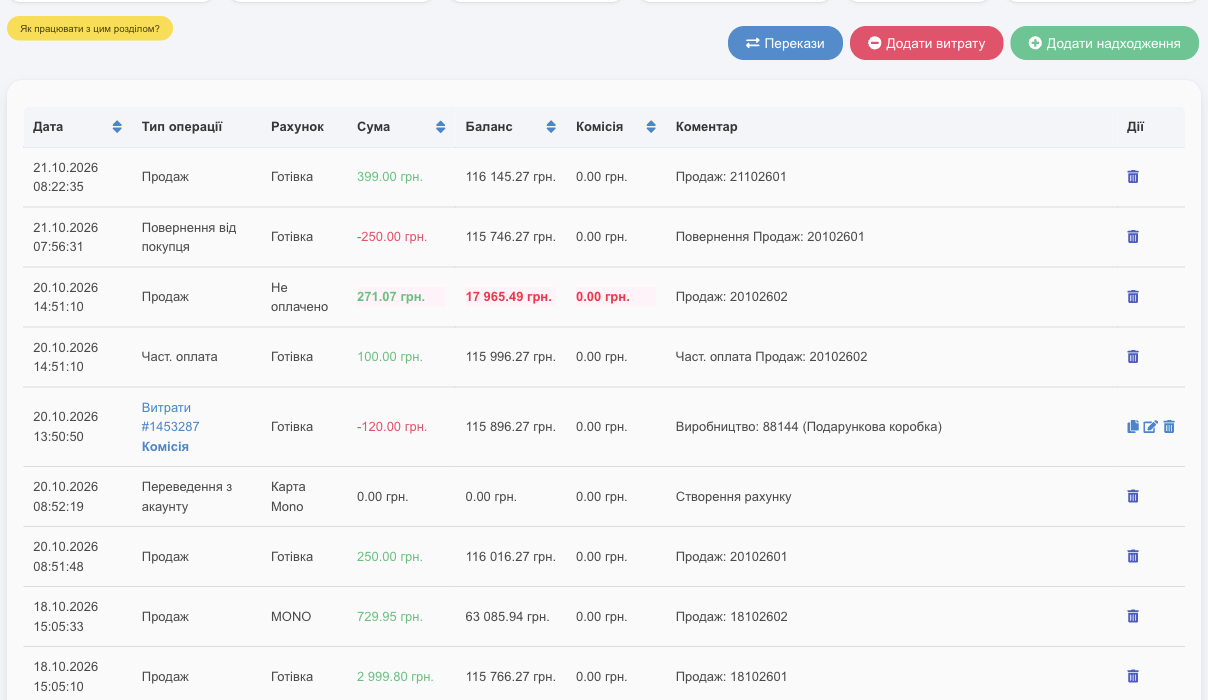
- Tabs: All, Sale, Expenses, Transfers, Refund from buyer, and others, each with a count.
- Each row shows the date, the operation type (sale, partial payment, expense with its category, transfer, return…), the account, the amount (green for income, red for expenses), the account balance after the operation, the fee, and a comment with a link to the sale or shipment.
- Actions: you can ⧉ copy, ✎ edit, or 🗑 delete an expense. Sale operations are deleted together with the sale in the Sales module; shipment expenses and channel fees are deleted through the shipment or sale.
- Filter: account, operation type, expense categories, warehouse, amount, Deleted transactions (show deleted ones), fee, and sorting.
- The document icon offers Download Excel / Download PDF.
Transfer between accounts
For cash collection, card withdrawals, or topping up a FOP account, use Transfers.
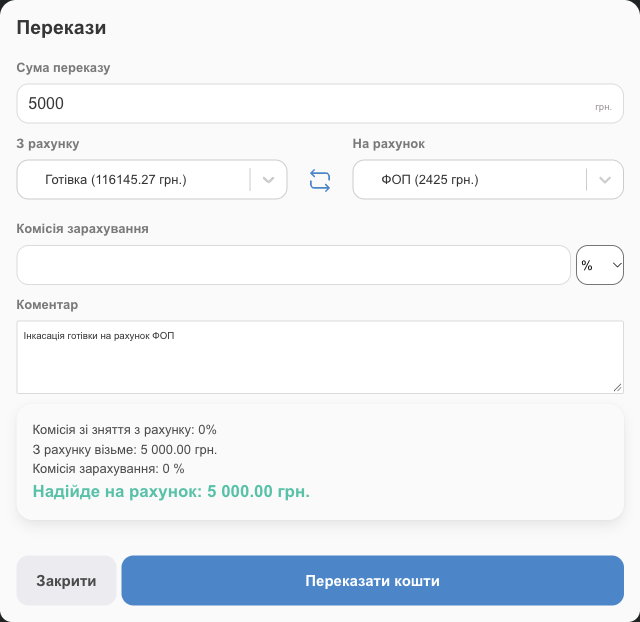
- Enter the Transfer amount, From Account, and To Account (the ⇄ arrows swap them).
- If needed, enter The transfer fee as a percentage or a fixed amount. At the bottom you'll see Withdraw from the account and Will be credited to the account.
- Click Transfer Money.
To cancel a transfer, make a reverse transfer.
Income
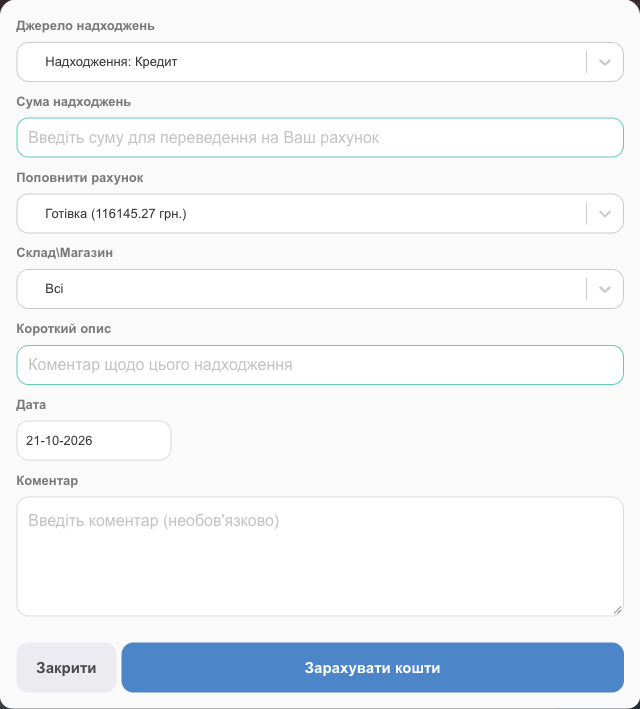
For money that didn't come from a sale (a loan, an owner's contribution, a refund from a supplier), use Add funds: Source of Funds (category), Amount of Receipts, Top up account, warehouse, description, date, comment → Add Funds.
Expenses
Add expense (or + Expense at the top of any page). See Expenses.
💡 Employees see only the accounts they've been given access to, and only if they have the View Balance permission (see Access rights).
Accounts and transactions are the foundation of income and expense tracking in HugeProfit.