
Customer chats in HugeProfit: Telegram, OLX, marketplaces
The Chats module brings customer messages from Telegram, Viber, Instagram, Facebook, OLX, Prom, and Rozetka into one window. Reply, send photos and product cards, link a conversation to a client, and create a sale right from the chat, while statuses and assigned employees make sure no request gets lost.
How to turn it on
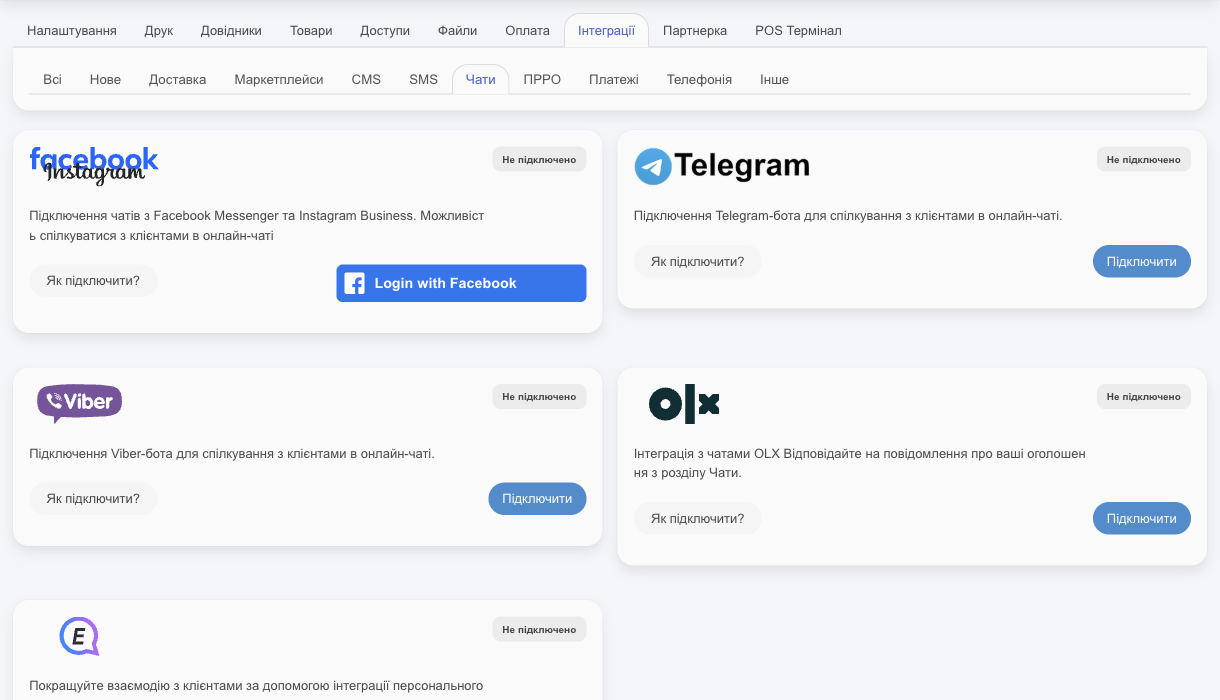
The Chats module appears in the menu as soon as at least one messenger is connected: Settings → Integration → the Chats tab (Telegram, Viber, E-chat, OLX, Instagram/Facebook), or a marketplace with chats (Prom, Rozetka). The easiest way to start is with a Telegram bot.
The counter next to Chats in the menu shows the number of unread conversations.
Chat list
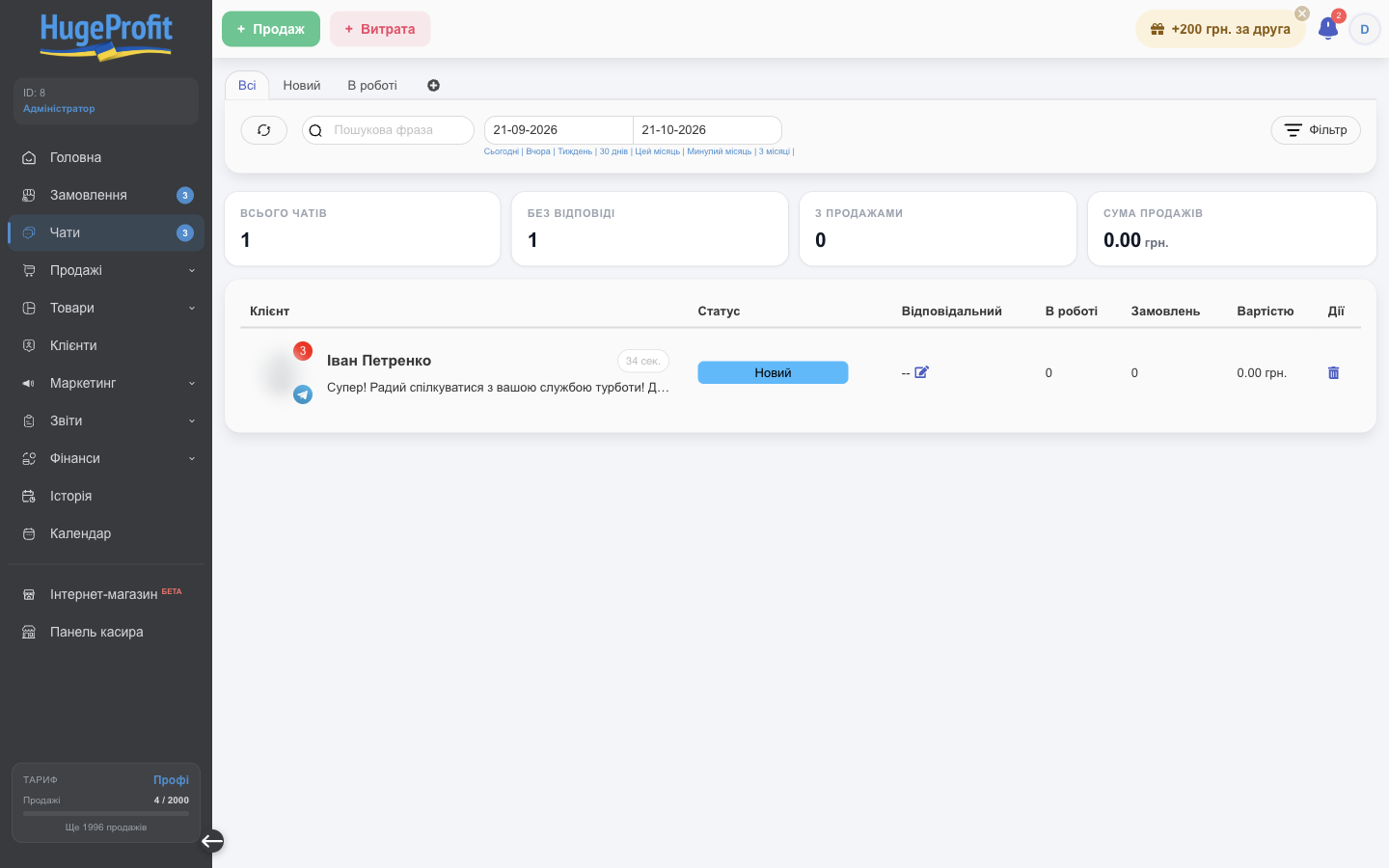
- Status tabs at the top: All, New, In progress, and your own statuses. ⊕ adds a status (name, color, position). You can also edit statuses in Catalogs → Statuses for chat rooms.
- Search by name and text, a period (today, yesterday, week, 30 days, month…), and 🔄 to refresh.
- Totals: Total chats, Unanswered, With sales, and Sales amount, which shows how much you sold through chats in the period.
- Chat row: the client with an avatar and a messenger icon, a red number for unread messages, the last message and how long ago it was sent; Status (click to change it); Responsible (✎ to assign an employee); In progress and Orders show the client's sales; Cost shows their total; 🗑 deletes the conversation.
Filter
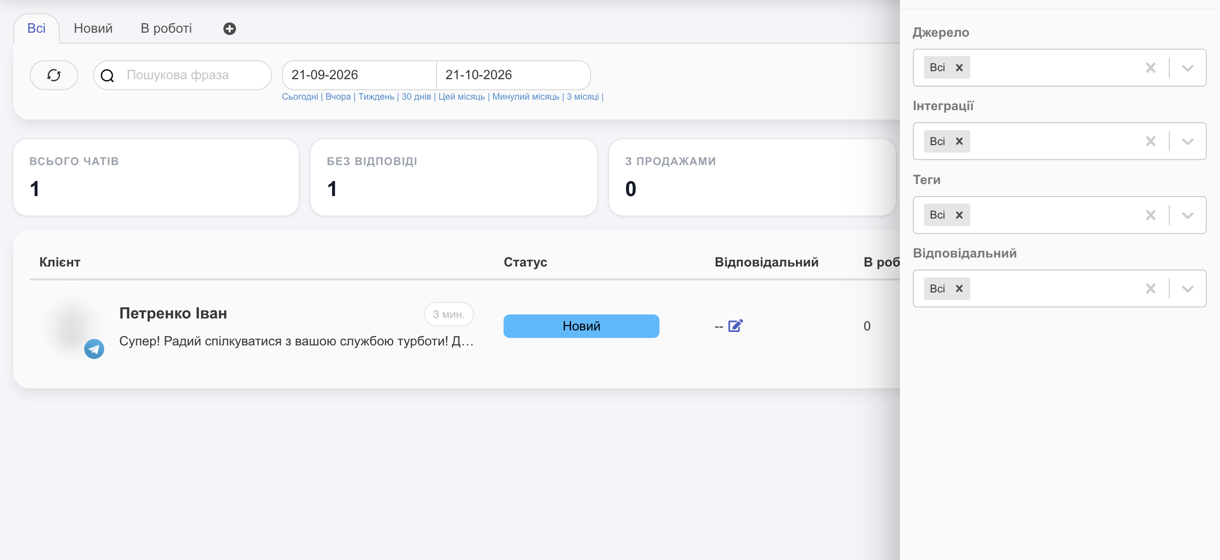
Filter on the right: Source (messenger), Integration (a specific bot or account, if you have several), the client's Tags, and Responsible (including Without responsible).
Conversation
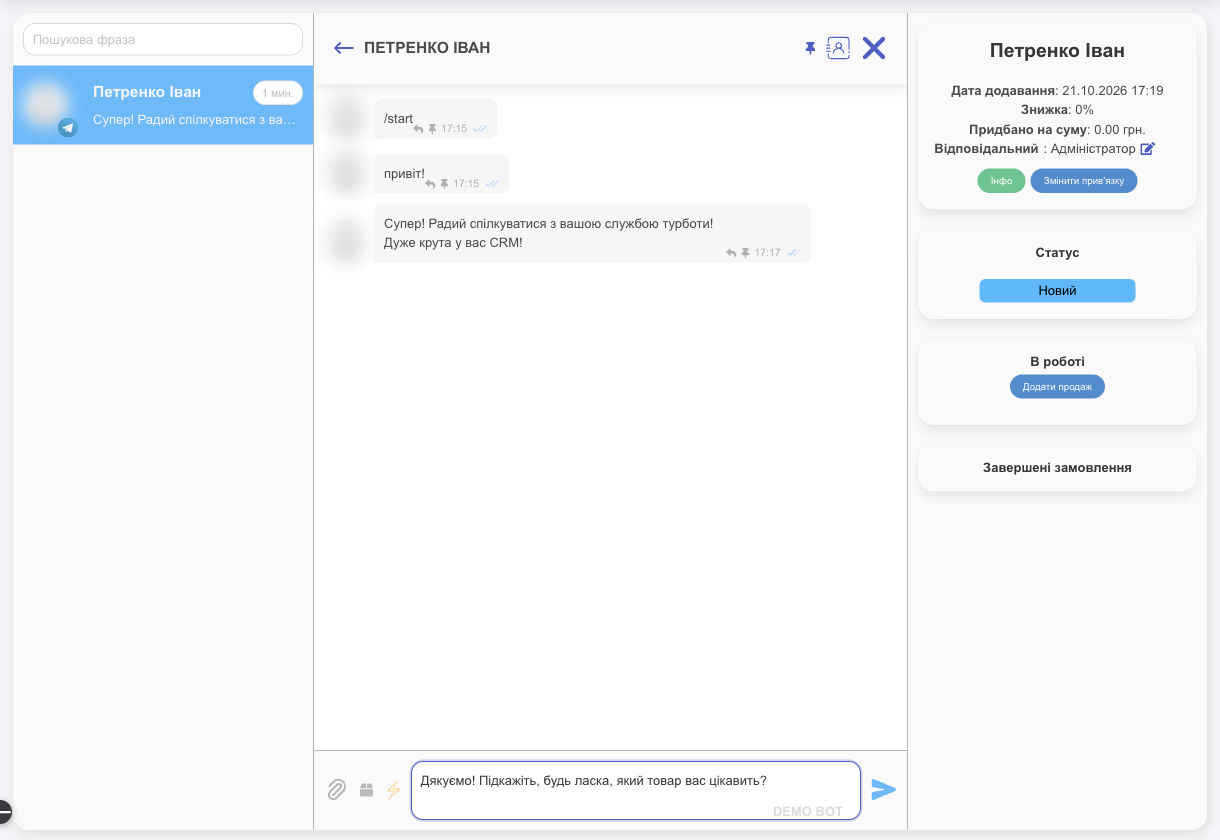
Click a chat to open a three-column window: the conversation list, the messages, and the client card.
Messages
- Type in Type your message here and press ➤ or Enter (Shift+Enter for a new line). The right side of the field shows which bot or account the reply will go through.
- 📎 Attach file: a photo, video, or document.
- Photos in a conversation: click one to open it full screen, where you'll also find a download button. When you hover over a photo, the Open and Download icons appear, so you can save it in one click without opening it.
- 📦 Send product: a product card with a photo, price, and description (see below).
- ⚡ Quick replies: ready-made templates (see below).
- Under a message: ↩ Reply replies to that specific message; 📌 pins it. Open pinned messages with the 📌 icon in the chat header.
- Labels next to a message: edited, From an ad (the client came from an ad), Comment on the post (an Instagram/Facebook comment).
- In the header: the client card icon shows or hides the right panel; ✕ closes the chat; ← goes back to the list.
Quick replies
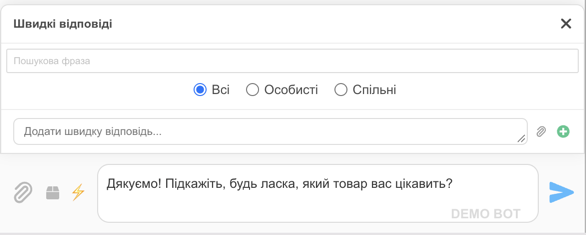
- ⚡ opens the template list: search, and the All / Personal (only you see them) / Common (for the whole team) filter.
- Add quick reply...: enter the text, attach a file with 📎 if needed (for example, a price list or payment details), and click ⊕ to save.
- Click a template to insert its text into the message field; you can edit it before sending.
Send a product
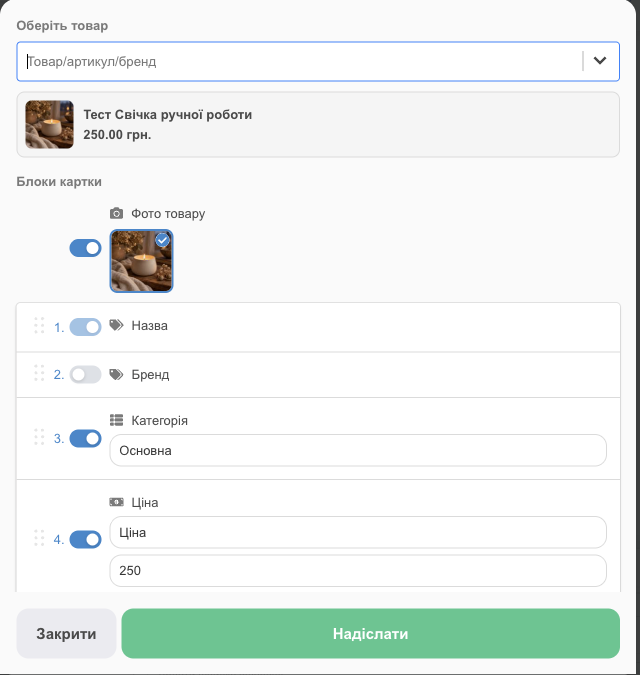
- 📦 → Select a product (search by name, SKU, or brand; filter by category, brand, or availability) and a warehouse.
- Card blocks: what to include and in what order (drag ⋮⋮): photos (you can choose several), name, brand, category, price (you can rename it or show an additional or old price), description, SKU. Add field adds your own “Field name: Value” line.
- Message preview shows the text the client will receive. You can edit it by hand (Reset to auto-generated restores the automatic text).
- Send. HugeProfit remembers the selected blocks for the next cards.
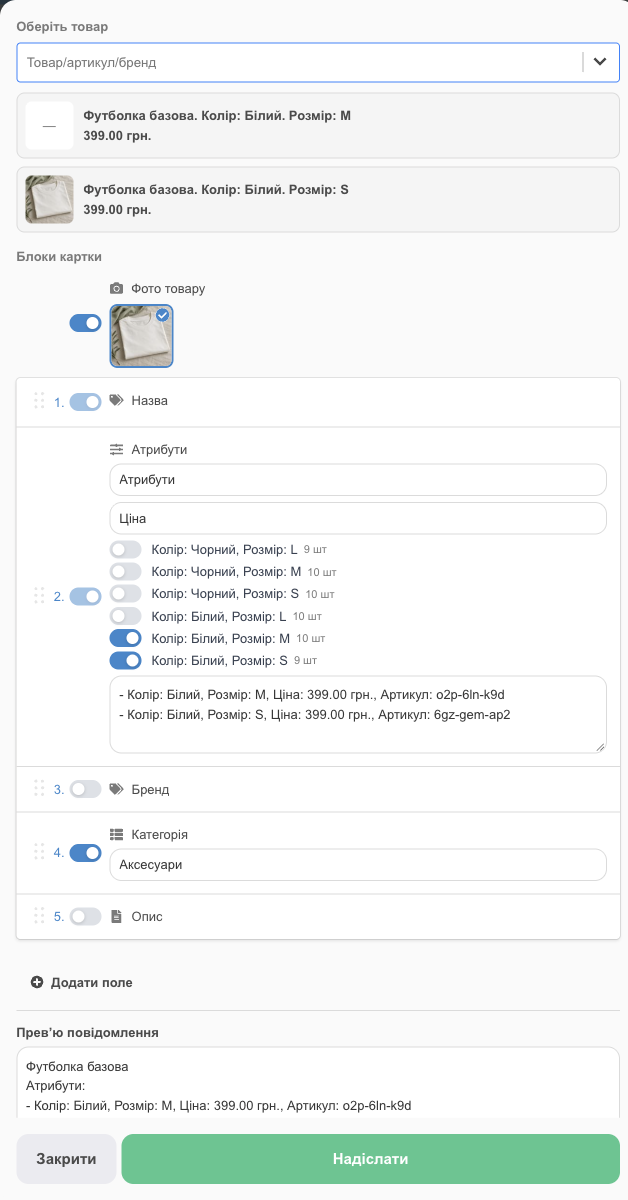
A product with variants (size, color, and so on) appears in search as a single row with the number of variants, for example, “3 variants”. Once you select it, the card blocks include Attributes:
- check one or more variants; each one shows its stock;
- each selected variant gets its own line in the message: its attributes, price (including any promotion; you can choose an additional price for all variants at once and rename the price label), and SKU. You can edit the block text;
- one photo of each selected variant is added to the photos automatically.
Such a product has no separate Price and SKU blocks; they're inside Attributes. Until you select at least one variant, Send is unavailable.
Some marketplaces (for example, Prom) don't accept text and photos in one message. In that case, the card is sent as two messages, and HugeProfit warns you about it.
Clients and sales from a chat
- A new conversation isn't linked to a client yet. The right panel offers Link to existing (choose a client from the database) or Add client. The name from the messenger is filled in automatically; check the last and first name and add a phone number.
- Once linked, you see the client card: Date Added, Discount, Purchased for the amount, Responsible (✎), and tags. Info opens the full client card; Change Binding links the chat to a different client.
- Chat Status: change it as you work (new → in progress → your own status).
- In progress shows the client's active sales and orders; Add Sale creates a sale right from the chat with the client filled in automatically. Completed Orders is the purchase history (Expand shows all).
- For OLX chats, the panel shows the listing the buyer is asking about.
- To go the other way, start from the client card: the chat icon next to the phone number opens the conversation (or a list, if there are several). If E-chat is connected, there's also an E-chat icon there for messaging the client on Viber first.
Sales created from a chat count toward the With sales and Sales amount totals.
Team
- Responsible employee: assign one in the list (✎) or in the client card. The Responsible filter shows each manager their own conversations.
- Access: an employee needs access to the Chats module, and deleting conversations requires a separate permission (Employees and access rights).
- Notifications about new chats and messages come through the HugeProfit Telegram bot and as push notifications in the app. Sound and browser pop-ups are set up in Additional settings (the Chats block). The pop-up appears in any module except Chats itself; click it to open that conversation.
Troubleshooting
| Problem | What to do |
|---|---|
| There's no Chats module | Connect a messenger in Integration → Chats and make sure the employee has access to the module. |
| New messages don't arrive | Check that the messenger integration is active. For Prom and Rozetka, check that Disable chat isn't turned on in their settings. |
| A message won't send | Some messengers only let you reply for a limited time after the client's last message (for example, 24 hours on Instagram). Message the client from your phone or wait for them to write. |
Selling right from the conversation is the core idea behind the HugeProfit CRM for Telegram and other messengers.