
How to accept card payments with a payment link in HugeProfit
A payment link is a page where a client pays for a specific sale by card, Apple Pay, or Google Pay. You send it to the client in Telegram, Viber, or a chat, the client pays, and within seconds HugeProfit learns about the payment from the bank and marks the sale as paid on its own. It's ideal for sales through social media and messengers.
What you need
- Connected online acquiring through monobank or WayForPay: see Acquiring. Without it, the menu item and the section aren't shown.
- For employees, permission to use payment links (Employees and access rights).
Create and send a link
- Create a sale as usual (client, products, amount). A link works well for both the full amount and a prepayment.
- In the Sales list → ⋯ in the sale row → Generate payment link.
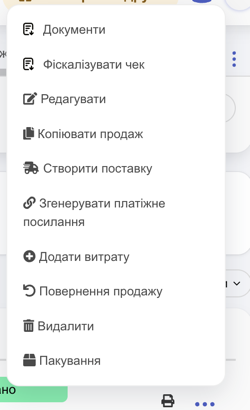
- The sale's Payment links window opens. The sale amount is already filled in; change it if needed (for example, to collect only part of it) and click Generate payment link.
- If the sale has a partial payment, choose what the client is paying for: Prepayment or Main payment (the balance).
- Send the link:
- Copy link: paste it anywhere;
- Send message to Telegram / Send message to Viber: a chat with the client's number opens and the message text is copied; paste it (Ctrl/Cmd+V) and send;
- Send to chat: if the client is linked to a conversation in HugeProfit Chats, the message goes there right away.
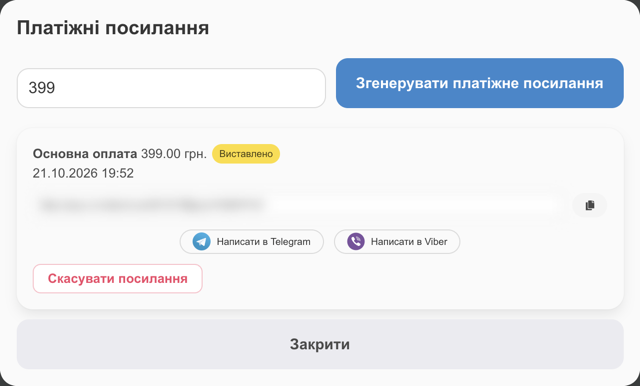
The link opens the bank's payment page (monobank or WayForPay): the client sees the amount and purpose and pays by card, Apple Pay, or Google Pay. The copy button is to the right of the link address.
The message text is set in the acquiring settings (the Message to the customer field, with the placeholders {link}, {order}, {amount}, {client}). The default is “Payment for order #…, amount …. Payment link: …”.
How statuses update
When the client pays, the bank immediately notifies HugeProfit of the result (a webhook), so you don't need to refresh anything manually. Link statuses:
| Status | What it means |
|---|---|
| Issued | The link has been created; the client hasn't paid yet. |
| Processing | The client has started paying, and the bank is processing the payment. |
| On hold | The money is blocked on the client's card (a hold) but not yet charged. |
| Paid | The money has been charged, and the sale is marked as paid. |
| Failed | The payment didn't go through (insufficient funds, declined by the bank). Create a new link and send it to the client. |
| Expired | The link has expired. Create a new one. |
| Canceled | You canceled the link, or the sale was deleted. |
| Refunded | The money was returned to the client. |
The status of the latest link also appears in the sales list, next to the account in the sale row:

What happens after payment
- The payment is recorded in the sale (as a prepayment or the main payment), and the sale becomes paid.
- If Change sale account is selected in the acquiring settings, the money moves to the specified Account for crediting, so the balance in Accounts matches the bank.
- If the client paid a different amount, the sale shows Actually paid: and the warning Amount differs from the sale amount. Check the sale and correct it if needed.
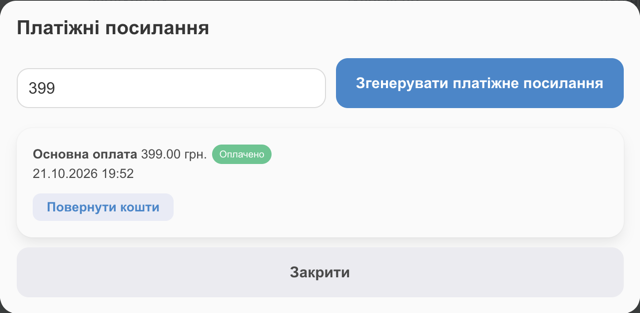
Canceling and refunding
- For an unpaid link, use Cancel link: the client can no longer pay with it (for example, if the price changed, cancel it and create a new one).
- If you delete the sale, its open links are canceled automatically.
- For a paid link, use Refund: the money goes back to the client's card through acquiring, and the status changes to Refunded. Separately, process a refund to return the product to the warehouse and update the sale.
All links
Cash Flow → Payment links:
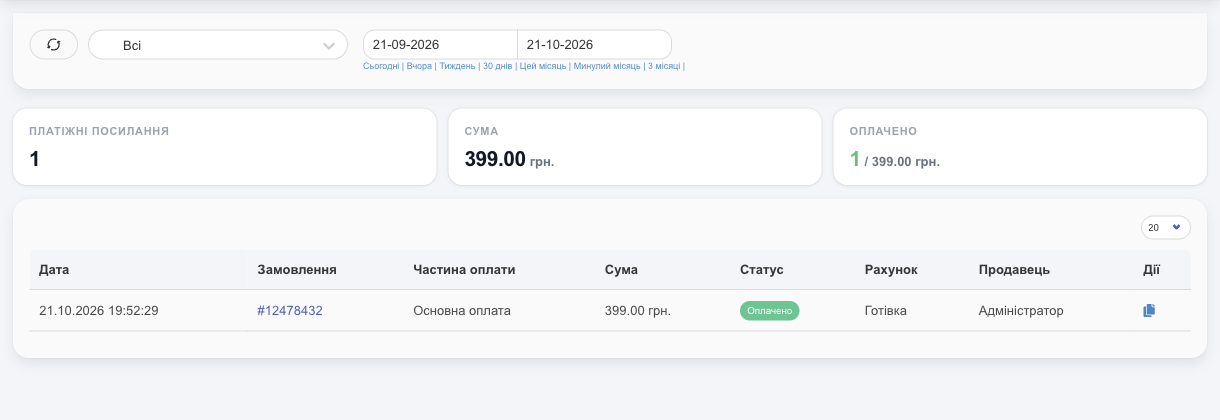
- At the top: the number of links for the period, their Amount, and Paid (how many were paid and for what amount).
- Status filter (All, “Issued”, “Paid”…) and period: find unpaid links and remind the client.
- Columns: Date, Order (click it to open the sale), Payment part, Amount, Status, Account, Seller.
- Actions: copy the link, cancel it (unpaid links), refund (paid links).
💡 Payment links don't replace payment in the HugeProfit online store, on a website, or at a POS terminal. They're a tool for “manual” sales: in messengers, on social media, and by phone.
Payment links are most often used for selling in Telegram, Instagram, and other messengers.