
HugeProfit mobile app: track products and sales from your phone
The HugeProfit app for Android and iPhone is the same CRM you use in the browser, with the same data, plus what only a phone can do: use the camera as a barcode scanner, sign in with a fingerprint or Face ID, receive push notifications, and print to a printer connected to the phone.
Installing and signing in
Install the app from Google Play (Android) or the App Store (iPhone). Links and QR codes are also on the HugeProfit website.
Sign in with the same email (or phone number) and password you use in the browser. You don't need a new account: your products, sales, and settings are the same. Employees sign in with their own logins and see only what they're allowed to (see Employees and access rights).
After your first sign-in, the app offers biometric sign-in and asks for permission to send notifications. Accept both so you don't have to type your password every time and don't miss orders.
What's on the screen
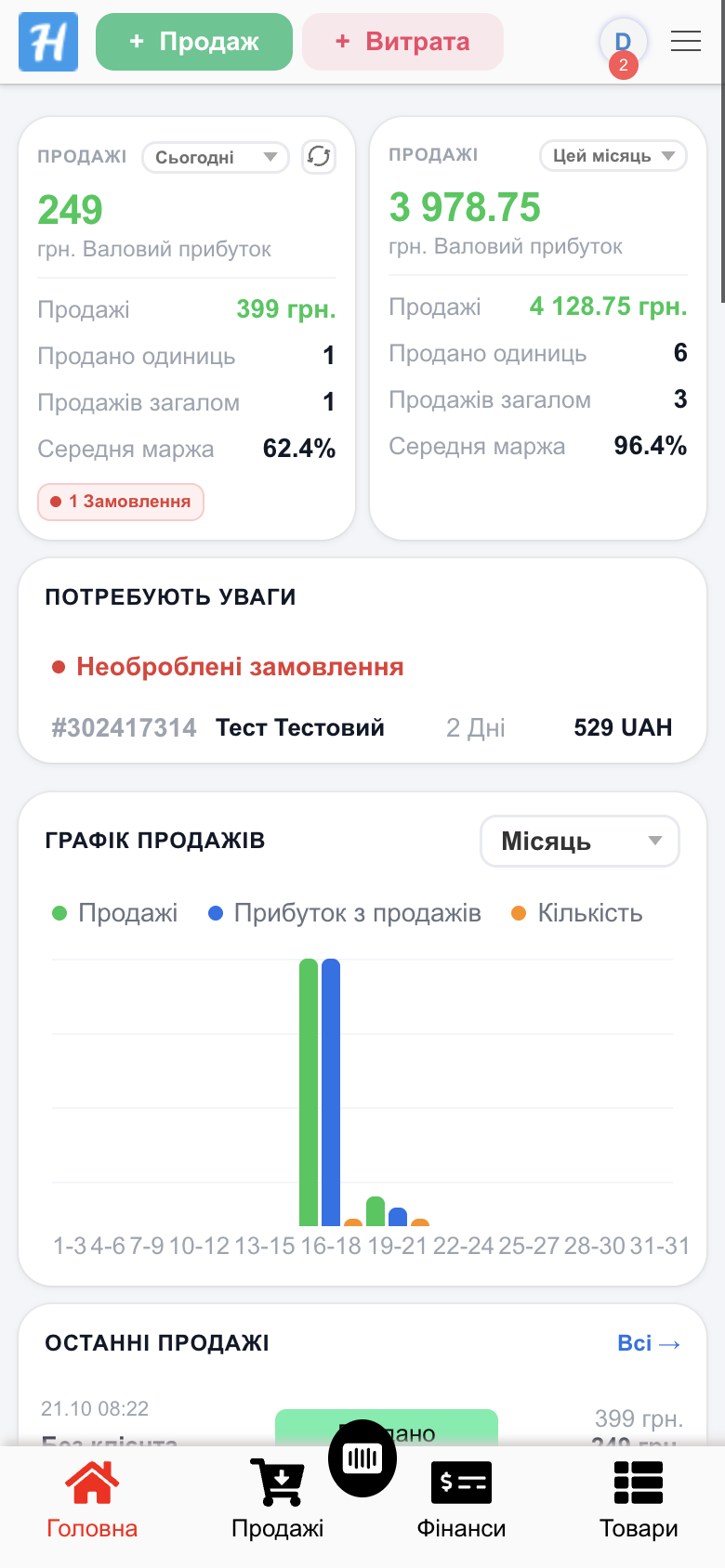
- At the top: + Sale, + Expense, your profile, and ☰ for the full module menu.
- At the bottom: quick-access modules (by default Dashboard, Sales, Cash Flow, Products) and the round scanner button in the middle. You can choose which modules appear in the bottom menu (see Account settings).
- All modules work just as they do in the browser, except tables turn into cards. To see what the mobile version looks like, see Interface.
Barcode scanner
Tap the scanner button at the bottom and point the camera at a barcode. What happens depends on where you are:
| Where you are | What the scan does |
|---|---|
| Dashboard, sales, most modules | Opens a new sale with this product (if the product is in several warehouses, you choose the warehouse in the sale form). |
| Products | Opens the product card. If there's no product with this code yet, it opens a new product form with the barcode already filled in. |
| Shipment, stock move, stocktaking, write-off, manufacturing | Adds the product to the document you're filling in. |
| Cashier panel | Adds the product to the cart (for an unknown code, it offers to create a product). |
| Storage location tag | Shows what's stored in that location, and while you're receiving a shipment, puts the product there. See Warehouses and stock. |
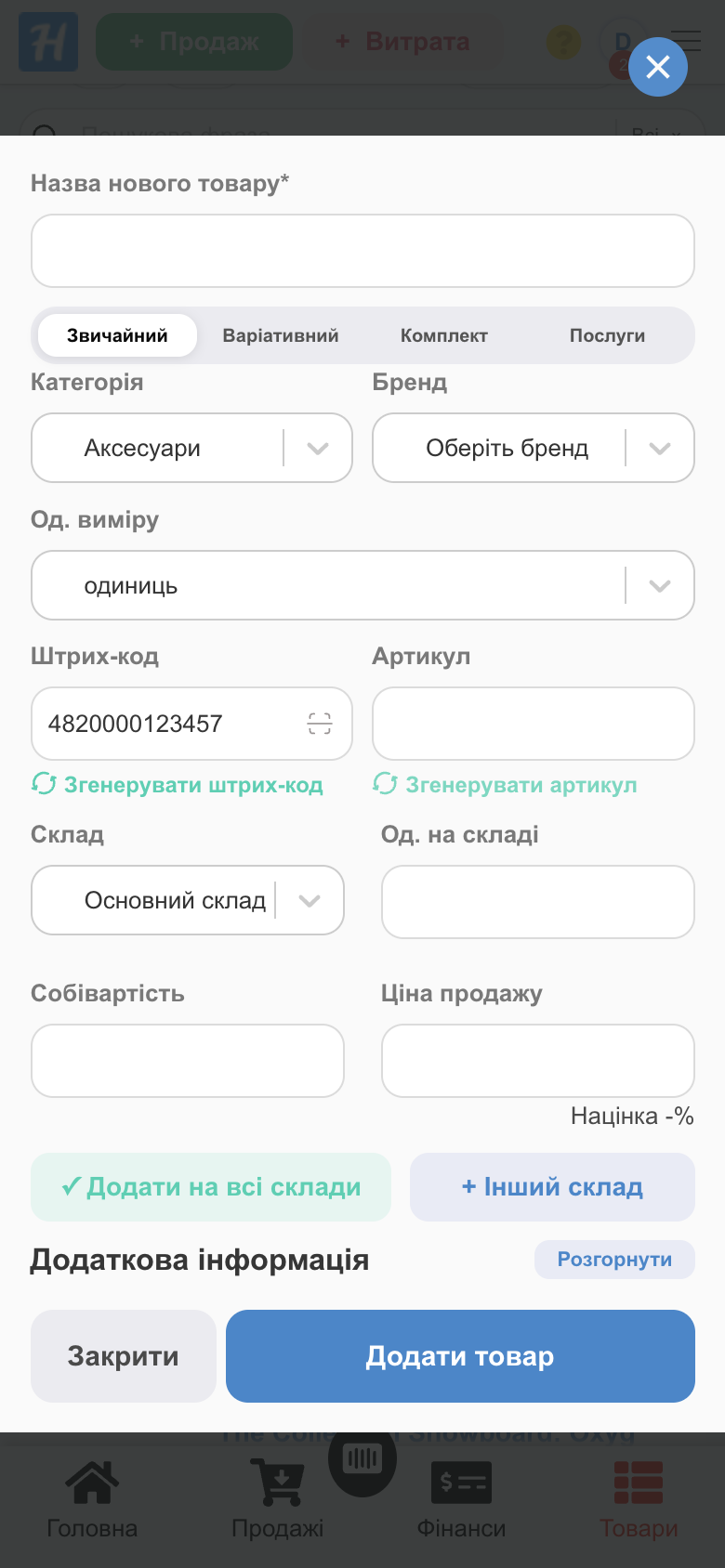
The product selection field and the barcode field in the product card have their own scanner icon, so you can scan a code right in the form (for example, when adding products to a shipment).
💡 Don't use the scanner? Turn it off in Settings → System modules → Barcode scanner, and the button disappears. This toggle is visible only in the app.
In a desktop browser, a regular USB or Bluetooth scanner works the same way: scan a code when no window is open.
Biometric sign-in
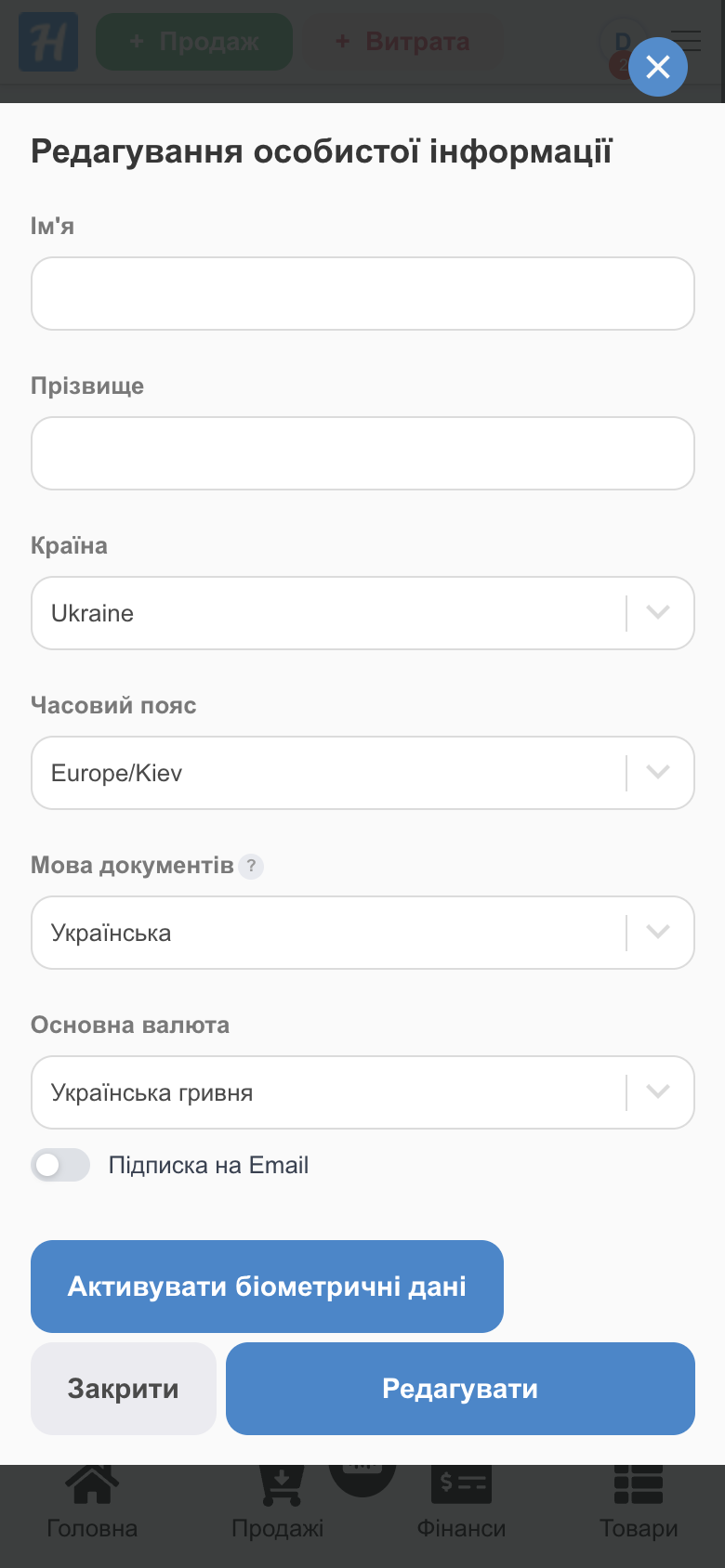
- Profile menu → Settings → Profile → Edit.
- Tap Activate biometric and confirm with your fingerprint or Face ID.
- The sign-in page now shows a Face ID icon. Tap it instead of typing your password.
Notifications, printing, and payment
- Push notifications: new orders and sales, chat messages, parcels arriving at the pickup point, calendar reminders. Choose which ones in Settings → Notifications → Setting up push notifications in the app. If notifications don't arrive, check that they're allowed for HugeProfit in your phone settings.
- Printing: you can print receipts, price tags, and labels straight to a receipt or label printer connected to the phone (see the section below). A4 documents (delivery notes, invoices, price tag sheets) open in the phone's system print dialog, where you can print to a Wi-Fi/Bluetooth printer or save a PDF. See Printing documents and Price tags and labels.
- Paying for your plan: on Android, the same as in the browser; on iPhone, through an App Store subscription (managed in your Apple ID settings). See Plans and billing.
- Links to websites, phone numbers, and messengers open in the phone's browser or the corresponding app.
Receipt and label printer
The app prints receipts, labels, and price tags directly to a thermal printer, without RawBT or other apps. On Android, Bluetooth printers work (including the built-in printer of Sunmi registers, listed as InnerPrinter), as do Wi-Fi/LAN network printers. On iPhone, Bluetooth LE (BLE) and network printers work; an iPhone can't see a printer with classic Bluetooth only, so connect that one over Wi-Fi.
How to set it up
- On Android, first pair the Bluetooth printer in your phone settings (Bluetooth → new device). On iPhone, just turn on the printer near the phone.
- In the app, go to Settings → Additional → the Receipt printer (Bluetooth / Wi-Fi) card → Edit. The card is visible only in the app.
- Select the printer from the Bluetooth list (if it isn't there, tap Refresh list; on iPhone, the search takes a few seconds), or check Network printer (Wi-Fi / LAN) and enter the Printer IP address and Port (usually 9100).
- Paper width: 58 or 80 mm.
- Leave Print receipts (fiscal and sales) checked, tap Test print, and make sure the page printed correctly, including Cyrillic characters. Then tap Save.
From then on, receipts print immediately, without the system print dialog, and you'll see Receipt sent to the printer (for a label, Label sent to the printer). If the printer is off or out of range, you'll see Could not print to the receipt printer with the reason. A4 documents still print through the system dialog.
💡 You set up the printer on each phone separately: the setting is stored in the app on that device, not in your account. The Disable button in the same window switches back to printing through the system dialog.
⚠️ On Android 12 and later, the first printer search asks for the Nearby devices permission; on iPhone, it asks for Bluetooth access. If you denied it, allow it for HugeProfit in your phone settings. If the window shows Update the app to print to the printer directly instead of the settings, update HugeProfit from Google Play or the App Store.
Labels and price tags
In the same window, in the Labels and price tags block, choose where to print labels and price tags for thermal printing:
- Don't print on the thermal printer (system dialog): as before, through the system dialog.
- On the receipt printer: on the same printer as receipts (for example, a receipt printer loaded with a roll of labels).
- Separate label printer: on a separate printer. Select it from the list the same way as the receipt printer, then set:
- Printer language: TSPL — Xprinter, TSC, Gprinter label printers or ESC/POS — receipt printer with a label roll.
- Width, mm and Height, mm: the size of a label on the roll (width 10–104 mm, height 10–300 mm).
- For TSPL, Gap, mm (the space between labels on the roll, 0–10 mm) and Rotate 180° if labels come out upside down.
- Test label: prints a test label with the printer's size and language.
Labels and price tags for thermal printing (a narrow template rather than an A4 sheet) then print on the selected printer. A template of the same size as set here (in either orientation) always prints as a label and is fitted to it, so set the size in your price tag or label settings to match the roll. To set up how they look, see Price tags and labels.
Differences from the browser version
- Available only in the app: camera scanner, biometrics, push notifications, and printing directly to a Bluetooth or Wi-Fi thermal printer.
- Social sign-in on the sign-in page is available only in the browser. In the app, sign in with your email and password.
- Large reports, Excel imports, and bulk product editing are easier on a computer. The data is the same, so you can start on your phone and finish in the browser.
The app is the same HugeProfit on your phone, with no separate data or settings. For a quick overview of its features, see inventory tracking on your phone.