
HugeProfit integrations: overview and common settings
Integrations connect HugeProfit to delivery services, marketplaces, websites, cash registers, payment services, messengers, and telephony. Orders come in on their own, waybills (TTN) are created from a sale, and stock and prices are exported to marketplaces automatically.
Where to find them
Settings → Integration. Tabs by type: New, Delivery, Marketplaces, CMS (websites), SMS, Chats, PRRO, Payments, Telephony, Other.
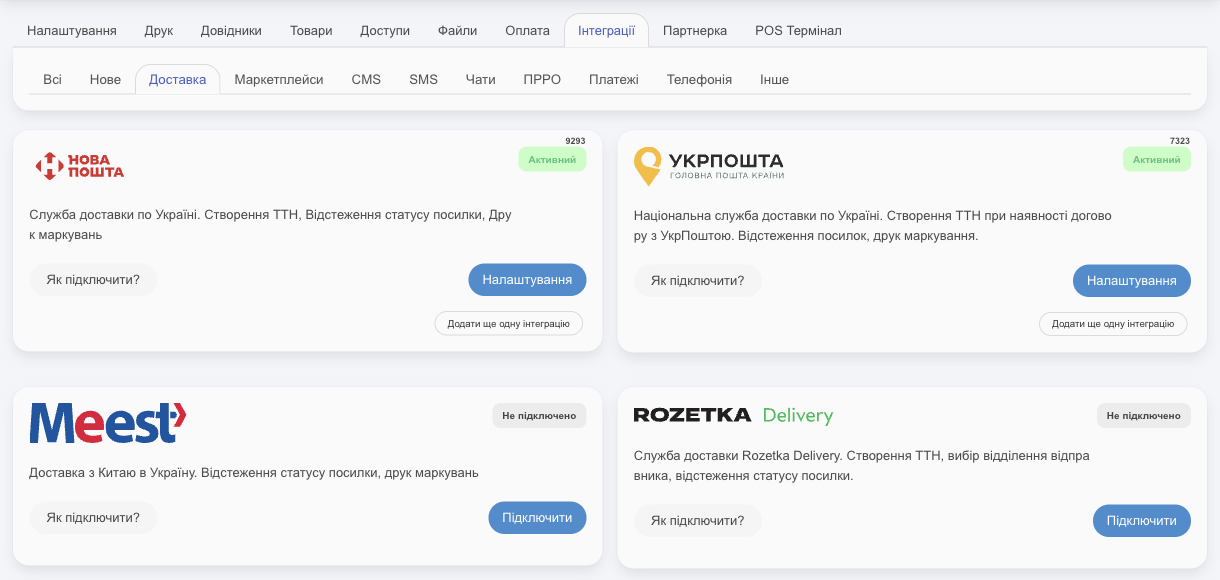
Each integration card shows:
- the status, Active or Not connected; the number in the top-right corner is the integration number (support will need it);
- How to connect?: instructions;
- Connect: a form for keys or a login; for an integration that is already connected, Settings;
- Add another integration: a second connection to the same service (another sole proprietor (FOP), another store).
In the settings of a connected integration: Edit saves changes, Deactivate turns it off temporarily without deleting it, 🗑 deletes it.
Delivery services
| Service | What you need to connect |
|---|---|
| Nova Poshta | An API key from the business account |
| Ukrposhta | A contract and the keys from Ukrposhta's email (BEARER eCom, COUNTERPARTY TOKEN) |
| Meest | A contract, plus the API token and ContractID from your account |
| Rozetka Delivery | Your account phone number and password |
To learn how to create waybills and track parcels, see Delivery and waybills.
Marketplaces and websites
| Marketplace | What you need to connect |
|---|---|
| Prom | An API token from your Prom account |
| Rozetka | Your seller account login and password |
| Kasta | An API token from Kasta Hub |
| Etsy | Authorization in the Etsy window |
| WooCommerce (WordPress) | The HugeProfit plugin for WordPress or REST API keys |
| OpenCart | The Rest Admin API extension and its Secret Key |
| Shopify | Installing the HugeProfit app in Shopify |
| Horoshop | The Horoshop admin login and password |
| Shop Express | The website admin login and password |
Integration warehouse
When you connect, choose a warehouse. The marketplace gets stock and prices from it, products are imported into it and linked there, and orders are deducted from it.
⚠️ You choose the integration warehouse only once; you can't change it after saving. Create the warehouse you need in advance (see Warehouses and stock).
Virtual warehouse: use it if you ship from several warehouses but the marketplace needs the total stock. The product card must exist in the integration warehouse: the price comes from it, and the additional warehouses only add their stock. You can specify additional warehouses later.
Once connected, the integration card shows buttons for working with products:
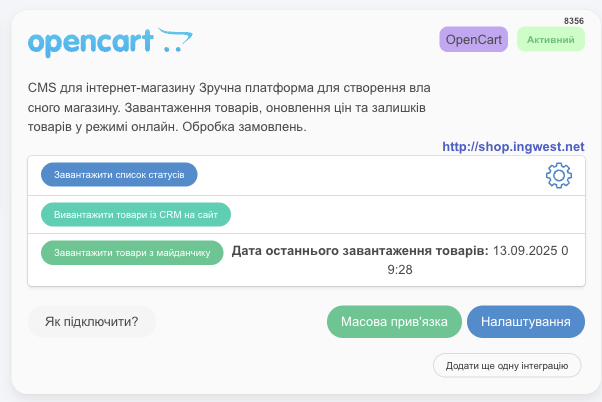
Import products from the marketplace
Import products: for each marketplace product, HugeProfit looks for a matching product in the integration warehouse, first by identical SKU and, if one of the products has no SKU, by exact name. If it finds one, it links them; if not, it creates a new card (if the selected option allows creating). Kasta has its own matching rules; see Kasta. Options:
- Update all balances: stock in HugeProfit will be overwritten with marketplace data;
- Import new products without stock: create and link products but leave stock alone (new ones get zero);
- Import WITHOUT creating products: only get the marketplace product list and link products manually;
- Link existing products WITHOUT creating new ones: link by SKU only.
⚠️ If you already track stock in HugeProfit, don't choose “Update all balances”: your stock will be replaced with marketplace data. A safe first step is “Link existing products WITHOUT creating new ones”.
⚠️ Different SKUs mean different products. If the same product has different SKUs in HugeProfit and on the marketplace, it won't link even if the names match. And when you import with product creation, HugeProfit adds another card with the marketplace name, which is how duplicates appear. Before the first import, make the SKUs identical in both systems.
Below the button you see The date of the last download of goods.
Bulk linking
Bulk linking on the card opens a table of “Products in CRM” ↔ “Products on the marketplace”. Filter by Linked / Not linked or search; in a row, choose the matching marketplace product from the list, or click ✕ to break the link. Auto-bind looks for matches by name and/or SKU and shows how many links were created and how many products weren't found or have duplicates; Delete bulk bindings breaks all links.
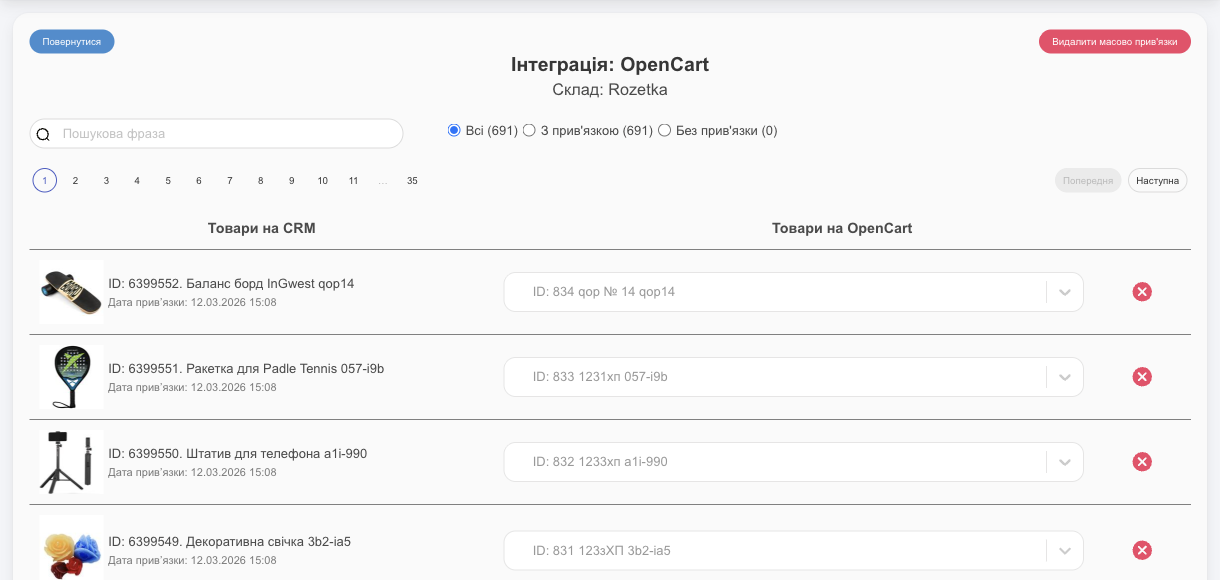
Stock and prices sync only for linked products. All the ways to link products (in bulk, automatically, manually from a product row, changing and removing links) are covered in Linking products to integrations.
Export products to the marketplace
Export products from CRM to the site (for marketplaces, the button is called Upload from CRM to site) sends products from HugeProfit to the marketplace. What you can do depends on the marketplace:
- Websites (WooCommerce, OpenCart, Horoshop, Shop Express, Shopify): the Export only new mode (create products that aren't on the website yet and link them right away) or Export only linked; which products (categories, brands) and what to send (name, descriptions, images, prices, stock, SKU, barcode, category).
- Marketplaces (Prom, Rozetka, Kasta): Only products already linked to this integration will be sent, and only prices and stock. You can't create a new product on a marketplace from HugeProfit: add it in your marketplace account, then import products into HugeProfit or link it manually.
- Etsy: only importing products from Etsy and syncing stock and prices.
Before starting, HugeProfit shows how many products will be exported. The export can take up to half an hour.
Marketplace orders
- New orders appear in Orders right away, even before confirmation.
- Order products are reserved immediately (unless Disable product reservations is turned on in the integration). Available stock goes down both in HugeProfit and on all connected marketplaces. For example, if you had 10 pcs and an order for 1 comes in, 9 become available everywhere.
- Orders also come in for unlinked products. In that case you have to pick the product manually every time you confirm; it's easier to link the products once.
Promotional prices
You can export discounts from Promotions to connected marketplaces for all linked products at once. When a promotion ends, HugeProfit turns it off and restores the regular prices on the marketplaces. For Kasta, you can also send a crossed-out “old” price: the Old price field in the integration settings.
Order statuses
Download a list of statuses gets the marketplace statuses so you can map each of your statuses to one of theirs and choose which of your statuses to send to the marketplace (Transfer to the website when local statuses are available). See Statuses and channels.
Key security
- Enter keys and passwords only in the integration form in HugeProfit; don't send them in chats.
- If you changed a password or reissued a key in the service, update it in the integration.
If an integration stops working
HugeProfit sends a notification with the integration name, for example “Authorisation Error. Check the correctness of the entered data.”. The most common cause is an expired or deleted key or a changed password: open the integration's Settings, enter the new details, and save. If that doesn't help, contact support and give them the integration number from the card.
For the benefits of connecting several marketplaces at once, see the page on managing sales on marketplaces.