
How to track expenses in HugeProfit
Expenses are everything you pay for your business: rent, salaries, advertising, packaging, fees. An expense's category determines how it affects profit. You can schedule recurring payments and have expenses added automatically to every sale.
Add an expense
Click the pink + Expense button at the top of any page, or go to Cash Flow → Transactions → Add expense.
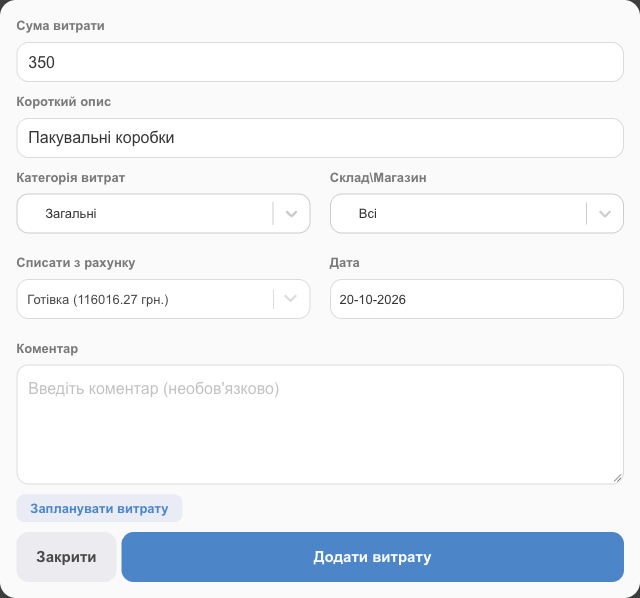
| Field | What to enter |
|---|---|
| Amount Of Expense | How much you paid. |
| Short description | What it is: “October rent.” |
| Expenses Category | Rent, salary, advertising… The category type determines how it's accounted for (see below). |
| Warehouse\Shop | Which store it belongs to, for reports by location. |
| From account, Date, Comment | Where you paid from and when. |
An expense tied to a specific sale (shipping you cover, packaging) is added from the sale window with + Add Expenses. A shipment payment is added from the shipment (Pay For Shipment).
Expense categories
Settings → Catalogs → Payment Categories → Add Category. A category is either for Income (sources of income) or for Expenses. For expenses, choose a type:
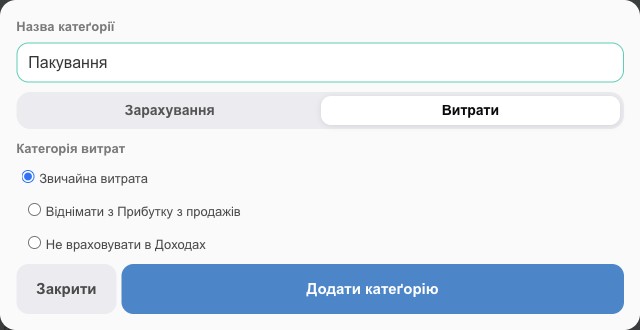
| Type | How it affects reports | Examples |
|---|---|---|
| Regular expense | Reduces net profit (business expenses) | Rent, salaries, advertising, phone and internet |
| Deduct from Profit on sales | Reduces profit on sales (gross profit), as part of the cost of the sale | Packaging, delivery to the client, card processing fees |
| Not to be recognized in Income | Doesn't affect profit; the money just moves | Owner's profit withdrawals, debt repayments, fees already included in cost price |
System categories (shipment, shipment delivery, manufacturing, commission) are created automatically.
Scheduled payments
So you don't forget about rent or taxes, click Schedule expense in the expense window, or go to the Calendar and create an event of the Payment type.
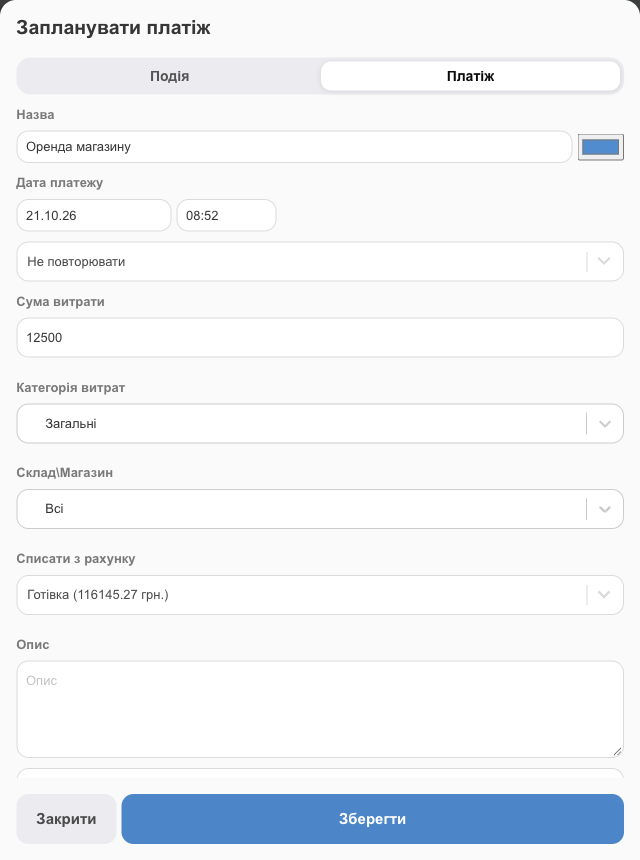
- Name and color, payment date and time, repeat (Don't repeat, monthly, and so on), amount, category, warehouse, account, description, assignee, and a reminder N minutes before.
- Scheduled payments appear on the dashboard in Your tasks and in the Forecast section of the Profit and Loss widget (Expected Monthly Expenditures).
- The Telegram bot can remind you about a payment (Settings → Notifications).
Auto-expenses on sales
HugeProfit can add expenses that come with every sale on its own: Settings → Sales settings → Auto-expenses on sales → Edit → Add auto-expense.
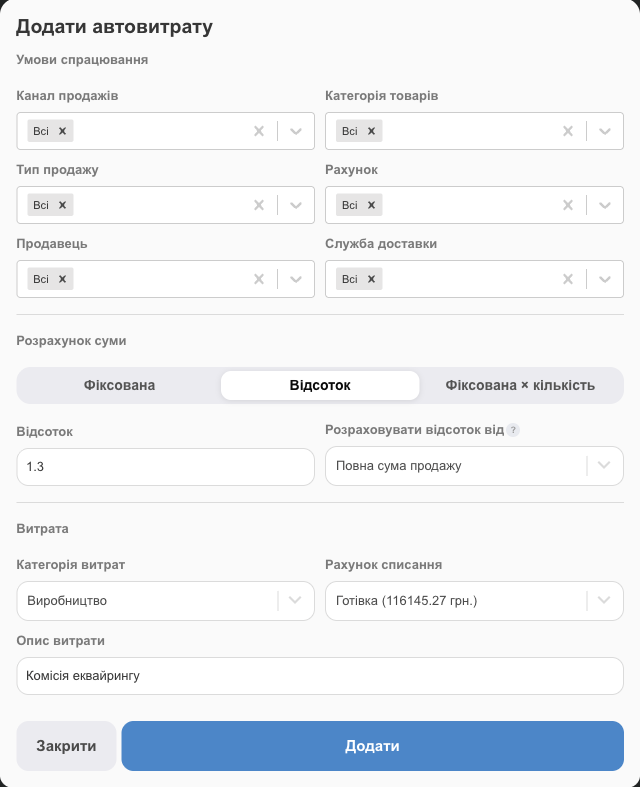
- Trigger conditions: sales channel, product category, sale type, account, seller, delivery service (All means all sales).
- Amount calculation: Fixed, a Percent of the sale amount, or Fixed × quantity (per unit of product).
- Amount Of Expense, Expenses Category, Write-off account, Expense description.
Examples: a 1.3% card processing fee on card sales; 15 UAH for packaging on every Nova Poshta shipment; 5% to a sales agent on sales through the “Partners” channel.
Where to see expenses
- Cash Flow → Transactions → the Expenses tab; the Costs By Category filter.
- Dashboard: the Costs By Category widget.
- Reports → Finance by category (see Reports).
Expenses together with sales give you net profit. Learn more about profit control and financial accounting.