
How to connect Ukrposhta to HugeProfit
The Ukrposhta integration lets you create shipments (waybills, TTN) right from a sale, print shipping labels, and track parcels automatically. It works for Ukrposhta business clients with a contract, after which Ukrposhta sends you the API keys.
⚠️ You need a contract with Ukrposhta for a sole proprietor (FOP) or a company. Without a contract, Ukrposhta doesn't issue API keys, and you won't be able to connect the integration. The sender in HugeProfit must be exactly the person or company the contract is with.
1. Where to get the keys
Ukrposhta's personal account doesn't have API keys. After you sign the contract, Ukrposhta emails you the connection details: a table with your organization's details and several keys. HugeProfit needs two rows:
| Row in Ukrposhta's email | Field in HugeProfit |
|---|---|
| PRODUCTION BEARER eCom | BEARER eCom |
| PROD_COUNTERPARTY TOKEN | COUNTERPARTY TOKEN |
⚠️ Use the PRODUCTION keys. The SANDBOX rows are for testing: shipments created with them won't reach Ukrposhta's real system. You don't need to enter the StatusTracking key; HugeProfit handles tracking itself.
You'll also need details from the same email: phone number, name (the FOP's full name or the company name), postal code, tax ID (IPN/EDRPOU), and IBAN.
2. Connecting
- Settings → Integration → Delivery → the Ukrposhta card → Connect.
- Paste BEARER eCom and COUNTERPARTY TOKEN and click Save. The sender fields then appear in the window.
- Fill in the sender details:
- Phone: a mobile number, as in the contract;
- Sender name / company: “FOP Last name First name Patronymic” or the company name;
- Enter zip code: the postal code of the branch you ship from;
- Enter EDRPOU/RNOKPP of your organization: the company's EDRPOU code or the FOP's individual tax number;
- IBAN: the account Ukrposhta will transfer cash on delivery (COD) payments to.
- Save again. HugeProfit registers you as a sender in Ukrposhta's system.
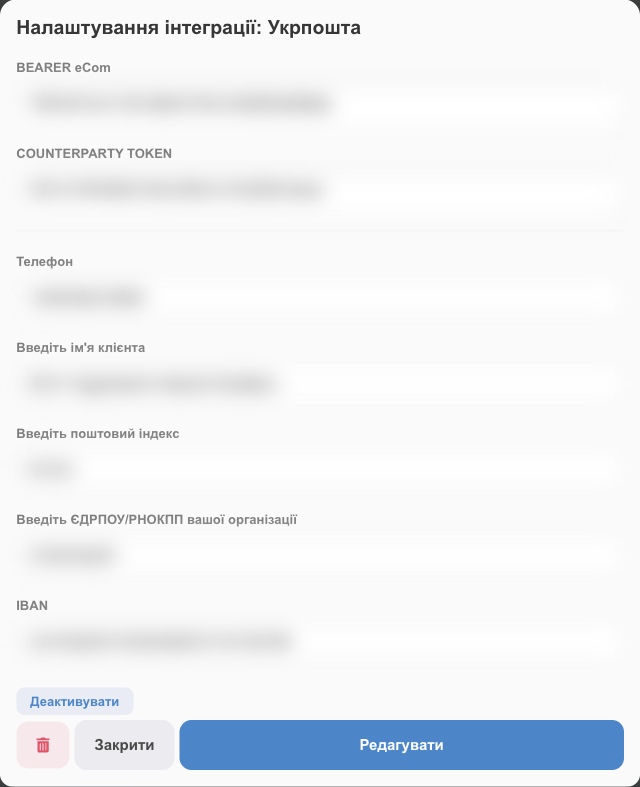
To change keys or details, click Settings on the card → Edit. Deactivate turns it off temporarily, 🗑 deletes it. For several contracts (several FOPs), use Add another integration.
The settings of a connected integration include an Access (optional) block: Employees, Sales channels, Warehouse\Shop. If you have several integrations, HugeProfit uses these to fill in the sender on the waybill automatically (priority: employee → sales channel → warehouse), and employees see only “their” senders. For details, see the “Automatic sender selection and employee access” section in Nova Poshta.
3. Shipping
- In a sale with Ukrposhta delivery → Send parcel/Finish → Create Ukrposhta shipment label. The general procedure is in Delivery and waybills.
- In the form: Sender, Recipient, type (Standard or Express), Dimensions (the length must be the longest side) and Weight, Who pays for delivery, Parcel description (50 characters). Empty dimensions and weight are sent as 10×10×10 cm and 1 kg.
- Payment: Declared value means the product is already paid for and you enter the declared value; Postpayment (credit to card) or Postpayment (credit to account) means COD with the money transferred to a card or to an account (the IBAN from the integration settings). Transfers to an account require separate approval from Ukrposhta (see “If something doesn't work”). If the sale uses the “Cash on delivery” account, Declared value isn't available.
- After creating the shipment, you can print the label (sticker) for the parcel.
- HugeProfit checks the parcel status automatically and updates the sale status the same way as for Nova Poshta.
If something doesn't work
| Problem | What to do |
|---|---|
| Authorization error or Wrong key | Make sure you pasted the PRODUCTION keys without spaces and didn't swap BEARER and TOKEN. The BEARER eCom key is 36 characters long. |
| Not all required fields are filled or Invalid phone number format when saving the sender | Fill in the sender name, postal code, and IPN/EDRPOU in full; enter the phone as +380XXXXXXXXX. |
| The length should have the largest value | In the dimensions, enter the longest side of the parcel in the length field. |
| The shipment isn't created because of the details | Check the postal code, IPN/EDRPOU, and IBAN: they must match the contract. |
| You lost the keys | Contact your Ukrposhta manager: only Ukrposhta sends the keys. |
| Error “There must be an agreement for postpaid payment to a bank account” | Ukrposhta hasn't yet allowed COD transfers to your account (IBAN). Contact your Ukrposhta manager and write to api-support@ukrposhta.ua asking them to allow transfers to the IBAN; include the counterparty uuid (it's in the file with the keys) and the IPN/EDRPOU the keys were issued to. Until you get approval, use “Postpayment (credit to card)”. |
| Wrong sender | The sender must be exactly the person or company (FOP or company) the contract is with. |
For an overview of the features, see the page on creating Ukrposhta waybills.