
How to connect Rozetka Delivery to HugeProfit
Rozetka Delivery is a delivery service to Rozetka pickup points. The integration creates a waybill (TTN) from a sale, lets you choose the sender's branch, and tracks the parcel status on its own. To connect, you only need the phone number and password you use to sign in to your Rozetka Delivery account.
1. Rozetka Delivery account
If you don't have an account yet, sign up at rozetka.delivery as a sender (individual, sole proprietor (FOP), or company). Make sure you can sign in to the account with your phone number and password: that's exactly what HugeProfit needs. You don't need to create separate API keys.
2. Connecting in HugeProfit
- Settings → Integration → Delivery → the Rozetka Delivery card → Connect.
- Phone: the number you sign in with, in the format 380XXXXXXXXX, and the password.
- Save. HugeProfit signs in to the account on your behalf and keeps the access up to date from then on.
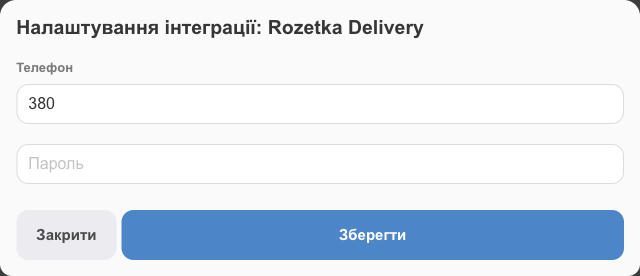
⚠️ If you change your password in the Rozetka Delivery account, change it in the integration settings too. Otherwise, waybill creation and tracking will stop (you'll get an authorization error notification).
3. Senders
After connecting, open Settings on the card to see the Senders block. For each sender (⊕ adds another one):
- Name: full name or organization name;
- Last Name, First Name, Middle Name of the contact person;
- City and Branch you ship from. You can drop off parcels at Rozetka branches and at Meest Poshta branches that accept Rozetka Delivery shipments; they appear in the list as “Meest Poshta No.…”;
- Phone;
- Access (optional): Employees, Sales channels, Warehouse\Shop.
Name, City, Branch, and Phone are required. If something is missing, HugeProfit tells you on save which sender and which field. In the waybill form, you'll pick the sender from a list.
You need the Access (optional) block when you have several senders: HugeProfit fills in the right one on the waybill (priority: employee → sales channel → warehouse), and employees see only “their” senders. For details, see the “Automatic sender selection and employee access” section in Nova Poshta.
4. Shipping
- In the sale, choose the Rozetka delivery service and the recipient's branch. The Create Rozetka shipment label button is in the sale window or under Send parcel/Finish.
- In the form: sender, recipient, branch, dimensions and weight (empty values are sent as 10×10×10 cm and 1 kg), Who pays for delivery, Declared value (declared value; you enter the Amount) or Remittance (cash on delivery (COD): the amount the client will pay, plus the Estimated value).
- You can send a parcel to the recipient only at Rozetka branches that hand out parcels; Meest branches aren't available for pickup.
- The COD amount must be a whole number without kopecks: Rozetka Delivery doesn't accept kopecks in COD payments.
- HugeProfit checks the parcel status automatically and updates the sale status while the integration is active. The general procedure is in Delivery and waybills.
If something doesn't work
| Problem | What to do |
|---|---|
| Invalid phone number format | Enter the number as digits starting with 380, without spaces or “+”. |
| Authorization error, Invalid Rozetka Delivery phone number or password | Check that you can sign in at rozetka.delivery with this phone number and password, then save the integration again. If you changed the password, update it in the integration settings. |
| The branch you need is missing | The branch list comes from Rozetka Delivery; choose the city first. For the recipient, only Rozetka branches that hand out parcels are shown. |
| “Rozetka Delivery: the COD amount (…) must be a whole number, without kopecks” | Round the COD amount to whole hryvnias. |
Related guides: the Rozetka marketplace (Rozetka orders with Rozetka Delivery shipping); the general shipping procedure is in Delivery and waybills.