
How to print price tags and barcode labels in HugeProfit
HugeProfit prints price tags for your shelves and barcode labels for products and boxes. Set up the look once, then print for any products from the product list, a shipment, or a stock move.
Where to set it up
Settings → System modules: the Printing price tags and Printing labels cards have buttons for settings and a test print. If you don't need price tags (for example, you only sell online), turn the module off with the toggle.
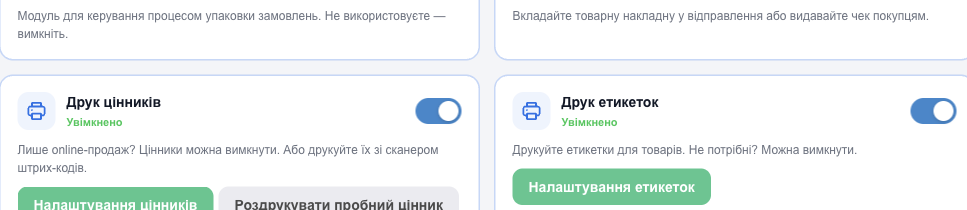
Price tag settings
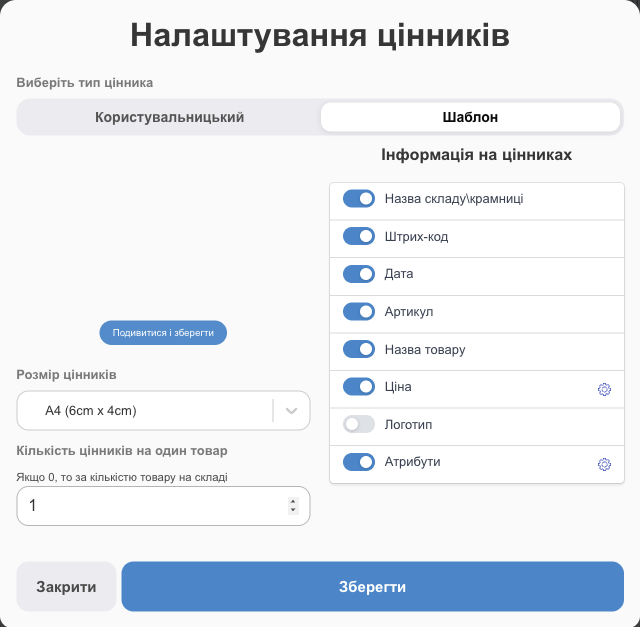
Click Customizing price tags and choose the price tag type.
Template
A ready-made price tag: choose the Price tag size (for example, A4 with 6×4 cm tags), the number of Price tags for one item, and what to print on it.
Custom
Your own size and element layout. In Print settings, set the tag width and height (up to 10 cm) and the Print format: Thermal printing (a label printer) or A4 (a sheet with margins of up to 2 cm).
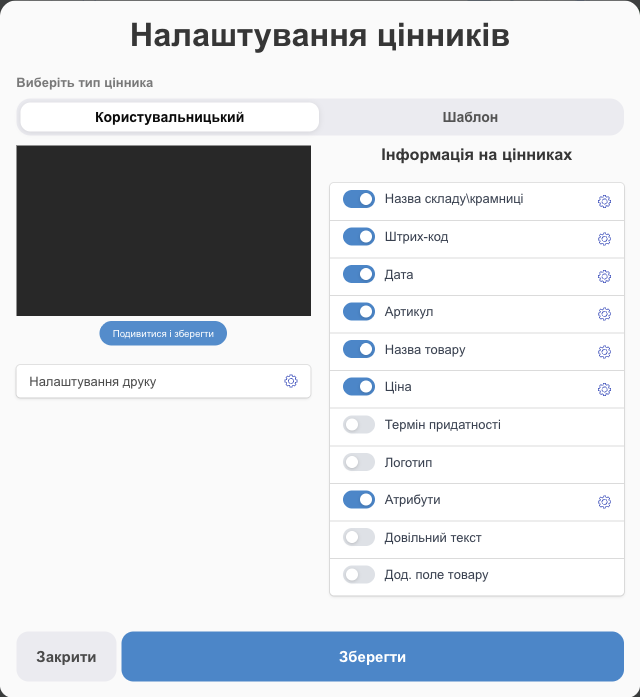
What you can print on a price tag
| Element | Settings |
|---|---|
| Product's Name, Vendor Code, Warehouse/store name, Date, Expiration date | Font size (5–30 pt). |
| Price | The base price or an additional price (if a product doesn't have the selected additional price, the base price is printed). Discount: show a struck-through old price, taken from the selected additional price. If a promotion applies to the product, the struck-through price is always shown. |
| Barcode | Barcode symbology, height (5–20 mm), bar width, Show number on barcode?. |
| Logo | Upload logo or Product's main photo; height 5–15 mm. |
| Attributes | Color, size, and so on: pick from your list of attributes. |
| Custom text, Additional product field | Any text (for example, “Sale!”) or the value of one of your additional fields. |
View and save shows a sample price tag before you save. The Print a trial price tag button in system modules prints a price tag for the first product.
Label settings
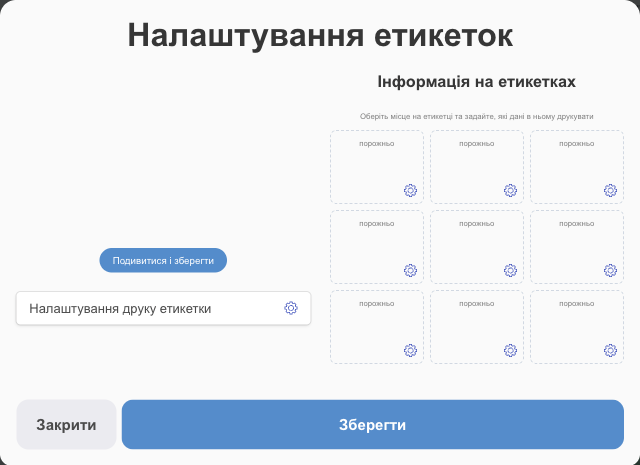
A label is a sticker for a product or box: barcode, SKU, name. Click Customizing labels:
- Label print settings: the label size.
- Information on the labels: the label is divided into slots (a grid). Pick a slot and set what to print in it: Add data adds a barcode, name, SKU, price, attribute, additional field, custom text, logo, or line.
- For each element, set the font size (4–40 pt), the color, and a Caption before the value (for example, “SKU: ” prints “SKU: ABC-123”). A slot can hold several elements. They print as lines from top to bottom; change the order with Move up / Move down.
- View and save.
How to print
- From the product list: select products → Print & export → Printing Price Tags / Labels.
- From a shipment: after you receive a shipment, or in its row, click Printing Price Tags / Labels. Tags print for the products in the shipment. The default quantity is the number received (or expected, if the shipment hasn't been received yet); you can change it for each product or use Change quantity for all.
- From a stock move: in the stock move row, for the products that moved to another warehouse.
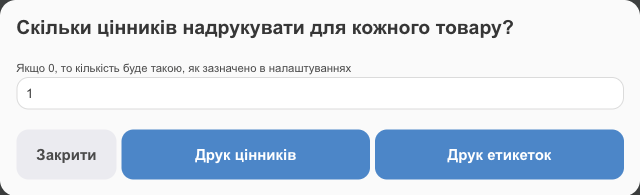
In the window, enter How many price tags should I print for each product? (0 means the quantity from settings or the warehouse stock) and click Printing price tags or Printing labels. A print page opens; print it on a regular printer or a label printer.
💡 When printing “by stock,” products with a quantity of 0 are skipped.
Print from your phone to a label printer
In the HugeProfit mobile app, you can print thermal price tags and labels straight to a Bluetooth or Wi-Fi printer, without the system print dialog: to a receipt printer or a separate label printer (TSPL, such as Xprinter, TSC, Gprinter, or ESC/POS). Set it up in Settings → Additional → Receipt printer (Bluetooth / Wi-Fi), in the Labels and price tags section. Enter the same label size there as in your price tag or label settings so the template fits the label exactly. A4 price tag sheets still print through the system dialog. For step-by-step instructions, see Mobile app.
Who can print
Employees need the Printing price tags / Printing labels permissions, and to change the look, Editing price tag print settings / Editing label print settings. See Employees and access rights.
For an overview of printing features, see price tag printing software.