
Orders from websites and marketplaces in HugeProfit
Orders are incoming orders from your website, the HugeProfit online store, Prom, Rozetka, Shopify, WooCommerce, and other marketplaces, plus leads you enter manually. An order isn't a sale yet: you process it by either confirming it (it becomes a sale) or declining it.
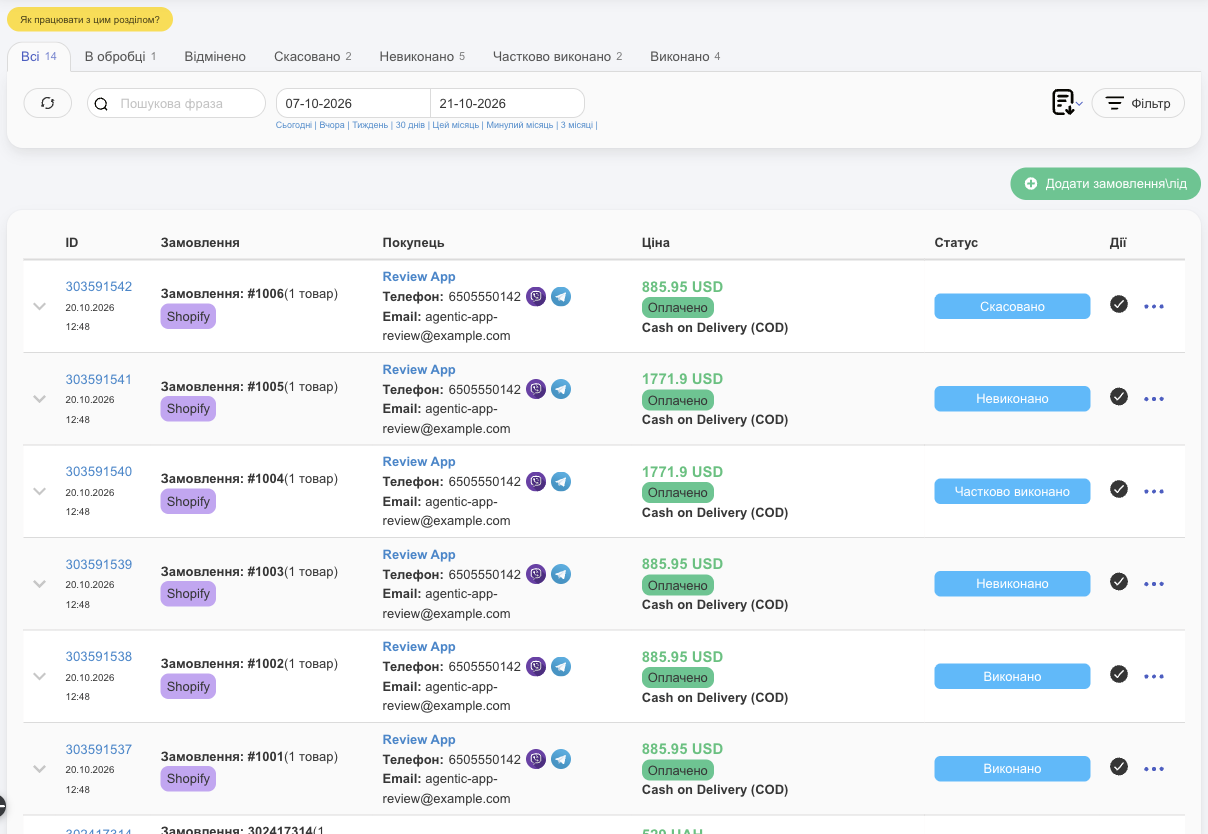
The list
- Status tabs: order statuses with counts, such as In processing, Completed, Canceled. Statuses come from marketplaces and from your custom order statuses.
- The counter next to Orders in the menu shows how many new unprocessed orders you have.
- Period, search, and the Clients and Integration filters.
- Each row shows the order number in HugeProfit and on the marketplace, the marketplace (a colored label), the buyer with their phone number (the Viber and Telegram icons let you message the client), the amount and payment method, and the status.
Report. The download icon on the filter bar gives you Download the PDF report or Download the Excel report: an Order report for the selected period and filters. An employee needs the Download orders documents permission.
Order details
The ⌄ arrow on the left expands an order: delivery address, buyer's comment, Status marketplace, and products with price and quantity.

- If reservation is turned on in the integration, the order's products are Reserved right away so nobody else can buy them. The ↶ icon next to them releases the reserve.
- If a marketplace product isn't linked to a product in HugeProfit, you'll see The product is not in the system or it is not associated with an existing one and a Link item button. Select the matching product, and future orders with it will be linked automatically.
- Marketplace promo code. If the buyer applied a promo code on Prom, the order row, the order card, and the PDF/Excel report show Promo code "code": −amount instead of a regular discount. The order amount is shown before the promo code, and when you confirm the order, the promo code discount carries over to the sale automatically.
- Buyer and recipient. If the marketplace sends both parties and they're different people (for example, Rozetka, Kasta, WooCommerce, Shopify), the order row and card show them separately: Customer is who placed the order, and Recipient is who receives the parcel. Prom's API sends only the buyer.
Processing
Until an order is confirmed, it doesn't appear in sales reports or statistics and doesn't deduct products from the warehouse. It only reserves them (if reservation is turned on in the integration). The stock deduction and profit appear after you confirm the order and it becomes a sale.
Use the ✓ button in the row or the ⋯ menu:
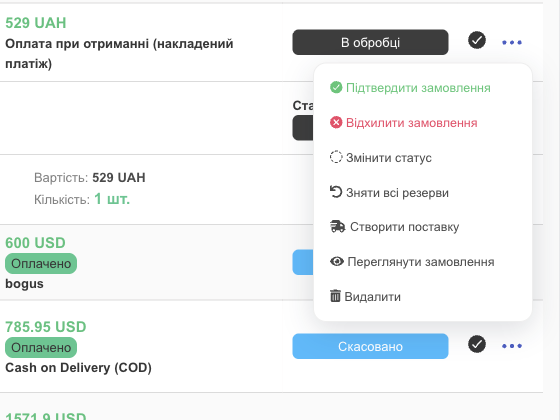
| Action | What happens |
|---|---|
| Confirm the order (✓) | Opens the sale window with the products, client, delivery, and payment from the order. Review it, choose a tab (sale, delivery, or reserve), and save. The order becomes a sale. |
| Decline order | Cancels the order with a Reason for cancellation. The reserve is released and the product is available for sale again. |
| Restore order | For a canceled order from WooCommerce, OpenCart, Shop Express, or Horoshop: the status returns to In processing both in HugeProfit and on the store website. The products aren't reserved automatically, so use Reserve all if needed. |
| Change status | Moves the order to another status without creating a sale (for example, Awaiting payment). For many marketplaces, the status is sent back to the marketplace. |
| Withdraw all reserves / Reserve all | Manage the reserve for the order's products. |
| Create Shipment | A shipment with the order's products, in case you need to buy more. |
| View order | The order card with all its details. |
| Delete | Removes the order from HugeProfit. |
💡 Unprocessed orders also appear on the dashboard in the Need attention block, along with how long they've been waiting.
Manual order or lead
A client messaged you on Instagram Direct or called but hasn't decided yet? Record a lead so you don't forget: Add an order\lead.
- Add products (or leave it empty if it's just an inquiry for now).
- New client (phone, last name, first name, middle name) or Existing client.
- Sales channel and Status.
- Additional information: Order number (generated automatically if left empty), Date, Responsible, Comment.
- Create order.
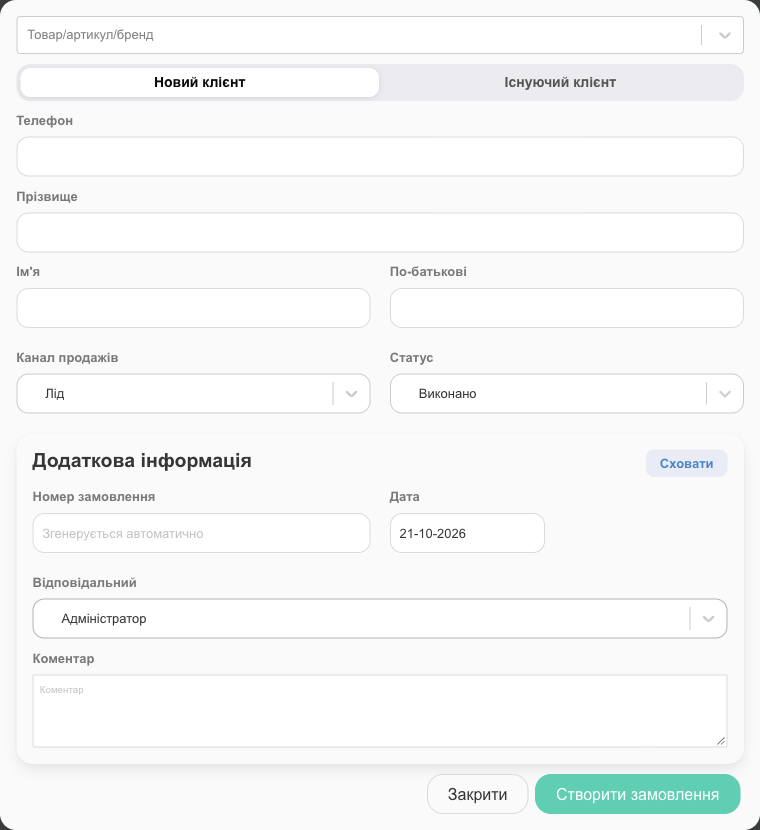
Manual orders are marked with the MO label and are processed the same way.
Where orders come from
Connect a marketplace in Settings → Integration: orders will start arriving automatically, and stock and prices will sync. See Integrations and HugeProfit online store. You can get notifications about new orders in Telegram.
Processing orders from all marketplaces in one list is the core job of HugeProfit's CRM for online stores.