
SMS via TurboSMS and Binotel, Ringostat telephony in HugeProfit
With TurboSMS, HugeProfit automatically sends buyers SMS or Viber messages when a sale's status changes: "order received", "parcel handed over for delivery, waybill (TTN) …", "waiting at the pickup point". You set up the texts and statuses once, and everything runs automatically after that. And when you connect Binotel or Ringostat IP telephony, you see incoming calls right in HugeProfit and can call a client from their card. See below.
1. What to prepare in TurboSMS
- An account and balance at turbosms.ua: messages are paid for in TurboSMS.
- A sender (an alphanumeric name the buyer sees instead of a phone number). In HugeProfit, the Sender list already includes TurboSMS's standard senders (
MAGAZIN,Best-Shop,BEAUTY), so you can start right away. To have SMS come from your store's name, reserve your own sender name in TurboSMS: Senders → SMS senders; for Viber, Viber senders. - Access for HugeProfit: Gateway (API) → Integration settings:
- turn on HTTP API (TurboSMS will ask for your account password) and save. The Current HTTP API authorization token appears; copy it. This is the recommended method, and it's required for Viber;
- or turn on SOAP and set a Separate server authorization login with a password. This is a separate password just for the connection, not the password you use to sign in to your TurboSMS account. It's the one you enter in HugeProfit.
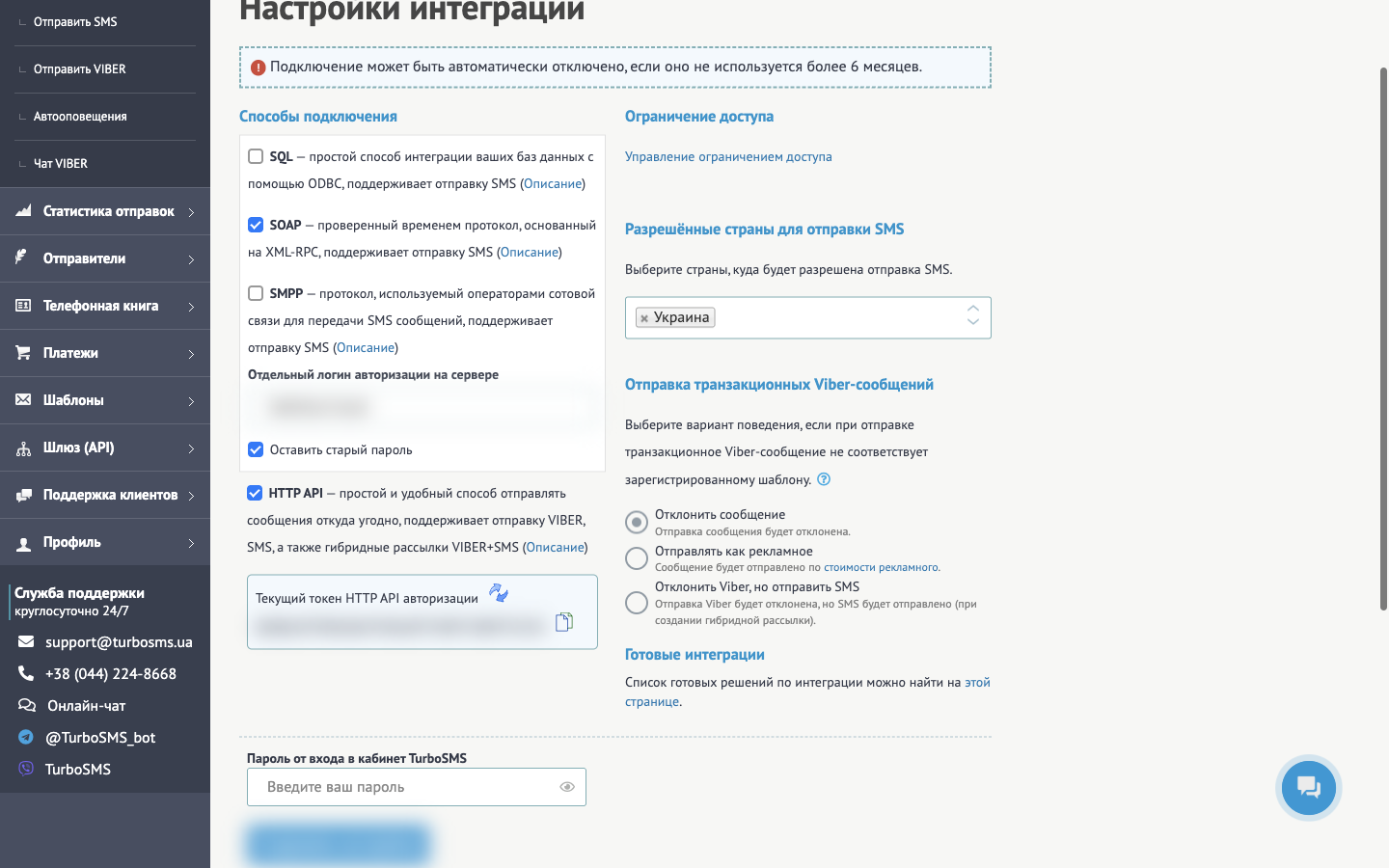
⚠️ TurboSMS may automatically turn off a connection that hasn't been used for more than 6 months. If SMS suddenly stop going out, check here that HTTP API is turned on.
2. Connecting in HugeProfit
Settings → Integration → the SMS tab → TurboSMS → Connect:
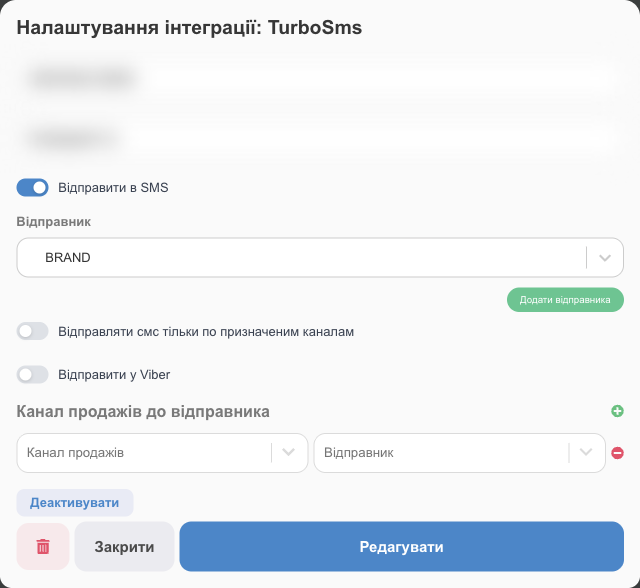
- The gateway login and password (if you connect via SOAP) or the HTTP Token.
- Send to SMS: send SMS; Sender: choose from the list. Your own sender isn't in the list? Click Add sender and enter the name exactly as it's reserved in TurboSMS (Back to list returns you to the standard ones).
- Send to Viber: send Viber messages; Viber sender (Bot name). Requires the HTTP Token.
- Sales channel to the sender: different senders for different channels (for example, two stores); Send SMS messages only through designated channels: sales from other channels don't get SMS.
3. Texts by status
On the TurboSMS card, click SMS settings:
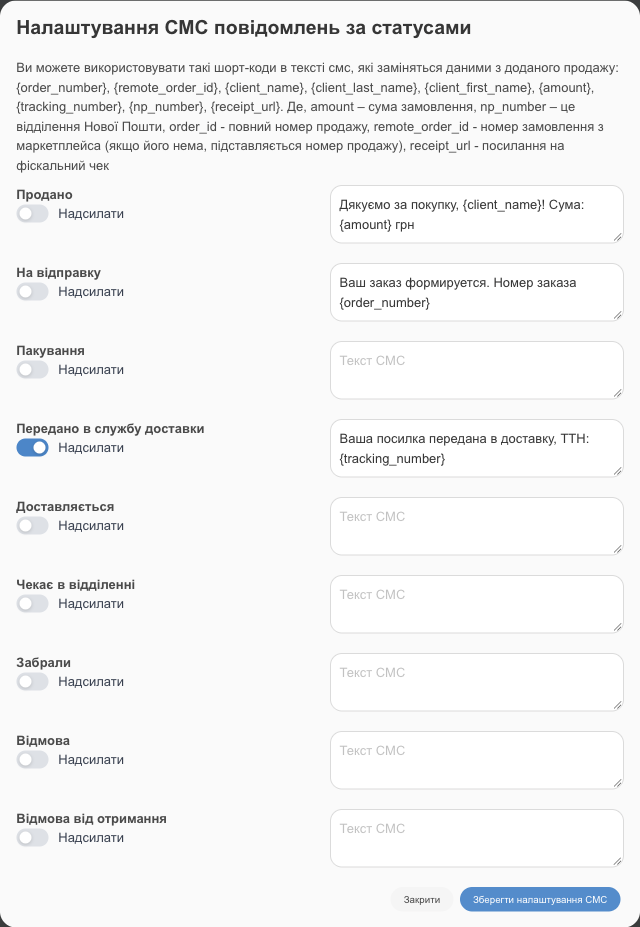
- For the sale statuses you need (Sold, Awaiting dispatch, Packaging, Transferred to delivery service, On delivery, Waiting at the branch, Taken away, Rejection, Refusal to receive), turn on Send.
- Write the SMS Text. Shortcodes insert the sale's data:
Code What it inserts {order_number}sale number {remote_order_id}marketplace order number (or the sale number) {client_name},{client_first_name},{client_last_name}client's name {amount}sale amount {tracking_number}waybill number {np_number}Nova Poshta branch {receipt_url}link to the fiscal receipt (if a software cash register (PRRO) is connected) - Click Save SMS settings.
A message goes out when a sale moves to a status, whether manually or automatically (for example, when the delivery service reports that the parcel is at the pickup point). The number is taken from the client's phone in the sale.
💡 Keep it short: one SMS holds up to 70 Cyrillic characters, and longer text is split into several paid parts. A Viber message can be longer.
Viber messages: what you need in TurboSMS
TurboSMS sends transactional Viber messages (about order status) only using pre-approved templates. TurboSMS sets the terms, so check the current ones with them. At the time of writing, the process is:
- Sign a Viber messaging agreement with TurboSMS (the documents are on turbosms.ua). TurboSMS then adds a Viber sender to your account (for example, the shared INFOBOX sender or your own).
- In the templates section of your TurboSMS account, register templates of the transactional type. Base them on the texts you set up in HugeProfit for statuses (with shortcodes in place of the variable data). Approval takes a few business days.
- Templates must not mention or link to well-known marketplaces; such templates aren't approved.
- On the TurboSMS API settings page, turn on HTTP API, copy the token, and paste it into the integration's HTTP Token; in Viber sender (Bot name), enter the approved sender.
Viber won't deliver messages whose text doesn't match an approved template. Messages are charged at TurboSMS rates.
You can pass the fact that an SMS was sent to your own system with the "SMS sent to client" webhook (API and webhooks).
Troubleshooting
| Problem | What to do |
|---|---|
| SMS aren't arriving | Check your TurboSMS balance, that the sender is registered and matches the one set in HugeProfit, that Send is turned on for the status, and that the client's number is correct. |
| Viber messages aren't going out | You need an HTTP Token and a registered Viber sender; in TurboSMS, check the setting for sending transactional Viber messages. |
| Not all channels get SMS | Check Send SMS messages only through designated channels and how channels are assigned to senders. |
Telephony: Binotel and Ringostat
Integrating with a virtual PBX adds to HugeProfit:
- an incoming call window with the client's number, from which you can open the client's card, add details, or start a sale right away; if the number is new, you can create a client;
- calling from the client's card: in Clients, open the client → the Binotel/Ringostat icon → choose an operator;
- the account owner sees which operator answered the call.
The calls themselves go through the PBX and the operator's softphone (SIP client); HugeProfit shows the call and gives you quick access to the client. To connect, go to Settings → Integration → the Telephony tab.
⚠️ Call windows appear in a desktop browser while HugeProfit is open. They aren't available in the mobile app.
Binotel
- If you don't have a Binotel account yet, submit a request on the Binotel website: a manager will contact you, create an account, and set up a virtual PBX.
- Ask Binotel support (support@binotel.ua) for keys to integrate with HugeProfit. There are four: REST API Key, REST API Secret, WebSoket Key, WebSoket Secret.
- Telephony → Binotel → Connect. Fill in the four keys, The number to which calls are received (your Binotel number), Name, and Telephone line for the Administrator: the account owner's extension (line) in Binotel. Click Save.
⚠️ The number to which calls are received isn't required to save, but calls from the client's card don't work without it: this is the number the PBX uses to dial the client. Format: 10 digits starting with zero, for example
0441234567. - Set each operator employee's line: Settings → Employees → edit → the Binotel telephone line field (it appears once Binotel is connected). You can see line numbers in your Binotel account; order new lines from Binotel.
- The operator must be online in a softphone: MicroSIP (Windows), Twinkle (Linux), Telephone (Mac), or Zoiper 5 (Windows and Mac). Binotel has setup guides for each.
An incoming call is visible to all employees with a line set and to the owner; once someone answers, the window disappears for everyone else. Outgoing: in the client's card, choose an operator (the list shows only those who are online). The operator's softphone rings first, and once they answer, the PBX dials the client.
Ringostat
- If you don't have a Ringostat account yet, sign up on the Ringostat website and confirm your email. Ringostat representatives will then help you set up the account and create operators.
- In your Ringostat account, go to your project → Integrations → Ringostat API and copy the Project id and Auth-key.
- Telephony → Ringostat → Connect → the Project id and Auth-key fields → Save.
- Once connected, the integration window lists your Ringostat operators. For each one (Operator: …), choose the HugeProfit employee who works as that operator, and save. If you add operators in Ringostat later, click Update the operators.
- For operators to receive incoming calls, call forwarding to them must be set up in Ringostat (Ringostat does this); the operator must be online in a softphone (Ringostat Smart Phone, Zoiper, and others).
Calls are visible to employees linked to operators and to the account owner. Outgoing calls also work from the client's card; the Ringostat call icon appears only for those linked to an operator (link the owner too if they make calls themselves).
If telephony isn't working
| Problem | What to do |
|---|---|
| Call windows don't appear | HugeProfit must be open in a desktop browser (not in the app). The employee must have a Binotel line set or be linked to a Ringostat operator. Refresh the page. |
| The operator list is empty when calling from the client's card | Operators aren't online in their softphone. Close the window and open it again after the operator signs in. |
| Ringostat: a new operator is missing from the settings | Click Update the operators in the integration window. |
| Binotel: error when saving | Not all four keys are filled in, or they contain extra spaces. Check the keys Binotel sent you. |
| Binotel: "Incorrect number. The number must be in the format 0441234567" | In The number to which calls are received, enter the number starting with zero, without +38: 0441234567. |
| Binotel: there's no call icon in the client's card | Fill in Telephone line for the Administrator in the integration or Binotel telephone line in the employee's card. The icon isn't shown on a phone, only in a desktop browser. |
| Binotel: the icon is there, but the call to the client doesn't go through | Check that The number to which calls are received is filled in the integration and that the operator is online in the softphone. |
Rates, numbers, lines, and call recordings are handled by Binotel/Ringostat; HugeProfit doesn't charge separately for calls.
Learn more about messaging clients on Viber from HugeProfit.