
How to connect Nova Poshta to HugeProfit
Connect Nova Poshta to create waybills (TTN) right from a sale and print waybills and labels, while HugeProfit tracks parcels and updates sale statuses on its own. All you need is an API key from your Nova Poshta business account.
1. API key in your Nova Poshta account
Sign in to your Nova Poshta business account (the one you ship from: sole proprietor (FOP), LLC, or private individual).
Settings → Security tab → My API keys block.
Click Create key and copy it (32 characters). If you already have a key, you can use it.
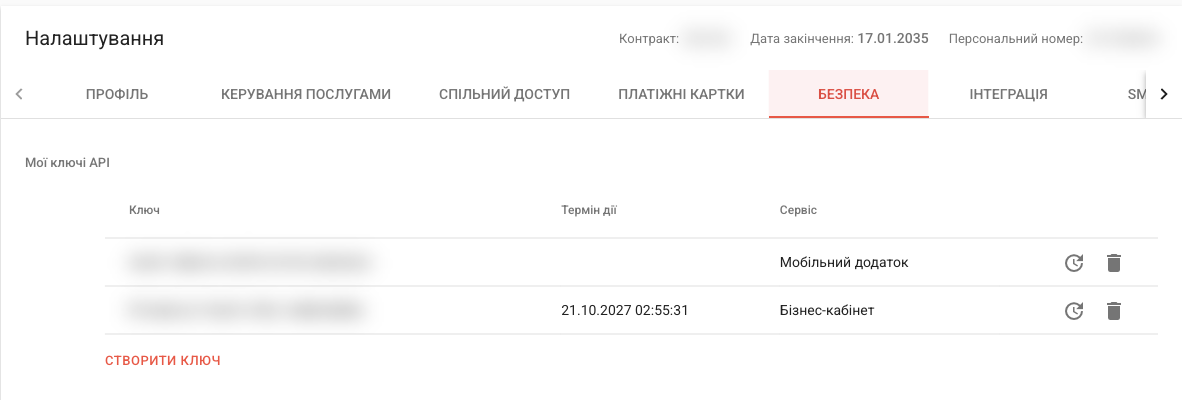
⚠️ The key gives access to your account: don't share it with anyone except HugeProfit. Note the Validity period column: when the key expires, the integration stops working. Create a new key and replace the old one in HugeProfit.
2. Connect in HugeProfit
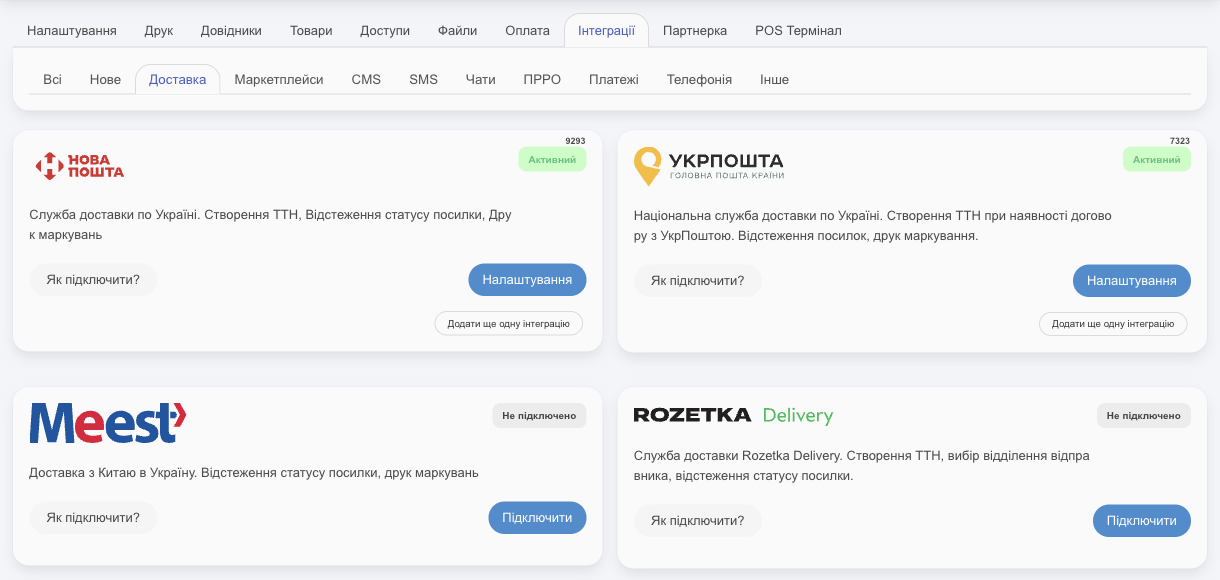
- Settings → Integration → Delivery tab → Nova Poshta card → Connect.
- Paste the key into the Enter the key from Nova Poshta field → Save.
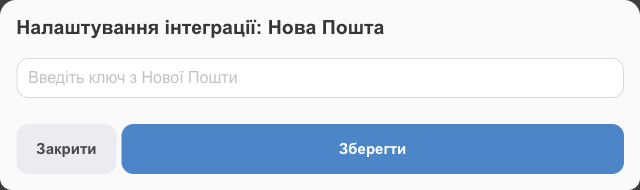
HugeProfit checks the key and loads your senders from the Nova Poshta account. If you get a Wrong key error, the key was copied incompletely or with a space.
3. Sender and branch
Open Settings on the Nova Poshta card:
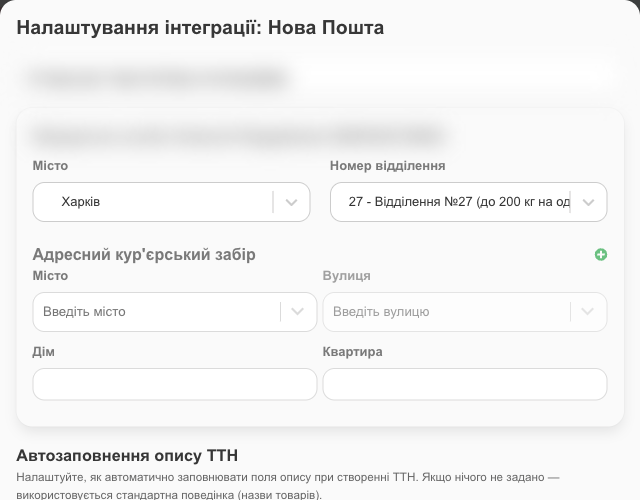
- For each sender from the account (Legal entity or Private person, name, and phone), choose the City and Post Office Number you usually ship from. They're filled into every new waybill (you can change them in the waybill itself). A sender without a city or branch doesn't appear in the waybill form.
- Access (optional): when to fill in this sender automatically and which employees can use it (see below).
- Address courier pickup: ⊕ and the address (city, street, building, apartment) where the Nova Poshta courier will pick up parcels. You can have several pickup points; fill in all the fields, or saving will show what's missing.
- TTN description auto-fill: what to put in the Description (up to 120 characters) and Additional Information (up to 100) fields:
- Automatic: from the Category, Product name, SKU, or Custom field of the products in the sale;
- Custom text: the same for all waybills (for example, “Handmade candles”);
- Empty.
Click Edit to save. Here you can also replace the key (top field), Deactivate the integration (turn it off temporarily), or delete it with 🗑.
💡 Ship from several sole proprietors? On the Nova Poshta card, click Add another integration and enter the key from the other sole proprietor's account. In the waybill form, you'll choose who to ship from.
Automatic sender selection and employee access
When you have several senders (several sole proprietors, warehouses, or managers), you can link them to employees, sales channels, and warehouses. HugeProfit then fills the right one into the waybill's Sender field on its own. Each sender has an Access (optional) block under its branch:
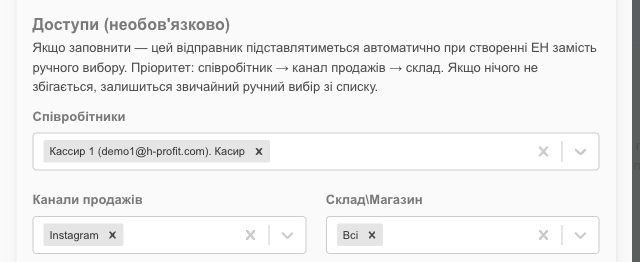
| Field | When the sender is filled in |
|---|---|
| Employees | The selected employee creates the waybill. This also restricts access: in the waybill form, an employee sees only senders where they're selected or where All is set. The account owner sees all senders. |
| Sales channels | The sale belongs to the selected channel (see Statuses and channels). |
| Warehouse\Shop | All products in the sale are from the selected warehouse. |
All (field left empty) means no link. HugeProfit checks in order: employee → sales channel → warehouse. The sender is filled in at the first step where exactly one sender matches; if several or none match, the next step is checked. If no single sender is found, the Sender field stays empty, and you choose from the list manually. You can always change the filled-in sender in the waybill.
💡 Channel and warehouse are considered when the waybill is created in the sale window (Delivery tab → Create NovaPoshta shipment label). In the Send parcel/Finish window, the sender is chosen by employee only.
⚠️ If no sender with a city and branch is available to an employee, they'll see Unfortunately, you are not assigned to any delivery service. Contact your administrator. when creating a waybill from the sale window. Add them to the right sender's Employees or clear that field (All).
Automatic selection works the same way for Ukrposhta, Meest, and Rozetka Delivery.
4. Working with parcels
- Creating a waybill from a sale, printing it, bulk shipping, and courier pickup are covered in Delivery and waybills.
- Once a waybill is created, HugeProfit checks the parcel status about every half hour and moves the sale to On delivery, Collect COD, Sold, or Refusal to receive.
- You can add a waybill created manually in the Nova Poshta account or at a branch to a sale (the Tracking number (waybill) field in the sale form), and its status will be tracked too. Tracking works even without the integration; you need the integration to create waybills from HugeProfit.
- Click the waybill number in the sales list to open a panel with the parcel details: type (declared value, money transfer, or payment control), delivery cost, and paid storage and auto-return dates. Parcels waiting at a branch are marked Paid storage is coming soon and Paid storage. See Delivery and waybills, the “Tracking” section.
- Turn on the notifications “Parcel has been waiting at the branch for over a day”, “Three days left of paid storage”, and “3 days left until parcel auto-return” in Account settings.
Troubleshooting
| Problem | What to do |
|---|---|
| The notification “Authorization error”, “Your API key from Nova Poshta has expired or no such token exists…”, or the Nova Poshta error “API key expired” | The key was deleted or has expired. Parcels are still tracked, but you can't create waybills. In your Nova Poshta account (“Settings” → “Security”), delete the old key, create a new one, and paste it into the integration settings. |
| The sender you need is missing | Senders come from your Nova Poshta account. Add a contact person in the Nova Poshta account and reopen the integration settings. |
| An employee sees “Unfortunately, you are not assigned to any delivery service” or doesn't see the sender they need | In the integration settings, in the sender's “Access (optional)” block, add the employee to “Employees” or leave “All”; make sure the sender has a city and branch selected. |
| A waybill with “Payment Control” cash on delivery (COD) can't be created | Payment control requires a cashless payment contract with Nova Poshta and no outstanding debt in your account. |
| The sale status doesn't change | Make sure the waybill number is entered in the sale correctly and the sale isn't in a custom status marked “Final status”. The status updates about once every half hour. |
The integration's features, including bulk waybill creation, tracking, and COD, are collected on the Nova Poshta waybill creation page.