
How to move products between warehouses in HugeProfit
A stock move transfers products from one warehouse or store to another: stock goes down at the source and up at the destination, and the cost price travels with the products. There is also an internal move, between shelves of the same warehouse.
Create a stock move
You create a stock move in two steps, and it's saved right away, so you can fill in a long product list in several sittings.
Step 1. Warehouses
- Products → Moving → Move items. Or select products in the list → Add → To move.
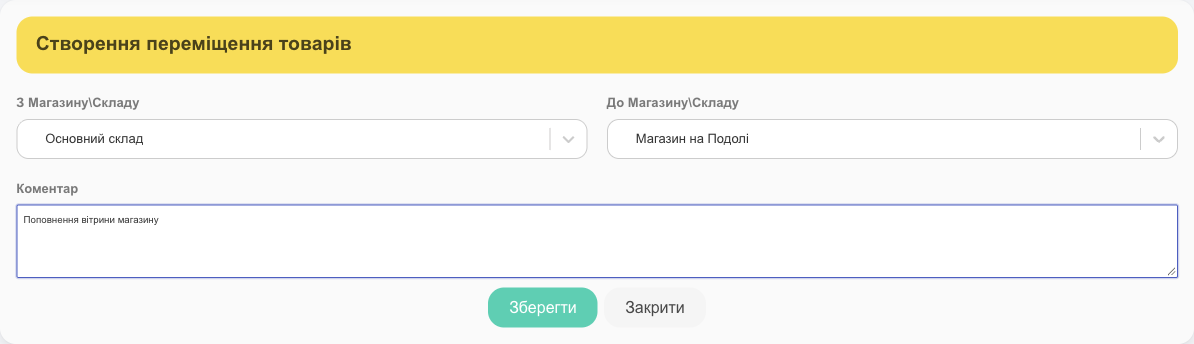
- Choose From Store\Warehouse and To Store\Warehouse, and add a comment if you like.
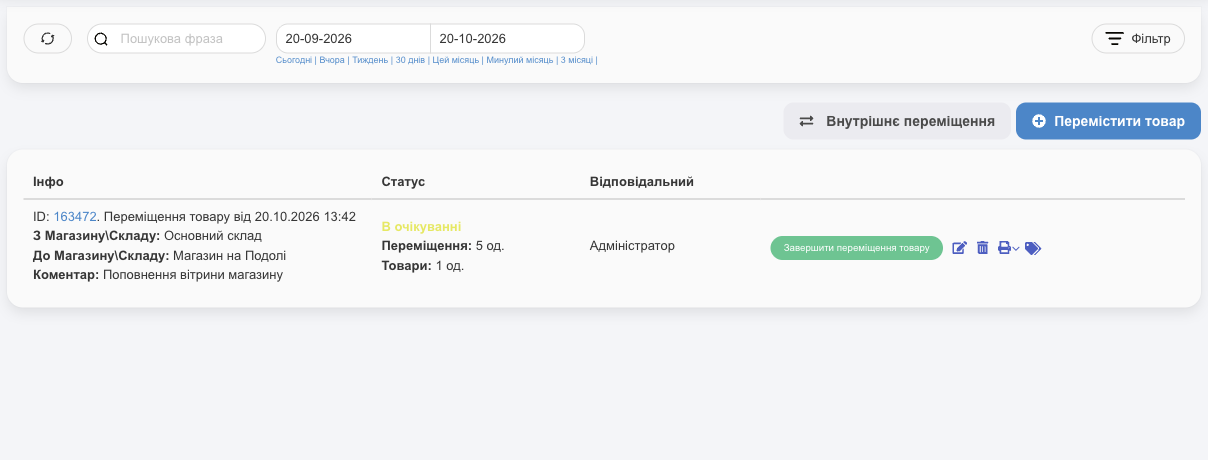
- Click Save. The stock move appears in the list right away with the Pending status, and the products step opens.
Step 2. Products
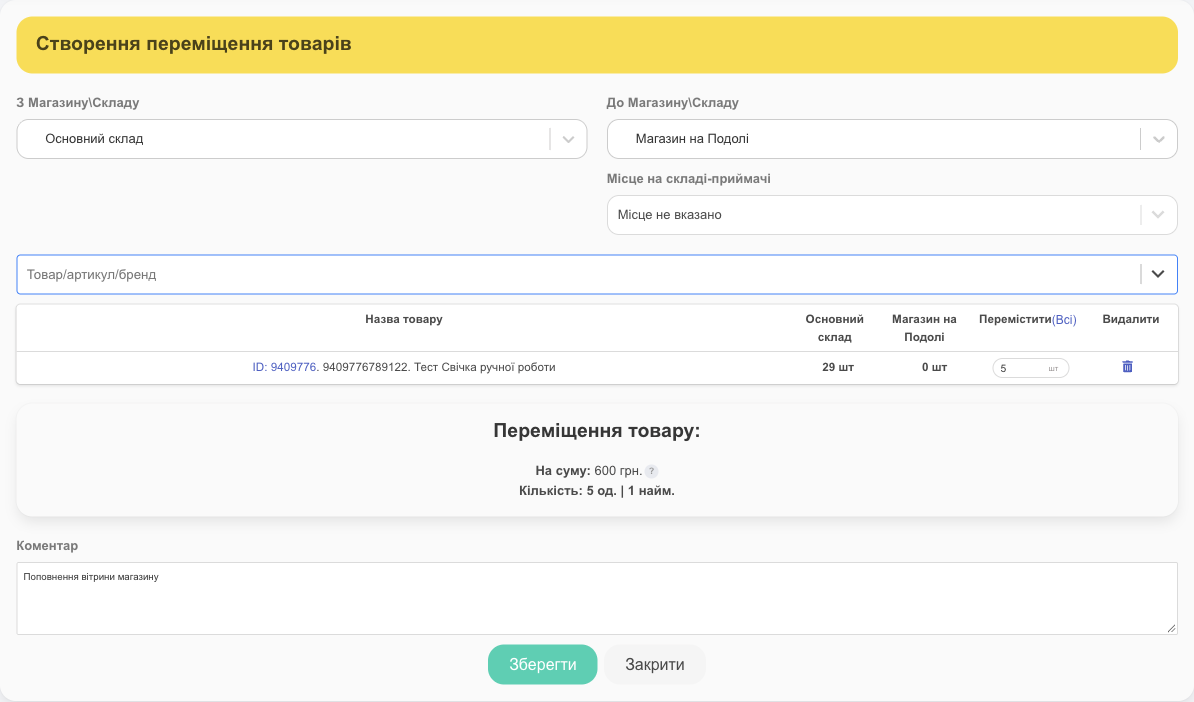
- Find products in the The product name/SKU/brand name field and enter how many to move. The table shows the stock at both warehouses.
- If the destination warehouse has storage locations, you can choose a Location at destination warehouse.
- Every change (adding a product, changing a quantity, deleting a row) is saved automatically; you don't need to click anything. When you're done, click Save, or just Close: nothing you've entered will be lost.
To return to an unfinished stock move, click ✎ in its row: step 1 opens (the source warehouse can no longer be changed). Then click Edit, and you're back on the products step with everything you've added so far.
To move an entire warehouse, for example when closing a store, use the Move All Products button.
Which units get moved
If a product at the source warehouse is tracked by unit (serial numbers, batches, storage locations; see Serial tracking and batches), the products step shows a Choose units link under its name.
- Click Choose units to open the list of units at the source warehouse: serial number (or No serial number), attributes, storage location, and how many are Available.
- Select the ones you need. For a batch, you can enter how many to take from it.
- Click Save choice (N pcs). Selected: No. … appears under the product name, showing what will be moved.
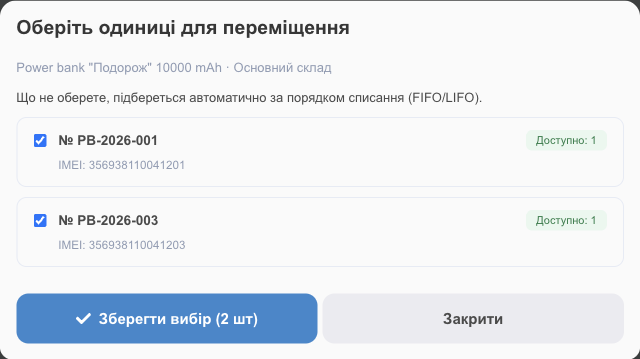
- Choosing units is optional. Whatever you don't choose, HugeProfit picks on its own by the write-off order (FIFO or LIFO), and then from untracked stock.
- If you choose more than the quantity, the quantity increases to match your selection.
- If a chosen unit is no longer at the source warehouse when the move is completed (it was sold or moved by another document), HugeProfit won't swap in a different one; it asks you to change your selection.
- Serial numbers and attributes travel with the product: at the destination warehouse, these are the same units.
Complete a stock move
A saved stock move has the Pending status: the products are in transit, and stock hasn't changed yet. When the products arrive:
- In the stock move row, click Complete items transfer.
- Check the quantities in the Receiving column.
- Click Receive items.
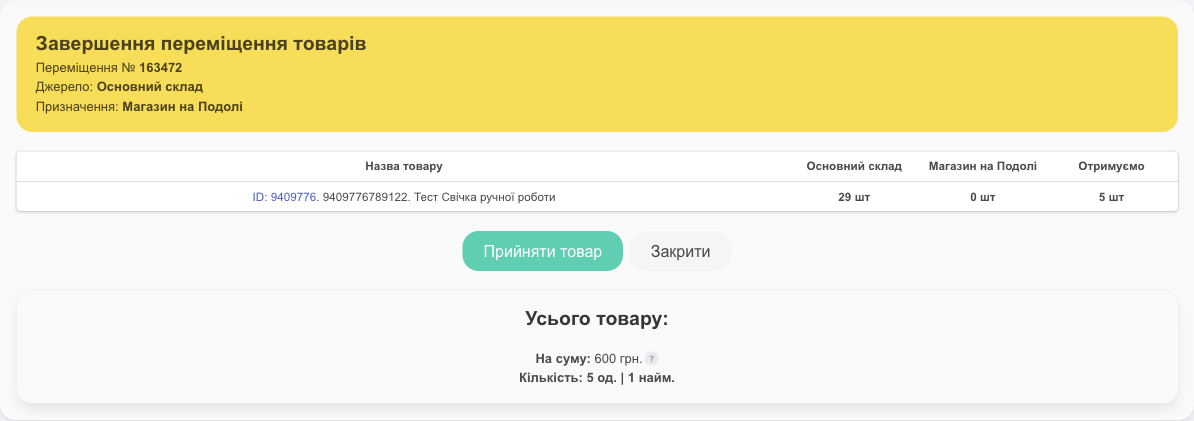
✅ Status Completed: the products are written off from the source and added to the destination warehouse. If the source warehouse doesn't have enough stock, HugeProfit won't let you complete the move and shows which products are short.
Stock move card
Click the stock move ID to see the quantity and value (at cost price), warehouses, status, responsible employee, comment, files, and product list. Serial numbers of the units appear under each product name: for a pending move, the ones chosen manually; for a completed move, the ones actually moved.
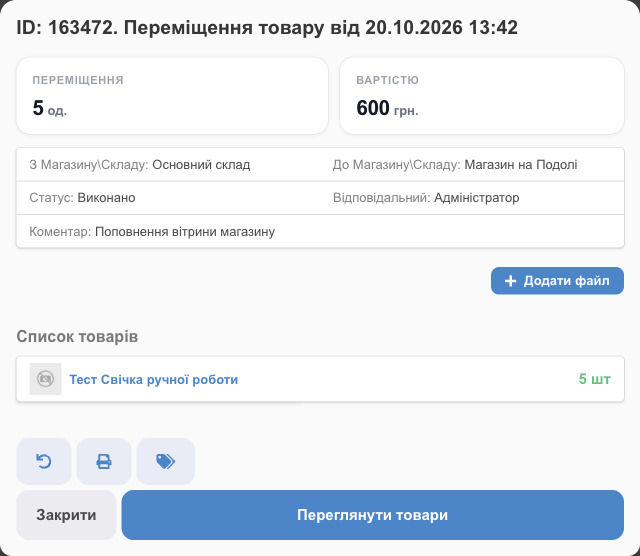
- 🖨 Printing: a stock move delivery note With purchase prices or With sale prices, plus Printing price tags for the moved products.
- ✎: edit the stock move while it's pending.
- ↶ Cancel move: for a completed move. The products return to the source warehouse, and the move goes back to pending, so you can fix it and complete it again. Tracked units return exactly as they were moved, with the same serial number and to the same storage location. The unit selection in the move is kept.
- 🗑: delete a pending stock move.
Bundles in a stock move
A bundle has no stock of its own, so its components are moved instead. HugeProfit calculates the component quantities from the bundle's contents and shows them in a separate Bundle components block. If several bundles share a component, HugeProfit asks How to count shared components?.
Internal move
The Internal relocation button moves products from one storage location to another within a warehouse (from shelf to shelf). The warehouse's stock doesn't change, only the location. You can cancel this kind of move too: the products return to their previous location. See Storage locations.
Filters
You can filter the list by period, product, status, source and destination warehouse, and responsible employee (Manager\Cashier).
Related guides: warehouses and storage locations, shipments (how products get into a warehouse), and stocktaking (how to reconcile stock after moves).
Stock moves help you keep accurate stock in every store and warehouse. They're part of warehouse inventory management in HugeProfit.