
How to do a stocktaking in HugeProfit
Stocktaking is a recount of the products in a warehouse. You enter how much is actually on the shelves, HugeProfit compares it with your records, shows the shortage and surplus, and then corrects the stock. You can record the shortage as an expense right away.
Step 1. Choose where to count
- Products → Stocktaking → Take inventory.
- Select a Warehouse\Shop. You can count a large warehouse in parts: select a Storage location (optional), such as a sales floor or a rack.
- Add a comment if you like. Click Next.
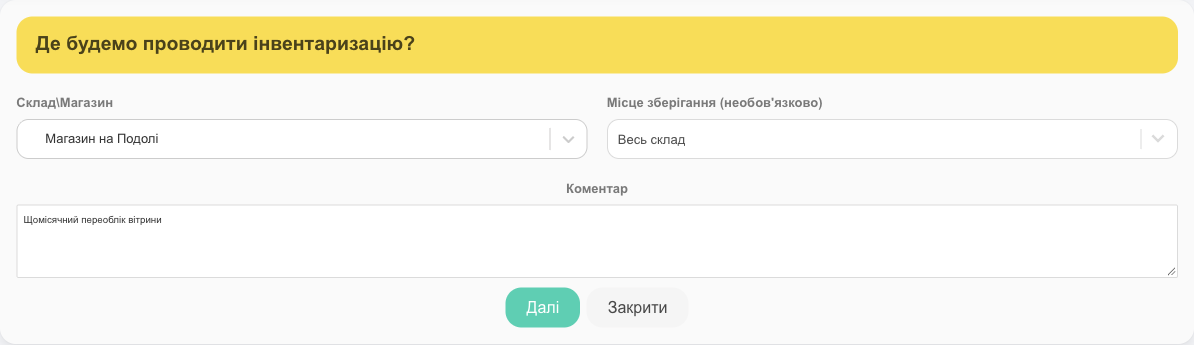
Step 2. Enter the actual quantity
- Add products using search (name, SKU, or barcode; a scanner is handy here) and enter the quantity you counted in the In stock column.
- Add all products adds the whole warehouse at once so you can work through the list. Add all products by filters in the search adds just a category or a brand.
- The Products with an out-of-date quantity toggle shows only the rows with a discrepancy.
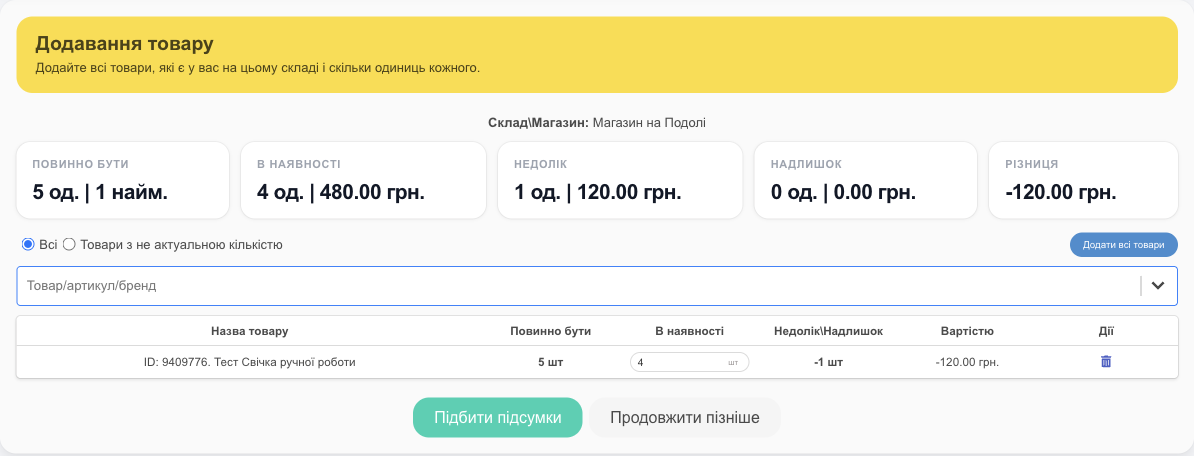
- Continue later saves a draft so you can come back to it (in the list, use the Continue inventory button).
- Stock doesn't change until the stocktaking is complete.
💡 The totals above the table update after you save. You'll see the exact result in the next step.
Step 3. Results
Click Summarize. HugeProfit shows:
- Shortage and Surplus: products with a discrepancy, the quantity, and the amount at cost price;
- Not added to the list: products that your records show in the warehouse but that you didn't enter.
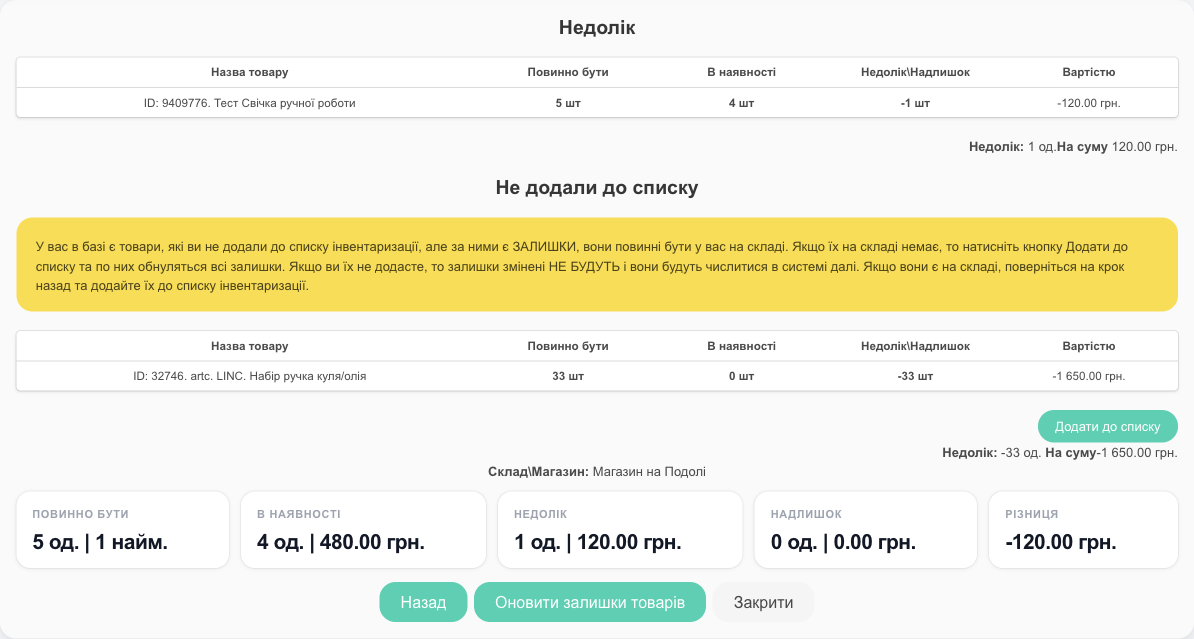
⚠️ Products you didn't add to the list are not reset to zero. If they really aren't in the warehouse, click Add to the list and their stock becomes 0. If they are there, go Back and enter the quantity.
Click Update stock items (if there are products you didn't add, HugeProfit asks you to confirm). The stocktaking is complete, and the stock updates within a few minutes.
The list and recording shortages as expenses
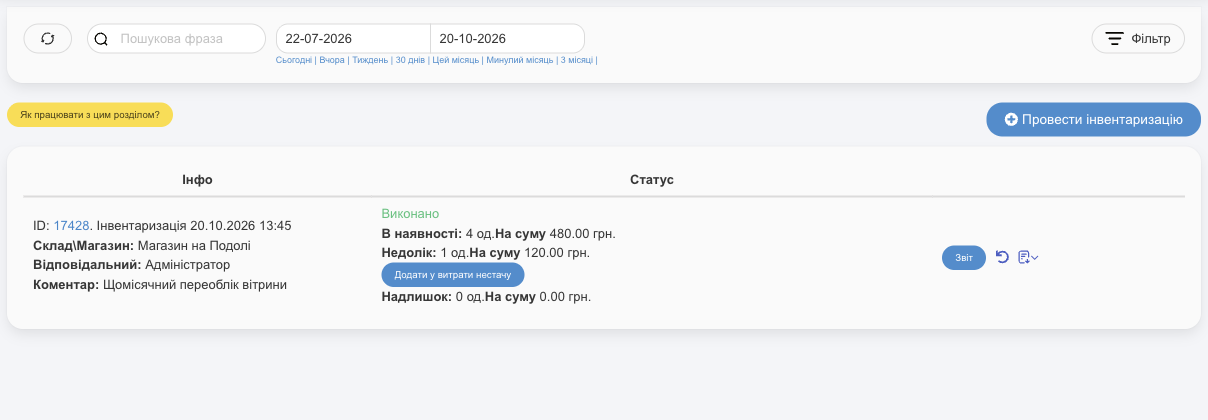
- Each stocktaking shows the warehouse, the person responsible, the comment, the status, the quantity in stock, the shortage, and the surplus.
- Add shortage to expenses records the shortage amount as an expense (with an account and a category) so it counts toward net profit. A link to the expense then appears in the row.
- Report is the full list of products in the stocktaking. The document icon in a stocktaking row exports it to PDF or Excel (recorded and actual quantity, difference, amounts). Use it to print a count sheet or to keep a stocktaking report.
- Cancel inventory (↶) works within 7 days: all stock changes made by this stocktaking are reversed.
- You can delete an unfinished stocktaking (if you have permission).
Tips
- Don't sell from the warehouse while you count, or count outside business hours. Otherwise, sales made during stocktaking will show up as a false shortage.
- Count large warehouses in parts, by storage location or by category.
- If a product was damaged rather than lost, record a write-off with a reason: your reports will show where the product went.
Related guides: writing off damaged products, adjusting stock manually, and restoring stock to a past date are covered in Warehouses and stock.
Stocktaking helps you reconcile the actual quantity of products with the stock in the system. It's part of HugeProfit's warehouse management features.