
How to connect Prom.ua to HugeProfit
The Prom.ua integration: orders from Prom arrive in HugeProfit automatically, stock and prices from HugeProfit are exported to Prom, and order statuses and waybill (TTN) numbers are sent back. To connect, you need an API token from your Prom account.
1. Token in your Prom account
Prom account → Settings → API token management.
In the Create a personal token section, enter a Name (for example, “HugeProfit”) and set Valid until to the longest period available.
In the Access section, set:
- Orders and messages: read and write;
- Clients: read;
- Products and groups: read and write;
- Settings: read;
- Chat: read and write (if you want to receive Prom chats in HugeProfit).
Click Create token and copy it. You can see the token again later with the View button in the token list.
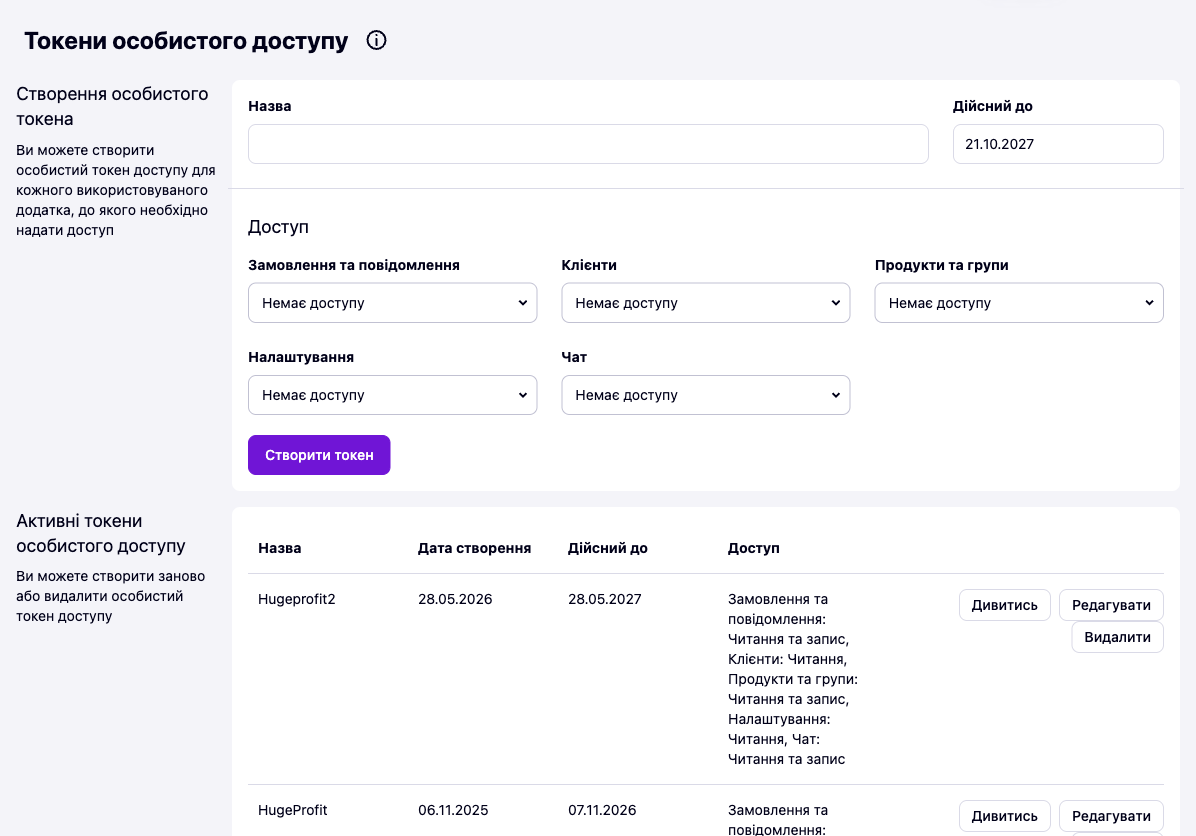
⚠️ The token works until its Valid until date. When it expires, sync stops: create a new token and paste it into the integration settings.
2. Connect in HugeProfit
Settings → Integration → Marketplaces → Prom → Connect.
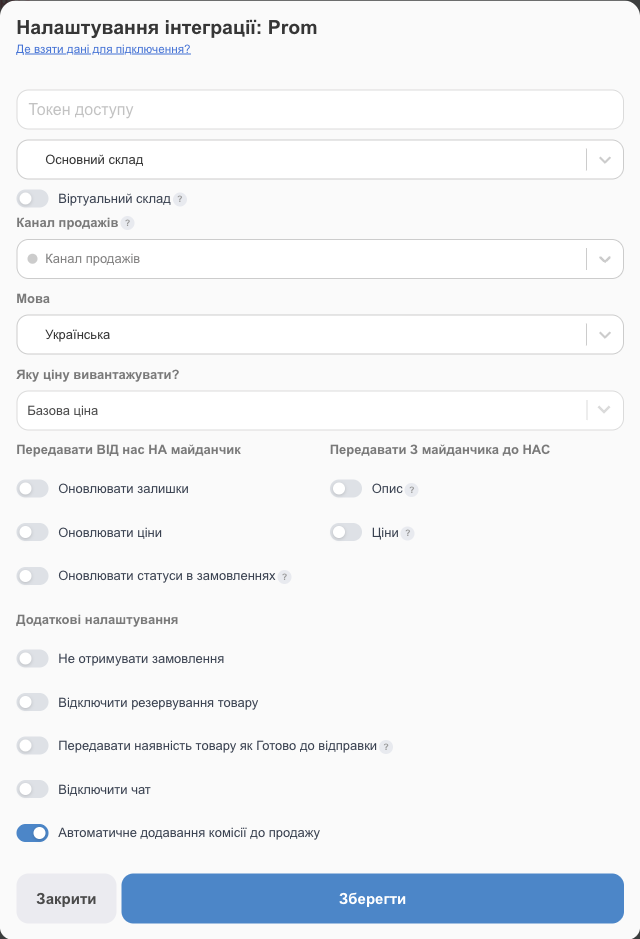
| Field | What it means |
|---|---|
| Access token | The token from your Prom account. |
| Warehouse | The warehouse to take stock and prices from, import products into, and write off Prom order items from. You can't change the warehouse after saving, so create the one you need in advance. |
| Virtual warehouse | Send Prom the total stock of several warehouses (for example, 3 pcs in one warehouse + 2 in another = 5 on Prom). The product card must be in the integration's warehouse: the price comes from it, and the other warehouses only add their stock. |
| Sales channel | The channel assigned to sales from Prom. If you don't choose one, HugeProfit creates it. |
| Google Merchant XML feed from Prom (optional) | A link to the export of your Prom products in Google Merchant Center (XML) format, such as https://…prom.ua/google_merchant_center.xml?hash_tag=…. Prom doesn't pass variant characteristics through its API, so without the feed, variants of one product can look identical in HugeProfit. With the feed, HugeProfit takes the parameters that distinguish the variants (size, color, and so on) from it when importing products and saves them as attributes. Without the feed (and for products without photos, which Prom leaves out of the feed), the values are taken from the end of the variant name, if they're there (for example, “T-shirt L, Blue” → “L, Blue”). Recommended if you sell products with variants. |
| Language | The language of the product names and descriptions imported from Prom. |
| What price to upload? | The base sale price or one of the additional prices (for example, a separate price for Prom). |
Send FROM us TO the marketplace:
- Update Stock: after a sale, shipment, or stock move, stock on Prom updates automatically;
- Update Prices;
- Update order statuses: statuses and the waybill number are sent to Prom (also required to send waybills).
Send FROM the marketplace TO us: Description and Prices: take them from Prom on the first product import.
Additional settings:
- Do not receive orders: sync products only;
- Disable product reservations: a new Prom order doesn't reserve the product in the warehouse;
- Transfer product availability as Ready to ship: only for companies with a high quality rating on Prom. If this status isn't available to you, stock won't be sent while this box is checked;
- Disable chat: don't receive Prom messages in Chats;
- Auto-add commission to sale: the Prom commission is added to the sale automatically (and counted in profit).
Click Save, and HugeProfit offers to import products from Prom right away.
3. Products and orders
Importing products, linking them to existing cards, exporting from HugeProfit to Prom, and order statuses work the same way for all marketplaces; see Integrations: overview, section “Marketplaces and websites.”
⚠️ HugeProfit and Prom products are linked by matching SKU. If the SKUs differ, the product won't link, and an import that creates products will add a new card with the name from Prom, even if you already have that product under a different name. Before the first import, align your SKUs or start with Link existing products WITHOUT creating new ones.
💡 You can't create a new product on Prom from HugeProfit: only prices and stock of linked products are sent to Prom. Add a new product in your Prom account first, then import or link it in HugeProfit.
- New Prom orders appear in Orders, where you process them like regular sales. Orders also come in for unlinked products; in that case you'll have to choose the product in the sale by hand.
- A promo code the customer applied on Prom shows in the order as Promo code “code”: −amount. When you confirm the order, that amount becomes a discount in the sale.
- A waybill created in HugeProfit is sent to Prom if Update order statuses is on. If Prom temporarily doesn't accept the waybill, it goes to the TTN sending queue on the integration card, where you can resend it.
Troubleshooting
| Problem | What to do |
|---|---|
| Authorization error | The token has expired or been deleted. Create a new one with the same permissions. |
| Stock doesn't update | Check Update Stock, the integration's warehouse, and that the product is linked to a Prom product (Bulk linking). If “Ready to ship” is on but that status isn't available to you, turn it off. |
| A Prom product was duplicated | The SKUs in HugeProfit and on Prom differ. Make them match, delete the extra card, and link the product by hand (Product linking). |
| Orders don't arrive | Check that Do not receive orders is off and that the token has write access to “Orders.” |
See what else HugeProfit offers Prom sellers on the CRM for Prom.ua page.