
Change history and task calendar in HugeProfit
“History” is a log of every action in your account: who changed what and when, plus recovery of deleted products, sales, and orders. “Calendar” holds tasks, reminders, and scheduled payments.
History
Left menu → History.
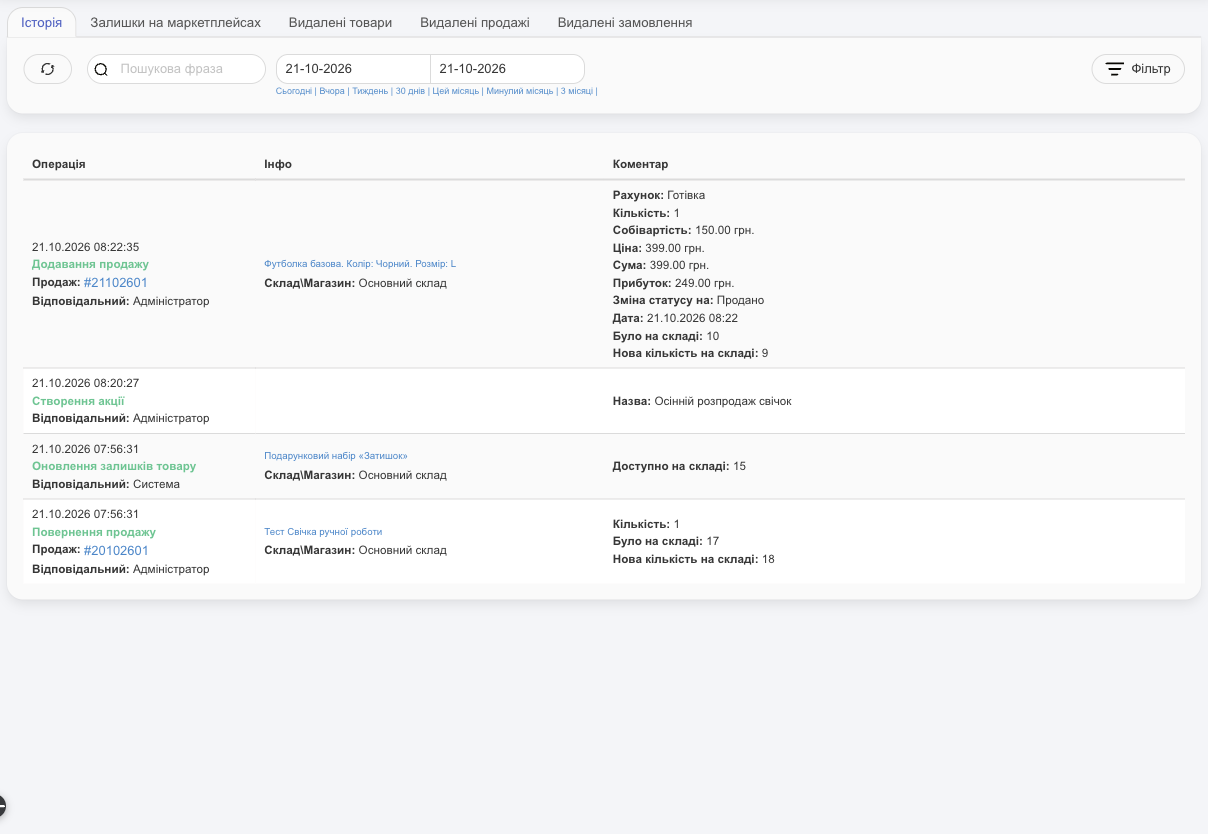
- Each entry shows the Operation (adding a sale, editing a product, a shipment, a stock move, editing an account, configuring an integration…), the date, the Responsible person (an employee, or System for automatic actions and integrations), and the details: exactly what changed, “before / after” stock in the warehouse, prices, amounts.
- Filter: clients, source (manual, integration), account, operation type, warehouse, employee, product category and brand, and period.
- An employee who doesn't have access to all warehouses (Employees and access rights) sees only history entries for their own warehouses. Stock moves are shown if at least one of the warehouses is accessible, but without the changes in the other warehouse. Product history and stock movement in the product card work the same way.
Tabs:
| Tab | What it's for |
|---|---|
| History | The action log. |
| Residuals on marketplaces | Which stock levels and prices HugeProfit sent to marketplaces, and when. Use it to figure out why Prom or Rozetka shows the wrong quantity. If a transfer failed or got stuck, a Retry upload button appears in the row. |
| Deleted products | Deleted products with the date and warehouses. You can bring them back together with their stock. See Restoring deleted products. |
| Deleted sales, Deleted orders | View and restore items deleted by mistake. A deleted sale opens in the sale window with a Restoring sales button. You can keep the date the sale was created with or set a different one. |
💡 Trying to find out where a product went? Start with the product card → Movement of stock, or filter the history by product and warehouse.
Restoring deleted products
A deleted product doesn't disappear: HugeProfit keeps its card and its data for each warehouse, including stock, selling price, cost price, and SKU. Sales that include it stay too. A restored product returns to the list exactly as it was when it was deleted.
Left menu → History → Deleted products tab.
Find the product. The list shows products deleted in the last 30 days; if the product was deleted earlier, change the period above the list. You can search by name, ID, SKU, or barcode, and pick a warehouse in Filter. The Warehouse\Shop column shows which warehouses the product was deleted from.
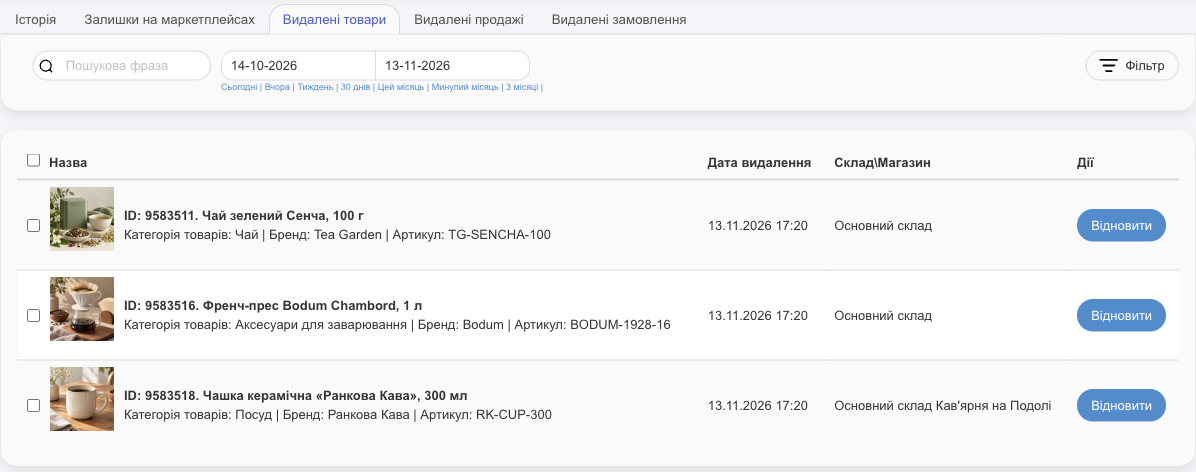
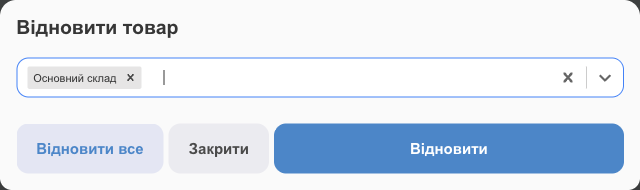
Click Restore in the product row. If the product was in several warehouses, select the warehouses to return it to in the window and click Restore, or click Restore all to return it to all warehouses at once. Warehouses you didn't select stay in the deleted list, and you can restore them later.
The restore is logged in the history as the “Restore a deleted product” operation.
Several products at once
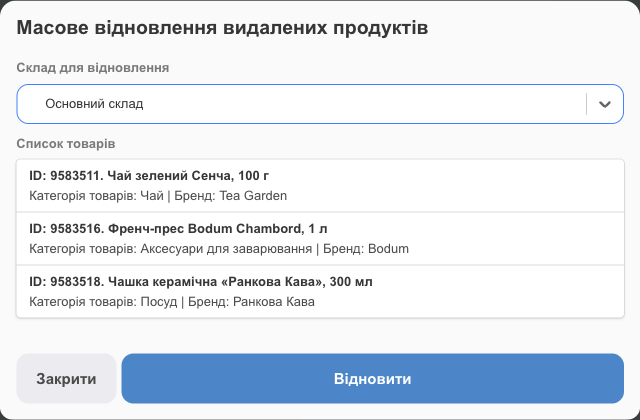
Check the products (or check the box in the list header to select all) and click Restore above the list. In the Mass recovery of deleted products window, choose the Warehouse for recovery: the List of products keeps only the selected products that were in that warehouse. Click Restore. Products are returned to one warehouse at a time; repeat for another warehouse.
- A product deleted from only one warehouse (🗑 in the warehouse row when the product is expanded) stays in the other warehouses and appears in Deleted products with the warehouse it was removed from.
- If the warehouse the product was in has already been deleted, it's shown in red as Warehouse deleted with its ID. You can't return the product to such a warehouse.
⚠️ “It is not possible to restore the item because a copy of it already exists!” This happens with variants and bundles. Either another variant with the same attributes already replaces the deleted one (for example, the same size was created again), or the bundle already exists in another warehouse, and a bundle can be in only one. Keep the existing card, or delete it and restore again.
Calendar
Left menu → Calendar. Views: Day, Week, Month, Year. Today takes you back to the current date.
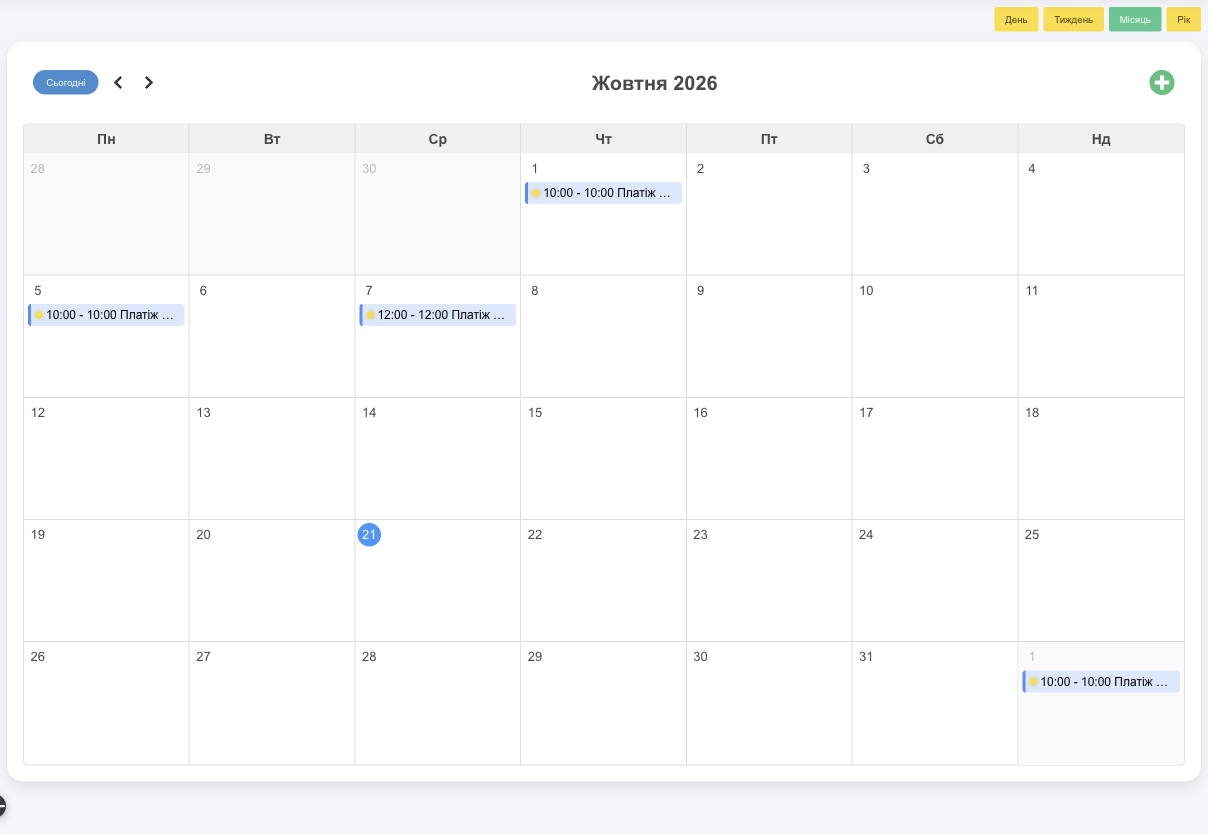
Click a day (or Add an event) and choose a type:
- Event: a task or reminder with a name and color, date and time, recurrence, description, responsible person, status, files, and Event notification for N minutes.
- Payment: a scheduled expense with an amount, category, warehouse, account, and recurrence (monthly, etc.). See Expenses.
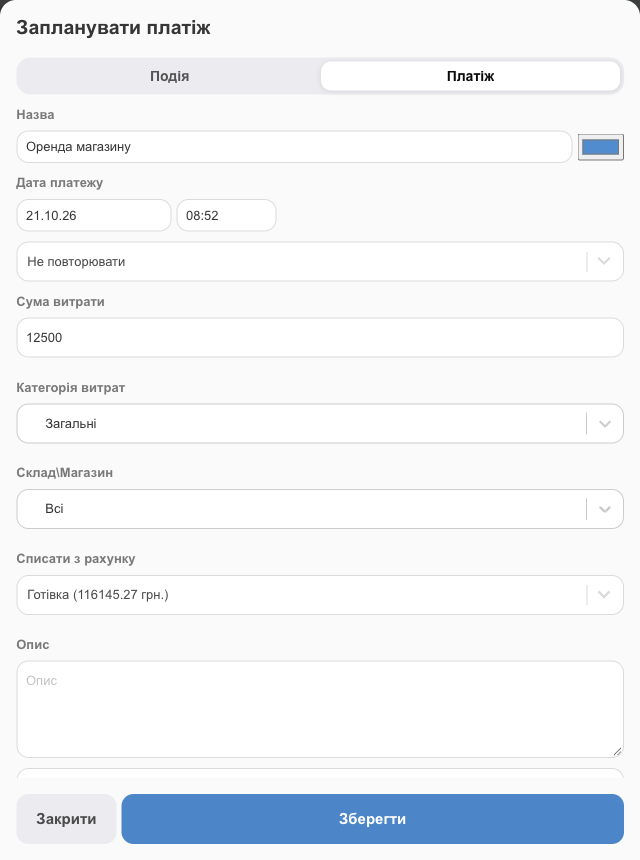
- Upcoming tasks and payments appear on the dashboard under Your tasks; overdue ones are red, completed ones are struck through.
- Reminders can come to Telegram and as push notifications in the app (Settings → Notifications → calendar).
- An employee needs the Edit calendar events permission to change other people's events.