
HugeProfit account settings: profile, currency, notifications
The first tab of Settings covers your profile and password, language, exchange rates, Telegram and app notifications, the phone bottom menu, extra interface settings and the receipt printer, sales settings, system modules, and data erasure.
Profile menu (the circle in the top-right corner) → Settings. The left side has links to each block: Profile, Exchange Rates, Notifications, Additional, Sales settings, System modules, Erase data. The other tabs at the top (Printing, Catalogs, Products, Access, Files, Payment, Integration, Partners, POS Terminal) are covered in separate articles.
Profile and security
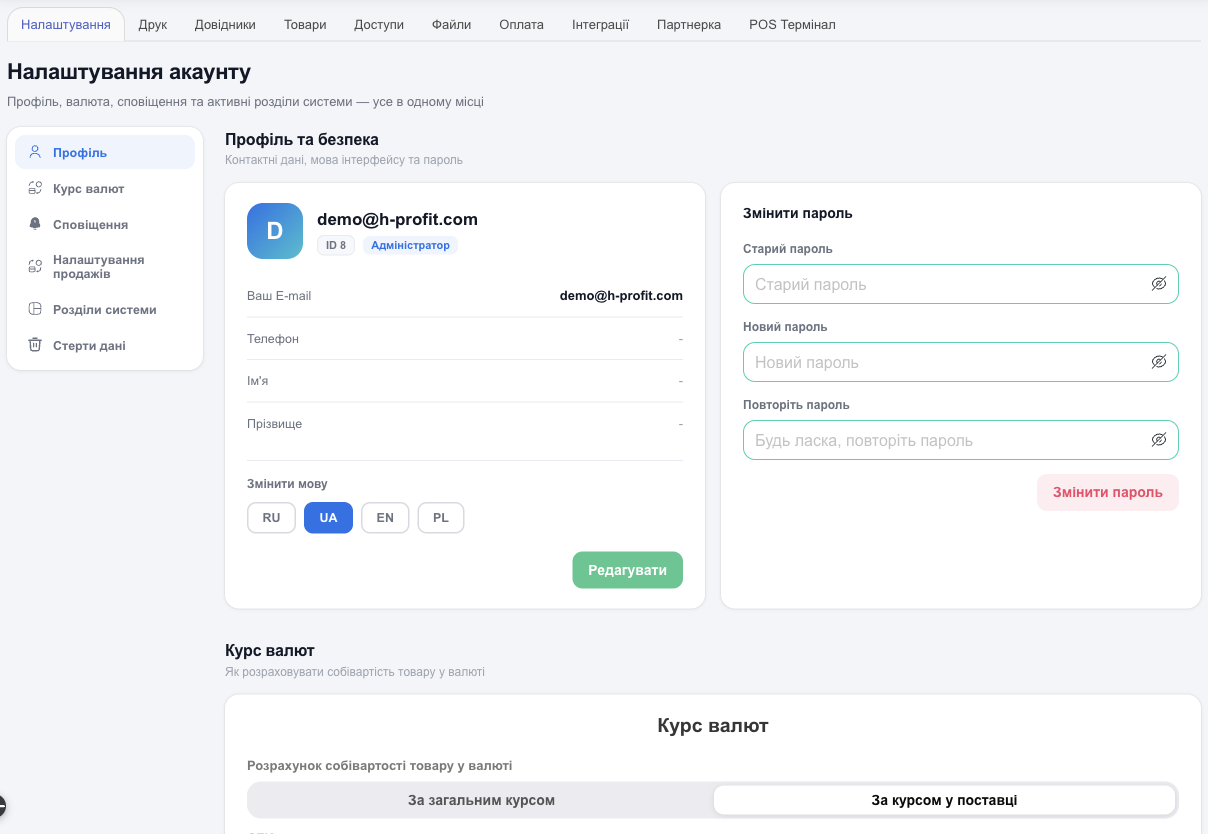
- Email (your login), account ID, and role. Edit changes your phone, first name, and last name.
- Change language of the interface: RU, UA, EN, PL.
- Change Password: enter the old password, the new one, and the new one again.
Exchange rates
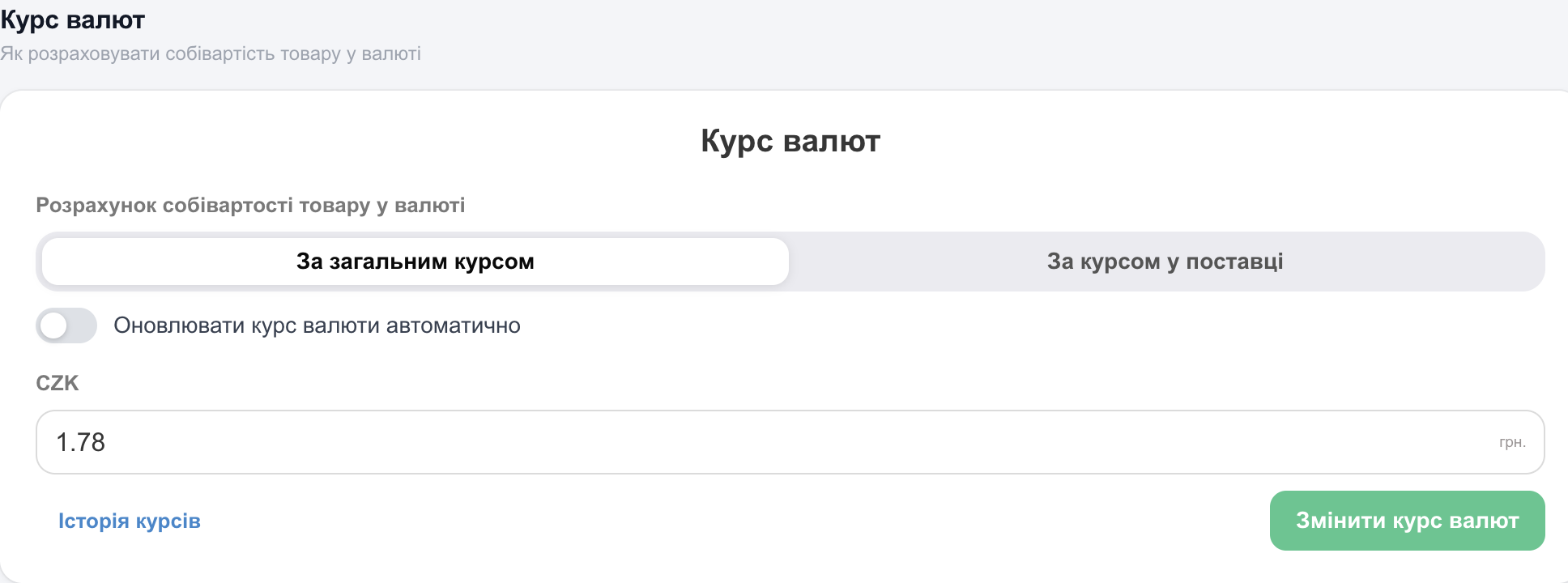
If you buy products in another currency (dollars, euros, zloty), choose how to calculate the cost price in hryvnias:
- At the general rate: uses the rate you enter here (there is a field for each currency used in your accounts and shipments). Change the exchange rate updates it; Rate history shows which rate applied and when. Turn on Update currency rate automatically, and HugeProfit will fetch the current rate once a day; the rate fields then become read-only. A new general rate applies to the cost price of all products bought in that currency.
- Shipment rate: uses the rate entered in each shipment. To change the rate, edit that shipment.
For a step-by-step guide to foreign-currency accounts, shipments in foreign currency, and profit calculation, see Multicurrency.
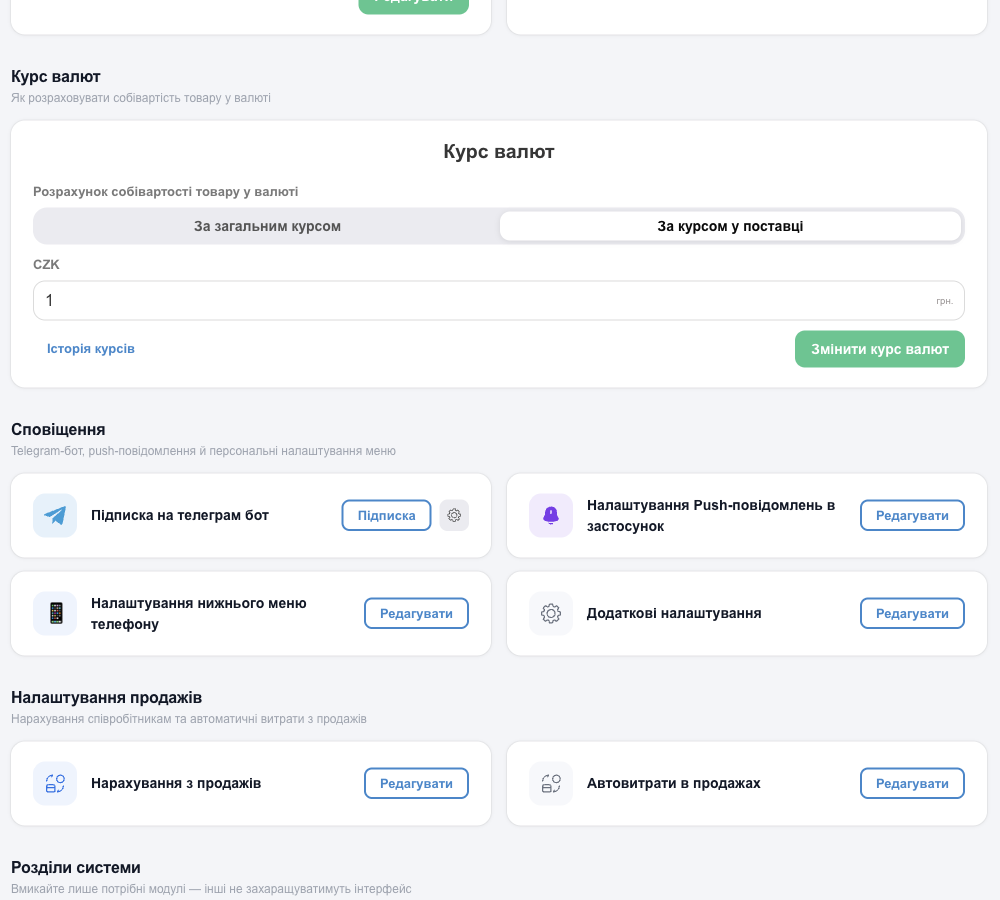
Notifications
Telegram bot
- Subscribe to the Telegram bot → Subscribe. The HugeProfit bot opens in Telegram; tap “Start”.
- Use the ⚙ gear next to it to choose which events to send.
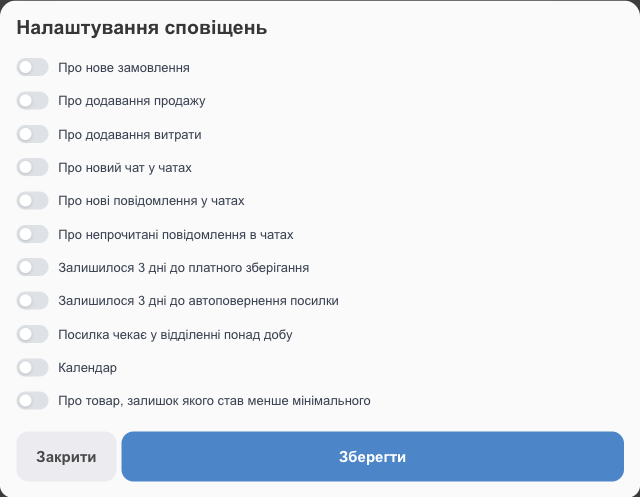
Events: new order, new sale, new expense, new chat and chat messages, unread messages, “3 days left before paid storage”, “3 days left before the parcel is returned automatically”, “Parcel has been waiting at the branch for over a day”, calendar, product below minimum stock (either once when it crosses the threshold or every time), and “About product price changes”.
Push notifications in the app
Setting up push notifications in the app → Edit: the same events for the mobile app (except product below minimum stock, which is Telegram-only), plus reminders about sales and expenses.
Price change notifications
The About product price changes checkbox in the Telegram or push event list notifies you when someone changes a product price. Once you check it, two blocks appear (shared by Telegram and push):
- Which prices: Selling price, Additional prices, Cost price.
- Change sources: Manually in CRM (product card, quick edit in the list, bulk edit, shipment, manufacturing), File import (Excel, XML), API and plugins (public API, WordPress plugin), Integrations and automation (marketplace sync, scheduled XML auto-import, bundle recalculation).
Each block must have at least one option checked. Notifications arrive as a digest: one user's changes within a minute come as one message, and a bulk edit or import comes as one digest. It shows who made the change, the source, and the products with their old and new prices (up to 10 lines; the rest as a count).
💡 An employee receives only the prices they are allowed to see (selling price or cost price) and only for their own warehouses. See Employees and access rights.
Phone bottom menu
Customizing the bottom menu of your phone: up to 4 modules in the bottom bar on your phone. See Interface.
Additional
The Additional block has two cards: Additional settings and (in the mobile app only) Receipt printer (Bluetooth / Wi-Fi).
Additional settings
Additional settings → Edit lets you fine-tune the interface:
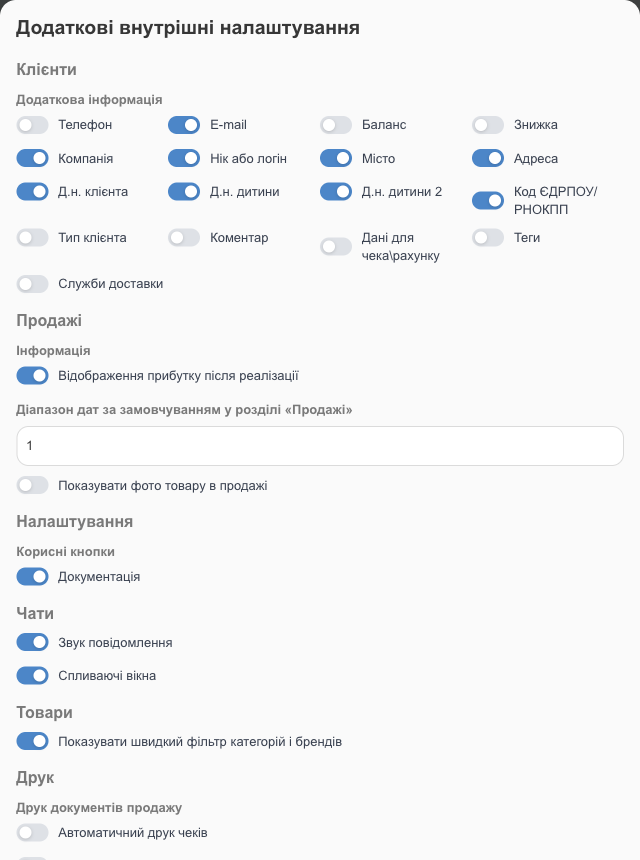
- Clients: which fields to show in the client form (phone, email, balance, discount, company, city, birthdays, tags, delivery services…).
- Sales: Show profit after sale, Default date range in the Sales section (1–30 days), Show product photo in sale.
- Settings: Helpful buttons, Documentation.
- Chats: Message sound, Popup.
- Products: Show quick category and brand filter.
- Printing: Print receipts automatically and Automatic printing of fiscal receipts after a sale.
Reset to default restores the standard settings.
Receipt printer
This card exists only in the Android and iPhone app: Receipt printer (Bluetooth / Wi-Fi) → Edit. Here you choose a Bluetooth or network printer, the Paper width (58 or 80 mm), and a separate printer for labels and price tags, and run a Test print. The setting is stored on the phone, not in the account. For step-by-step instructions, see Mobile app.
Sales settings
- Accrual of sales: a percentage or fixed amount paid to employees from sales. See Employees and access rights.
- Auto-expenses on sales: see Expenses.
System modules
Turn on only the modules you use. See System modules.
Erase data
To start your records from scratch (for example, after testing), use Erase data. In Which sections to keep:, you can keep products, clients, and settings.
⚠️ This can't be undone. Before erasing, export the data you need to Excel (products, sales, clients, transactions).
Delete your account completely
“Erase data” clears your records, but the account remains. To delete the account with all its data, write to support@h-profit.com in any form from the email address the account is registered to. Once deleted, the data can't be recovered.