
How to connect the Checkbox and Vchasno.Kasa PRRO to HugeProfit
HugeProfit fiscalizes sales through the Checkbox and Vchasno.Kasa software cash registers (PRRO): the receipt is registered with the tax service right from the sale, manually in one click or automatically. The register shift opens on its own, you can print the fiscal receipt or send it to the buyer, prepayments and cash on delivery (COD) are fiscalized as separate receipts, and refunds are fiscalized together with the product return.
💡 PRROs fiscalize only sales in hryvnias (UAH).
Settings → Integration → PRRO tab.
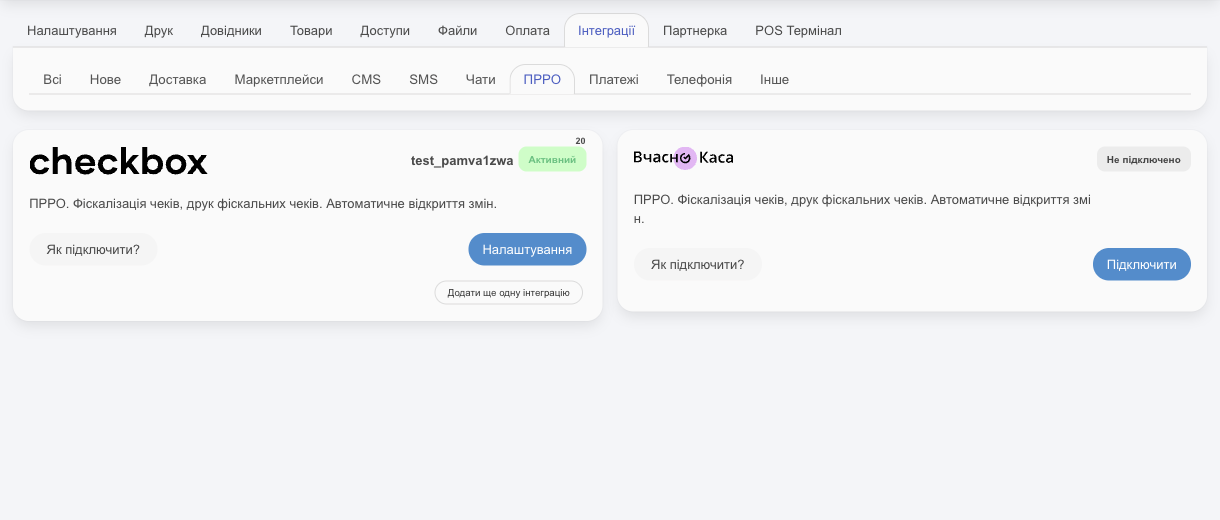
Checkbox
Preparing your Checkbox account
If you haven't used Checkbox before, sign up at checkbox.ua and complete their setup steps: point of sale, cash register, cashier. Store the cashier's qualified electronic signature (KEP) in the Checkbox cloud service so receipts are signed automatically. New cashiers and cash registers are created in your Checkbox account (Sync data with the State Tax Service using the director's key → Add cashier / Add cash register). The cash register must be paid for and active.
⚠️ In the Checkbox settings, turn on automatic shift closing. You don't need to open a shift manually: HugeProfit opens it on the first fiscalization. If you open a shift manually in Checkbox, HugeProfit won't be able to work with it (see “If something doesn't work”).
HugeProfit needs three values from your Checkbox account:
- Cashier login and password: under Cashiers, the Cashier login column; you set the password when you create the cashier. The cashier must have a valid KEP key (the Key valid until column).
- Cash register license key (not the cashier's): under Cash registers, the License key column.
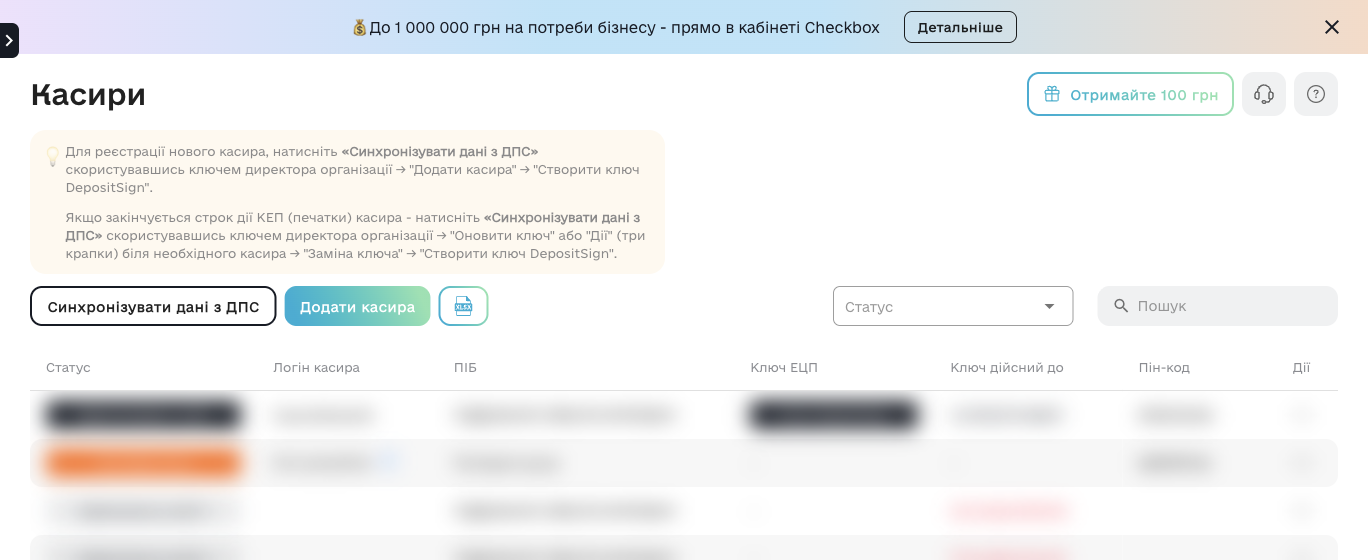
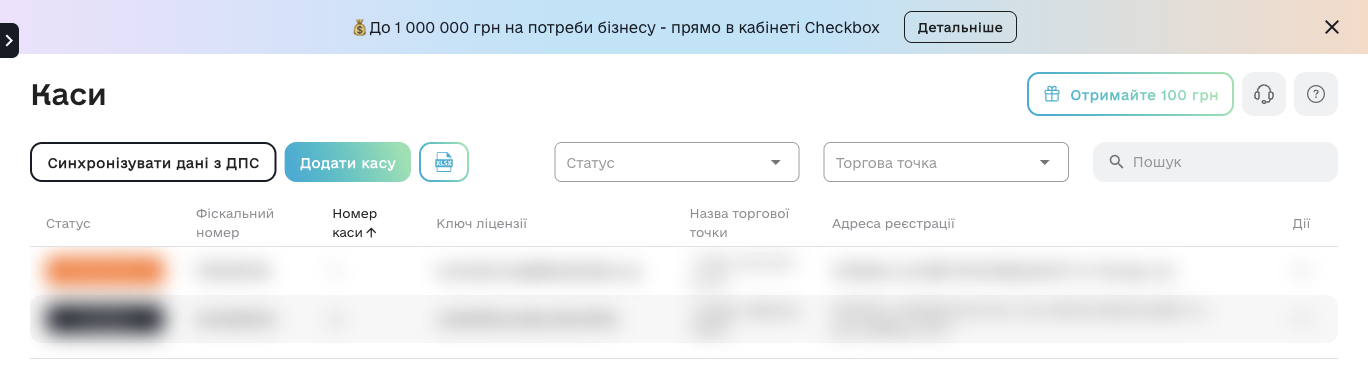
Connecting
Checkbox card → Connect:
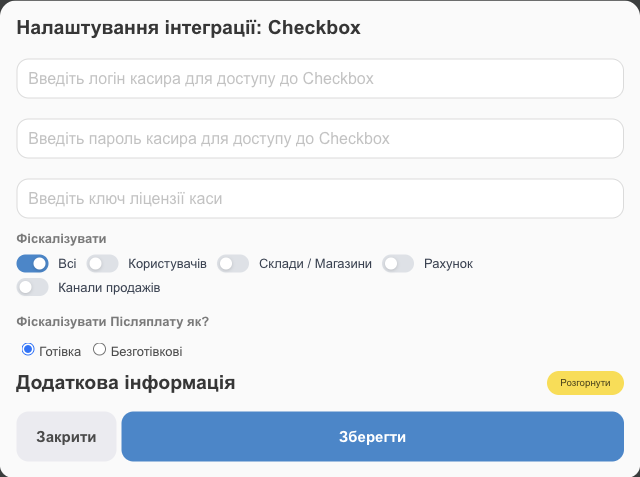
- Enter your login to access the Checkbox, the cashier password, and Enter your cashdesk license key. Only these three fields are required; without them, HugeProfit shows Not all required fields are filled.
- The other fields (what to fiscalize and how) are described below. You can fill them in now or later.
Vchasno.Kasa
Preparing your Vchasno.Kasa account
- Sign up at kasa.vchasno.ua, create a point of sale, add a cash register, and register a key.
- Vchasno.Kasa account → Points of sale and cash registers → ⋮ next to the cash register → Cash register settings.
- Turn on automatic shift closing. You don't need to open a shift: it opens on its own with the first sale in HugeProfit.
- The cash register's payment types must include Cash, Cashless, Rounding, Card, and Transfer from a current account: only payment methods enabled in the register's settings are sent to it. Tax groups are set here too. Cash register settings take precedence over the company-wide settings in Vchasno.
- Expand the Token block in the cash register settings (not the company settings) and copy the token. If there's no token, click Regenerate. Save it right away: after the page reloads, the token is no longer shown and can only be regenerated.
Connecting
- In HugeProfit, Vchasno.Kasa card → Connect: Name (unique, to tell registers apart, for example “Podil store”) and Access token.
- Tax group codes: choose the group (no VAT, 20% VAT, etc.) exactly as it's set up in the Vchasno cash register (Cash register tax groups). One group applies at a time. You can switch it; receipts already fiscalized won't change. Prices in HugeProfit already include tax, and the receipt shows the tax amount.
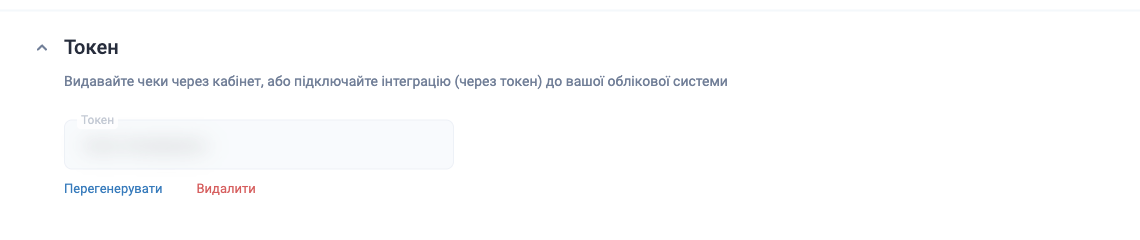
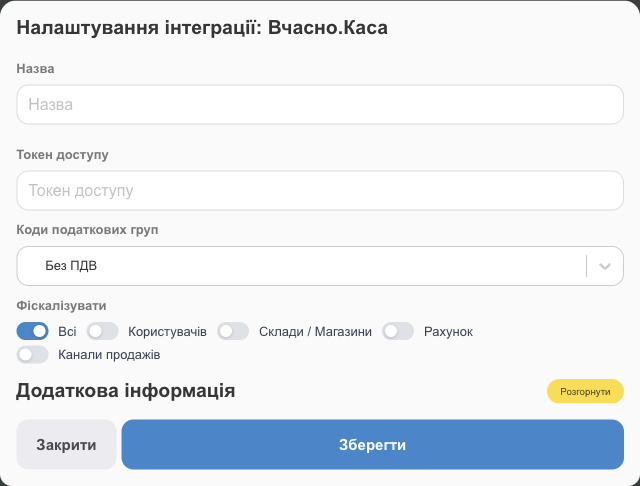
⚠️ If you Regenerate or Delete the token in Vchasno.Kasa, the connection in HugeProfit stops working until you paste in the new token.
What to fiscalize
These settings are the same for Checkbox and Vchasno.Kasa:
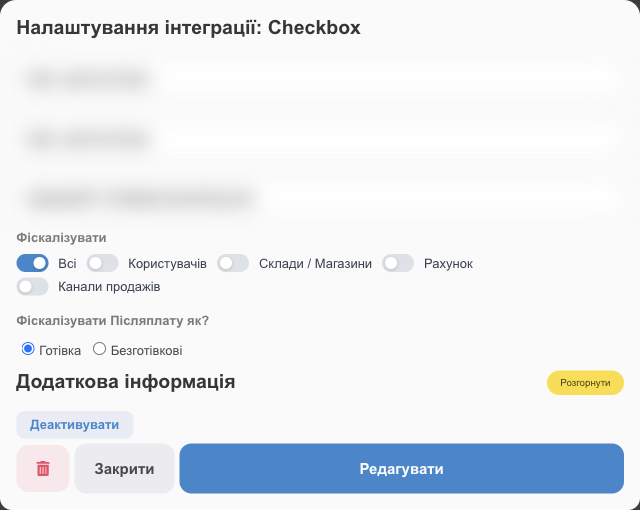
| Field | What it means |
|---|---|
| Fiscalize | All sales, or only sales by selected Users (employees) or Warehouses / Shops. This way one cash register can serve only its own store. |
| Account, Sales channels | Fiscalize only payments to selected accounts or from selected channels (for example, the store's cash and terminal, but not a transfer to the sole proprietor (FOP) account). |
| Fiscalize Cash on Delivery how? | The COD receipt is issued as Cash or Non cash. |
Mark the accounts whose sales need fiscalizing
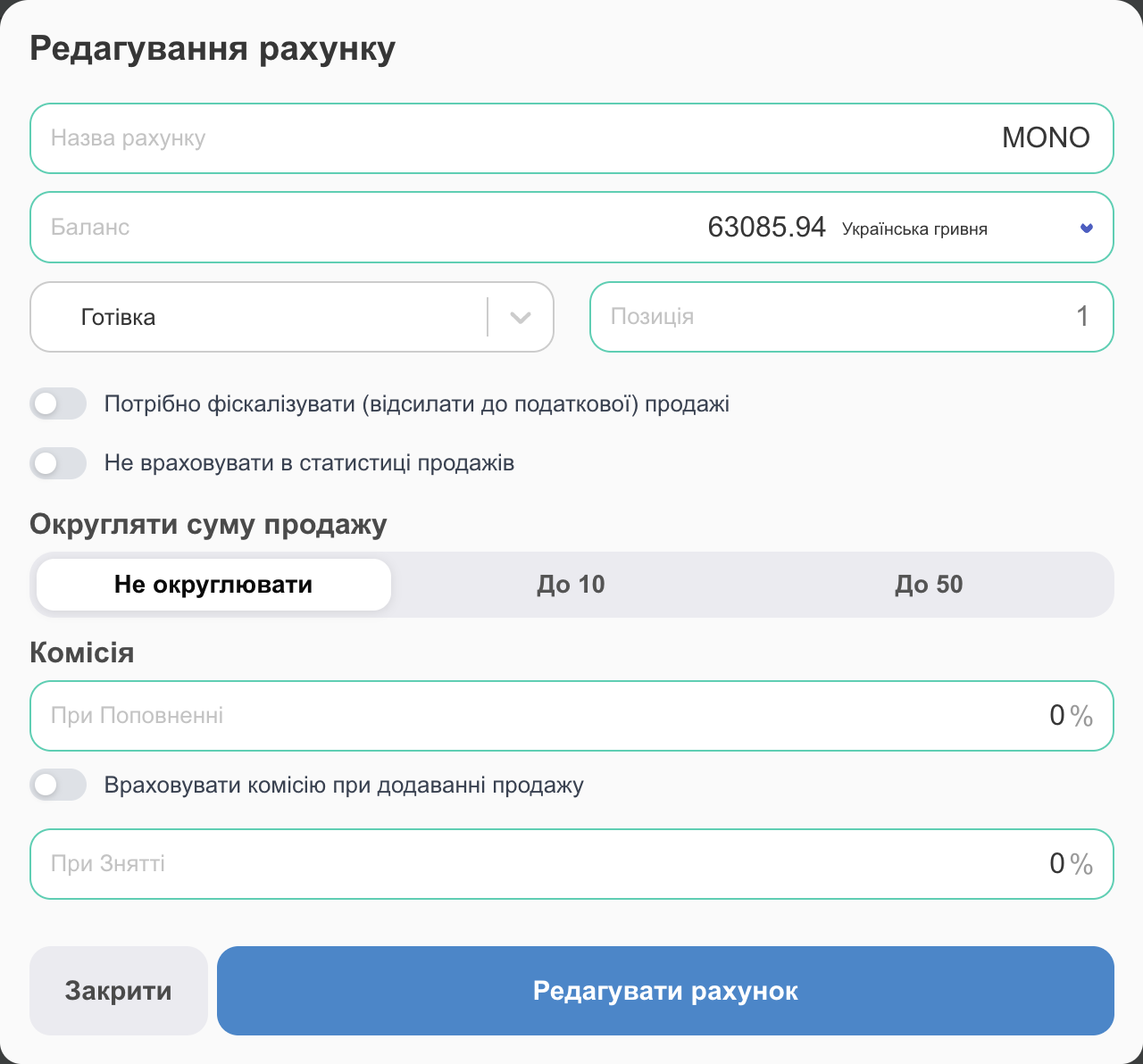
Separately from the integration settings, every account has the It is necessary to fiscalize (send to the tax office) sales checkbox (✎ next to the account on the dashboard or in “Finance” → “Transactions”; the checkbox appears only when a PRRO is connected). Auto-fiscalization works only for sales to accounts with this checkbox; sales to other accounts can be fiscalized manually. This lets you, for example, fiscalize cash and card payments automatically but not transfers to the FOP account, even with auto-fiscalization on.
By default, the checkbox is set on the Cash account and on new accounts, but not on C.O.D or Not paid. Check it on every account you use to accept money from buyers.
💡 For reference, when a fiscal receipt is usually required: cash payments, card payments (terminal, online payment on a website through acquiring or a payment service), and COD; a NovaPay or postal receipt doesn't replace the seller's receipt. Bank transfers to an IBAN account usually don't require a receipt. If the client pays in installments, a receipt is issued for each installment; prepayment fiscalization handles this (see below). Check with your accountant for exactly what you need to fiscalize and when.
Multiple cash registers
For several stores or sole proprietors, click Add another integration for each cash register and set what each one fiscalizes (warehouse, users, accounts, channels). HugeProfit checks the registers in turn and fiscalizes with the first one that matches the sale (warehouse, user, account, and sales channel must match its settings). The order is set by the Position In The List field under Additional information: a lower number means the register is checked earlier; with equal positions, they go in the order they were connected. So if the first register has All selected, the others are never reached. When you fiscalize manually, HugeProfit lets you choose one of the matching registers.
Additional information
Expand:
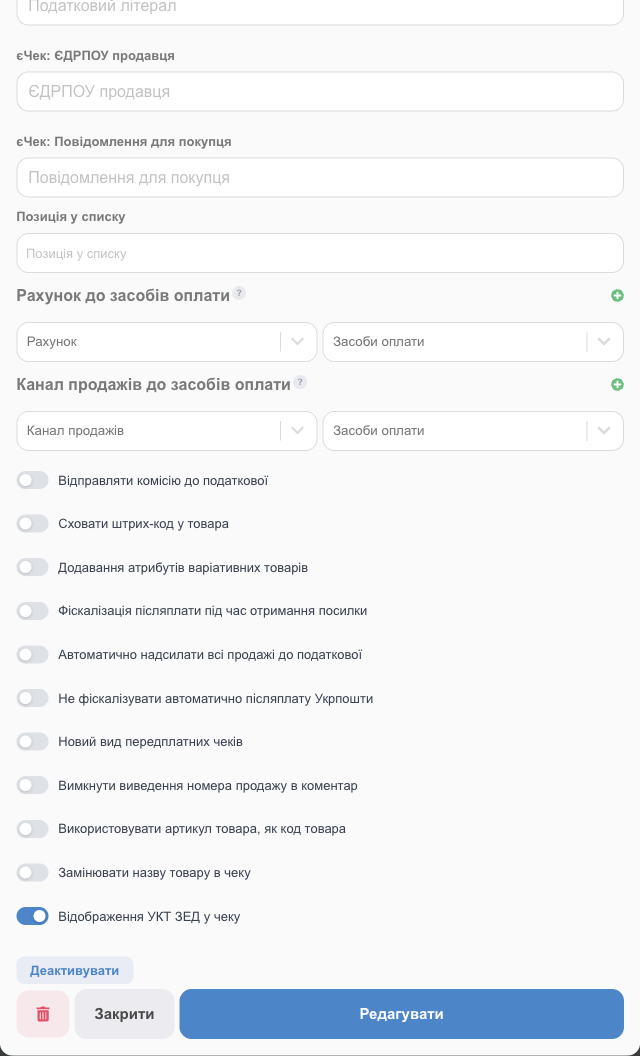
- Tax literal (Checkbox only, optional): the tax rate HugeProfit sets for each product on the receipt. It's printed as a letter next to the product price. The rates you can use are defined under tax rates in your Checkbox account. By default, there's an “Excluding VAT” rate: to use it, enter its code
8or the letterЗ(Cyrillic Z) in the field. If you're a VAT payer or have added other rates in Checkbox, enter the code or letter of the rate exactly as it appears in Checkbox. If you leave the field empty, no rate is sent and no letter is printed next to the price. - eCheck: Seller's EDRPOU, eCheck: Message for buyer (up to 255 characters): a receipt in the buyer's banking app; see “eCheck” below.
- Position In The List: the order in which registers are checked during auto-fiscalization (see “Multiple cash registers”).
- Account to means of payment, Sales channel to means of payment: see “Payment methods” below.
- Automatically send all sales to the tax office: auto-fiscalization. The receipt is created on its own after the sale is saved (subject to the filters above and the account checkbox). Without it, HugeProfit offers to fiscalize the receipt after you save a sale, so you decide which receipts to issue.
- Fiscalization of cash on delivery at the moment of parcel receipt: the COD receipt is created when the buyer picks up the parcel (see below). Don't fiscalize Ukrposhta COD automatically is an exception for Ukrposhta.
- Send the commission to the tax office: include the sale commission in the receipt.
- A new type of prepaid checks: the format of prepayment receipts (partial payment for an order).
- Receipt appearance: Hide barcode in item, Adding attributes of variant products (color and size in the name), Use product SKU as product code, Replace product name on receipt (with the category or an additional field value), Show UKTZED code on receipt, Don't add the sale number to the comment.
Vchasno.Kasa also has Client notification, which sends the buyer an electronic receipt.
Payment methods
The payment method is how the receipt records what the buyer paid with: cash, card, transfer from a current account, NovaPay, and so on. You don't have to set it up: HugeProfit determines it from the type of the sale account:
| Sale account type | Default payment method on the receipt |
|---|---|
| Cash | Cash |
| Payment card | Card (cashless) |
| Payment account (IBAN) | From a current account (cashless) |
| Payment through a POS terminal | Merchant acquiring |
| COD | If Fiscalize Cash on Delivery how? is set to “Cash”: cash. If it's “Non cash”: based on the sale's delivery service: Nova Poshta → NovaPay payment, Ukrposhta → Ukrposhta payment, Rozetka → payment via ROZETKA Pay. |
Vchasno.Kasa uses slightly different names: an IBAN account goes as “Cashless”, Rozetka as “RozetkaPay payment”. Also, only payment types enabled in the Vchasno cash register settings reach the register (see the preparation steps above).
You can change the payment method for cashless accounts and COD in three ways, from strongest to weakest:
- “Fiscal data” in the sale. Next to the Account field in the sale window (for card, IBAN, and COD when a PRRO is connected), there's a Fiscal data button. It contains Payment methods for this specific sale and FTE data: payment system, RRN, card mask, authorization code, cardholder name, terminal, bank, receipt number. Use it when the payment was taken on a terminal not connected to HugeProfit and its details need to go on the receipt. The selected payment method appears under the account field (Payment methods: …).
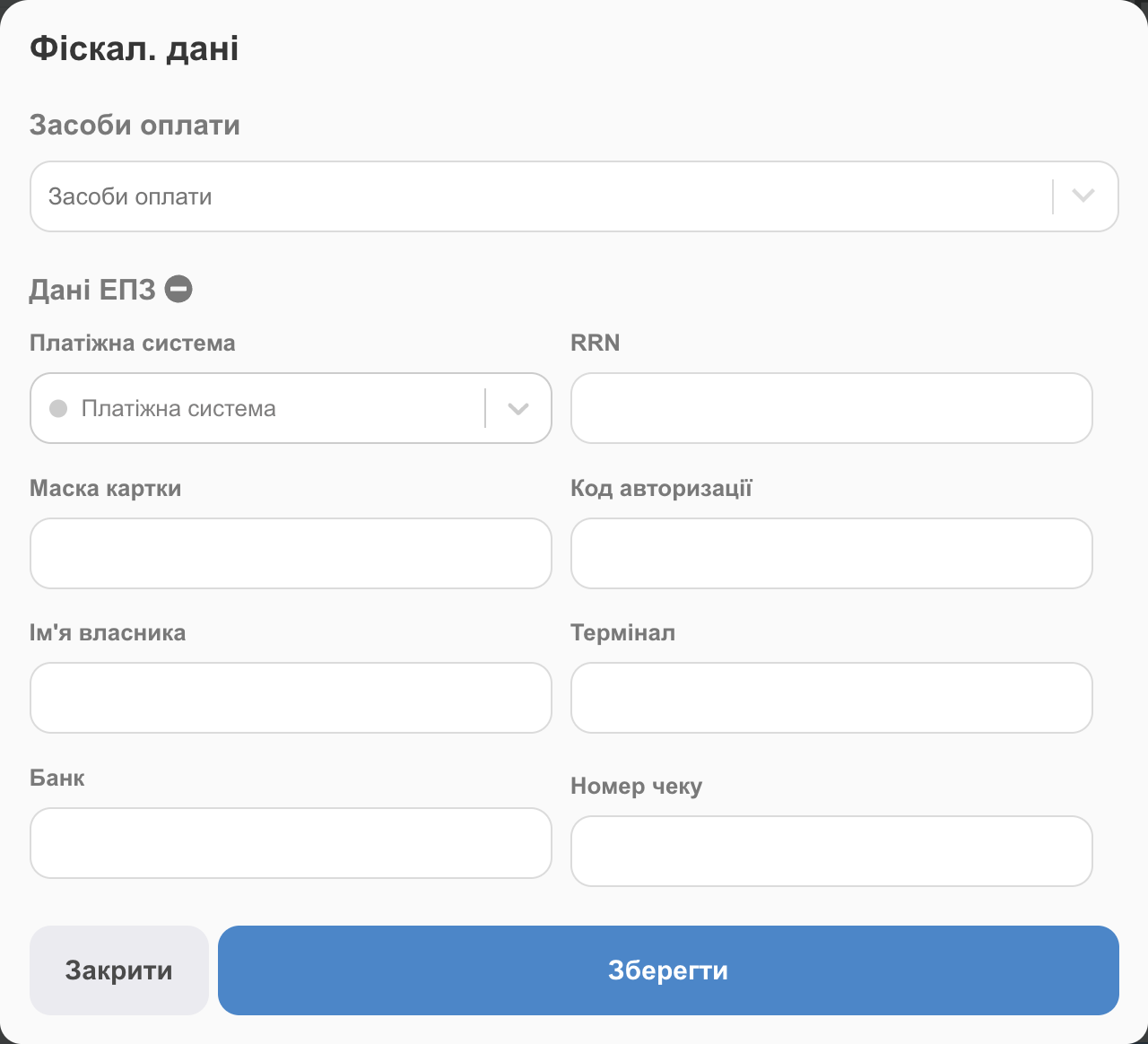
“Fiscal data”: payment method and FTE data - Sales channel. In the integration settings, Sales channel to means of payment: the channel on the left, the payment method on the right; ⊕ adds another row. If a sale has several channels with payment methods, the first one is used.
- Account. Account to means of payment: account → payment method, instead of the one determined by account type.
If none of these is set, the table above applies. Add new payment methods (for example, RozetkaPay) in Catalogs → Payment methods. For a partial payment (prepayment), the payment method is determined by its account.
How fiscalization works
- Manually. After saving a sale, click Fiscalize receipt; or in the sales list, open the sale's ⋯ menu → Fiscalize receipt (Fiscalize partial payment for a prepayment). See Sales: list.
- Automatically, with Automatically send all sales to the tax office. The receipt date is the moment of fiscalization: the tax service doesn't accept past or future dates, even if the sale has a different date.
- The shift opens automatically with the first receipt. If you see “Shift in Checkbox is opening…”, wait a few seconds and try again.
- Receipt for the buyer. If the sale's client card has an email, Checkbox sends them an email with the fiscal receipt; if it has a Ukrainian phone number, an SMS or Viber message (if this is enabled and paid for in Checkbox itself). In Vchasno.Kasa, use Client notification: the client's email and phone are sent to the cash register.
- Fiscalization status is shown in the sale row (Not fiscal., Partial Fiscal., Cancelled fiscal.), and the Fiscalization filter (With fiscalization / Without fiscalization) finds unfiscalized sales.
- Printing: Print fiscal receipt right after fiscalization, or ⋯ → Documents in the sales list. Turn on automatic printing in Additional settings.
- Discounts. A discount on a single product (percentage or fixed) is passed to the receipt. It's best not to combine a product discount and a whole-sale discount in the same fiscal sale.
Editing and refunds
- Editing a fiscalized sale. HugeProfit asks: This check has been fiscalized, do you want to make a fiscal check return?. On return, the old receipt is canceled. With auto-fiscalization, a new receipt is created on its own; without it, click Fiscalize again.
- Returning a sale. HugeProfit offers to fiscalize the return as well. See Returns.
- A return made directly in your Checkbox or Vchasno.Kasa account doesn't show up in HugeProfit. Edit the sale or process the return in HugeProfit, and fiscalize again if needed.
COD fiscalization
To avoid issuing a receipt in advance, turn on Fiscalization of cash on delivery at the moment of parcel receipt. When the buyer picks up and pays for the parcel (the delivery service reports the status by the waybill (TTN)), the sale is fiscalized for the full amount within a few minutes. If the client has an email, Checkbox sends them the receipt.
- The sale must be on the C.O.D account. If you choose a different account, HugeProfit assumes you already have the money and fiscalizes right away. The “It is necessary to fiscalize…” checkbox on the COD account itself isn't needed for this.
- The receipt is created only when the Taken away status is set by waybill tracking. If you changed the status manually, fiscalize the sale with the Fiscalize receipt button.
- With this checkbox on, other accounts are fiscalized automatically too. For those that shouldn't be, clear the “It is necessary to fiscalize…” checkbox on the account; you'll still be able to fiscalize them manually.
- For Ukrposhta, automatic COD fiscalization can be turned off with a separate checkbox.
- When you edit a sale, you can choose whether to refund the COD receipt.
Prepayment fiscalization
When a client pays part of the amount in advance (Partial payment in a sale or reserve), you can fiscalize the prepayment as a separate receipt:
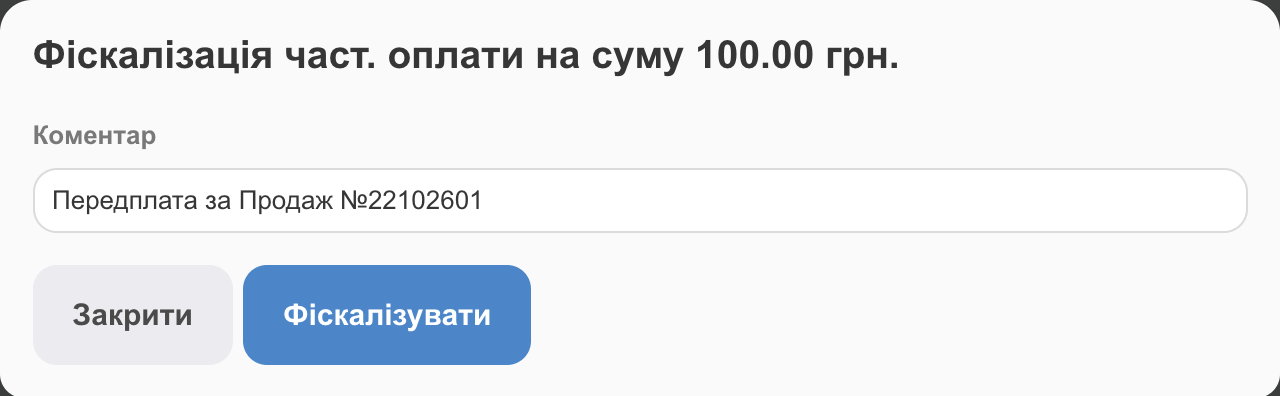
- The rest isn't paid yet. The sale account is Not paid (a system account that isn't fiscalized; HugeProfit selects it automatically as soon as you turn on Partial payment). After saving, the Sale successfully added window shows Fiscalize partial payment: check the receipt comment (by default “Prepayment for sale #…”) and click Fiscalize. You can then Print fiscal receipt.
- The rest is on another account. HugeProfit offers to fiscalize only the prepayment or the whole receipt at once.
- Two receipts. First fiscalize the prepayment; the sale becomes Partial Fiscal.. When the client pays the rest, fiscalize the balance: the second receipt states that the prepayment has been deducted (in Vchasno.Kasa it's distributed across products as a discount, following Vchasno.Kasa rules), and the prepayment isn't fiscalized again. You can print both receipts separately.

Which cash register gets the balance receipt. The balance receipt is linked to the prepayment receipt, so it goes to the same cash register where the prepayment was fiscalized (if there are several prepayments, to the register of the last valid one), even when other registers also match the sale. The same applies to automatic COD fiscalization when the buyer picks up the parcel (Fiscalization of cash on delivery at the moment of parcel receipt).
A prepayment is never fiscalized twice: if a prepayment receipt already exists, HugeProfit tells you, and the balance receipt is issued automatically or with the Fiscalize button. The prepayment receipt isn't canceled on its own; you can refund it only in your Checkbox or Vchasno.Kasa account. In Vchasno.Kasa, a final receipt can contain only one prepayment: if you fiscalized a prepayment several times, first refund the extra receipts in your Vchasno.Kasa account.
Bank terminal
You can send a card payment to a POS terminal through Checkbox: after payment, the RRN and terminal details are saved in the sale and included in the fiscal receipt. Setup is described in Cashier panel and POS.
eCheck: a receipt in the buyer's banking app
A buyer who paid by card on a terminal can see the fiscal receipt right in their banking app. This works only with Checkbox and only for card payments on a bank terminal.
- Connect the Checkbox PRRO and the terminal (POS terminal).
- In the Checkbox integration settings → Expand, fill in eCheck: Seller's EDRPOU (for a FOP, your tax ID). eCheck: Message for buyer is optional; not all banks display it.
- Submit an application on the project website echeck.me.gov.ua and sign it with your key. You'll need your FOP details (EDRPOU, KVED activity code, registered address, name, brand, logo), the RRO number (the fiscal number of the cash register from the “Cash registers” section in your Checkbox account), and the terminal's Merchant ID and Terminal ID, which you get from the bank that services the terminal (in PrivatBank: business account → Acquiring → Connected terminals).
After that, terminal payments appear in the apps of banks that support eCheck (the list is at echeck.me.gov.ua/banks), unless the buyer has turned the feature off.
⚠️ HugeProfit sends eCheck data only when the sale has an RRN and a terminal receipt number. When you pay with Pay by terminal, they're recorded automatically. If the terminal isn't connected to HugeProfit, enter them in Fiscal data → FTE data (RRN, Check number) before fiscalizing.
If something doesn't work
| Problem | What to do |
|---|---|
| “The tax service did not respond in time” | The receipt may have been created. Refresh the page and check the sale status before fiscalizing again. |
| Checkbox: “The cashier is already working with this cash register” | A shift was opened manually in Checkbox. Close it in your Checkbox account (the work shifts section); HugeProfit will open a new shift with the next sale. |
| Checkbox authorization error | Check the cashier's login and password (the Checkbox cash register sign-in) and make sure the cashier's KEP key hasn't expired. |
| Cash register is inactive | Pay for the cash register in your Checkbox or Vchasno.Kasa account. |
| Error caused by SMS receipt delivery | Top up your SMS balance in Checkbox or turn off sending receipts by SMS in Checkbox itself. |
| A sale wasn't fiscalized automatically | Check the Fiscalize filters (warehouse, users, account, channel) and the “It is necessary to fiscalize…” checkbox on the sale account: the sale must match them. |
| No cash register for the sale's warehouse | No PRRO integration is set up for this warehouse or user. Add the warehouse to the filter of the right register, or connect another register. |
| The receipt was fiscalized by the wrong cash register | Registers are checked in turn, and the first match fiscalizes. Narrow the filters of the first register or change its Position In The List. |
| The parcel was picked up, but no COD receipt was created | Make sure the sale is on the “C.O.D” account, Fiscalization of cash on delivery at the moment of parcel receipt is on, and the Taken away status was set by waybill tracking, not by you manually. For Ukrposhta, check whether Don't fiscalize Ukrposhta COD automatically is on. Otherwise, fiscalize manually. |
| Wrong payment method in Vchasno.Kasa | Make sure the payment type you need is enabled in the Vchasno cash register settings. |
For an overview of fiscalization features, see HugeProfit's software cash register page.