
How to bind HugeProfit products to marketplace or website products
For stock and prices from HugeProfit to reach your website or marketplace, and for orders to deduct the right product, each of your products must be bound (linked) to the same product on the marketplace. You can create bindings automatically during import, in bulk for the whole catalog, or manually for a single product, and you can change or delete them at any time.
What binding does
- Stock and prices are sent only for linked products.
- An order from the marketplace deducts exactly the linked HugeProfit product from the warehouse. If a product isn't linked, the order shows the note “The product is not in the system or it is not associated with an existing one” next to it.
- One HugeProfit product can be linked to products on several marketplaces at once (for example, Prom, Rozetka, and your website), but to only one product per marketplace.
A binding applies to the integration's warehouse: a product from another warehouse doesn't sync with that marketplace (unless the virtual warehouse is turned on).
Method 1. Automatically during import
On the connected integration's card, click Import products. For each marketplace product, HugeProfit looks for your product first by SKU, then by name. If it finds one, it links them; if not, it creates a new product (depending on the option you chose). The options and caveats are in the integrations overview.
💡 If your catalog is already in HugeProfit, start with Link existing products WITHOUT creating new ones. This prevents duplicates and keeps your stock from being overwritten.
Method 2. Bulk linking
Settings → Integration → the integration card → Bulk linking.
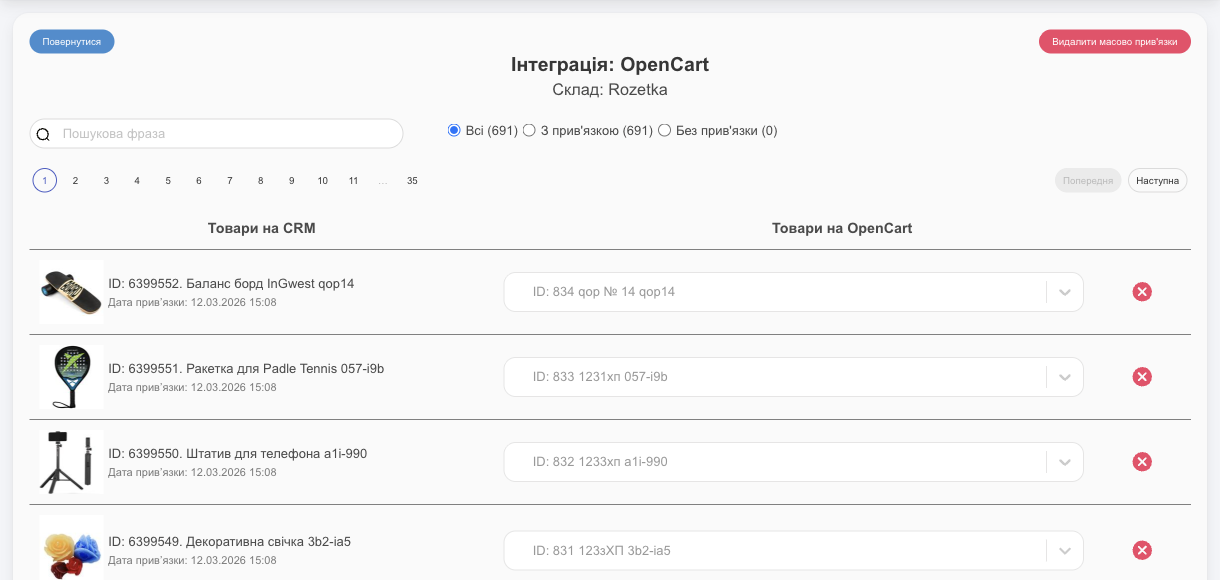
- At the top: the integration and its warehouse. The All / Linked / Not linked filter with product counts, and search by name, ID, SKU, or marketplace ID.
- On the left: Products in CRM (photo, ID, name, Binding date); on the right: the list of marketplace products.
- To link a product or change its link, choose the marketplace product in the list on the right and click Save in that row.
- ✕ removes the link for one product.
- Delete bulk bindings removes all links for this integration (after you confirm).
Auto-bind
With the Not linked filter on, the Auto-bind button appears:
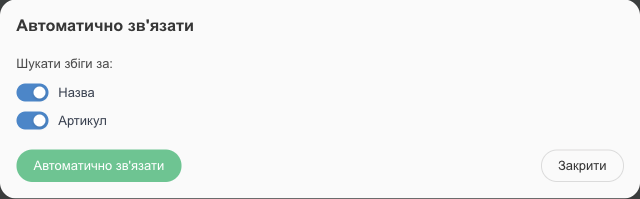
- Match by: Name and/or SKU.
- Auto-bind. HugeProfit shows a summary: Marketplace products processed, Bindings created, No products found, and Failed (duplicates found in products), which means a match was found with several of your products at once.
- Finish linking whatever didn't match manually in the same table.
Method 3. Manually from the product card
In the product list, each product name has integration icons below it:
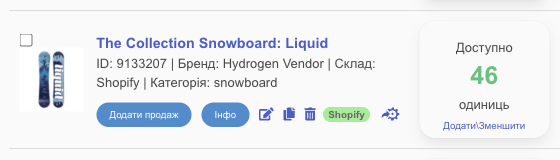
- a colored label with the marketplace name (Shopify, Prom, OpenCart…) means the product is already linked; click it to view or change the binding;
- the integration icon (gear) opens Add a binding to the integration.
New binding
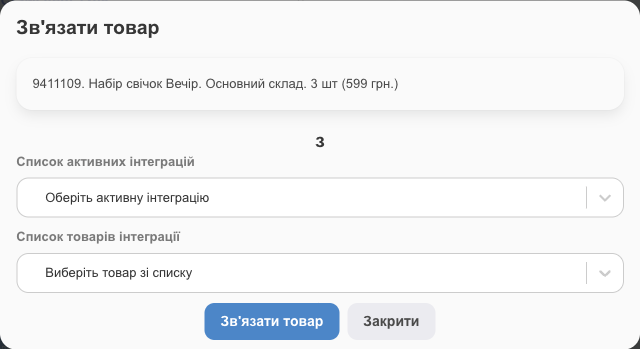
- Active integrations list: choose the marketplace.
- List of integration products: choose the marketplace product (the list shows only products that aren't linked yet).
- Link item.
The product isn't on the website yet? For WooCommerce, OpenCart, Horoshop, Shop Express, and Shopify, this window has Unload product: HugeProfit creates the product on the website and links it right away.
Change or delete a binding
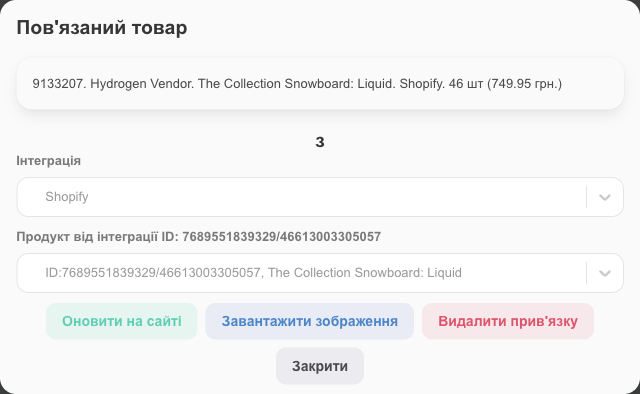
Click the marketplace label in the product row to open Linked product: your product, the integration, and Product from integration with its marketplace ID.
- Update on site: send all the product data (name, description, price, stock…) to the website now, without waiting for the sync.
- Upload Images: pull the product photos from the marketplace into HugeProfit.
- Remove the binding: break the link. The products stay in both systems; to link to a different marketplace product, create a new binding.
Only the account administrator can change existing bindings.
Product variants
For a variable product, each variant is bound separately to the matching variant on the marketplace (color/size). Every variant row has its own integration icons.
How to find unlinked products
- In the product list, use the Integration filter: products bound to the selected marketplace (see Products: list).
- In mass binding, use the Not linked filter.
- In orders, look for the note “The product is not in the system or it is not associated with an existing one” next to a product. Once you create the binding, future orders will deduct the product automatically.
Common situations
| Situation | What to do |
|---|---|
| Duplicates appeared after import | Products with different SKUs and names didn't find a match. Delete the extra cards and link the right ones manually. |
| The marketplace gets the wrong stock | Click the marketplace label in the product row and check which product it's linked to; check the integration's warehouse. |
| You changed the SKU or name on the website | The existing binding won't break: it relies on the product's marketplace ID, not the SKU. |
| The product was deleted on the marketplace | Delete the binding and, if needed, upload the product again. |
Binding is the foundation for syncing stock across all marketplaces at once. For an overview of what's possible, see CRM for marketplaces.