
How to write off products from a warehouse in HugeProfit
A write-off removes products from a warehouse when they're spoiled, broken, expired, given away as a gift, or used for your own needs. Unlike a manual stock change, a write-off records the reason (category), the person responsible, and the amount, so you can see how much stock you lose and why.
Create a write-off
- Products → Write off → Write off product.
- Choose the Warehouse\Shop.
- Write off category is the reason: defects, expiry, breakage, gift, own needs. You can create a new category right in the list (+ Create).
- Find products in the The product name/SKU/brand name field and enter how many to write off. You can't write off more than is in the warehouse.
- Optionally, add a Comment (what happened). Click Next.
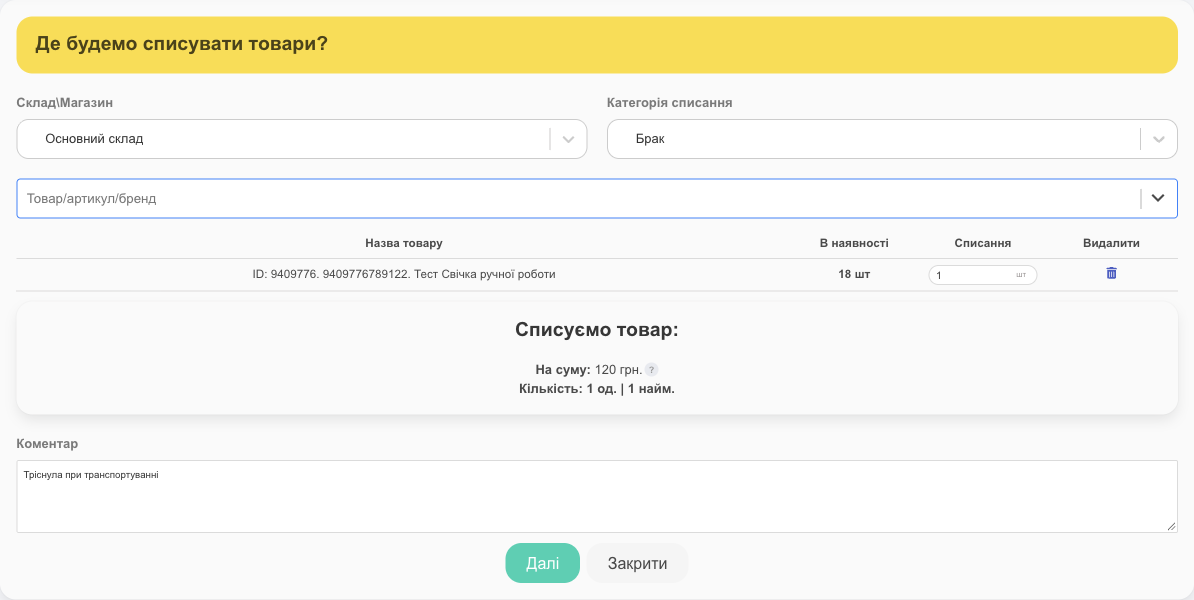
Complete the write-off
After you click Next, the write-off is saved with the Pending status, and stock hasn't changed yet. HugeProfit immediately shows Write-off of products prepared with the prompt Stock changes only after the write-off is completed. Complete it now?:
- Complete now opens the product check for this write-off right away: verify the quantities and click Write off product;
- Close lets you complete it later from the list.

To complete a write-off later:
- In the write-off row, click Complete write-off of product.
- Check the products and quantities, then click Write off product.
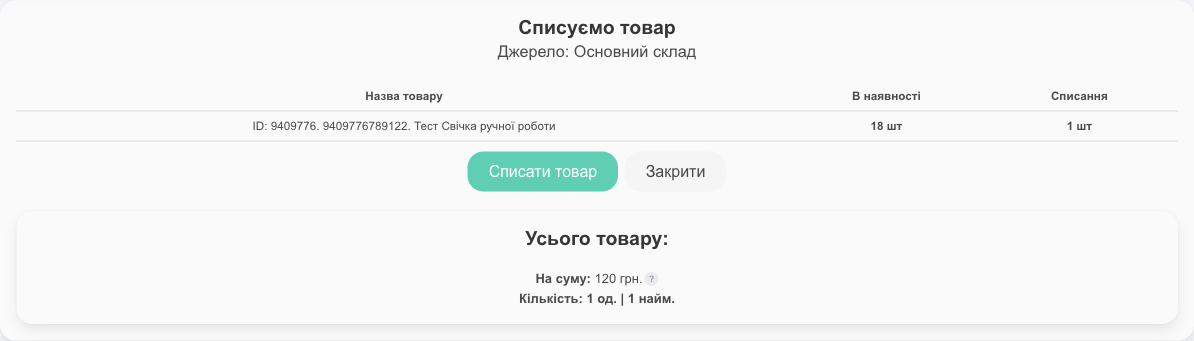
✅ The status is Completed: the products have been written off from the warehouse. The Money in goods amount on the dashboard has gone down too.
Write-off list
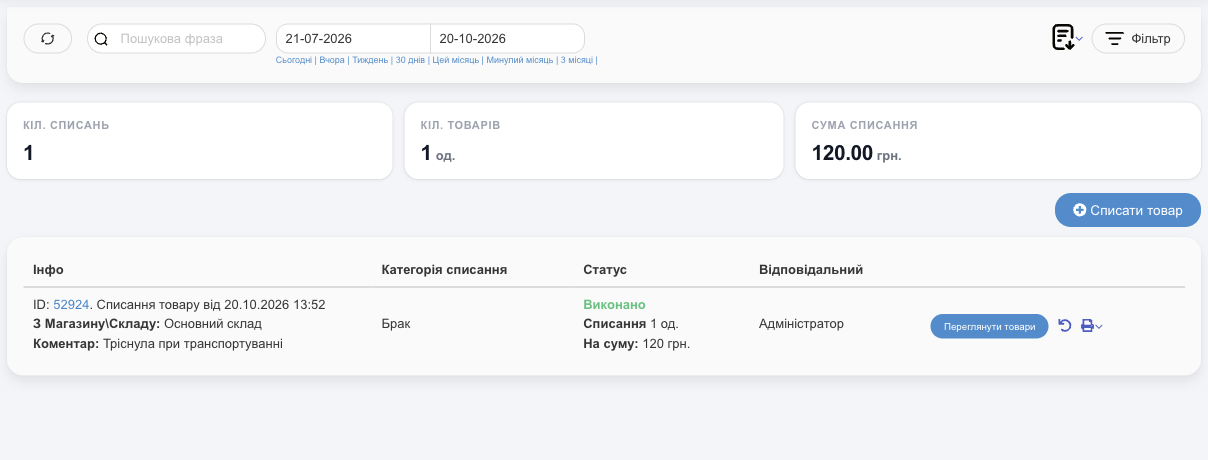
- At the top: Qnt. Write-offs, Qnt. Items, and Write-off amount (at cost price) for the selected period.
- Filters: period, warehouse, write-off category, status, person responsible (Manager\Cashier).
- Click an ID to open the write-off card: products, It was / Result, printing the Inventory write-off act, and export to Excel or PDF.
- Cancel the write off returns the products to the warehouse and sets the write-off back to pending, so you can correct it and complete it again. You can delete a pending write-off.
Write-off, stocktaking, or manual change?
| Situation | What to use |
|---|---|
| You know what happened to the product (it spoiled, you gave it away) | Write-off, with a reason and a write-off act |
| You recounted the warehouse and found a discrepancy | Stocktaking |
| You need to fix a data entry error | A manual stock change (Warehouses and stock) |
💡 A write-off doesn't create an expense on an account: the money was already spent when you purchased the goods. To see your losses, check the write-off total for the period in this section.
Together with stocktaking, write-offs show your real stock losses, one of the features of a CRM with inventory management.