
How to connect WooCommerce to HugeProfit with the WordPress plugin
For stores on WordPress + WooCommerce, there's an official HugeProfit plugin. It connects your site to HugeProfit without copying keys by hand, syncs products, stock, prices, and orders, adds a “Product cost price” field to the WooCommerce product card, and shows your profit right in the WordPress admin.
What the plugin does
- Connect in a few clicks: you sign in to your HugeProfit account from the WordPress admin, and the plugin creates the WooCommerce REST API keys and passes them to HugeProfit.
- Sync: stock and prices from HugeProfit to the site, new orders from the site to HugeProfit, order statuses back to the site, and new products both ways.
- Cost price in WooCommerce: a field in the product and variation card; HugeProfit uses it to calculate the profit on each order.
- Mini dashboard in WordPress: sales and profit for today, yesterday, the week, and 30 days; income and expenses for the month; account balances; latest shipments; and an Add expense button.
1. Install
WordPress admin → Plugins → Add New Plugin → find HugeProfit (“HugeProfit: Inventory, Profit & Finance – CRM for WooCommerce”) → Install Now → Activate. You need WordPress 5.8+, PHP 7.4+, and WooCommerce installed.
A HugeProfit item appears in the left menu, with the HugeProfit (dashboard) and Settings subitems.
⚠️ If WordPress uses “plain” permalinks (?p=123), the plugin shows the warning Warning: You are using plain permalinks!. Change the structure in Settings → Permalinks (for example, to “Post name”). Otherwise the WooCommerce REST API, which the integration relies on, may be unavailable.
2. Connect to HugeProfit
- HugeProfit → Settings. Until the integration is set up, you'll see Integration setup required and the Authorization form.
- Enter your HugeProfit Email or phone and password → Login. No account? Click Register (the free plan works).
- In the Integration setup section, choose a HugeProfit warehouse and the sync options (below) → Create integration.
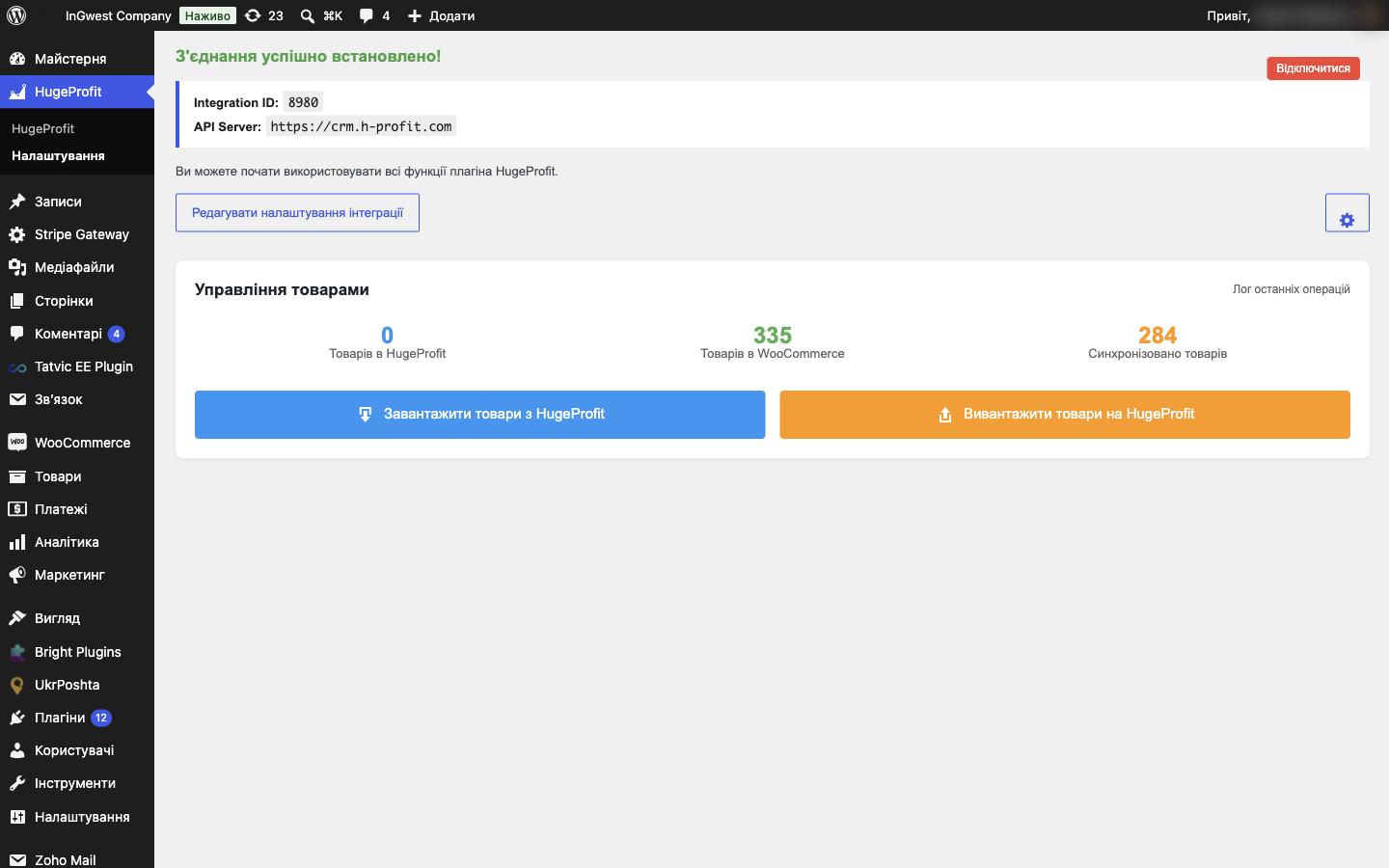
The page then shows Connection successfully established!, the integration number (Integration ID), and the server. In HugeProfit, an active WooCommerce integration with the same number appears in Settings → Integration → CMS.
Connecting from the HugeProfit side
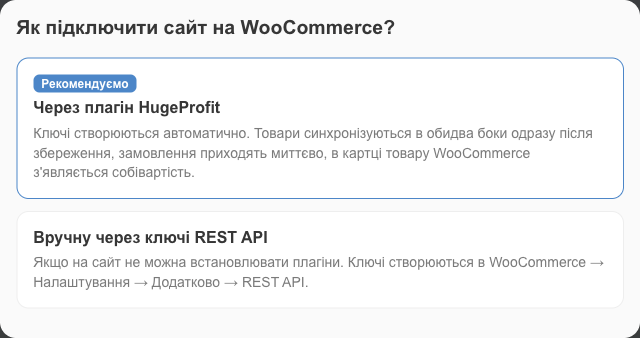
If you start from the CRM: Settings → Integration → CMS → WooCommerce → Connect. HugeProfit asks How do you want to connect your WooCommerce site?:
- With the HugeProfit plugin (marked Recommended): keys are created automatically, products sync both ways, orders arrive immediately, and the WooCommerce product card gets a cost price field. A short guide opens (the steps above) with a Plugin in the WordPress directory link. After you click Create integration in the plugin, return to HugeProfit and click I've connected the plugin. The new integration's settings open with the message The site is connected! Check the warehouse, sales channel and sync options, then save the settings. If there's no integration yet, HugeProfit asks you to check that you clicked Create integration in the plugin and try again.
- Manually with REST API keys: if you can't install plugins on the site (see “Connecting without the plugin” below).
An integration connected through the plugin shows Connected with the HugeProfit plugin and the plugin version, and has no key fields, because the plugin creates and updates the keys itself. If the plugin is out of date, you'll see a suggestion there to update it to the latest version: product imports will then work even on hosting where WP-Cron is disabled.
3. Sync options
Edit integration settings:
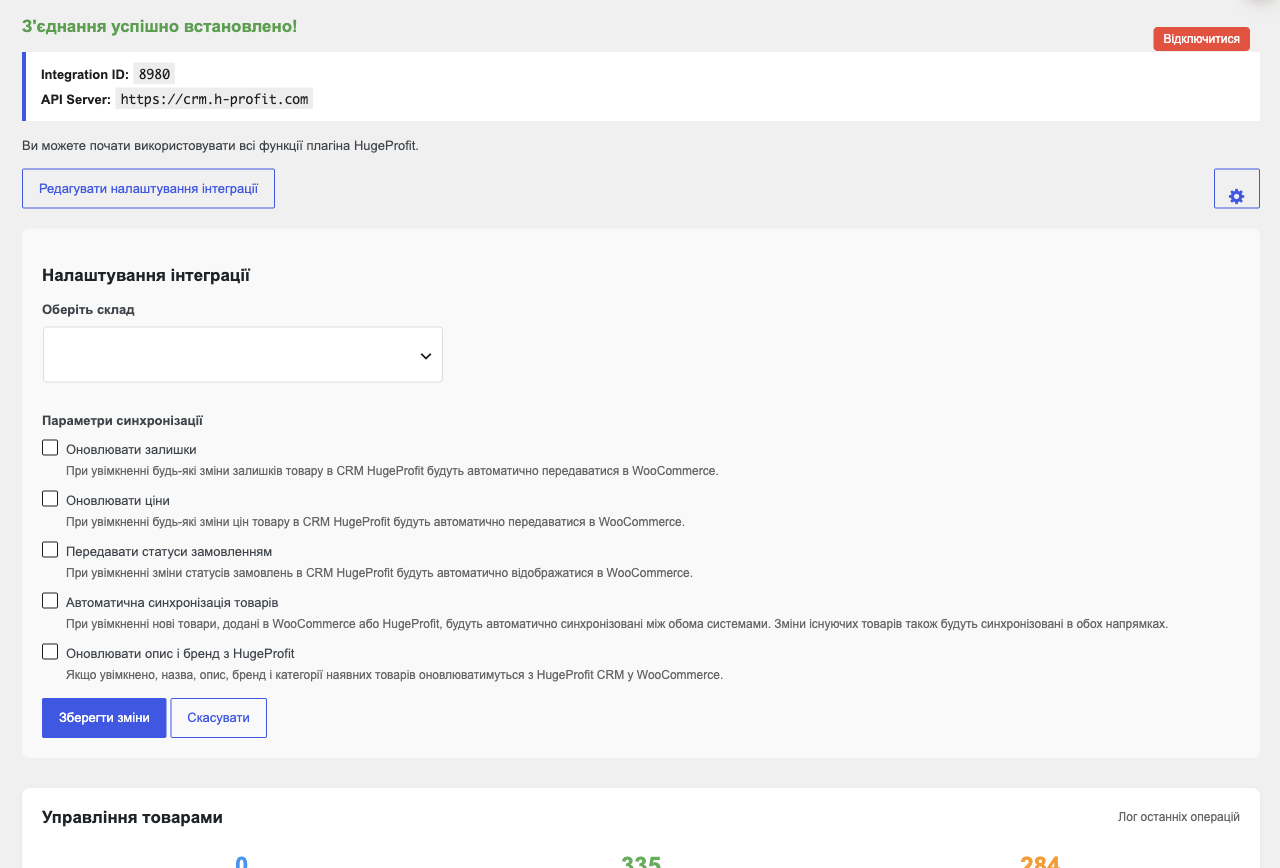
| Option | What it does |
|---|---|
| Select warehouse | The HugeProfit warehouse whose stock is shown on the site and from which orders are written off. |
| Update stock | Stock changes in HugeProfit (sales, shipments, stock moves) are sent to WooCommerce automatically. |
| Update prices | Price changes in HugeProfit are sent to WooCommerce. |
| Transfer statuses to orders | A status changed in HugeProfit (shipped, completed, canceled) appears in the WooCommerce order. |
| Automatic product synchronization | New products added in WooCommerce or in HugeProfit automatically appear in the other system; changes to existing ones sync both ways. |
| Update description and brand from HugeProfit | The name, description, brand, and categories of existing products on the site are updated from HugeProfit. Turn it off if you manage content in WordPress. |
Save changes. The same options are shown in HugeProfit in the WooCommerce integration settings.
4. Products: the first sync
The Product management section shows Products in HugeProfit, Products in WooCommerce, and Products synchronized.
- Export products to HugeProfit: if the products are already on the site, they appear in HugeProfit with prices and stock and are linked to the site's products.
- Import products from HugeProfit: if you manage your catalog in HugeProfit, the products are created or updated on the site. If the site already has a product with the same SKU, the plugin links it instead of creating a second one.
⚠️ Already have a catalog both on the site and in HugeProfit? Link the products first, then sync. Export products to HugeProfit creates a new card in HugeProfit for every site product that isn't linked yet, even if you already have that product. Make the SKUs match in both systems, then in HugeProfit click Import products → Link existing products WITHOUT creating new ones on the WooCommerce card. Link products with different SKUs using Bulk linking (see Linking products to integrations).
Sync can take a few minutes; you can see the progress on the page (Synchronized … of …). Log of recent operations is a technical log for support. Reset synchronization stops a stuck process (it can cause duplicates, so use it only when needed).
In the WooCommerce product list, a linked product shows its HugeProfitID, the product's number in HugeProfit, under its name:

Sync method
The ⚙ button on the right opens Sync method settings:
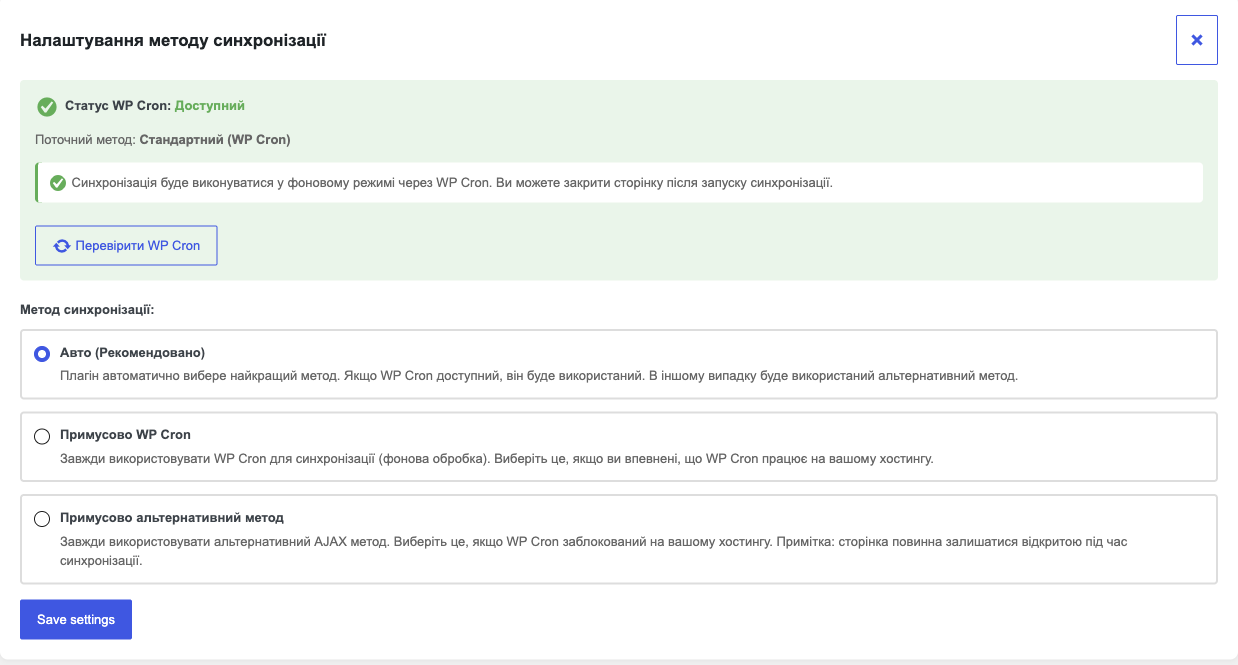
- Auto (Recommended): the plugin chooses for you: WP Cron if it works, otherwise the alternative method;
- Force WP Cron: sync runs in the background, so you can close the page;
- Force Alternative Method: for hosting where WP Cron is blocked; keep the page open until sync finishes.
Recheck WP Cron shows whether WP Cron works on your hosting.
5. Cost price in WooCommerce
The WooCommerce product card gets a Product cost price field on the General tab (for variable products, in each variation). Enter the purchase price: it's sent to HugeProfit when products sync, and order profit is calculated with it. It also works the other way: the cost price HugeProfit calculates from shipments is written to this field when you import products from HugeProfit.
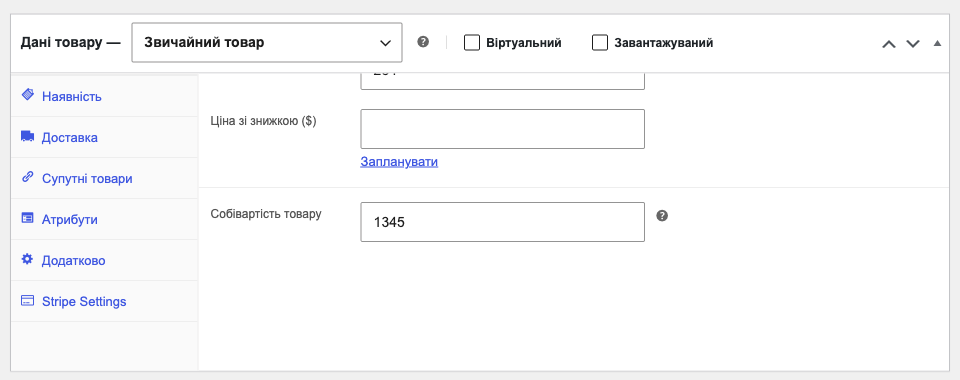
If you record shipments in HugeProfit, cost price is calculated from them; see Shipments.
6. Dashboard in WordPress
HugeProfit → HugeProfit is a short report from your HugeProfit account, without leaving the admin:
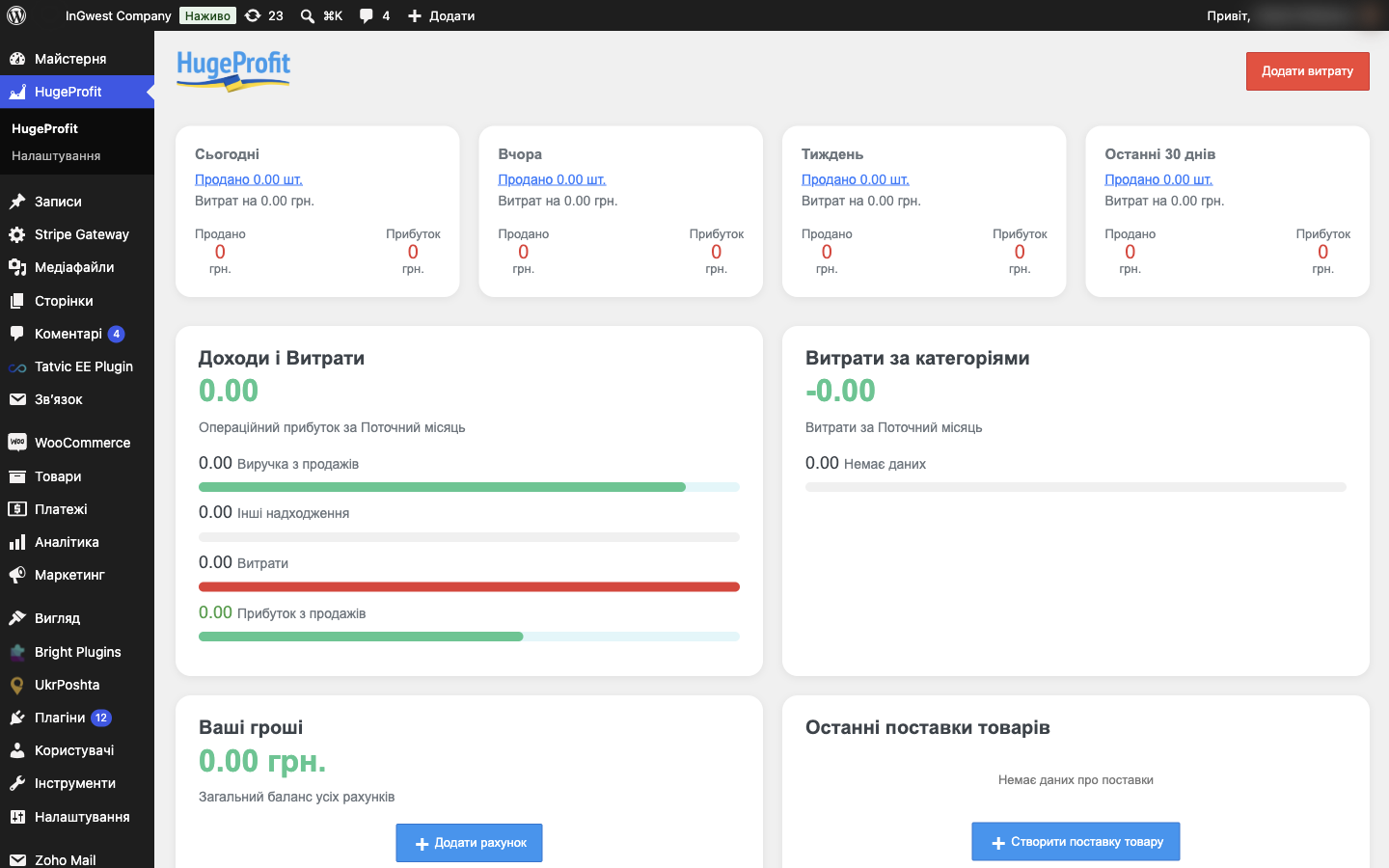
- Today, Yesterday, Week, Last 30 days cards: units sold and their total, profit, expenses;
- Income and Expenses and Expenses by categories for the current month;
- Your money: the balance of all accounts, and Add account;
- Latest product shipments and Create product shipment;
- Add expense: record an expense (advertising, rent, salaries) right from WordPress.
Full reports, warehouse, delivery, and clients are in HugeProfit itself (in the browser or the mobile app).
Orders
- The plugin notifies HugeProfit about a new or changed WooCommerce order right away, and it appears in Orders.
- Orders also come in with products that aren't linked to HugeProfit yet, but then you'll have to choose the product in the sale by hand every time. It's simpler to link the products once.
- From there you work with the order in HugeProfit: reserve, waybill (TTN), payment. Statuses go back to the site if Transfer statuses to orders is on; you map the statuses in HugeProfit (Download a list of statuses on the integration card).
Connecting without the plugin
If you can't install the plugin, you can create the integration manually with REST API keys:
- WordPress → WooCommerce → Settings → Advanced → REST API → Add key: description “HugeProfit”, an administrator user, Read/Write permissions → Generate API key. Copy the Consumer key and Consumer secret (the secret is shown only once).
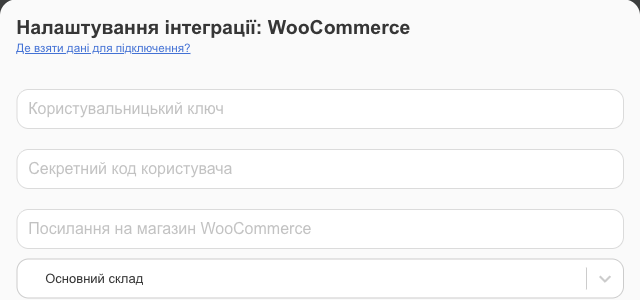
- HugeProfit → Settings → Integration → CMS → WooCommerce → Connect → Manually with REST API keys: Consumer key, Consumer secret, Store link WooCommerce (the site address with https://; if WordPress is installed in a subfolder, include it).
- The other fields (warehouse, sales channel, price, what to sync) work as for Prom.
Here too, WordPress permalinks must not be “plain” (see the warning in section 1), or HugeProfit can't reach the REST API.
Without the plugin, you import and export products with the buttons on the WooCommerce card in HugeProfit: Import products (with the options Update all balances, Import new products without stock, Link existing products WITHOUT creating new ones, Import WITHOUT creating products) and Export products from CRM to the site; HugeProfit creates categories and variants on the site itself. Products are linked by matching SKU; if the SKUs differ, an import that creates products adds a second card. Learn more in the integrations overview and Linking products to integrations.
Without the plugin, there's no cost price field in WooCommerce and no dashboard in WordPress.
Disconnecting and removing
- Disconnect on the plugin settings page breaks the link between the site and HugeProfit (products and orders stay in both systems).
- On the Plugins page, HugeProfit has a Clear Data link. It deletes all the plugin's settings and its product fields (cost price, HugeProfitID) in WordPress. This can't be undone; your data in HugeProfit isn't affected.
Troubleshooting
| Problem | What to do |
|---|---|
| Can't sign in from the plugin | Check your email/phone and password at crm.h-profit.com. If the HugeProfit server is temporarily unavailable, the plugin shows an error with the time; try again later. |
| Sync is stuck | ⚙ → Recheck WP Cron; if WP Cron isn't available, choose Force Alternative Method and keep the page open. For a stuck process, use Reset synchronization. |
| Duplicate products | Usually the SKUs differ between HugeProfit and WooCommerce, or products were exported from the site before existing products were linked. Make the SKUs match, delete the extra cards, and link the products (Bulk linking on the WooCommerce card). Don't start another export until the previous one finishes. |
| Orders don't arrive | Check that the integration in HugeProfit is active and that “Do not receive orders” isn't on; send the Log of recent operations to support. |
See what HugeProfit offers WordPress stores on the CRM for WooCommerce page.