
How to create a variable product, a bundle, and a service in HugeProfit
Besides regular products, HugeProfit has three more types: variable products (one model in different sizes and colors), bundles (a set of several products), and services (no stock). You choose the type at the top of the product form.
| Type | When to use it | Stock |
|---|---|---|
| Simple | One product, one line item. | Its own |
| Variable | One model in several variants: a T-shirt in S/M/L, white/black. | Each variant has its own |
| Bundle | A set of several products sold as a single item: a gift set, a "phone + case" bundle. | Calculated from the components |
| Services | Delivery, installation, packaging, repair, consultation. | None |
Variable product
Each variant is a separate product with its own stock, price, cost price, barcode, and SKU, but they're all grouped under one name.
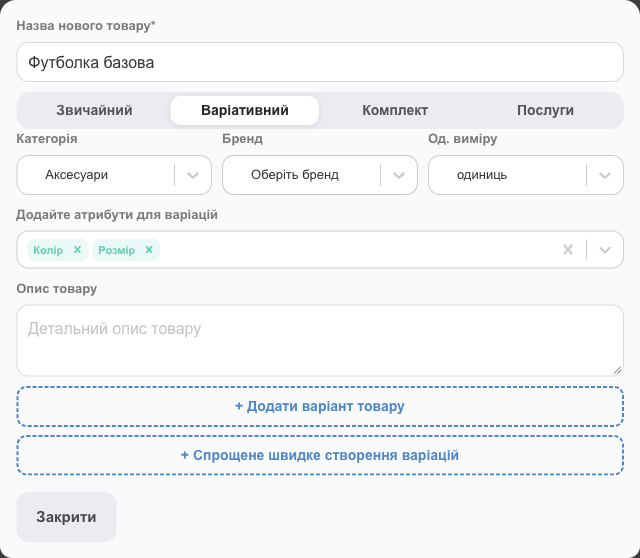
- Add New Item → enter the model name → select Variable.
- In the Add attributes for variations field, choose the characteristics the variants differ by, for example Color and Size. You can enter new attributes right here or create them in advance in Settings → Products → Attributes.
- Add variants in one of two ways:
- + Simplified quick variation creation: many variants at once (see below);
- + Add Product Variant: one at a time, with all fields.
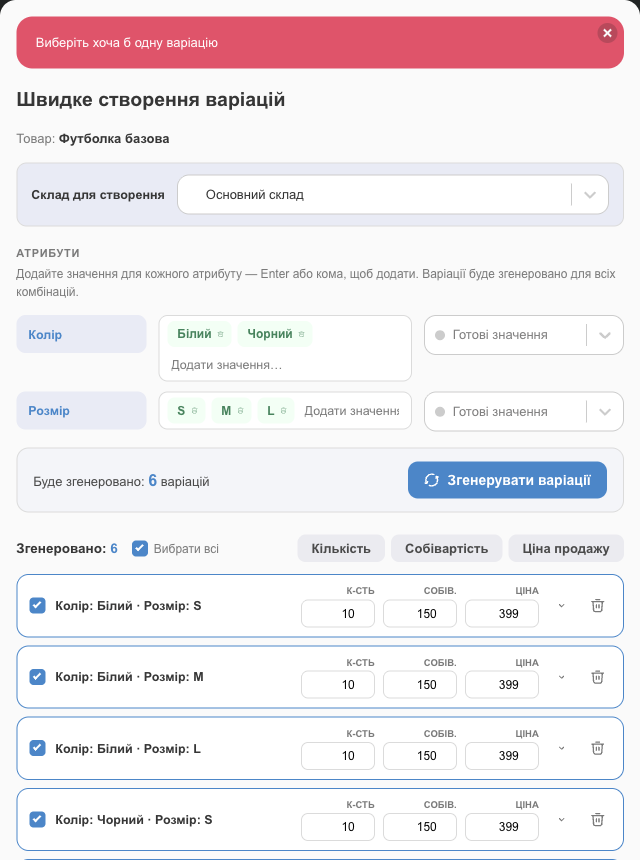
Quick variation creation
- Choose the Warehouse for creation.
- For each attribute, enter values, pressing Enter or typing a comma after each one: White, Black; S, M, L. You can pick values that already exist in your account from the Existing values list.
- HugeProfit shows how many variations you'll get (every combination: 2 colors × 3 sizes = 6). Click Generate variations.
- Enter the quantity, cost price, and price for each variation. To set the same values for many of them, check them (or click Select all) and click Quantity, Cost price, or Selling Price. The ⌄ arrow next to a row reveals the barcode and SKU; 🗑 removes a combination you don't need.
- Check the variations to create and click Save variations.
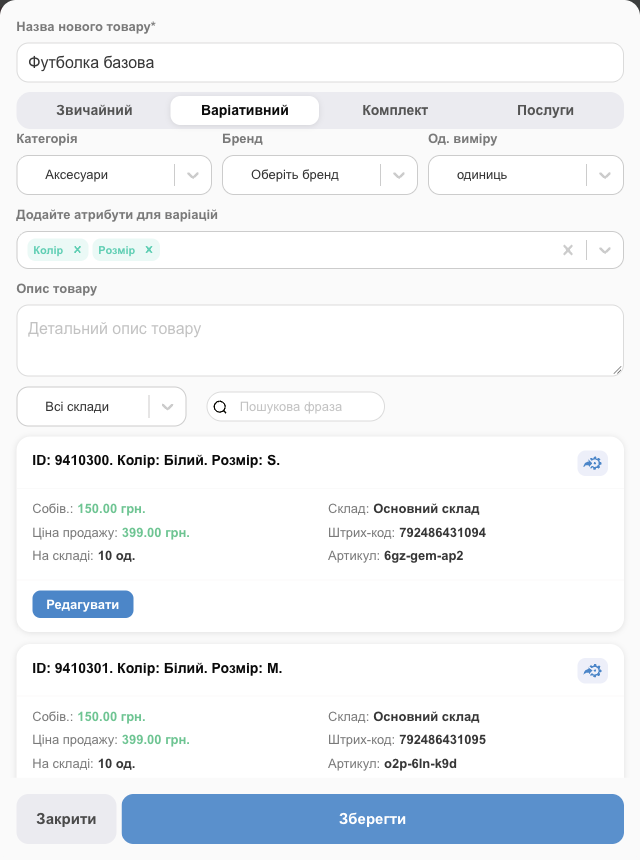
✅ The variations are created. Barcodes and SKUs are generated automatically. You can open each variant with the Edit button and change it separately.
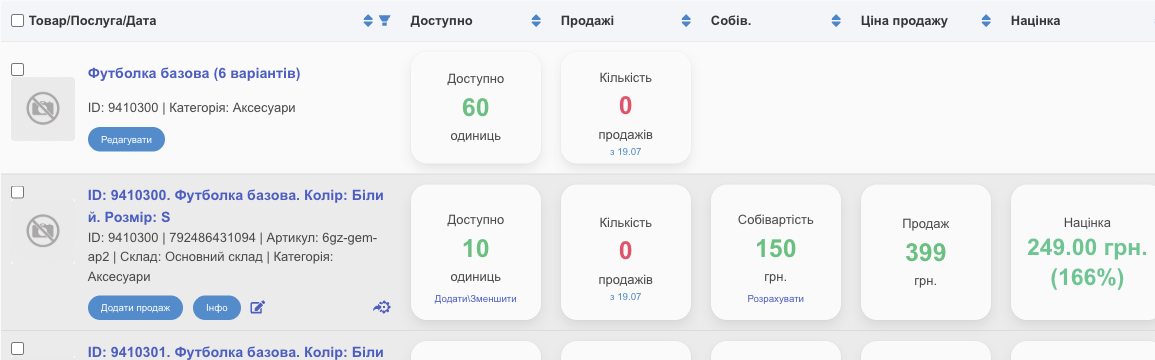
In the product list, a variable product appears as a single row with the number of variants and the total stock. Click the name to expand the variants: each has its own Add Sale, Info, and ✎ buttons.
💡 Variant attributes become filters in the product list and are exported to marketplaces and to the HugeProfit online store, where shoppers choose the color and size on the product page.
Bundle
A bundle has no stock of its own: it's made up of other products. When you sell a bundle, its components are taken off stock.
- Add New Item → name → Bundle.
- Choose the Warehouse and find the components in the The product name/SKU/brand name field; the list shows only products from the selected warehouse. Next to each one, enter how many units go into the bundle.
- HugeProfit calculates:
- Available: how many bundles you can assemble from the components in stock;
- Cost price: the sum of the components' cost prices.
- Enter the bundle's Selling Price, or check Sum of components to make the price equal the sum of the component prices.
- Add New Item.
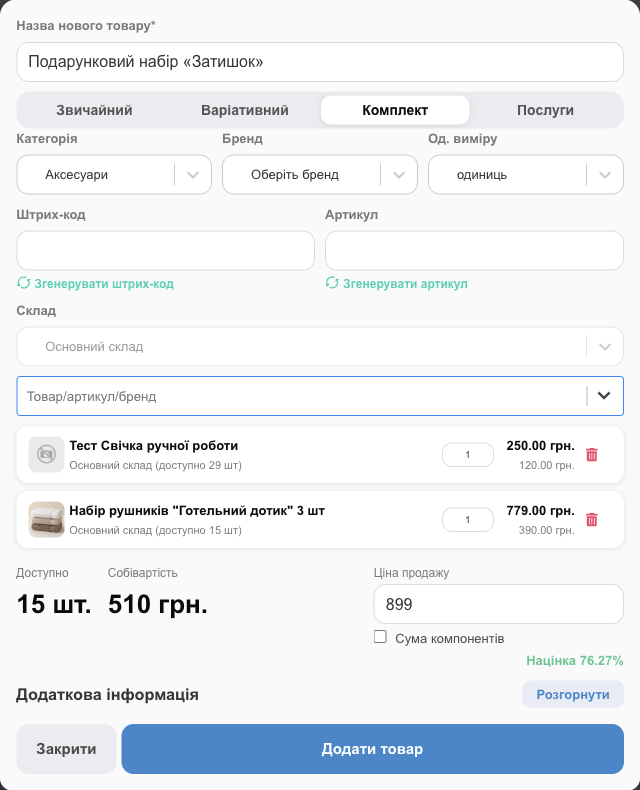
- You can add a service to a bundle (for example, gift wrapping) and even another bundle.
- If you change a bundle's contents after a sale, returning or editing that sale puts back exactly the components that were taken off stock at the time.
Services
A service has no stock, so you can sell as many as you like. The form has no brand, unit of measure, or warehouse quantity, only a price and a cost price (for example, what you spend on materials).
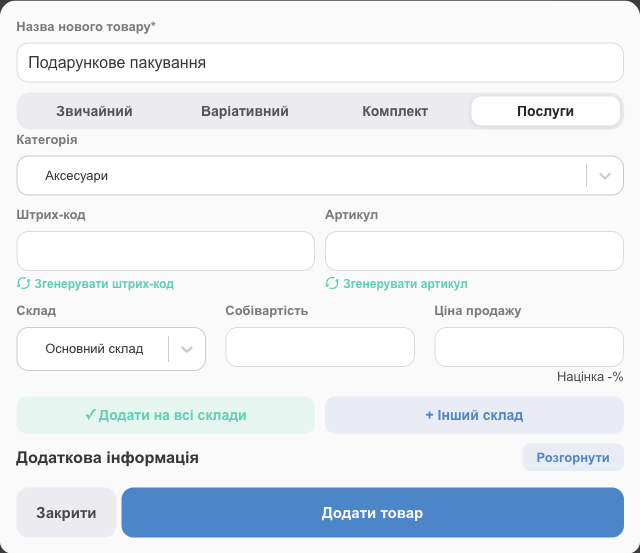
You add services to a sale the same way as products, and they count in reports, but they don't appear in stock.
Units of measure
The Units field in the product card: units, kg, g, milliliters, meters, kilometers, centimeters, m², m³, cm³, pairs, pallets, tons, packs, rows, sets, reels, cuts. The unit is shown in stock, sales, shipments, and on price tags.
Next: assign variants to warehouses and set their stock in Warehouses and stock; you can prepare variant characteristics in advance in Product settings → Attributes; to get variants onto your website or a marketplace, you need to link them.
Variants with sizes and colors are especially handy for selling clothing and footwear; see software for clothing stores.