
The HugeProfit sales list: filters, statuses, and bulk actions
The Sales module lists all your sales, with filters by period, status, account, channel, client, warehouse, and seller. Here you search for sales, edit them, process refunds, print documents, and change statuses in bulk.
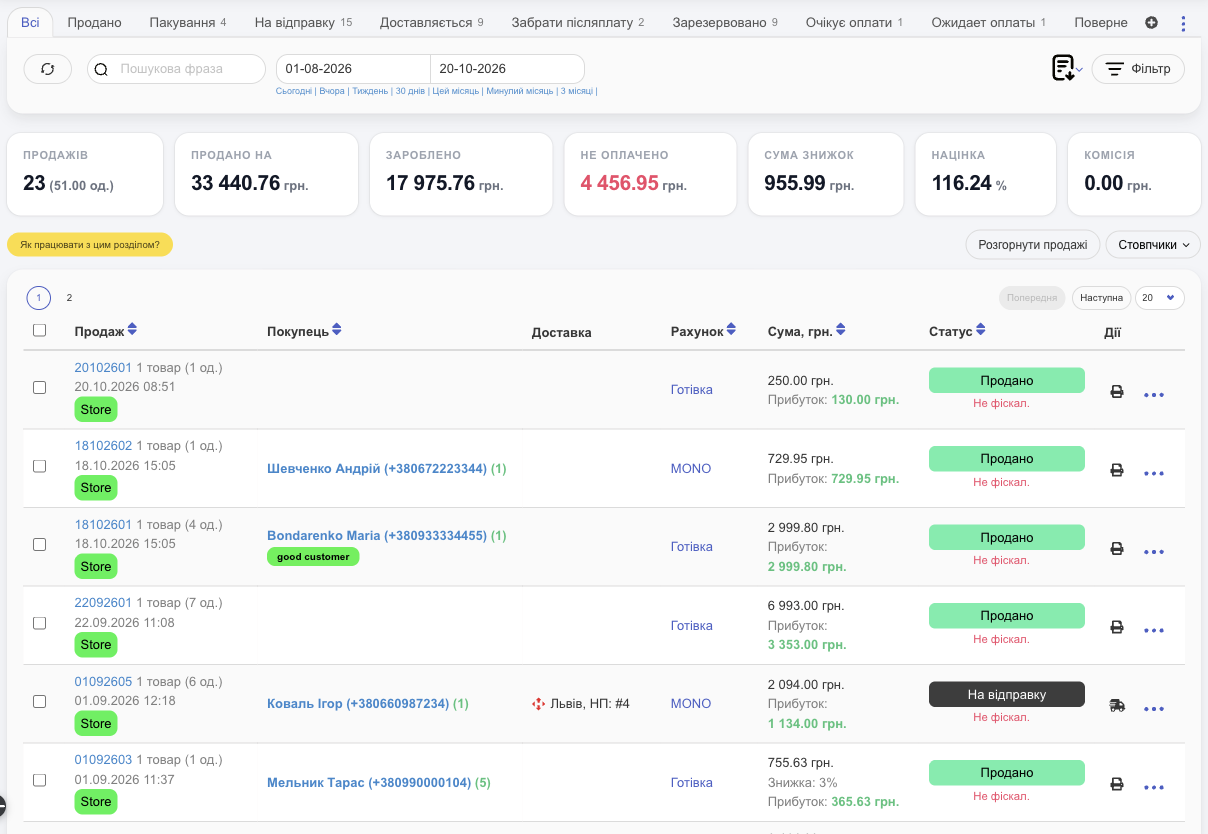
Statuses (tabs)
At the top are status tabs with the number of sales: All, Sold, Packaging, Awaiting dispatch, On delivery, Collect COD, Reserved, your custom statuses, and Refunds. The same statuses are in the Sales submenu on the left. The ⊕ next to them adds a custom status (see Statuses and channels).
Period, search, filters
- Period: a from–to date range or a quick pick: Today, Yesterday, Week, 30 days, This month, Last month, 3 months. The default is today.
- Search: by sale number, client, waybill (TTN) number, and so on.
- Filter: Account, Sales channel, Clients, Tags, Warehouse\Shop, Manager\Cashier, Fiscalization, Item Category, Delivery Service, Paid storage of product, Parcel auto-return, Commission, Payment.
Totals
For the sales that match your filters: Sales (units of product in parentheses), Sold at, Earned (profit), Not paid, Total discount, Margin, and sales channel Commission.
Sale row
- Sale: the number (click it to open the sale card), the number of products, the date, and the channel.
- Buyer: name and phone (the number of purchases in parentheses) and client tags.
- Delivery: city and branch, plus the delivery service icon.
- Account, Amount and profit, discount.
- Status and fiscalization state (Not fiscal., Partial Fiscal.).
- Actions: 🖨 quick print of a document (which one is set in Print settings), 🚚 send for shipments, and the ⋯ menu.
Expand sales shows each sale's products right in the list. Columns lets you choose which columns to show.
The ⋯ menu
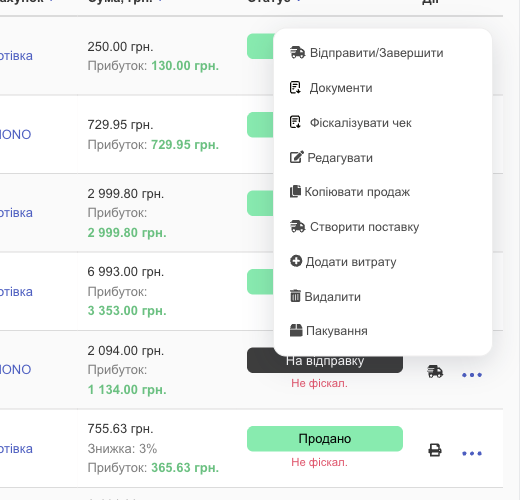
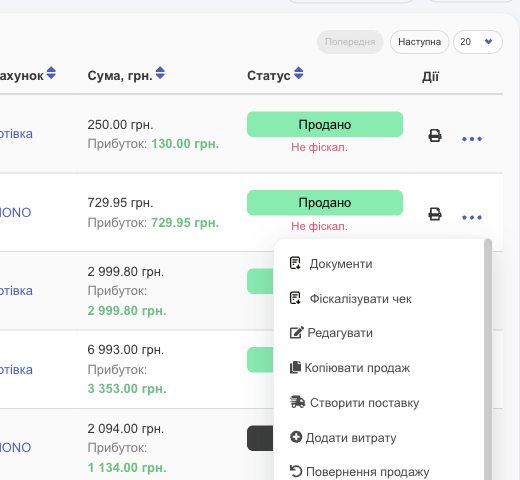
| Item | What it does |
|---|---|
| Send parcel/Finish | For shipments: create a waybill, change the status. See Delivery. |
| End reservation, Finish payment, Collect COD | For reserves, partially paid sales, and cash on delivery (COD). |
| Change status | Move the sale to another status. |
| Documents | Print a delivery note, invoice, or receipt. |
| Fiscalize receipt / Fiscalize partial payment | Send the receipt to the tax service through a software cash register (PRRO). |
| Edit | Change the products, amount, client, and so on (if you're allowed to). |
| Copy the sale | A new sale with the same products and client. |
| Create Shipment | A shipment with this sale's products, to restock what you sold. |
| Add expense | An expense linked to this sale. |
| Generate payment link | A link for card payment (if acquiring is connected). |
| Refund sale | Return the products and the money. See Refunds. |
| Packaging | Send the sale to packing (if the module is on). |
| Delete | Delete the sale: the products go back to the warehouse, and the money is taken back from the account. If the receipt was fiscalized, HugeProfit offers to make a fiscal refund. |
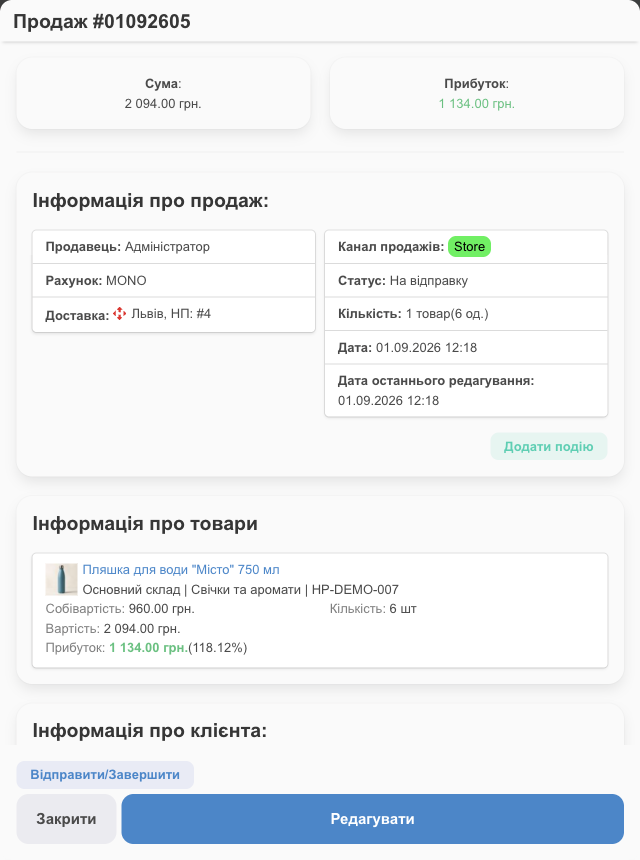
Sale card
Click a sale number to see the amount and profit, seller, account, delivery, channel, status, creation and edit dates, products with cost price and profit, client details (how much they've bought, debt, balance), financial transactions, and files. The Add an event button creates a calendar reminder.
Actions on multiple sales
Check the sales you need (or Select all):

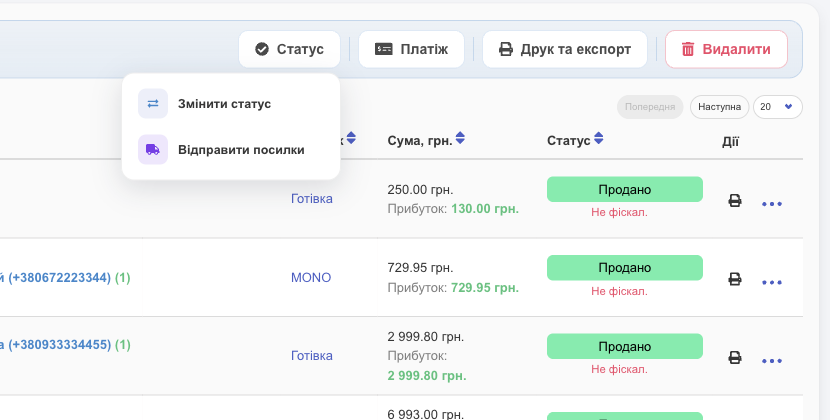
- Status → Change status for all of them; Send parcels creates waybills in bulk.
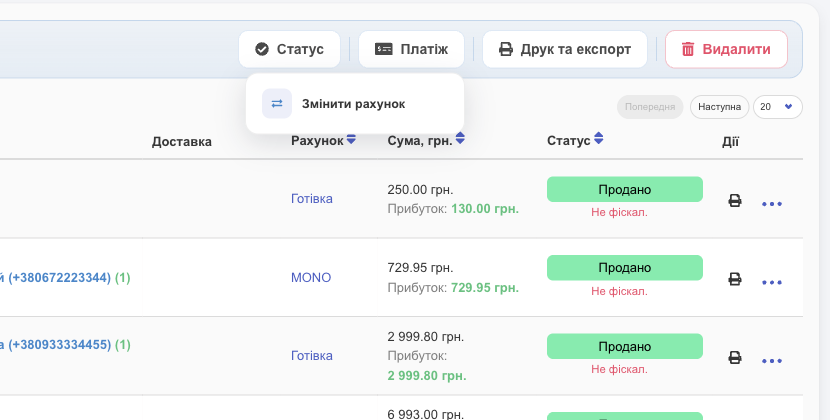
- Payment → Change account, for example to move a payment from “Cash on delivery” to a card.
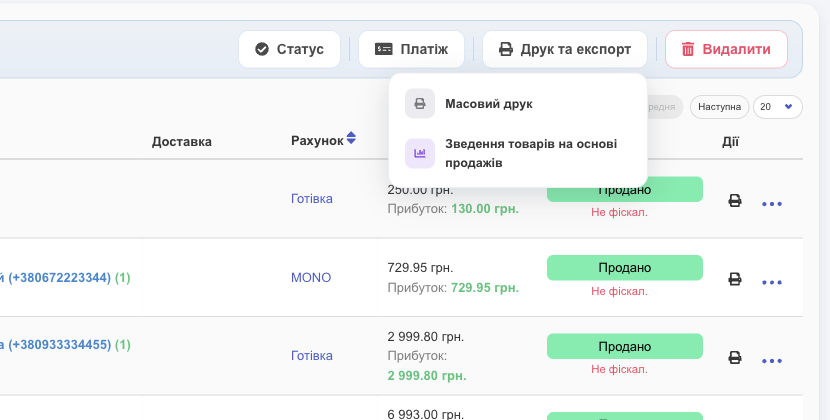
- Print & export → Mass printing of documents; Consolidated Product List by Sales shows how much of each product is in the selected sales (handy for picking orders in the warehouse).
- Delete.
Exporting the list
The download icon on the filter bar exports all sales that match your filters and period:
- Sales list PDF / Sales list Excel: sales with clients, amounts, statuses, and payments;
- Consolidated Product List by Sales in PDF or Excel: how much of each product was sold in the selected sales (for purchasing or warehouse picking);
- Sales document templates: your templates from Printing documents.
To export only some sales, check them → Print & export.