
How to print delivery notes, invoices, and receipts in HugeProfit
HugeProfit prints delivery notes, dispatch notes, invoices for payment, and sales slips, on A4 paper or on a thermal receipt printer. You can customize the documents: logo, company details, table columns, signatures, and file name.
Where to print
- In the sales list, 🖨 in the row: quick printing of the default document.
- ⋯ → Documents: choose any document and format.
- After saving a sale: Open receipt / Print receipt.
- Several sales at once: select them → Print & export → Mass printing.
- Shipment: 🖨 in the row, then With purchase prices, With sale prices, or Without prices. Stock move: With purchase prices or With sale prices. Without the Income information permission, only with sale prices.
- Shipments summary: which products were received across several shipments. Check the shipments → Shipments summary, optionally Split by shipments, then Excel or PDF. See Shipments.
Document settings
Settings → Printing. The Sales, Shipments, Stock moves, and Shipments summary tabs hold the documents for each type of operation.
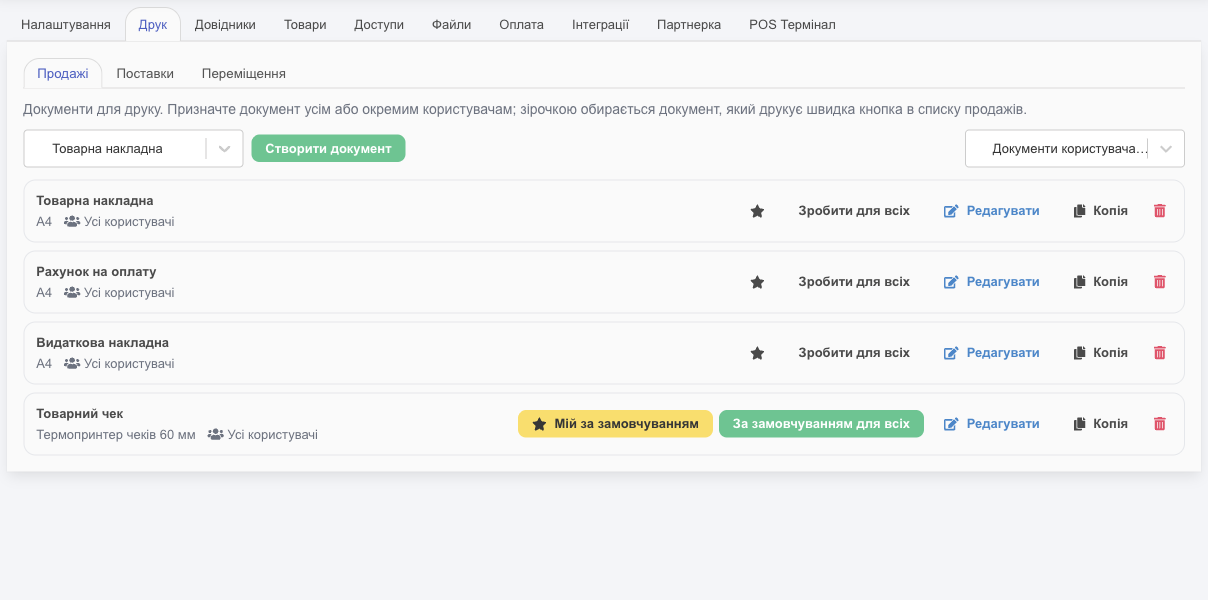
- Standard sale documents: Delivery note, Invoice for payment, Dispatch note (A4), and Sales slip (60 mm thermal printer).
- ⭐ marks the document that the quick 🖨 button in the sales list prints. My default applies only to you; Default for everyone / Make default for everyone applies to all employees.
- Copy: create your own version of a standard document (for example, a delivery note without the cost price for the client and one with it for the warehouse). 🗑 deletes it.
- Create document: a new document of the selected type.
- Documents of user…: see which documents a specific employee can see.
- You can tie a shipment or stock move document to one price: in the table columns, check only the purchase price or only the selling price, and the document prints with that price right away, without asking. If you check neither or both, you choose the price when printing.
Editing a document
Click Edit. Check your changes with View and save, which opens a sample document.
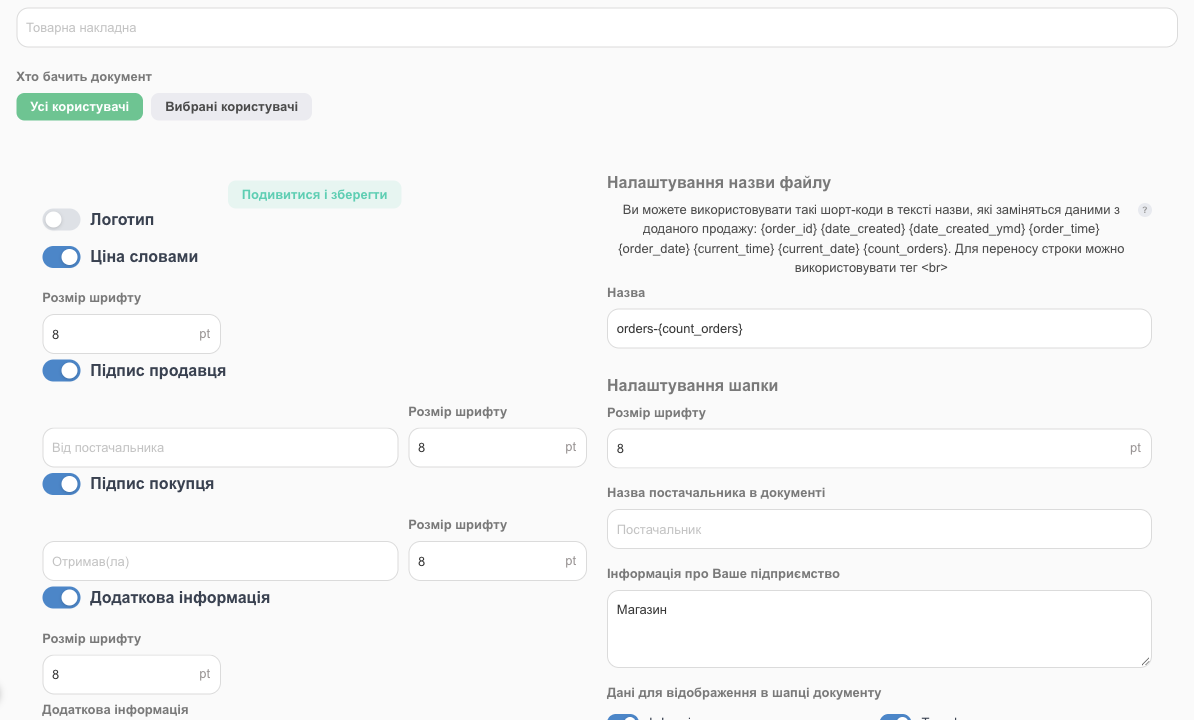
| Section | What you can set |
|---|---|
| Document name, Who sees the document | What the document is called in the list; All users or Selected users. |
| Logo | Your logo in the header. |
| Price in words | The amount written out in words. |
| Seller's signature, Buyer's signature | Signature lines with captions (“From the supplier”, “Received by”). |
| Additional Information | Any text at the bottom: return terms, warranty, company details. |
| Total without VAT, Comment on the sale | Show or hide. |
| Setting the file name | What the PDF is called. You can use shortcodes: {order_id}, {order_date}, {current_date}, {count_orders}, and more. |
| Customizing the header | Supplier label in document, Information about your company (name, address, account, EDRPOU code), and which details to show: the client's name, phone, email, and company, the waybill (TTN) and its barcode, delivery, the sale barcode, date, seller, channel, EDRPOU/RNOKPP code; Display as 2 columns. |
| Customizing the name, Customizing the refund name | The document title (shortcodes work here too), with a separate one for returns. |
| Table customization | Columns: row number, product image, SKU, name, unit, quantity, price, amount, discount, cost price, barcode, UKTZED code; Show bundle components. |
| Additional fields | Add your custom sale, client, or product fields to the document. |
| Thermal receipt printer | The format for a receipt printer and PDF receipt width (mm). |
Click Save. Reset to default restores the standard layout.
Fiscal receipt
The HugeProfit sales slip is not a fiscal receipt. If you're required to issue fiscal receipts, connect a software cash register (PRRO) (Checkbox or Vchasno.Kasa). The sale then shows Fiscalize receipt, or you can set up automatic fiscalization. See Fiscalization.
Who can print
Employee permissions: Printing sales documents and Print documents (own documents); for reports and the shipments summary, Download shipments documents. You can turn the module off: Settings → System modules → Printing sales documents.
Invoices and delivery notes are generated from the sale data automatically. Learn more about creating invoices and delivery notes online.