
Product list in HugeProfit: search, filters, bulk actions, and purchasing
The Products section is your catalog and your stock across all warehouses. Here you search and filter products, see how many you have and what they are worth, change prices and stock for many products at once, and work out what it's time to reorder.
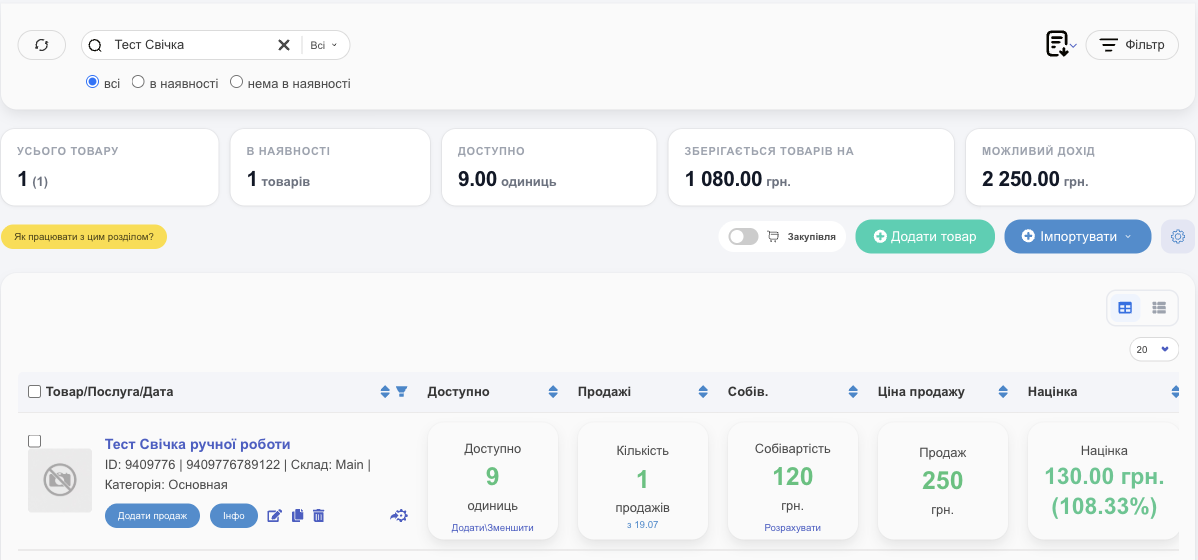
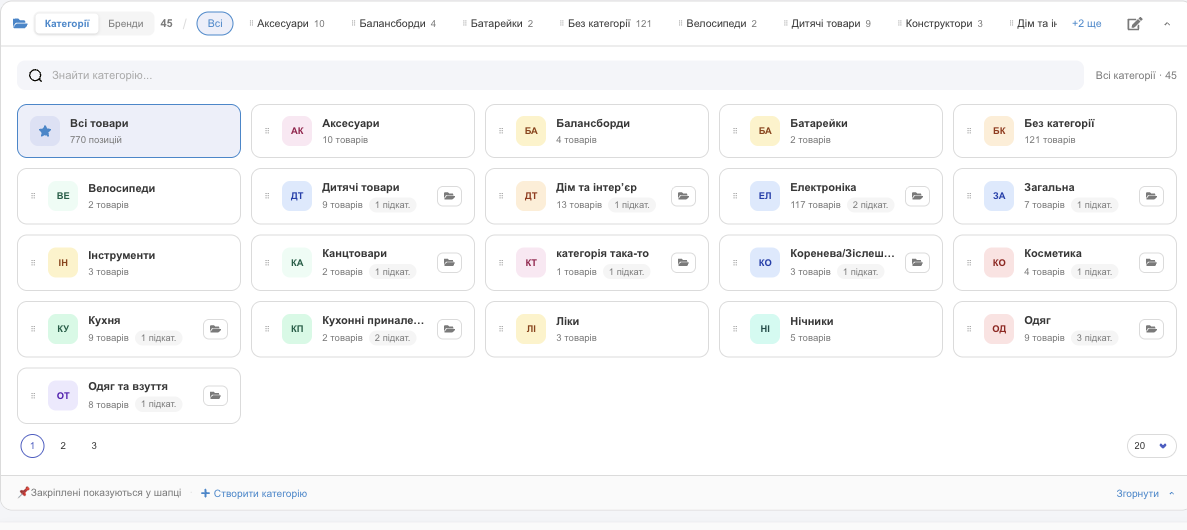
Warehouses and categories
- Warehouse tabs at the top: All shows products from every warehouse; a warehouse tab shows only that warehouse's products and stock. The ⚙ gear on the active tab opens the warehouse settings, and ⊕ adds a new warehouse. See Warehouses and stock.
- The category bar below the tabs: click a category to show only its products (the product count is shown next to it). The Categories / Brands switch shows brands in the bar instead. +N more holds the remaining categories.
- The folder icon on the left expands all categories as tiles, with search and product and subcategory counts. At the bottom is Create category.
- The pencil on the right opens Categories in header: check the categories to show in the bar. Pinned categories always stay in the bar; the rest go under +N more.
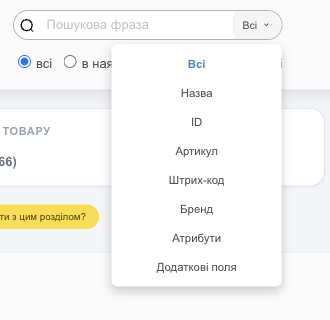
Search and filters
- Search: enter a name, SKU, barcode, or ID. On the right side of the search field, you can choose where to search: Name, ID, SKU, Barcode, Brand, Attributes, Additional fields (the default is All).
- All / In stock / Out of Stock quickly narrows the list by stock.
- The ⟳ button refreshes the list.
- Filter opens a panel with all filters (see below).
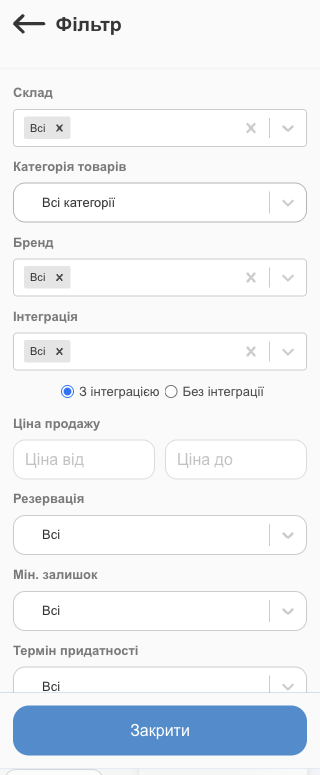
| Filter | What it selects |
|---|---|
| Warehouse, Item Category, Brand | You can pick several values. |
| Integration | Products linked to the selected marketplace (Prom, Rozetka, your website…): With integration or Without integration. Handy for finding what you haven't exported to a marketplace yet. |
| Selling Price | A "from–to" range. |
| Reservation | With a reservation / No reservations: whether any units are set aside for clients. |
| Min. stock | Requires purchase: stock has dropped below the minimum; No purchase required. |
| Expiration date | Products whose expiration date is coming up. |
| Product type | Simple, Variable (color, size), Bundle, Services. |
| Storage location | Room, rack, shelf, if you track storage locations. |
| Attributes | Color, size, season, and your other characteristics, each as a separate filter. |
Totals
The cards above the list are calculated for the products currently selected by the filters (or for the checked ones):
| Card | What it means |
|---|---|
| Total Products | How many line items (a product in a warehouse) are in the list. The number in parentheses is how many distinct products. |
| In stock | How many line items have stock. |
| Available | How many units are in your warehouses. |
| Stored Goods For | The cost price of all stock, that is, how much money is tied up in products. |
| Possible Profit | How much you'll get if you sell all the stock at current prices. |
Amounts are visible only to users allowed to see income information.
Product list
You can display the list as cards or as a table, using the switch to the right above the list. In table view, Columns → Customize columns lets you choose the columns (ID, warehouse, SKU, and so on), and Reset to default restores the standard set. Sort with the arrows next to the column names; show 10, 20, 30, or 50 products per page.
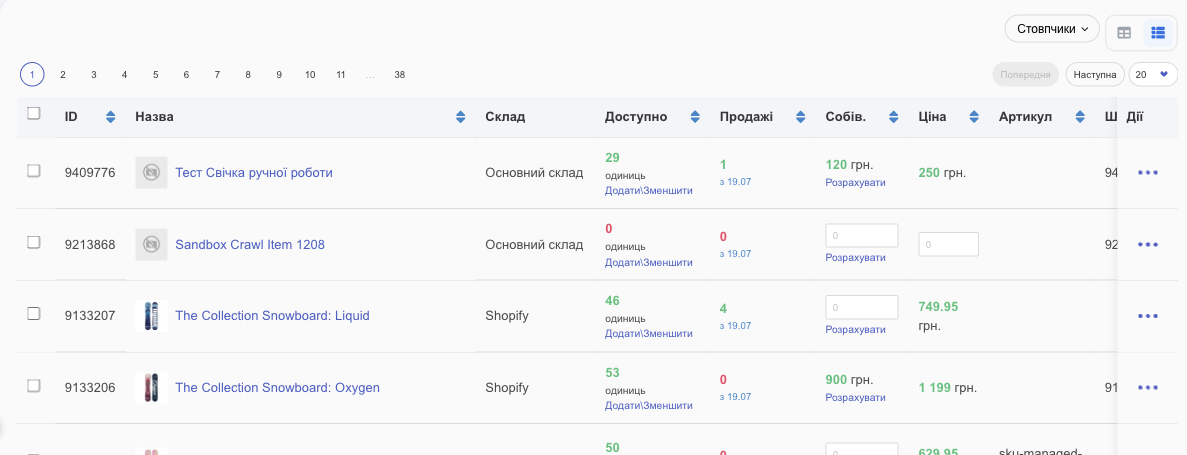
| Column | What it shows |
|---|---|
| Product | Photo, name, ID, barcode, SKU, brand, warehouse, category. A marketplace icon (Prom, Shopify…) means the product is linked to an integration. A variable product shows its number of variants and expands. |
| Available | Stock. In the format 29/30 (6), 29 is free to sell, 30 is physically in the warehouse (the difference is reserved), and the number in parentheses is how many are expected from shipments. Click the number to see who reserved units and what's in transit. Add/Remove quickly changes stock (see Warehouses and stock). A red number means the product is out of stock or below its minimum stock. |
| Sales | How many units have been sold since the date shown under the number. |
| Cost | The cost price of one unit. Calculate works out the cost price from the purchase price plus extra costs (packaging, delivery, fees). |
| Selling Price | The price the product sells for. If there's no price, you can enter it right in the row. |
| Margin | Selling price minus cost price, in hryvnias and as a percentage. |
Buttons under the product name: Add Sale (opens a sale with this product), Info (the product card with the Description, Sales, Movement of stock, Shipments, Product by suppliers, Moving, Write off, History, Analogs, and Files tabs), ✎ to edit, ⧉ for Create a copy of the product, and 🗑 to delete. The gear icon on the right is Add a binding to the integration / Edit a binding to the integration: it links the product to a product on a marketplace. In table view, these actions are under ⋯.
Actions on multiple products
Check products, and a panel appears above the list. Select all N checks every product selected by the filters, not just the ones on the current page.

| Button | Actions |
|---|---|
| Add Sale | A new sale with all the checked products. |
| Add | To shipment, To move. |
| Edit | Change Sale Price, Change cost of sales, Change additional prices, Change category, Change brand, Change Stock, Barcodes and SKUs (generate them or set them for all). |
| Print & export | Printing Price Tags / Labels, Download Excel, Download XML, Uploading photos from the marketplace, Copy to warehouse. |
| Delete | Deletes the checked products (after confirmation). |
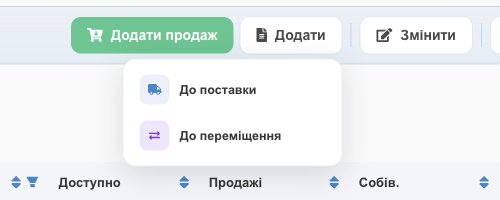
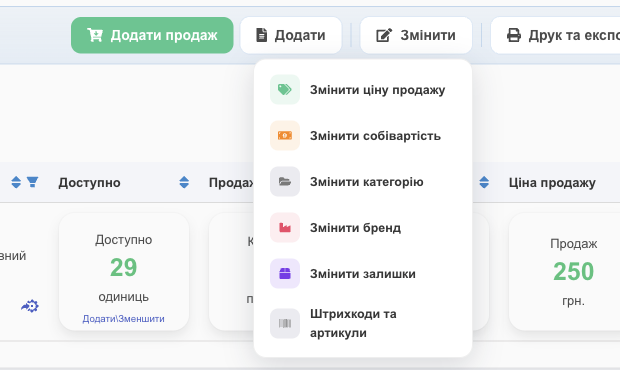
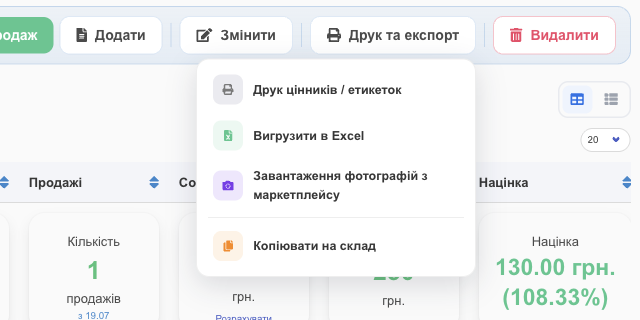
Change additional prices appears if you have additional prices; Download XML appears when a specific warehouse tab is open.
💡 A bulk price change is the fastest way to reprice: filter by a category or brand, click Select all → Edit → Change Sale Price, and choose the type of change: Change by %, Change by a certain amount, or Enter a new amount.
Buttons above the list
- Add New Item creates a new product. See Product card.
- Import → Upload from Excel / Upload from XML. See Import and export.
- The document with an arrow icon next to Filter handles exports: Price list, Download Excel, Download XML.
- The ⚙ gear on the right opens Settings → Products: minimum stock, categories, brands, attributes, additional prices and fields, and more. See Product settings.
- Only users with the Change in stock and Changing the item and selling price rights can add and import products.
Purchase mode
The Purchase switch turns the list into a purchasing calculator: HugeProfit looks at how fast each product sells and suggests how many to reorder.
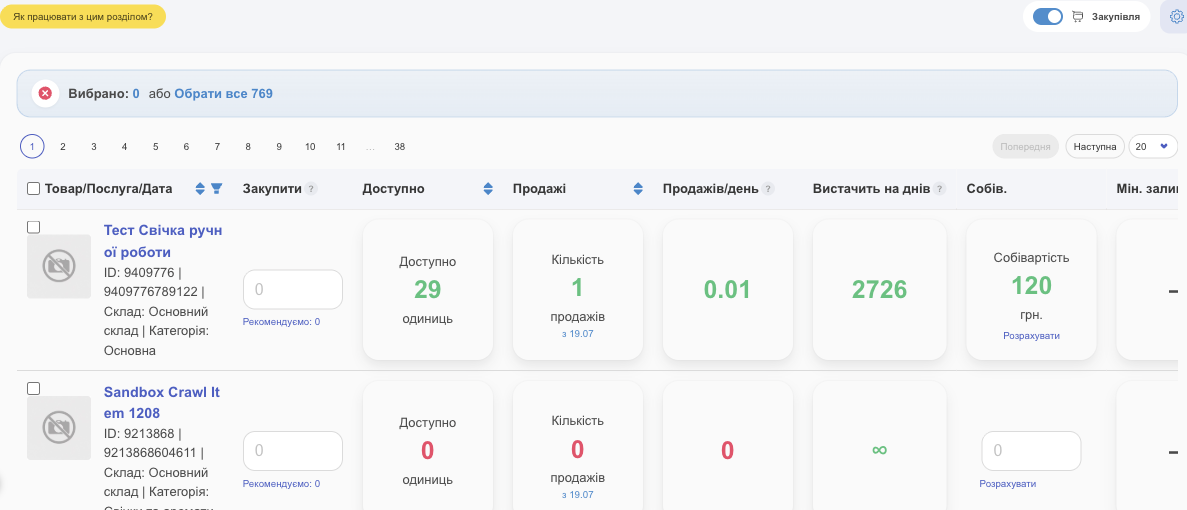
| Column | What it means |
|---|---|
| To purchase | How many to order. Under the field is Recommended: N, HugeProfit's estimate. You can enter your own number. |
| Sales/day | How many sell per day on average (over the period of sales loaded into HugeProfit). |
| Enough for days | How many days the current stock will last at this rate of sales (∞ means the product hasn't sold). |
| Min. stock | The product's minimum stock, if set. |
The recommendation accounts for supplier lead times, which you set in Settings → Products → Shipments (average and maximum lead time). Check products and click Add to Shipment to put them in a new shipment with the quantities you entered. Dropshipping warehouses aren't shown in purchase mode.
On your phone
On a phone, products are shown as cards; filters, search, and bulk actions work the same. Some totals are hidden to save screen space.
The product list is the foundation of inventory management in HugeProfit: it's where shipments, stock moves, and stocktaking start.