
Team and settings
Files in HugeProfit: invoices, contracts, and photos for records
You can attach a file to a sale, product, client, shipment, or expense: a supplier's invoice, a contract, a photo of a receipt, a delivery note. All of the account's files are collected in one place, Settings → Files.
Attach a file
The easiest way is from the record's card: the sale, order, product, client, shipment, supplier, stock move, stocktaking, write-off, manufacturing, expense, and calendar event views all have a files section with an Add file button. Or go to Files → Add file:
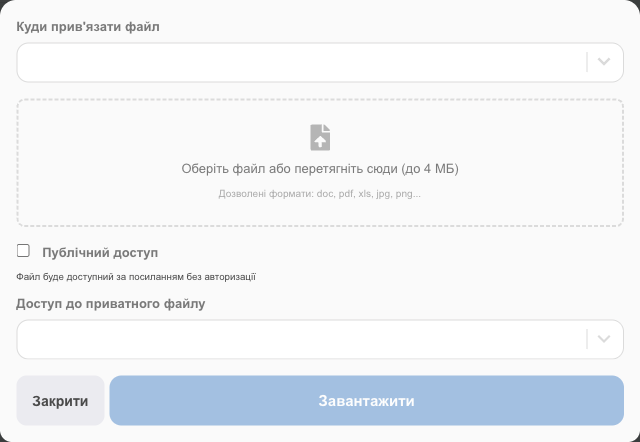
- Where to link the file: choose the module, then Select a record (a specific sale, product…). If you start from the record's card, this step is skipped.
- Choose a file or drag it into the box. Up to 4 MB; formats: doc, docx, pdf, xls, xlsx, jpg, png, gif, webp, txt, csv.
- Access:
- Public access: the file opens from a link without signing in to HugeProfit (handy for sending to a client);
- otherwise the file is private: in Private file access, choose who on your team can see it: Only you, All employees, or specific people.
- Upload.
All files
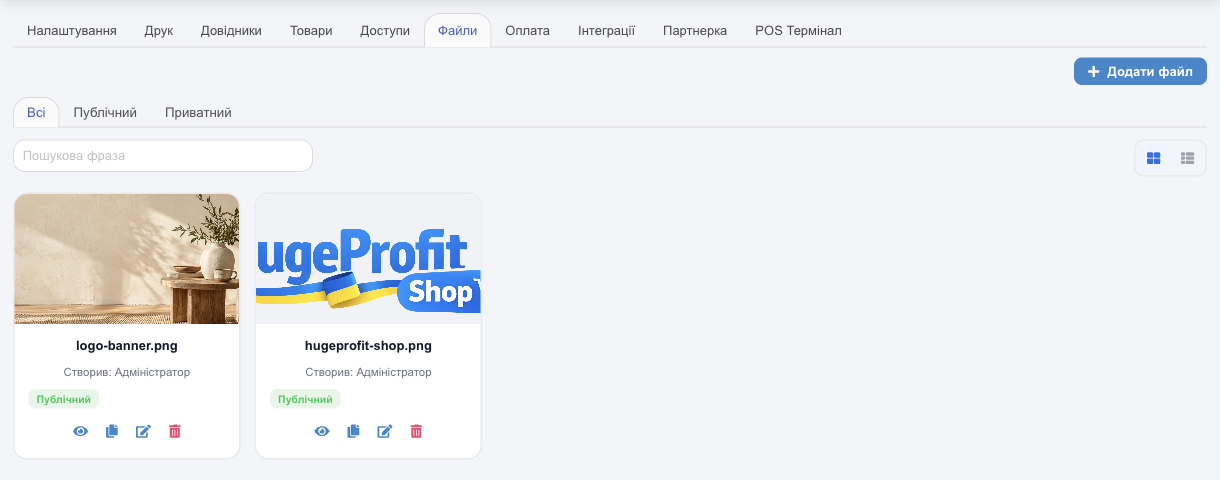
- Filter by All / Public / Private, search by name, and switch between tile and list view (the toggle on the right).
- Each card shows who uploaded the file (Created by), the access status, and a tag showing what the file is linked to (Sale, Product, Client…). Click the tag to open that record.
- Actions: 👁 opens the file, ⧉ copies the link, ✎ changes access, 🗑 deletes it.
💡 Employees need the Adding files permission (see Employees and access rights). Only the person who uploaded a file or the account owner can edit or delete it.
Related guides: you can add files to sales, shipments, and clients right from the record's card.