
How to import products from Excel and XML and export your catalog from HugeProfit
How to load your catalog into HugeProfit from Excel, XML, or a marketplace; how to bulk-update prices and stock through Excel; how to export products to Excel or to XML for Prom, Rozetka, Google, and Horoshop; and how to share a public price list.
Import from Excel
- Products → Import → Upload from Excel.
- Download the template using the Download link in the window.
- Fill in the table. Don't delete or change the first row (the column headers, which are in Ukrainian): HugeProfit uses it to recognize the columns.
- Choose the Warehouse to load the products into (if the file specifies a warehouse, the one from the file is used).
- If needed, check Replace photos (see below).
- Choose the file and click Add items from Excel.
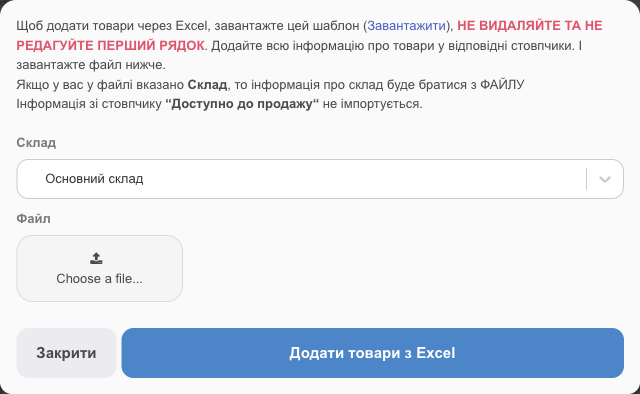
✅ The import runs in the background and can take up to 15 minutes for large files. You can keep working.
Template columns
| Column | What to enter |
|---|---|
| Назва (Name) | The product name. Required. |
| Категорія (Category) | The category name. Separate subcategories with two slashes: Kids' toys//Boys//Cars. |
| Штрих-код (Barcode), Артикул (SKU) | Optional. The SKU is used to find an existing product (see below). |
| Бренд (Brand) | Optional. |
| Кількість (Quantity) | Stock in the warehouse. |
| Од.вим. (Unit) | The unit of measure: pcs, kg, and so on. |
| Собівр. (Cost), Ціна (Price) | The cost price and the sale price. |
| Опис (Description) | The product description. |
| Зображення (Images) | A direct link to a photo that ends in .jpg/.png. Separate multiple photos with commas. A link to a photo hosting page (rather than the file itself) won't work. |
Photos of existing products: Replace photos
- Unchecked: photos from the Images column are loaded only for products that don't have photos yet. Existing photos stay unchanged.
- Checked Replace photos: if the Images column has links, the product's photos are replaced with the photos from the file (in the order they appear in the file).
- An empty Images column doesn't change photos, whether the box is checked or not.
- If none of the linked photos can be loaded, the old photos stay.
- If a row contains only HugeProfit links to this same product's photos (you exported the file from HugeProfit and uploaded it back), the photos don't change.
New products or updates to existing ones
- If a row has no ID, the product is treated as new.
- If a row has a different name but the same SKU as an existing product, no new product is created: the stock and prices of the product with that SKU are updated.
- Identical names with different SKUs are different products, combined into one variant group.
💡 Bulk-updating prices and stock. Export your products to Excel (see below): the file will contain an ID column and all your fields. Change the prices or stock and upload the file back through Upload from Excel.
Custom fields and variants through Excel
- First create the custom fields or attributes in HugeProfit and add one product that has them filled in.
- Export that product to Excel: the file will contain the columns you need.
- Fill in the other products following that example, leaving the ID column empty, and upload the file.
If you add your own columns to the file without first creating matching custom fields, HugeProfit will create the products as variable products, and those columns will become attributes.
Copy products to another warehouse through Excel
Say you're opening a new store and want to stock it with the same assortment, including stock levels:
- On the source warehouse tab, export the products to Excel.
- In the file, clear the Склад (Warehouse) column (or enter the name of another existing warehouse) and adjust the quantities if needed.
- Import → Upload from Excel → choose the destination warehouse → the file → Add items from Excel. Rows without a warehouse go to the selected warehouse; the rest go to the warehouse specified in the file.
⚠️ This adds products to the other warehouse; stock in the source warehouse isn't reduced. To actually transfer products, create a stock move (the “Move All Products” button transfers the whole warehouse). To copy product cards without stock, use Print & export → Copy to warehouse in the product list.
Import from XML
An XML feed is a file with a product catalog, usually provided by a supplier or exported from a website or marketplace. HugeProfit supports two common formats:
- YML (
yml_catalog→offers→offer), as in feeds for Prom, Rozetka, and Hotline; - Google Merchant (RSS with fields such as
g:id,g:price).
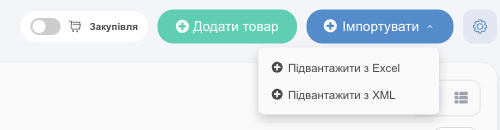
- Import → Upload from XML.
- Paste the feed Link (Enter a URL) or choose a File from your computer.
- Warehouse: where to record the stock.
- Add items from XML. The import runs in the background for up to 15 minutes.
What is taken from each product (offer):
| Feed field | Where it goes in HugeProfit |
|---|---|
name, description | Name (up to 200 characters; longer names are truncated), description |
price | Sale price |
netprice / net_price / price_wholesale | Cost price (if present) |
quantity / stock_quantity, or if these are missing, quantity_in_stock / instock | Stock in the selected warehouse (auto import can use available stock specifically, with the “Use available stock” checkbox; see below) |
vendorCode, or if it's missing, article | SKU |
barcode | Barcode |
vendor | Brand |
categoryId + the categories block | Category with nesting: in categories, a child category has a parentId, and the product's categoryId must match a category id from that block. If a product has several categoryId values, the first one is used |
picture | Photo; multiple picture tags become all of the product's photos |
param | If a param name matches one of your custom fields, its value is written to that field. Products with the same group_id (or, if it's missing, the same SKU) become variants of one product, and the param values that differ between them (color, size…) become variant attributes. Other param values aren't imported |
If a product already exists in HugeProfit (matched by barcode, SKU, or name), it is updated rather than duplicated; new products are created.
In a Google Merchant feed, the category is taken from a path such as “Apparel > Men > Jackets”, and if g:sale_price is present, the sale price becomes the promotional price.
A sample of a correct YML file: xml_example.xml. Open it in your browser and compare it with your feed.
Auto XML import
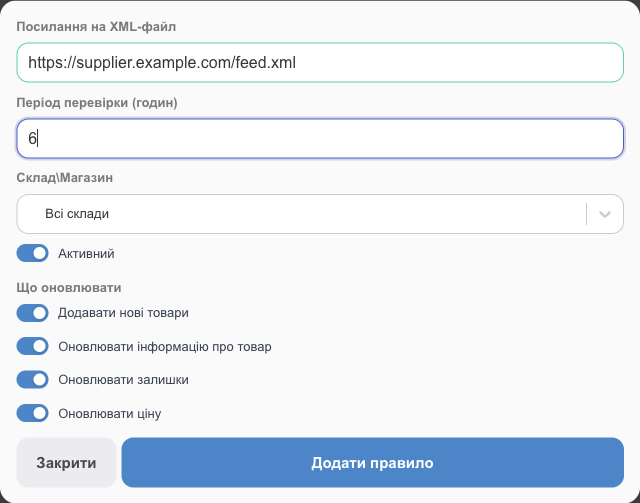
To have your supplier's stock and prices update on their own, set up a scheduled import: Settings → Products → Auto XML import → Add rule.
- XML file URL: the permanent address of the supplier's feed (a file from your computer won't work here).
- Check period: how often, in hours, to load the feed.
- Warehouse\Shop: the warehouse to write stock and prices to.
- Active: turn it off to pause the rule without deleting it.
The What to update block determines which data the feed can change:
| Checkbox | What it does |
|---|---|
| Add new products | Products from the feed that don't exist in HugeProfit yet are created. When it's off, only existing products are updated. |
| Update product info | The name, description, category, brand, photos, and so on are overwritten from the feed. Turn it off if you edit names and descriptions yourself, so the feed leaves them alone. |
| Update stock | Stock in the rule's warehouse is taken from the feed. Your reserves are taken into account: available stock = stock from the feed minus what you have reserved. |
| Use available stock | Stock is taken from the quantity_in_stock tag (available, excluding the supplier's reserve) instead of stock_quantity (total, including the supplier's reserve). If the feed has no quantity_in_stock tag, stock is taken as if the box were unchecked. |
| Update price | The sale price is taken from the feed. |
| Push changes to marketplaces | After each auto import, changed stock, prices, and additional prices are sent to your connected marketplaces. Only products that actually changed are sent. |
A typical setup for a supplier feed when you maintain the product cards yourself: only Update stock and Update price are on. If every checkbox is off, the rule won't update anything, and HugeProfit will warn you.
💡 The product already exists, but in a different warehouse? The rule creates the rule's warehouse for it and fills in only the data whose checkboxes are on (for example, with “Update price” but without “Update stock”, it sets the price without stock).
Products that haven't changed in the feed since the last run are skipped, so repeat runs are fast. You can see when the rule last ran in the Last update column.
⚠️ If the supplier's website is temporarily unavailable (timeout, server error), the rule isn't turned off: HugeProfit sends a notification about the first failure and retries on the next run. The rule is turned off only after 5 failed runs in a row. A permanent error (wrong link, file not found, invalid XML, or no products in it) turns the rule off immediately. Fix the cause and turn Active back on.
Import from a marketplace or website
If your products are already on Prom, Rozetka, Shopify, WooCommerce, OpenCart, Horoshop, or elsewhere, connect that platform in Settings → Integration and load the products from it. The products are linked to the platform right away: stock and prices sync, and orders come into HugeProfit. See Integrations.
Export
Use the document-with-arrow icon to the right of the search box:
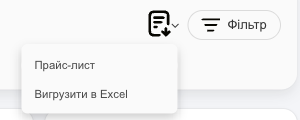
- Download Excel exports all products that match your filters, with IDs, stock, prices, cost price, and custom fields. The Зображення (Images) column contains links to all the product's photos, separated by commas (it's empty for products without photos). To export only some products, check them → Print & export → Download Excel.
- Download XML appears when a specific warehouse tab is open. Choose the Type XML: Prom, Rozetka, Google (Merchant Center), or Horoshop, then click Open. A permanent feed link opens: it's generated from current stock and prices every time, so you can enter it in your Prom, Rozetka, or Google Merchant account as a source for automatic updates. If you check specific products, only they go into the feed.
- Price list creates a public link (see below).
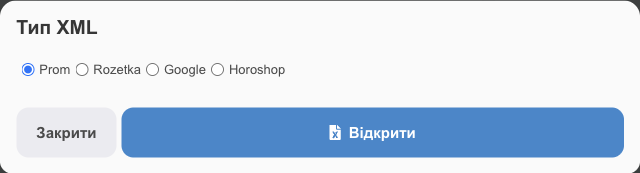
XML feed for a marketplace without an integration
You can also add the XML feed link on a marketplace that HugeProfit has no integration with but that accepts products as an XML file (for example, Allo: in the seller account, it's under “Feeds” → “Add feed”). The feed includes the name, description, photos, price and currency, stock, category, brand, SKU, and barcode. Choose the XML type according to the marketplace's requirements.
- Add the feed as a link, not an uploaded file, so the marketplace pulls up-to-date stock and prices on its own.
- Take the link from the tab of the warehouse you need: the feed includes that warehouse's stock.
⚠️ A feed is only a partial sync: it sends products, prices, and stock to the marketplace, but orders from that marketplace don't come into HugeProfit, and statuses aren't sent back. Enter sales from it manually; the stock in the feed then decreases on its own. Full sync with orders is available only through integrations.
Employees with permission to work with product documents can export products.
Public price list
A price list is a page with your products and prices, available at a link you can send to clients or wholesale buyers.
- Filter the products that should appear in the price list (warehouse, category, brand, “in stock”…).
- Export icon → Price list.
- Fill in Name, Price list title, and Additional Information (contacts, terms). Optionally, check Hide service signature at the bottom of the page.
- Set Sort field by, Hide columns (for example, stock), and Additional prices to show the wholesale price instead of the retail price.
- Click Generate a price list to get the link.
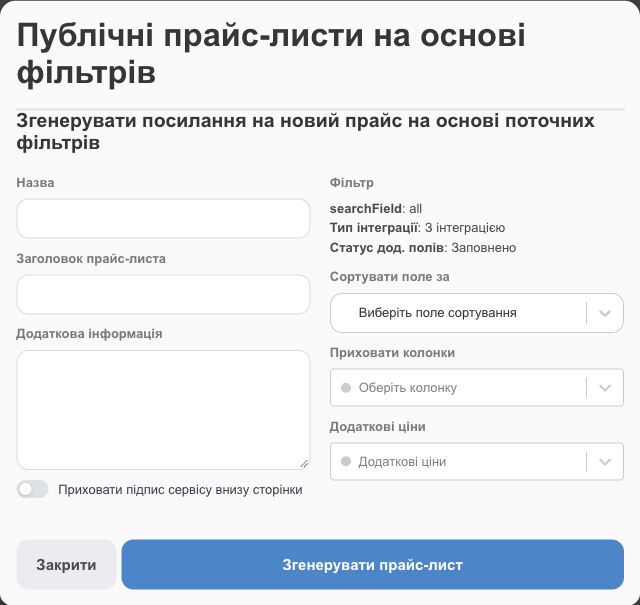
All the price lists you've created are listed in the same window; you can delete one you no longer need, and its link will stop working.
The public price list updates along with prices and stock in HugeProfit. Learn more about creating price lists.