
How to connect Meest to HugeProfit
The Meest integration lets you create waybills (TTN) from a sale to Meest branches, use cash on delivery (COD), print shipping labels, and track parcel status automatically. You need a contract with Meest and two values from your Meest account: an API token and a ContractID.
⚠️ The integration won't work without a contract with Meest: the API token and ContractID appear in your Meest account only after you sign a contract.
1. Token and ContractID in your Meest account
Sign in to your account at 24.meest.com. If you don't have a contract yet, click Sign a contract (the API isn't available without one).
Settings → API integrations. If you don't have any integrations yet, click Create integration.
Copy the API token (with the copy button next to the asterisks) and the ContractID.
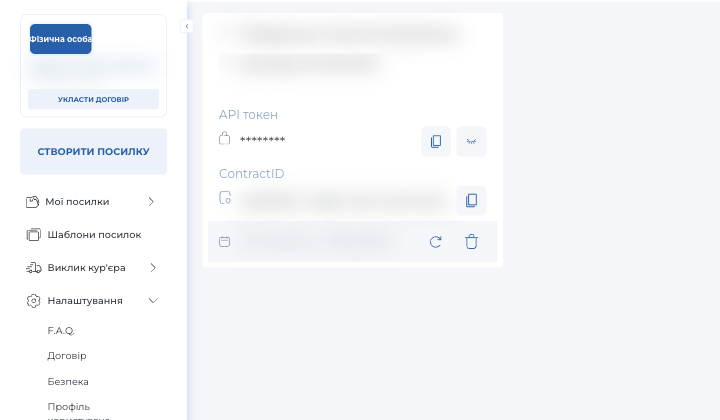
Your account shows the date until which the token is valid; the 🔄 button renews it. After renewing, paste the new token into HugeProfit.
2. Connecting in HugeProfit
- Settings → Integration → Delivery → the Meest card → Connect.
- Token: the API token; contractID: the ContractID from your Meest account.
- Phone (in the +380… format) and Sender: your phone number and name (business name) as they'll appear on the waybill.
- City/Town and Post Office Number: where you ship from. These fields appear after you enter the token; start typing the city name, the list loads from Meest, and then choose the branch.
- Access (optional): Employees, Sales channels, Warehouse\Shop. You'll need this if you have several Meest integrations: HugeProfit fills in the sender on the waybill automatically (priority: employee → sales channel → warehouse), and employees see only “their” senders. For details, see the Nova Poshta guide, section “Automatic sender selection and employee access”.
- Save.
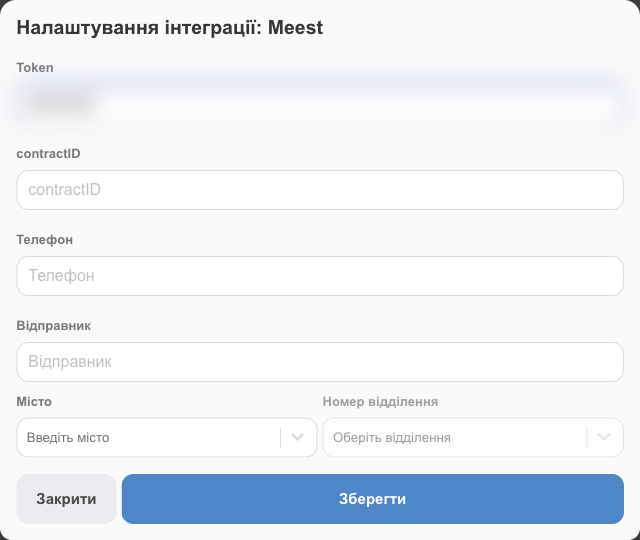
A sender without a city or branch isn't shown in the waybill form.
3. Shipping
- In the sale, choose Meest delivery and the recipient's branch (you can also save it in the client card).
- Send parcel/Finish → Create Meest shipment label: the sender, client, branch, who pays for delivery and how, and the declared value or COD amount.
- You can also create the waybill right in the new sale window (the “Delivery” tab → “Create waybill”). The number is filled into the waybill field but is saved only together with the sale, so don't forget to click “Add Sale”.
- Once the waybill is created, a window shows its number, the delivery cost, and a Printing button, so you can print the waybill right away.
- The waybill number is saved to the sale; HugeProfit tracks the parcel and updates the sale status, just as for other carriers. The 👁 next to the number in the sales list opens tracking on the Meest website. For details, see Delivery and waybills.
💡 HugeProfit tracks Meest parcels even without the integration: enter the number of a waybill created in your Meest account or at a branch in the sale's Tracking number (waybill) field, and the status will update on its own. You need the integration to create waybills from HugeProfit.
If something doesn't work
| Problem | What to do |
|---|---|
| Authorization error | Make sure the token hasn't expired (check the date in your Meest account) and that the ContractID is in its own field. |
| No “API integrations” item | You need a signed contract with Meest. |
| The branch can't be found | Enter the city in Ukrainian, choose it from the list, and then choose the branch. |