
Product settings in HugeProfit: categories, attributes, prices, auto import
This is where you configure everything that applies to products in general: categories and brands, attributes for variants, additional prices and fields, minimum stock, expiration and delivery times, serial tracking, storage locations, the batch write-off order, and automatic product updates from a supplier's XML.
Settings → Products. The tabs run in a row at the top; those that don't fit are under ⋮ on the right.
| Tab | What it's for |
|---|---|
| Min. stock | General minimum stock levels for all products, a category, or a brand. |
| Item Category | The category tree. |
| Brand | The list of brands (manufacturers). |
| Attributes | Characteristics for variants: color, size, season… |
| Additional prices | Price types: wholesale, dropshipping, partner. |
| Additional fields | Your own fields in the product card. |
| Expiration date | How many days before expiration to warn you. |
| Shipments | Delivery times, used to calculate purchasing. |
| Stock restore | Roll stock, prices, or cost price back to a past date. |
| Serial tracking | Fields for an individual unit: serial number, IMEI, batch. |
| Storage locations | Racks and shelves inside a warehouse. |
| Write-off order | FIFO, LIFO, or choosing a batch manually. |
| Auto XML import | Regular product updates from a supplier's XML feed. |
Only the account owner sees Stock restore and Write-off order.
Categories and brands
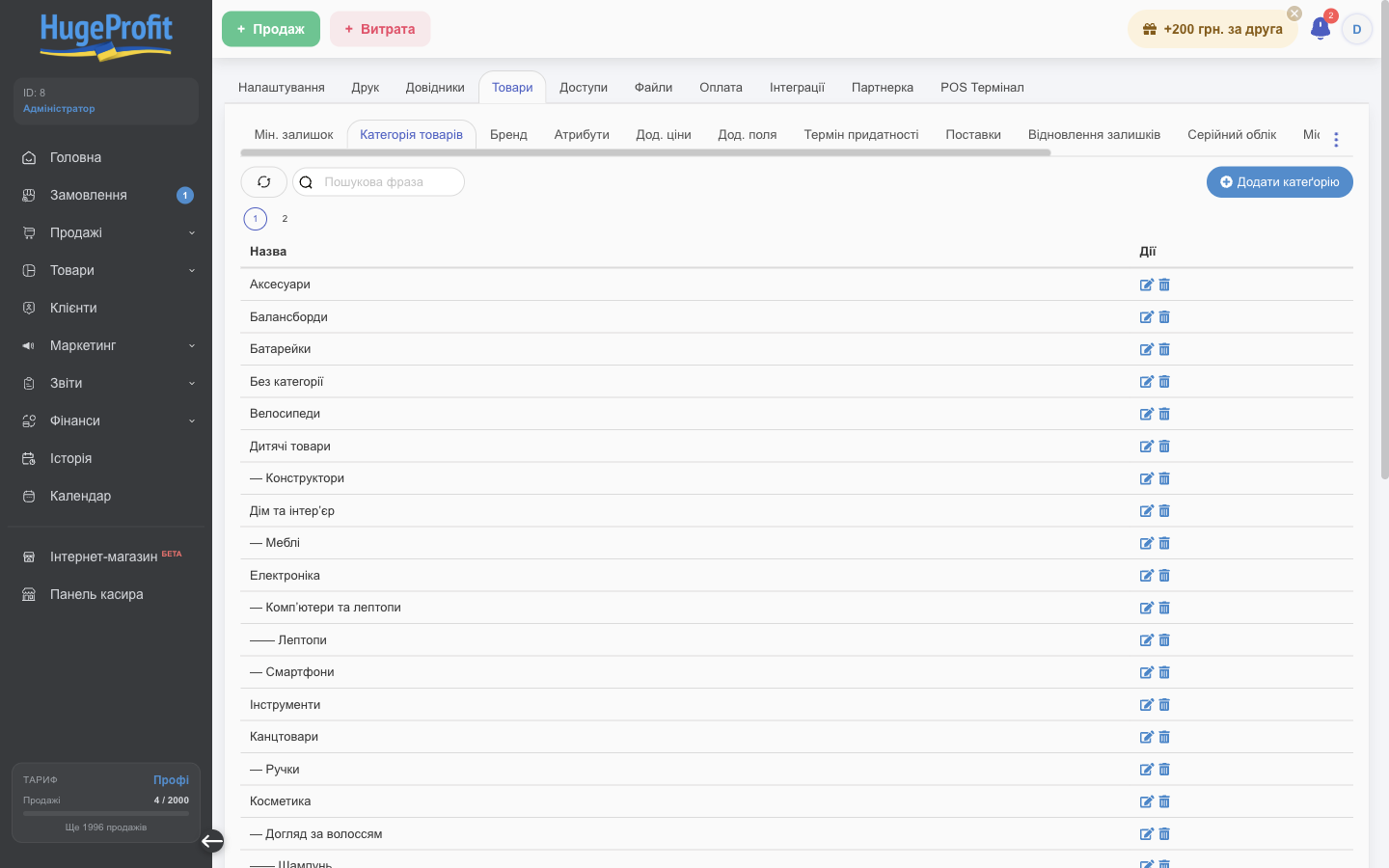
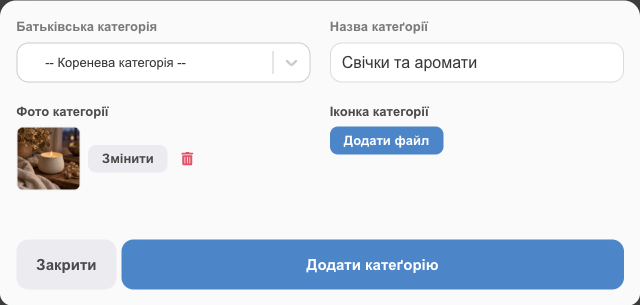
- Add Category: Parent Category (or -- Root category --) and Category Name. Subcategories are shown with “—” dashes.
- Category photo and Category icon are in the same form, via the Add file button (JPG, PNG, GIF, or WEBP up to 4 MB). You can Change or delete 🗑 an uploaded file. The photo appears on the category tile in the cashier panel and in category blocks on your HugeProfit online store site; the icon appears next to the category name in the site's catalog side menu (if icons are turned on in the site settings).
- ✎ renames a category or moves it to another parent; 🗑 deletes it.
- Search and 🔄 (refresh the list) are above the table.
- Brands work the same way: Add brand, edit, delete.
You can also create categories and brands on the fly, right in the product card or during an import.
Attributes
The list of characteristics that distinguish product variants (Color, Size, Season). You can add a new one here or while creating variants. See Variants, bundles, services.
Additional prices
Add price → a name (for example, “Wholesale” or “Drop”) and how it's calculated:
- Fixed price: you enter the amount in each product;
- + % to base price or - % from base price: the price is calculated automatically from the selling price (Percent value from 0 to 100).
The additional price appears in the product card. You can choose it in a sale, show it in a price list, or export it to a marketplace.
Additional fields
Add an additional field → a name (for example, “Material” or “Country of origin”). The field appears in every product card; you can search the product list by it and fill it in through an Excel import. Additional fields for sales and clients are in Catalogs.
Minimum stock
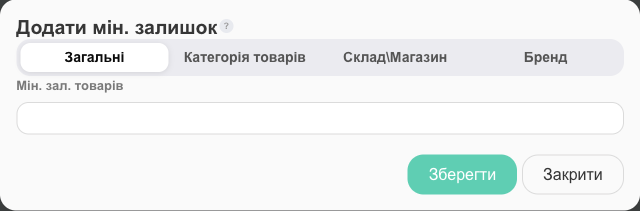
- Add a min. stock.
- What it applies to: General (all products), Item Category, or Brand; then Warehouse\Shop.
- Min. product stock: enter the quantity and click Save.
Products with stock below the minimum are marked Requires purchase in the product list, and you can get a Telegram notification (see Account settings). An individual minimum for a single product is set in its card and takes precedence over the general one.
Expiration and delivery times
- Expiration date: how many days before expiration to show a warning. Expiration dates are entered in the stock details (serial tracking).
- Shipments: Max delivery time (days) and Avg delivery time (days) from order to receipt. Choose Manual to enter them yourself, or Calculate from data to base them on your shipments.
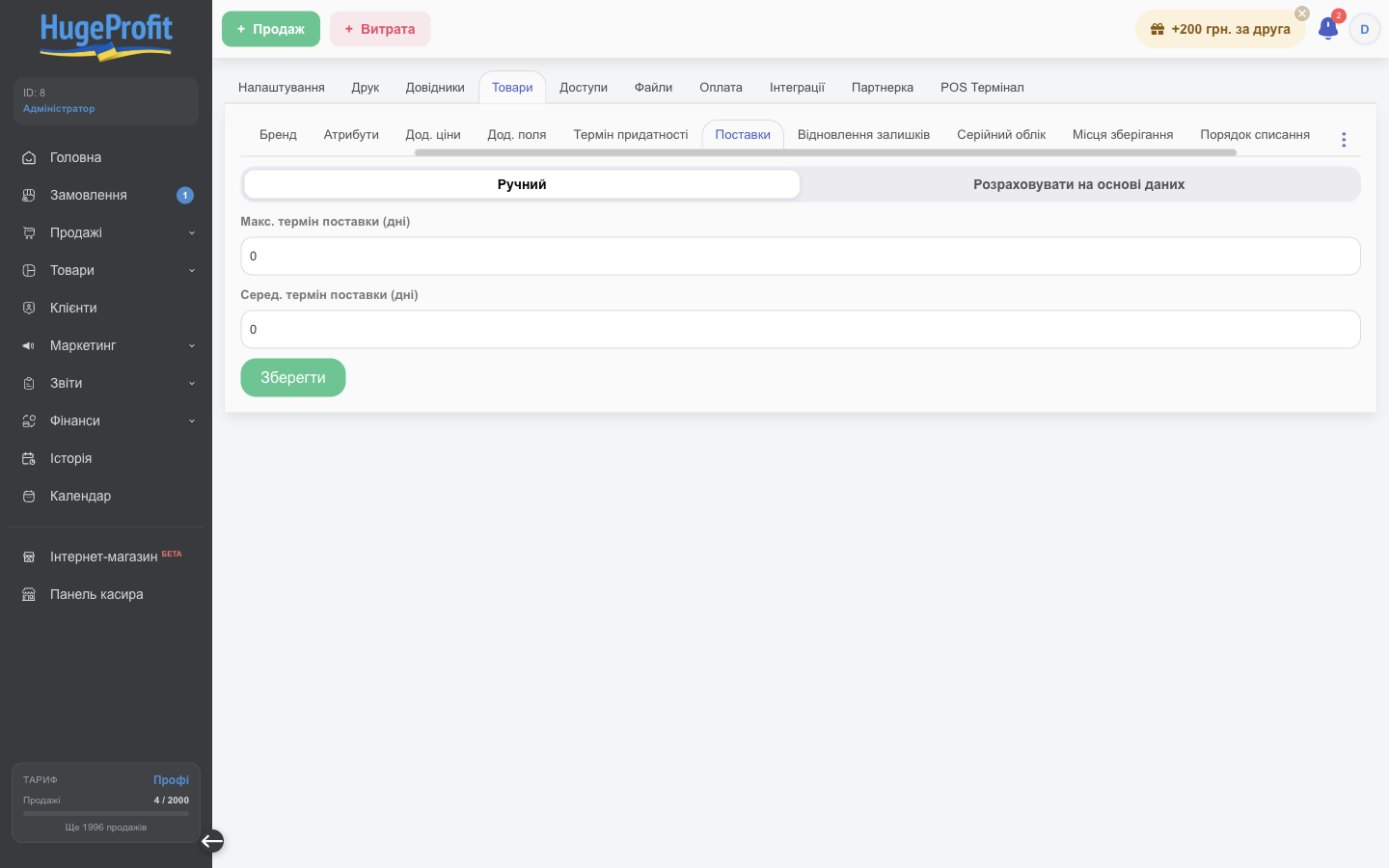
These times are used by the Purchase mode in the product list: the longer and less predictable the delivery, the larger the safety stock and the recommended quantity. See Products: list.
Serial tracking, storage locations, write-off order, restore
- Serial tracking: the Serial number toggle and your own unit fields (Add field: Field name, Value type (text or date), Required). They are filled in the stock details.
- Storage locations: a tree of locations for each warehouse, with barcodes and label printing.
- Write-off order: Oldest arrivals first (FIFO), Newest arrivals first (LIFO), or Choose manually. This determines the cost price of a sale. Manual selection works only in sales entered by hand; marketplace orders, reserves, and the API always write off by FIFO.
- Stock restore: roll stock, prices, or cost price back to a point within the last week. First click Run check, then restore.
Details are in Warehouses and stock.
Auto XML import
If your supplier provides an XML feed (YML, Prom, Rozetka), HugeProfit can pull stock and prices from it automatically on a schedule.
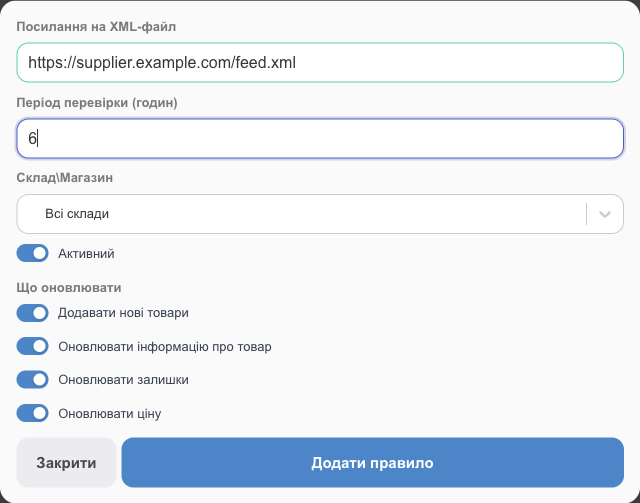
- Add rule.
- XML file URL and Check period (hours): how often to download it.
- Warehouse\Shop: where to write the stock.
- What to update: Add new products, Update product info, Update stock, Use available stock, Update price.
- Push changes to marketplaces: after each auto import, changed stock and prices are sent to connected marketplaces.
- Active: you can turn a rule off temporarily without deleting it.
What each checkbox does and what happens if the supplier's site is temporarily unavailable is covered in Import and export, “Auto XML import” section.
💡 Run a one-time XML import first and check how the products were matched. Auto import updates products by the same rules.
Minimum stock, delivery times, and auto XML import help you restock on time. See also purchasing automation.