
How to connect Horoshop to HugeProfit
The integration with an online store on Horoshop: import your catalog, update stock and prices on the website, receive orders, and send statuses back. To connect, you need a Horoshop administrator login and password and your store's address.
⚠️ The integration works only on Horoshop Pro or B2B plans with API data exchange turned on. On other plans, Horoshop doesn't provide API access, so you won't be able to connect HugeProfit. If you're not sure whether you have API access, ask Horoshop support.
1. Create an administrator for HugeProfit in Horoshop
HugeProfit signs in to the Horoshop API as a store administrator. You can use your own login, but it's better to create a separate administrator, so changing your password won't stop the sync.
In the Horoshop control panel, go to Settings → Admins → Add.
Fill in Login (for example, hugeprofit), the password, email, and Full name. For Role, choose one with access to products and orders (for example, owner or manager).
Click Save.
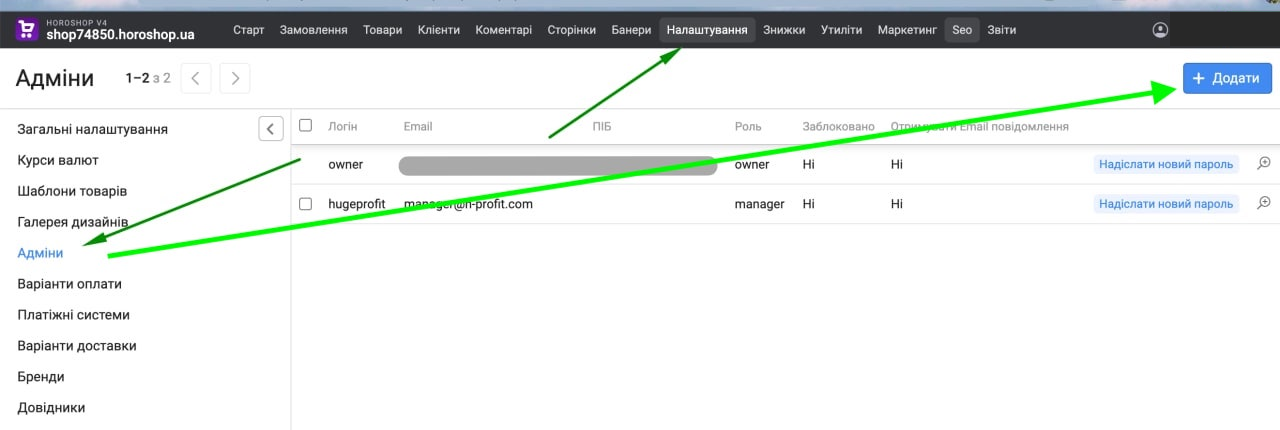
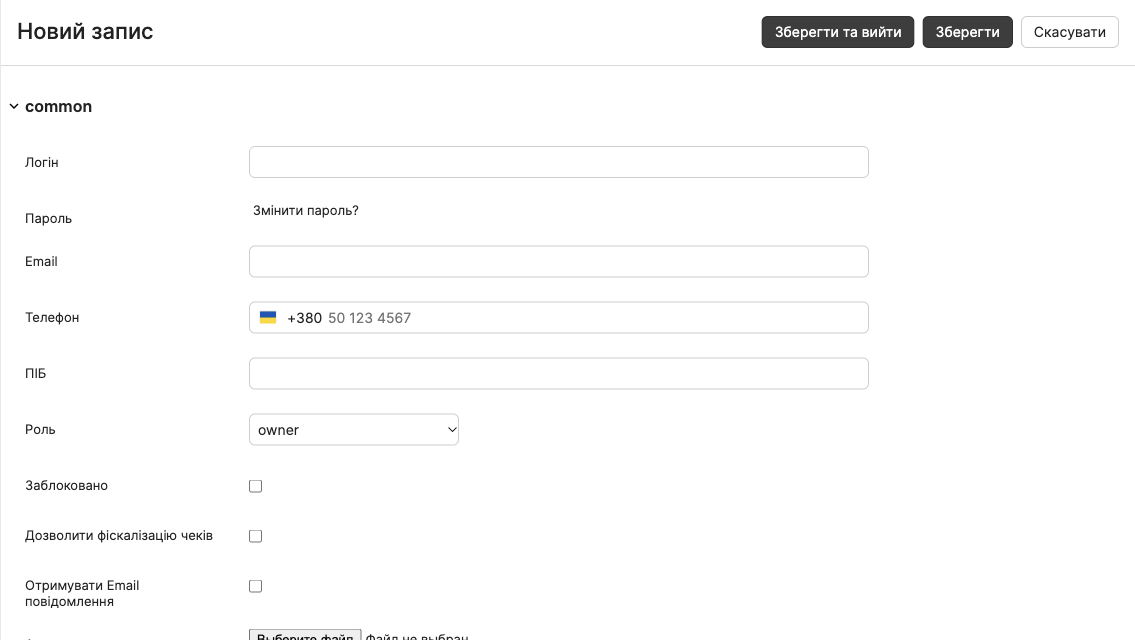
To connect, you need the login from the Login column, not the email: HugeProfit can't sign in with an email.

2. Connect in HugeProfit
Settings → Integration → CMS → Horoshop → Connect.
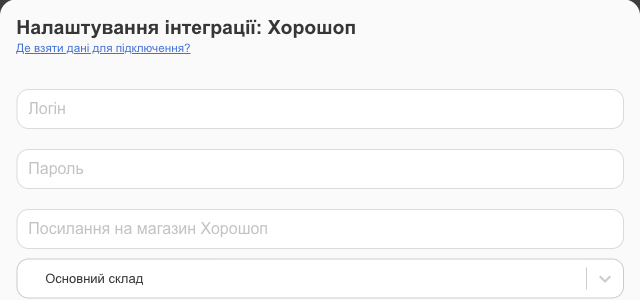
- Login and Password of the Horoshop administrator: the login itself (for example,
hugeprofit), not the email. - Store link Horoshop: the website's root address without a trailing slash, for example
https://myshop.com.uaorhttps://shop123456.horoshop.ua. - Warehouse, virtual warehouse, sales channel, price, sync, and additional settings work the same as in Prom. Check what to sync: stock, prices, order statuses. Then changes in HugeProfit reach the website right away.
After you save, orders from Horoshop start arriving in HugeProfit. The Horoshop card shows buttons for working with products, including Download the list of categories (Horoshop only), so that HugeProfit categories match the website's categories.
3. Products: import, linking, export
⚠️ HugeProfit and Horoshop products are linked by matching SKU. If the SKUs differ, the product won't be linked. Then, when you import from Horoshop with product creation, HugeProfit creates a new card with the name from Horoshop, even if you already have that product under a different name and SKU. So before the first import, make the SKUs identical in both systems.
Import products from Horoshop
On the Horoshop card → Import products:
- Update all balances: stock in HugeProfit is overwritten with the quantities from Horoshop;
- Import new products without stock: new products from Horoshop are added to HugeProfit with zero stock;
- Link existing products WITHOUT creating new ones: only link by SKU, without creating anything;
- Import WITHOUT creating products: HugeProfit only remembers the website's product list, and you link the products manually, with the gear icon in the product row or through Bulk linking on the card.
For more on these options and bulk linking, see the integrations overview and Linking products to integrations.
Orders from Horoshop come in even for unlinked products. In that case, you'll have to choose the product manually in every sale, so it's easier to link the products once.
Export products from HugeProfit to the website
Export products from CRM to the site creates the products that aren't on Horoshop yet and links them right away. From then on, you process orders in HugeProfit, and stock on the website updates automatically.
⚠️ All categories and modification templates for products with variants (color, size, and so on) must already exist on Horoshop. HugeProfit doesn't create them.
If the website is empty and you have many products, it's easier to do the first export with a file:
- In HugeProfit, open Products, the tab of the warehouse you need → the export icon → XML → Type XML: Horoshop (see Importing and exporting products).
- Send the file link to Horoshop support. They'll prepare the categories and templates and upload the products to the website.
- Link the products: Import products → Link existing products WITHOUT creating new ones.
- From then on, export new products with the Export products from CRM to the site button.
If something doesn't work
| Problem | What to do |
|---|---|
| Authorization error | Check that you can sign in to the Horoshop panel with this login and password, that the administrator isn't Blocked, that you entered the login and not the email, and that your Horoshop plan is Pro or B2B with API access. |
| The store can't be found | Check the address: it must start with https://, without /edit and without a trailing slash. |
| A product from Horoshop was duplicated | The SKUs in HugeProfit and on Horoshop differ. Make them identical, delete the extra card, and link the product manually (Product linking). |
| A product wasn't exported to the website | Make sure its category exists on Horoshop, and for a product with variants, the modification template too. |
To see what HugeProfit offers a Horoshop store, visit CRM for Horoshop.