
How to add an employee and set up access rights in HugeProfit
Each employee signs in to HugeProfit with their own login and sees only what you allow: their warehouse, their cash registers, the modules they need. All their actions are signed in the history, their sales appear in the employee report, and their commission on sales is calculated automatically.
User list
Settings → Access. You can filter by role and search. For each user, you see the group, status (Active / Inactive), warehouse, accounts, and how many modules and permissions are open.
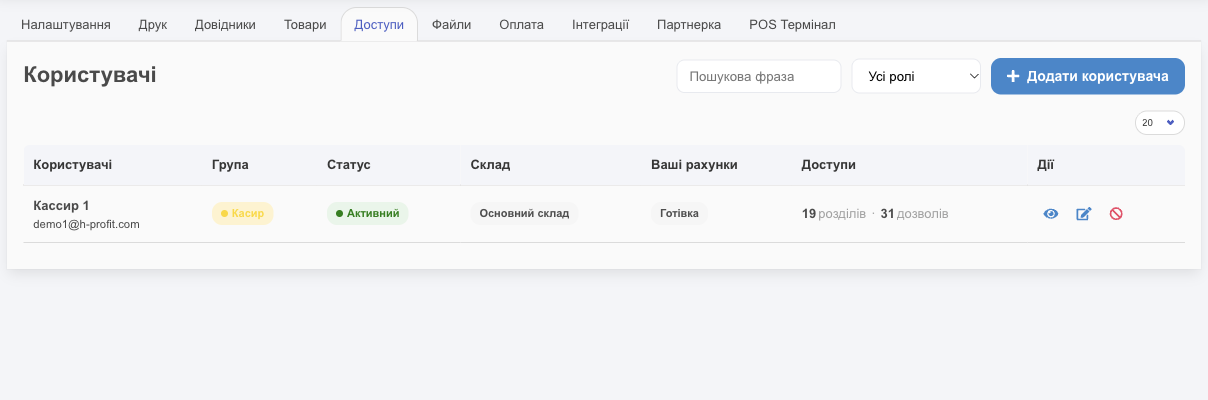
Actions: 👁 views access rights, ✎ edits, 🚫 deactivates (the employee can no longer sign in, but their actions and sales stay in the history), ✓ activates again.
New employee
Add User:
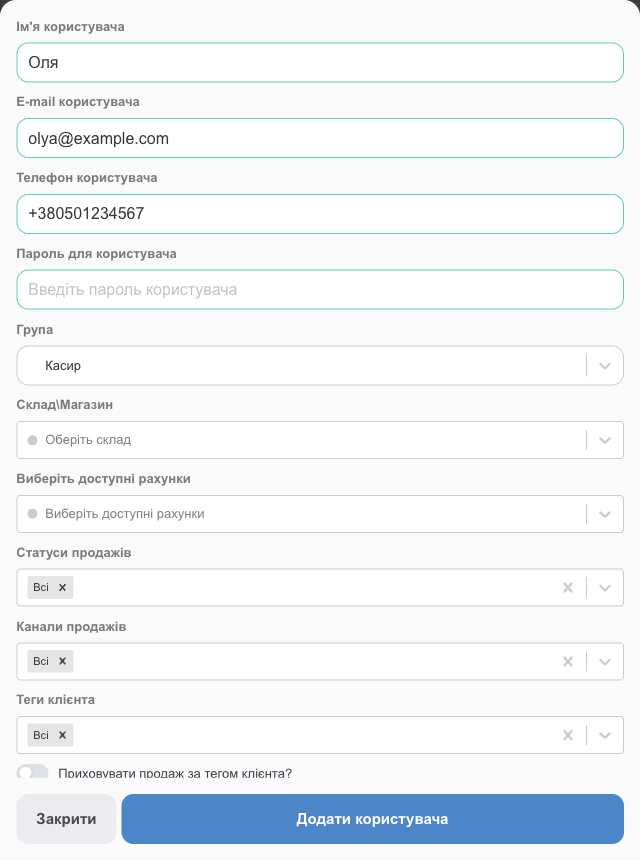
- User Name, User E-mail (this is the login), User Phone, Password for User.
- Group: a role with a preset set of permissions:
- Administrator: full access to all warehouses and accounts;
- Manager: sales, orders, clients;
- Cashier: in-store sales;
- Cashier panel: the cashier panel only;
- Warehouseman: warehouse, shipments, stock moves, packing (no access to money);
- Guest: minimal access, mostly view-only.
- For everyone except the administrator: Warehouse\Shop (the warehouse they work with) and the available accounts (cash registers, cards). The employee will see only these.
- Sales restrictions: Sale statuses, Sales channels, Client tags control which sales they see; plus Hide sales under a client tag?.
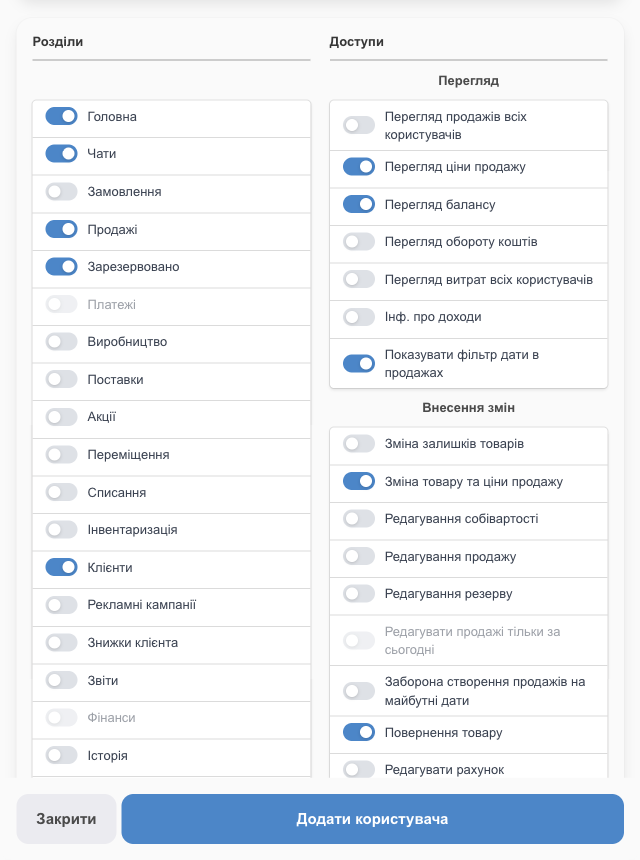
- Sections: which menu modules are available.
- Access: detailed permissions (see the table below).
- Add User. Give the employee the email and password; they sign in on the same website or in the app.
Permissions
| Group | Permissions |
|---|---|
| Viewing | Sales of all users (otherwise only their own), selling price, account balances, cash flow, expenses of all users, Income information (cost price, profit, margin), the date filter in sales. |
| Making changes | Changing stock, changing a product and its selling price, editing cost price, editing a sale and a reserve, editing sales for today only, blocking sales with future dates, product returns, changing the account, discounts, sale dates, cost price in a shipment, selling price in a shipment (Editing the sale price in a shipment: without it, the selling price and auto markup columns are hidden in shipments), calendar events, client balance and discount, price tag and label settings, working with custom print documents, adding files. |
| Downloading data (a collapsed block under Sections) | Separately for documents on sales, products, shipments, reports, finances, clients, and orders. For example, Download shipments documents opens PDF/Excel reports on shipments, the checkboxes in the shipment list, and the summary of received products. |
| Deleting | Separately for sales, products, shipments, clients, expenses, stock moves, stocktakings, write-offs, manufacturing, catalogs, chats. |
💡 For a cashier, you usually turn off Income information (so they don't see cost price and profit) and Editing a sale, and turn on Edit sales for today only.
Commission on sales (payroll)
In the employee form → Add accrual of sales (or Settings → Sales settings → Accrual of sales):
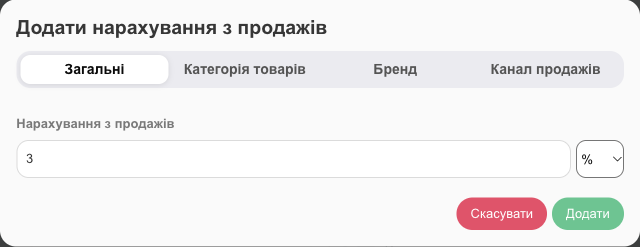
- Condition: General (all sales) or separately by Item Category, Brand, Sales channel.
- Amount: a percentage or a fixed amount (Fixed).
- Calculation of accruals from: Turnover is a percentage of the sale amount; Profits is a percentage of the profit on the sale (price minus cost price). Example: a 1,000 UAH sale with a cost price of 600 UAH at 5% gives the employee 50 UAH based on turnover, or 20 UAH based on profit.
- You can add several rules: for example, 3% “General” and 7% for the “Accessories” category. If several rules match a product (its category, including a parent category, brand, sales channel, or “General”), the rule with the highest value applies.
- Commissions are calculated in the report over all sales in the period, so if you change a rule or switch “Turnover” to “Profits”, past sales in the report are recalculated too.
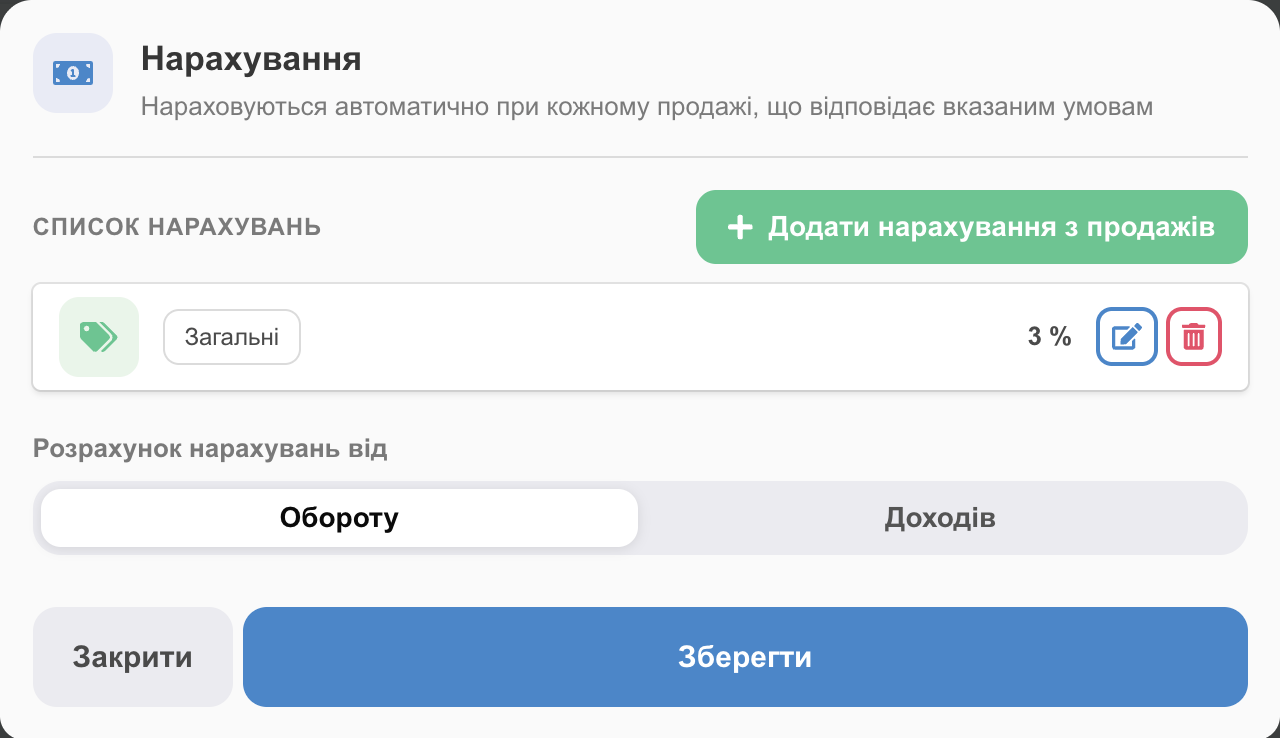
Commissions are calculated automatically from each of the employee's sales; see the totals in Reports → Employees → Accruals.
How the employee works
- They sign in with their email and password and see only the allowed modules, their warehouse, and their cash registers (the top bar shows their warehouse name).
- In sales, the Seller field is filled in with their name automatically.
- All their actions appear in the History with their name.
- If the employee doesn't have access to all warehouses, then in History and in the product card (Movement of stock, Added, Write-off, History) they see only records for their own warehouses. Stock moves between their warehouse and another one are visible (how much was moved and the resulting stock in their warehouse), but not the stock changes in the other warehouse.
Your plan doesn't limit the number of employees.