
Reserves, pre-orders, and order packaging in HugeProfit
A reserve is a product set aside for a client: it's still in the warehouse, but you can no longer sell it to anyone else. Usually the client makes a partial payment and picks up the product and pays the rest later. Packaging is a separate warehouse step: picking and checking a sale's products before shipping.
Put a product in reserve
- + Sale → add the products.
- Open the Reserve tab. The partial payment block appears right away.
- Enter the Prepayment Amount and the account it was paid to (it can be 0). HugeProfit shows the remaining balance due.
- Choose the client (their personal discount is applied automatically) and, optionally, add a comment, for example, “Picking up on Saturday”.
- Put in reserve.
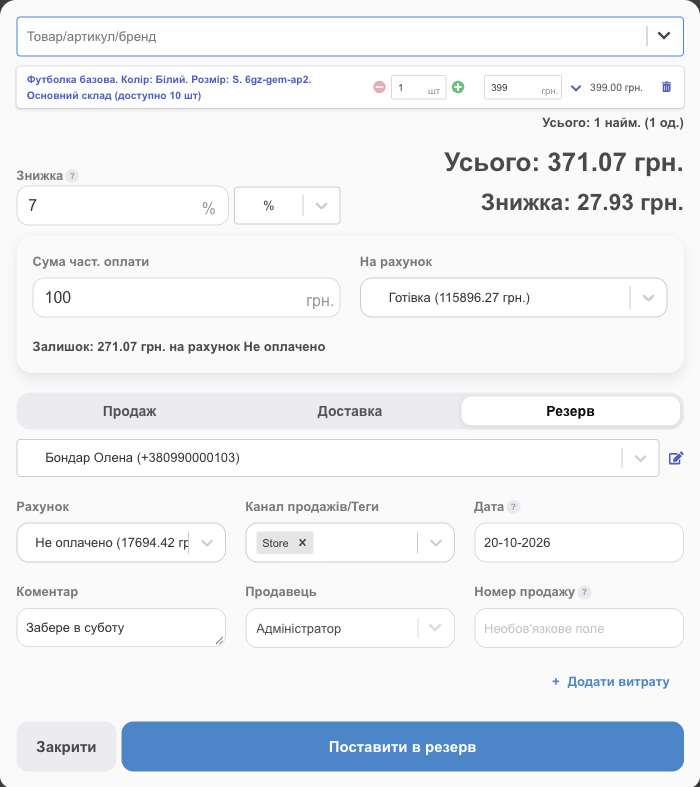
✅ The sale gets the Reserved status (Partially paid). The product is set aside: in the product list it counts as reserved (stock is shown as available/total), and the partial payment is already in the account.
If there isn't enough stock, you can reserve into negative stock; HugeProfit warns you about it. This is how you create a pre-order: the product is set aside as soon as the shipment arrives.
Reserve list
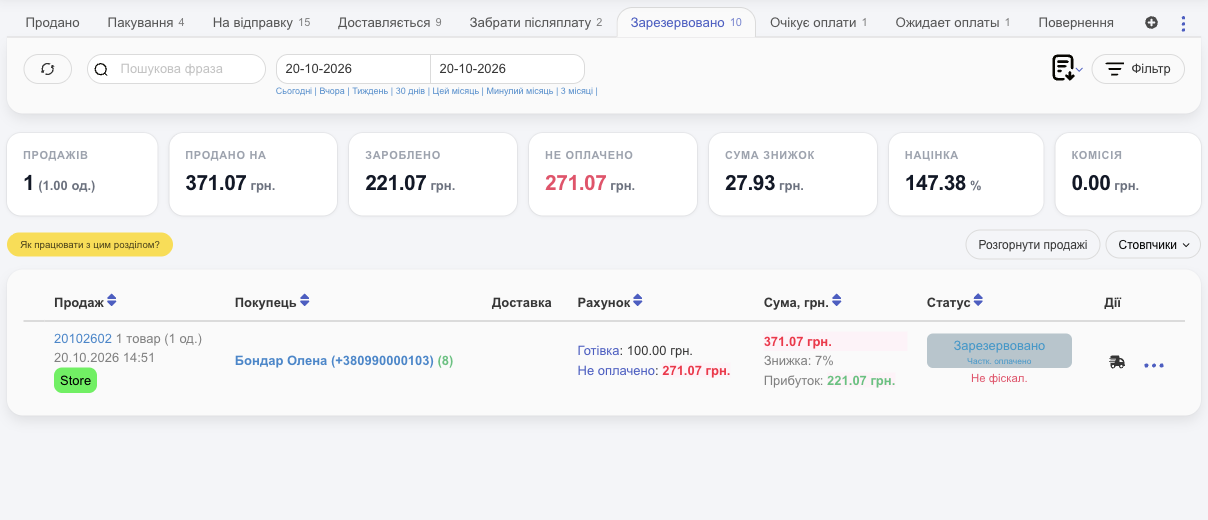
Sales → Reserved (shown with a count in the left menu). Each row shows how much has been paid and how much is still unpaid.
Complete a reserve
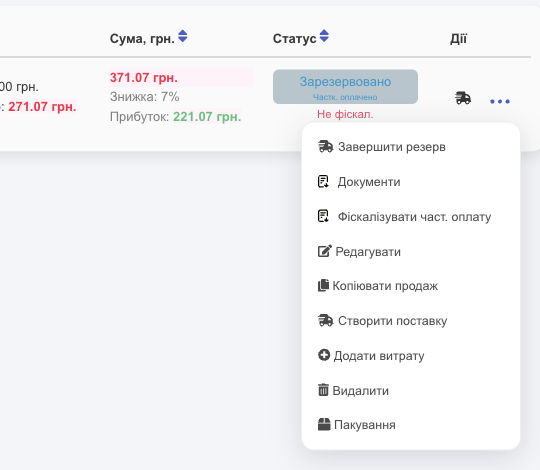
When the client has picked up the product: the 🚚 icon or ⋯ → End reservation.
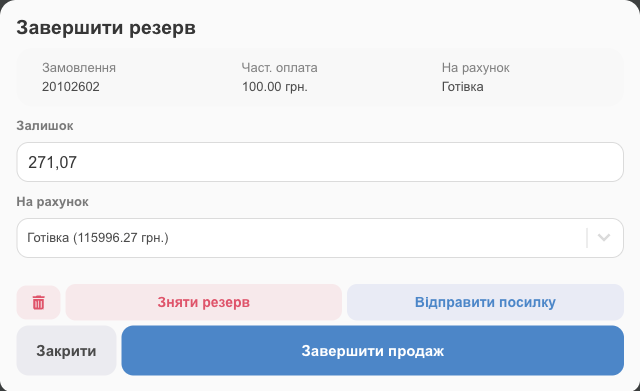
- Finish Sale: choose the account that received the rest of the payment. The sale becomes Sold, and the product is deducted from stock.
- Send parcel: the client won't come in person, so the reserve turns into a shipment by a delivery service (see Delivery).
- Remove reserve: the client changed their mind. The product returns to available stock, and the partial payment stays in your account. To refund it to the client, delete the reserve.
To handle several reserves at once, select them in the list → Bulk complete reserves.
💡 Deleting a reserve also removes the partial payment from the account. This is how you refund a prepayment.
Packaging
If the Packaging module is turned on (Settings → System modules), you can send sales to the warehouse to be picked and checked:
- Move the sale to the Packaging status (on the Delivery tab when you create it, or with Change status).
- The warehouse worker opens Sales → Packaging and clicks Packaging in the row.
- The window shows the sale comment and the list of products with barcodes. The warehouse worker picks the products and marks the quantity with the +/− buttons (or a scanner); Fill all marks everything at once.
- They choose the Packer and the next Sale Status (for example, hand over for delivery) → Confirm.
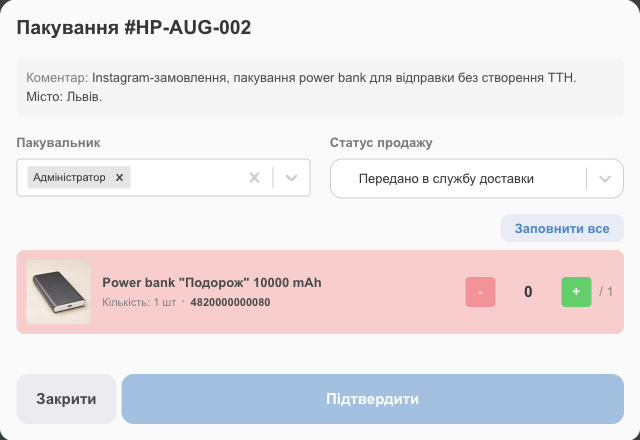
The sale row shows who packed it (Packer). For warehouse employees, the packaging button appears right in the row.