
How to connect Telegram, Instagram, Facebook, Viber, and OLX to HugeProfit chats
Connect a Telegram bot, Instagram and a Facebook Page, a Viber bot or a regular Viber number (through E-chat), and OLX chats, and buyer messages will appear in the Chats module of HugeProfit. You can reply from there too: the buyer gets your reply in the messenger they wrote from.
You connect all messengers in Settings → Integration → the Chats tab.
1. Create a bot in Telegram
In Telegram, open @BotFather (Telegram's official bot with a blue checkmark) → /newbot.
Enter the bot's name (as buyers will see it, for example “Handmade Candles”) and a username ending in bot (for example, svichky_shop_bot).
BotFather sends you a token, a string like 1234567890:AA…. Copy it.
⚠️ The token gives full access to the bot. Don't publish it or send it in chats. If the token falls into the wrong hands, /revoke in BotFather creates a new one, which you then need to paste into HugeProfit.
2. Connect the bot in HugeProfit
Settings → Integration → Chats → Telegram → Connect:
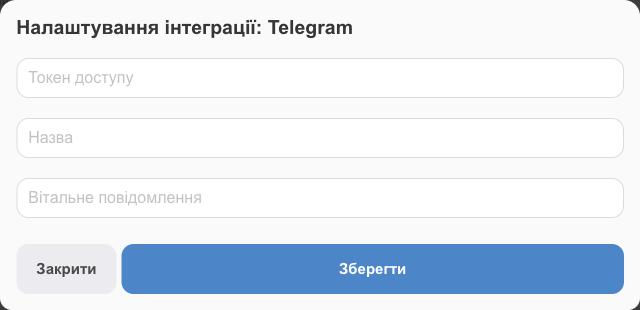
- Access token: the token from BotFather;
- Name: how to tell the bot apart in HugeProfit (in the chat filter and the reply field) if you have several;
- Welcome message: what the bot writes to a buyer who taps “Start” (for example, “Hi! Tell us what you're interested in, and a manager will reply within 15 minutes”).
Save. To test it, find your bot in Telegram, tap “Start”, and send a message: it will appear in Chats.
3. How buyers find the bot
- Put the
https://t.me/bot_usernamelink on your website, in Instagram, on a business card, or in your email signature. - Several stores or product lines? Use several bots: Add another integration on the Telegram card.
OLX chats
Buyer messages about your OLX listings come into HugeProfit Chats, so you can reply from there without opening OLX. The client panel shows the listing they're asking about.
- Settings → Integration → Chats → the OLX card (Integration with OLX chats) → Connect.
- Name: how to label this OLX account in HugeProfit (if you have several accounts, each gets its own integration).
- OLX authorization: the OLX website opens. Sign in to the account your listings are posted from and allow access to messages.
- OLX returns you to HugeProfit, and the integration becomes Active.
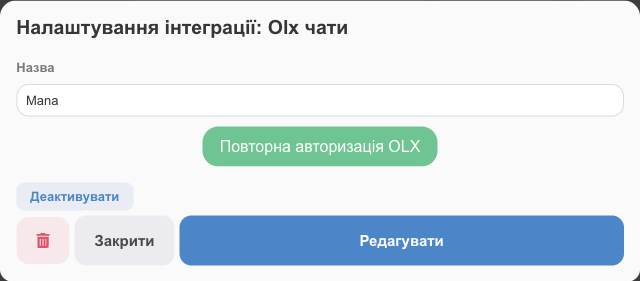
You can connect up to three OLX accounts; after the third integration, the Add another integration button disappears.
New conversations appear when buyers write about your listings. To filter them in the chat list: Filter → Source → Olx.
If OLX stops passing messages (you changed the password or revoked access), open the integration settings → OLX re-authorization. Deactivate temporarily stops receiving chats.
💡 Re-authorization opens OLX in the same browser: if you're already signed in to a different OLX account there, that account gets connected. Before re-authorizing, check which OLX account you're signed in to, or sign out of the wrong one.
Instagram and Facebook
With a single integration, Chats receives Instagram Direct messages, Facebook Page messages, and comments on posts (marked Comment on the post).
What you need in advance
- A business Facebook Page on which you're an Admin (or Editor/Moderator). You connect through your personal Facebook account: HugeProfit gets access to exactly the Pages that account manages.
- An Instagram professional account (business or creator) linked to this Facebook Page. A personal Instagram account without a Page can't be connected; this is a Meta requirement.
- If the Page requires two-factor authentication in Meta Business Suite, turn it on for the account you connect with.
- Instagram must allow connected tools to access messages (see “Instagram chats are empty” below).
If your Instagram account isn't professional yet or isn't linked to a Page
Do this before connecting HugeProfit. Menu names in Meta apps change from time to time, but the path is roughly this:
- Switch Instagram to a professional account: in the Instagram app, open your profile → ☰ → Settings → Account type and tools → Switch to professional account, and choose a business category.
- Link it to a Facebook Page: during the switch, Instagram offers to connect a Facebook Page. It must be a business Page, not a personal profile; if you don't have one, create it.
- Or from the Facebook side: switch to your Page → Settings → Linked accounts → Instagram → Connect, sign in to Instagram, and allow access to Instagram messages.
After linking, the Page may move under a business portfolio (Meta's business portfolio). That's normal; the Page stays yours.
Connecting
On the Chats tab, open the Instagram card → Connect and click the Facebook login button.
In the Facebook window, sign in to the account that manages the Page. If Facebook asks about business portfolios, allow access to all of them or to the one that contains your Page. Then choose the business Page and Instagram account and leave on all the permissions HugeProfit asks for (Pages, messages, comments). If you turn off some permissions, the Page won't connect or the chats won't load.
Once you confirm, the integration settings show the names of the connected Facebook Page and Instagram account, and the integration becomes Active.
New messages arrive right away. To pull in existing conversations, go to the Download the latest dialogs block in the integration settings, enter the Number of dialogs (up to 300) → Download.
In the mobile app, connecting opens in the phone's browser; after you sign in to Facebook, return to the app.
Instagram limitations
- You can reply in Direct only within 24 hours of the buyer's last message; after that, Instagram won't accept the reply. You also can't message first.
- Photos and files follow the same 24-hour window.
Instagram chats are empty or messages stopped arriving
HugeProfit tells you the cause with a notification (the bell at the top). The two most common ones:
| Notification | Cause | What to do |
|---|---|---|
| Instagram: integration needs to be reconnected | The Facebook account you connected HugeProfit with lost its role on the Page (Admin/Editor/Moderator), or the Page requires two-factor authentication that the account doesn't have. Other causes: the Facebook password was changed, or HugeProfit's access was revoked in Facebook settings. | Give the account its role on the Page back (and turn on two-factor authentication if required), then click Reconnect Facebook in the integration settings and allow access to the Page again. |
| Instagram: access to messages is turned off | Instagram itself has third-party tool access to Direct turned off. Comments still come in, but messages don't. | In the Instagram app: Settings and activity → Messages and story replies → Message controls → Connected tools → turn on “Allow access to messages”. You don't need to reconnect the integration; messages will start arriving on their own. |
💡 Reconnecting from a different Facebook account? It must also be a Page admin; otherwise, the Page simply won't appear in the list when you connect.
Viber bot
Messages buyers send to your Viber bot come into Chats; when you reply from HugeProfit, the bot sends the reply to the buyer in Viber.
- Get a bot and its token. You can no longer create a new Viber bot yourself: submit a request through the form on the Viber for Business website or contact one of Viber's official partners. This is a paid service; Viber sets the terms and rates. The request asks what messages the bot will send: only replies to buyers who wrote first, or also messages where the bot writes first (Viber charges for those separately). The first option is enough for conversations in HugeProfit.
- On the Chats tab → Viber → Connect, fill in:
- Access token: the bot token;
- Name: the bot name as buyers will see it;
- Link to avatar: a link to the avatar image (optional);
- Welcome message: what the bot writes when a buyer opens the chat.
- Save. Message the bot from your own Viber: the message will appear in Chats.
The bot sends the welcome message when a buyer opens a chat with the bot and when they subscribe to it. The bot link for your website or social media is viber://pa?chatURI=bot_URI (the URI is the bot's nickname in Viber). It opens only where Viber is installed.
⚠️ As with Telegram, a Viber bot works with only one service. If this token is already connected to another CRM or bot builder, disconnect the bot there first; otherwise, messages will go there instead of HugeProfit.
💡 The Viber bot in Chats is for conversations with buyers. Automatic Viber messages about order status (“parcel shipped, waybill (TTN) …”) are sent differently, through TurboSMS.
Viber on your phone number (E-chat)
If buyers message your regular number in Viber rather than a bot, connect that number through the E-chat service. Messages to the number appear in Chats, and your replies from HugeProfit go out in Viber from your number. Unlike a bot, E-chat lets you message a client first, using the phone number from their card.
💡 E-chat is a separate paid service with its own rates; payment and the trial period are handled in your E-chat account.
Connecting
Sign up at e-chat.tech and connect your number with the Connect Viber number button. The number appears in the list of connected numbers together with its API key.
In HugeProfit: Settings → Integration → Chats → E-chat → Connect. Fill in API key and Phone (the same number you connected in E-chat).
The same window has two addresses: WEBHOOK-URL IN/OUT and WEBHOOK-URL STATUS. Copy each one with the button next to it and click Save.
In your E-chat account, open the number settings (⚙ in the number's row) → Webhook URL and paste the addresses: WEBHOOK-URL IN/OUT into the IN/OUT field and WEBHOOK-URL STATUS into the STATUS field.
⚠️ Without the webhooks in E-chat, messages won't reach HugeProfit, and you won't be able to message a client first: HugeProfit won't know whether the message was delivered. To test it, message the connected number from another Viber account: the chat will appear in Chats.
How it works
- Incoming messages to the number appear in Chats. To see only them: Filter → Source → E-chat. Messages you send from this number directly from your phone also show up in the conversation.
- Message first: Clients → open the client → the E-chat icon next to the phone number (it appears only if the client has a phone number). If there's no conversation yet, the This client does not yet have an active e-chat window appears: enter a message → Create. HugeProfit waits for Viber to confirm delivery (up to a minute) and opens the new chat.
- If you already have a conversation with the client, the E-chat icon opens it right away.
- For the client, this is a message from an unknown number: Viber may ask them to accept the chat before they see your messages.
Errors when you message first
| Message | What it means |
|---|---|
| We were unable to send the message. The number is not connected to Viber. | The client doesn't have Viber on this number, or the number has a typo. Check the phone number in the client card. |
| Unable to chat with the number we were communicating with. Restricted by Viber. | Viber has restricted sending to this contact. Wait for the client to write to you, or contact them another way. |
| Unable to chat with a new number. Restricted by Viber. | Viber restricts first messages from your number to new contacts. Ask the client to write first. |
Prom and Rozetka
Buyer messages from Prom and Rozetka come into Chats along with the marketplace integration; you don't need to connect anything separately (Prom, Rozetka).
If something doesn't work
| Problem | What to do |
|---|---|
| Telegram messages don't appear in HugeProfit | Check the token (no spaces) and that the integration is active. A bot can be connected to only one service: if another CRM or bot builder uses this token, messages will go there. |
| The bot doesn't reply to the buyer | The buyer must first message the bot or tap “Start”: Telegram doesn't let bots write first. |
| Empty Instagram chats | See “Instagram chats are empty” above: the notifications will show one of the two causes. |
| A reply to Instagram isn't sent | More than 24 hours have passed since the buyer's last message; this is an Instagram limit. You can reply once the buyer writes again. |
| The Page you need is missing when connecting Instagram | The Facebook account has no role on the Page, or the Instagram account isn't linked to the Page or isn't professional. Fix it in Meta Business Suite and connect again. |
| The Viber bot chat shows the system message “User not subscribed to your Viber Bot” | The buyer unsubscribed from the bot or deleted the chat with it, so Viber doesn't let the bot message them. You'll be able to reply once the buyer messages the bot again. |
| Messages to the E-chat number don't appear in HugeProfit | Check that both webhook addresses are pasted into the number settings in E-chat, and that the HugeProfit integration has the same number and a current API key (if you renewed the key in E-chat, paste the new one). Also check that the number is paid for in E-chat. |
| Old Instagram conversations aren't visible | New ones arrive on their own; for old ones, use Download the latest dialogs in the integration settings. |
To learn how to sell through Telegram with product and money tracking, see the page on CRM for a Telegram bot.