
How to create a sale in HugeProfit
A sale is the core action in HugeProfit: it reduces stock, adds money to an account, and calculates profit. This article covers every field in the sale window: products, prices, discounts, partial payment, change, client, channel, and sale expenses.
How to open it
- The green + Sale button at the top of any page.
- Add Sale under a product in the product list opens a sale with that product already added; or check several products → Add Sale.
- From an order, from the cashier panel, or from a client card.
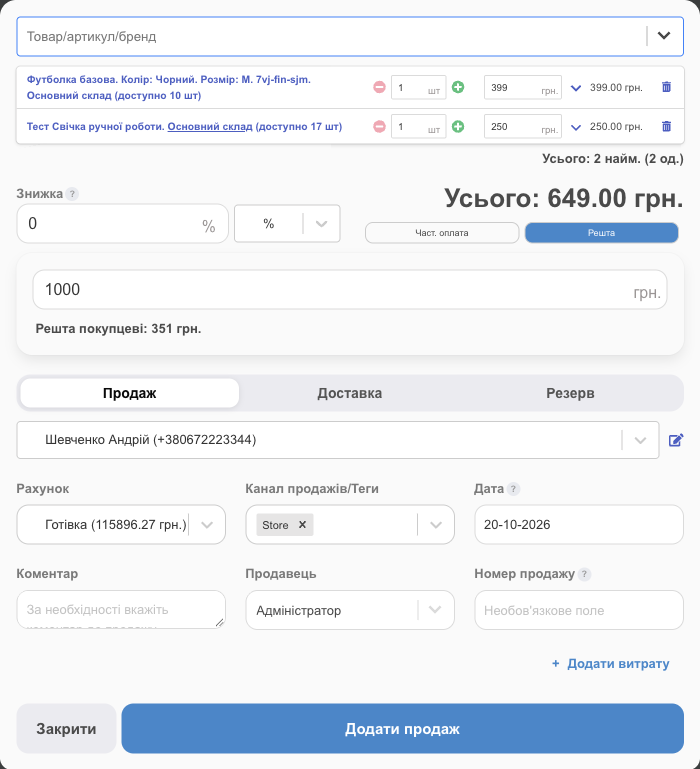
Products
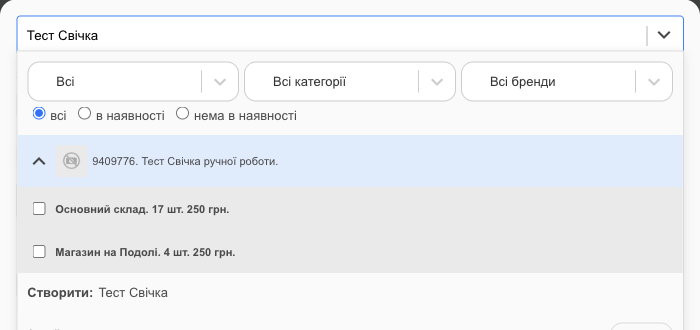
- In the The product name/SKU/brand name field, start typing a name, SKU, brand, or barcode (a scanner is handy here). You can filter the list by warehouse, category, brand, and In stock.
- If the product is in several warehouses, expand it with the arrow and choose a warehouse. The warehouse in the product row is underlined; click it to change it.
- You can add several products; they're listed below the field. Can't find a product? Create: … creates a new one.
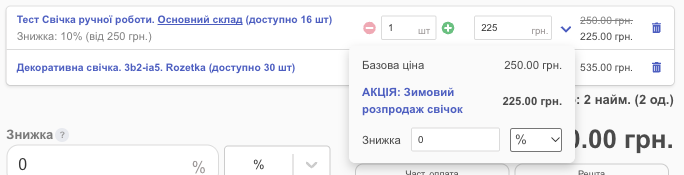
In the product row:
- −/+ and quantity. Next to the name is how many are available in the warehouse.
- Price: you can change it manually (if you're allowed to).
- The ⌄ arrow: the price type (Base price or one of your additional prices, such as wholesale) and a Discount on this product only, as a percentage or a fixed amount.
- The row total, and 🗑 to remove the product.
- Promotion: if a promotion applies to the product, it's applied automatically (in the search list, the product has a PROMO tag). Under the product name, you see the promotion discount and the price it was calculated from: "Discount: 10% (of 500 UAH)"; for a fixed discount or a new price, the discount amount. In the ⌄ menu, the promotion appears as the price type PROMO: … with the promotion name; choose a different price type to sell the product without the promotion.
Selling to a wholesale buyer? Change price type in bulk above the products switches every product in the sale to the selected additional price in one click.
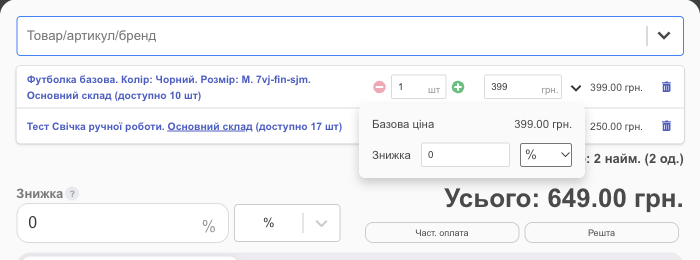
Discount, partial payment, change
- Discount applies to the whole sale, as a % or a Fixed amount. It applies to all products that don't have their own discount, and it doesn't apply to promotion products with the Don't apply client discount on top of this promotion checkbox. If the client has a personal discount (loyalty program), it's filled in automatically unless you change it manually.
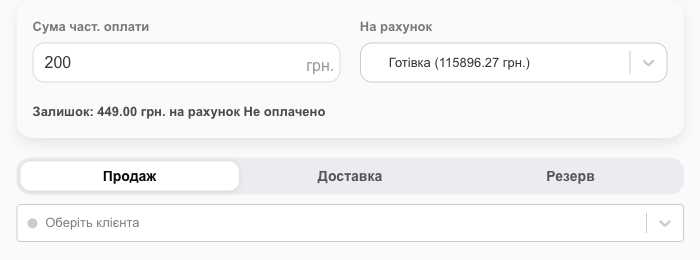
- Partial payment: the client didn't pay in full. Enter the Prepayment Amount and the account it went to. The rest goes to the Not paid account (HugeProfit sets it as the sale account automatically) until the client pays the balance. In the list, the sale has the Sold status with a Partially paid label, and the amount owed is shown in red; when the client pays the rest, use ⋯ → Finish payment. On the Delivery tab, the remainder goes to C.O.D (see Delivery and waybills (TTN)).
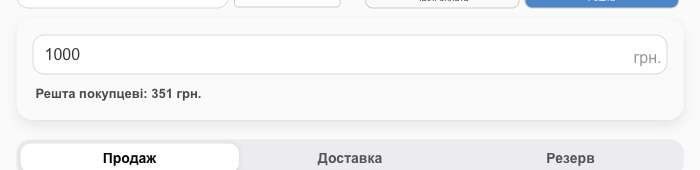
- Change is for cash: enter how much the customer handed over, and HugeProfit shows the Change for the customer.
Sale, delivery, or reserve
| Tab | When | What happens |
|---|---|---|
| Sale | You handed over the goods and got paid | The status is Sold, the product is taken off stock, and the money is in the account. |
| Delivery | You ship by a delivery service | Status (for example, Awaiting dispatch), delivery service, recipient, waybill. See Delivery and waybills. |
| Reserve | The client will pay and pick up later | The product is set aside. See Reserve. |
Other fields
| Field | What to enter |
|---|---|
| Select Client | Search by name or phone; for a new client, use Create: …. You need a client for purchase history, discounts, and delivery. If the client has a balance, it's shown here; to pay from the balance, give a fixed discount for that amount. |
| Account | Where the money went: cash, card, sole proprietor (FOP) account, C.O.D, Not paid. |
| Sales channel/Tags | Where the client came from: store, Instagram, website… Used for the Sales channels report. If the channel has a fee set up (for example, a marketplace), it's recorded automatically. The account fee (for example, 1.3% card acquiring; see Accounts) is added too: the sale form shows a Commission block with the channel and account fees, which reduces the sale's profit. See Statuses and channels. |
| Date | Defaults to now. You can enter a past date (if you're entering old sales); you can block future dates and date changes in employee access rights. |
| Comment | Any note; it's shown in the sales list. |
| Seller | Who made the sale, for the employee report and sales-based pay. |
| Sales Number | Optional. If you leave it blank, a number is generated automatically. |
Sale expenses
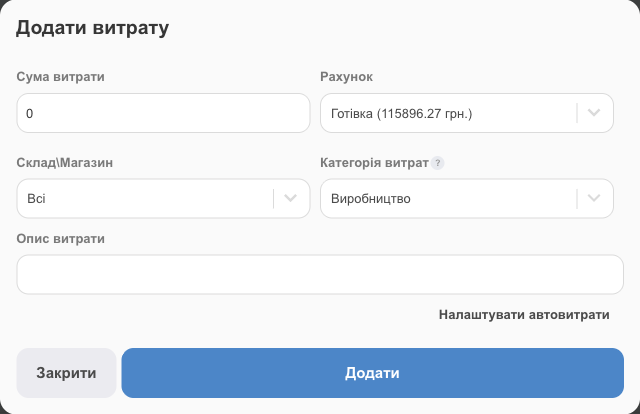
+ Add Expenses adds an expense tied to this specific sale: delivery you pay for, packaging, a bank fee. Enter the amount, account, warehouse, expense category, and description. These expenses reduce the profit of this sale only. To have them added automatically (for example, 2% card acquiring on every sale), use Configure auto-expenses.
Saving
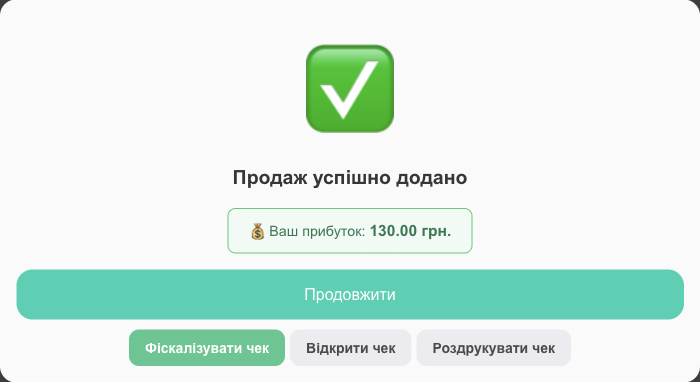
Click Add Sale. HugeProfit shows the profit from the sale and the Open receipt, Print receipt, and (if a software cash register (PRRO) is connected) Fiscalize receipt buttons.
⚠️ If there isn't enough stock in a warehouse with stock control, the sale won't be saved. Each new sale uses one sale from your plan's monthly quota (see Plans).
Who can do what
An employee's access rights determine whether they see prices, whether they can change the discount, date, or price, whether they can edit a sale only on the day it was made, and so on. See Employees and access rights.
Every sale goes straight into your revenue and profit reports; that's how sales tracking in HugeProfit works.