
How to connect your system to HugeProfit via API and webhooks
If the integration you need isn't on the list, connect your own system through the API: a website on a custom engine, a warehouse app, accounting software, Google Sheets, or automation services. HugeProfit has two APIs: the modern API v2 with access rights and webhooks (recommended), and the legacy API (v1) for existing integrations.
Settings → Integration → Other tab. Only the account administrator can create keys.
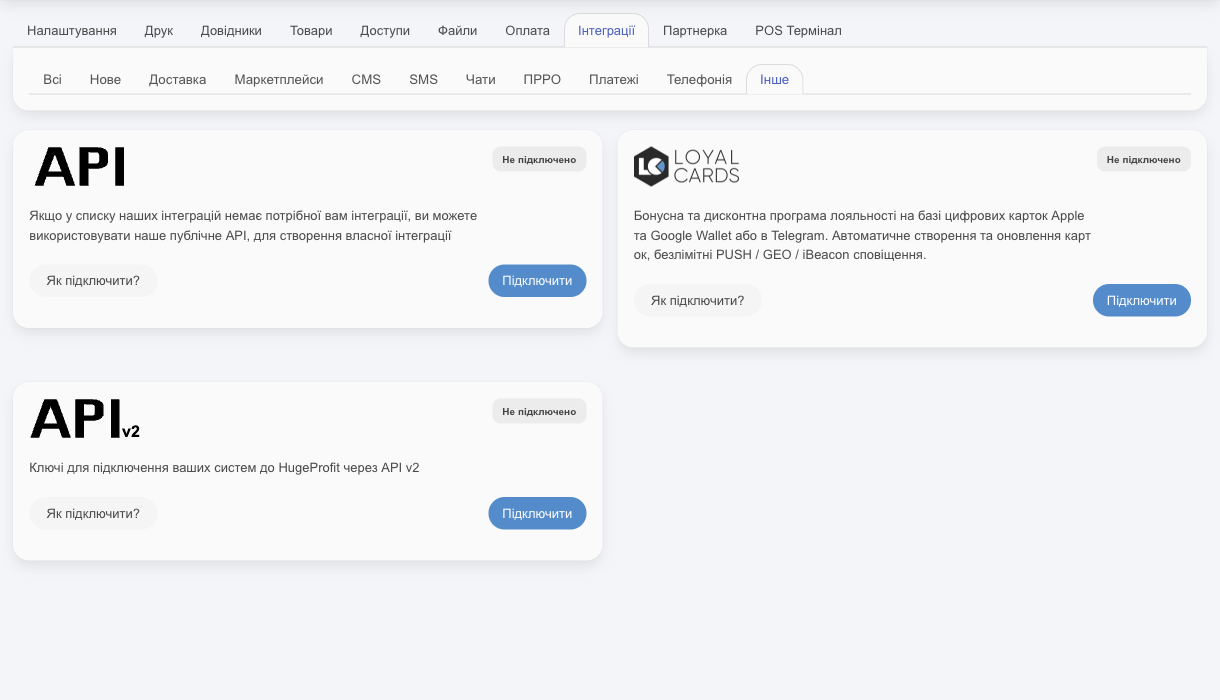
API v2
A REST API with a single response format covering products and stock, sales, marketplace orders, clients, shipments, expenses, manufacturing, write-offs, delivery (including Nova Poshta waybills (TTN)), and fiscal receipts for sales through a connected Checkbox or Vchasno.Kasa (including prepayment receipts), plus signed webhooks with redelivery. For the full request reference, see the API v2 documentation (the key form also has an API v2 documentation link).
1. Create a key
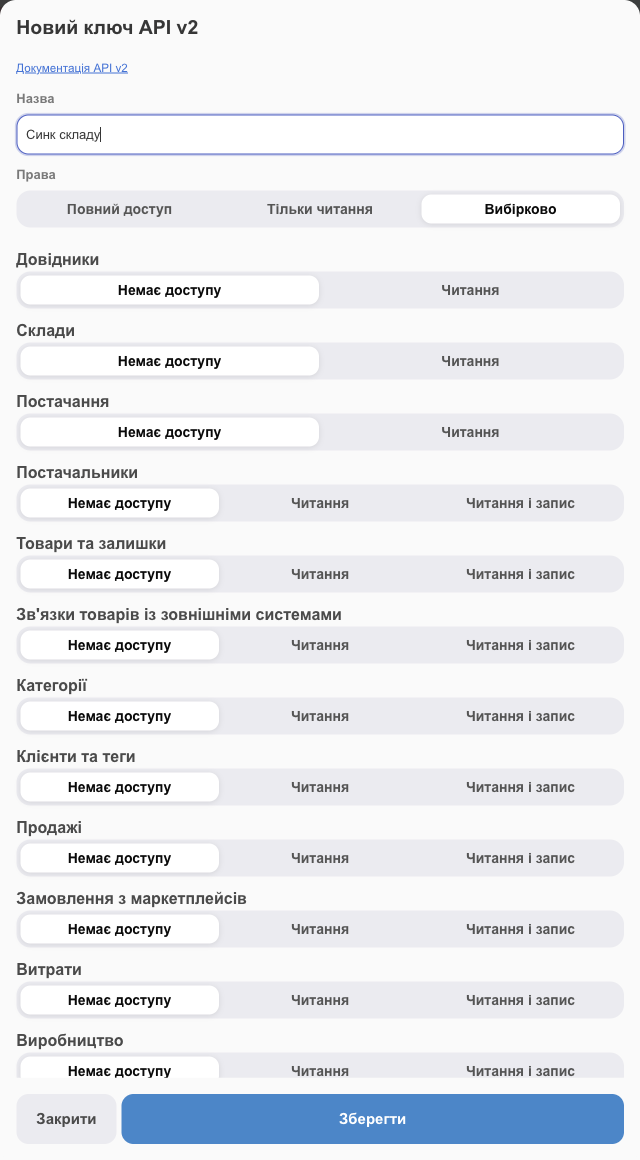
- API v2 card → Connect.
- Name: what the key is for (for example, “Warehouse sync” or “Website”). Use a separate key for each system so you can disconnect one without affecting the others.
- Permissions:
- Full access: everything;
- Read only: only retrieve data (reports, analytics);
- Custom: for each module, choose No access, Read, or Read and write: catalogs, warehouses, supplies, suppliers, products and stock, product links to external systems, categories, clients and tags, sales, marketplace orders, expenses, manufacturing, webhooks.
- Sales channel for orders: sales created from orders received through the key get this channel. A sales channel for orders can belong to only one integration.
- Sales channel for API sales: the channel for sales your system creates through the API without specifying a channel.
- Save.
If you don't select a Sales channel for orders when creating the key, HugeProfit creates a new sales channel named after the key and uses it for both fields; if only Sales channel for API sales is empty, it takes the orders channel. If you later clear Sales channel for API sales (No channel), API sales go to a technical channel.
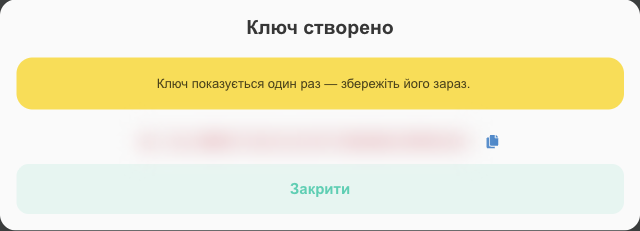
⚠️ The full key (hp_live_…) is shown only once. Copy it with the button next to it and save it in your system's settings. HugeProfit doesn't store it in plain text, so it can't show it again, only regenerate it.
Grant the minimum permissions: a website that only displays stock needs just “Products and stock: Read”.
2. Test the key
Pass the key in the Authorization header to https://crm.h-profit.com/bapi-v2. The simplest test is a GET /bapi-v2/me request: the response contains information about the key and its permissions. Responses always look like {"success": true, "data": …}; on error, you get "success": false and an error code (401 means a wrong key, 403 means missing permissions).
3. Managing a key
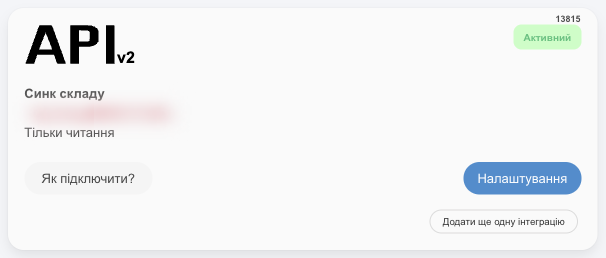
Settings on the key card:
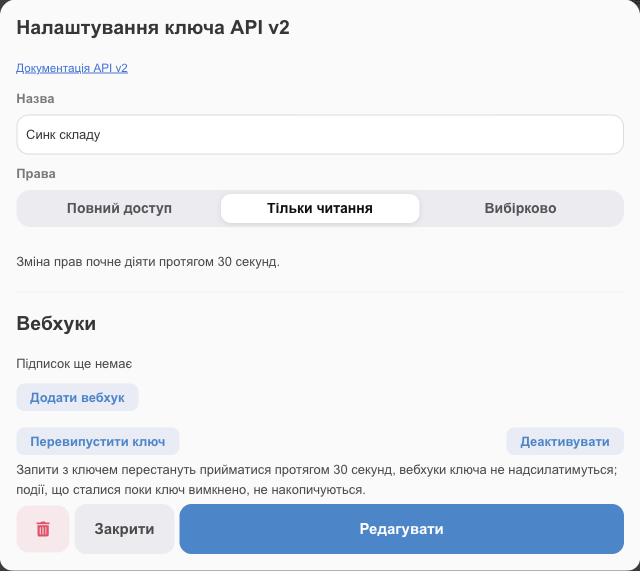
- change the name, permissions (Permission changes take effect within 30 seconds), and sales channels;
- Regenerate key: if the key may have been exposed. The old one stops working within 30 seconds; webhooks and received orders are kept;
- Deactivate: turn it off temporarily. Requests are rejected and webhooks aren't sent (events during this time aren't queued);
- 🗑 delete: removes the key along with its webhooks and the marketplace orders received through it. This can't be undone; to pause, deactivate instead.
4. Webhooks
With a webhook, HugeProfit sends a message to your system's URL whenever something happens, so you don't have to keep polling the API. In the key settings → Webhooks → Add webhook (requires the “Webhooks: Read and write” permission):
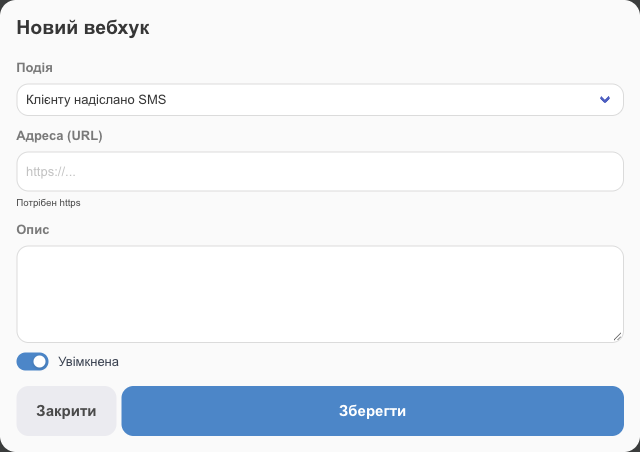
- Event: a sale created, changed, or deleted; a product created or changed; a client created or changed; stock changed; an SMS sent to a client.
- URL (
https://only), Description, Enabled. - After you save, HugeProfit shows the signing secret, also only once. Your system uses it to verify that a request really comes from HugeProfit (the
X-GP-Signatureheader, HMAC-SHA256).
Webhook actions: Test sends a test event and shows the response code and time, what was sent, and what came back; Log shows the delivery history with the statuses Delivered, Failed, will retry, and Not delivered, retries exhausted; plus Edit, Rotate secret, and Delete.
Your system must respond with a 2xx code within 15 seconds. Otherwise, HugeProfit retries after 1, 5, 15, and 30 minutes; after the fifth failed attempt, the delivery is marked as failed.
API (v1)
The older API that existing integrations run on. For new connections, use API v2.
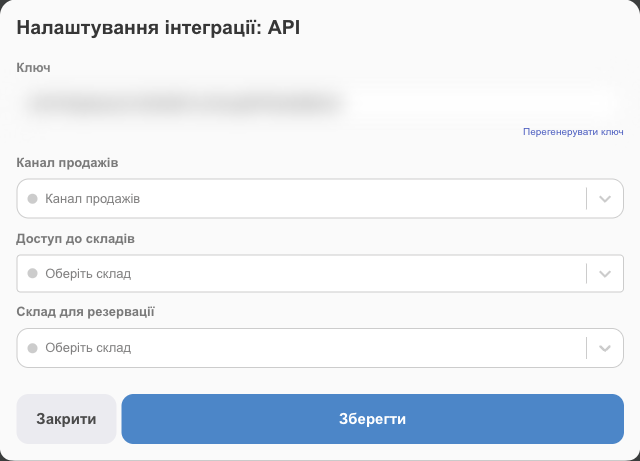
- Key: created automatically. Regenerate key issues a new one (the old key stops working).
- Sales channel: the channel assigned to sales that come in through the API.
- Access to warehouses: which warehouses' stock is available through the API.
- Reservation Warehouse: where to reserve products for API orders.
The API v1 request reference is under the How to connect? link on the card (SwaggerHub).
Tips
- Never put the key in website code that runs in the visitor's browser; keep it on the server only.
- For repeated sale creation requests, use the
external_idfield so the sale isn't duplicated (see the documentation for details). - Need help with an integration? Contact support and include the key number from the card (not the key itself).
Before building your own integration, check the ready-made integrations: your service may already connect without any coding.