
How to add and edit a product in HugeProfit
How to create a product and what each field means: category, barcode, warehouses, cost price and price, minimum stock, expiration date, description, photos, additional prices and fields, analogs.
How to open it
- New product: Products → Add New Item.
- Edit: the ✎ icon under the product name in the list.
- Photos: click the product thumbnail in the list.
- You can also create a new product right in the sale or shipment window: type the name in the search box and select Create: ….
Main fields
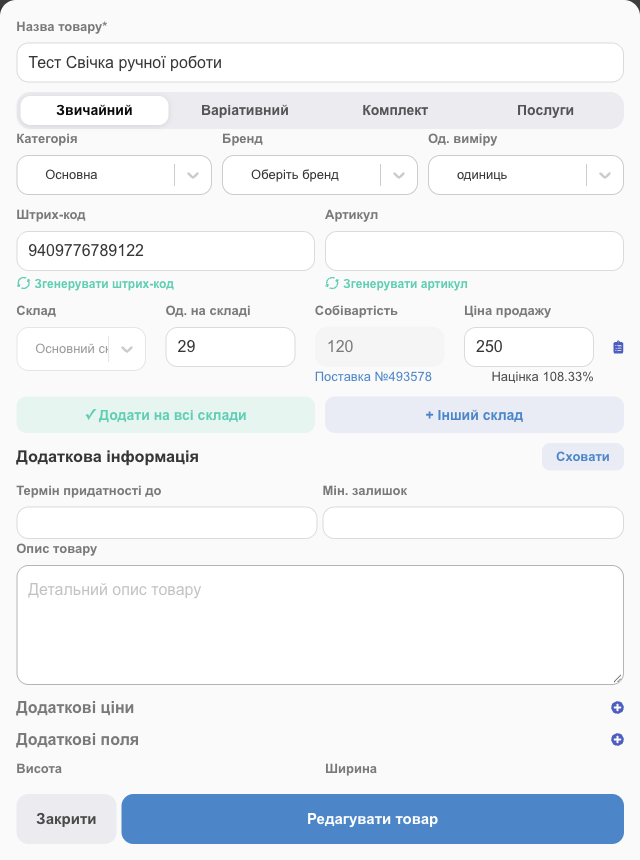
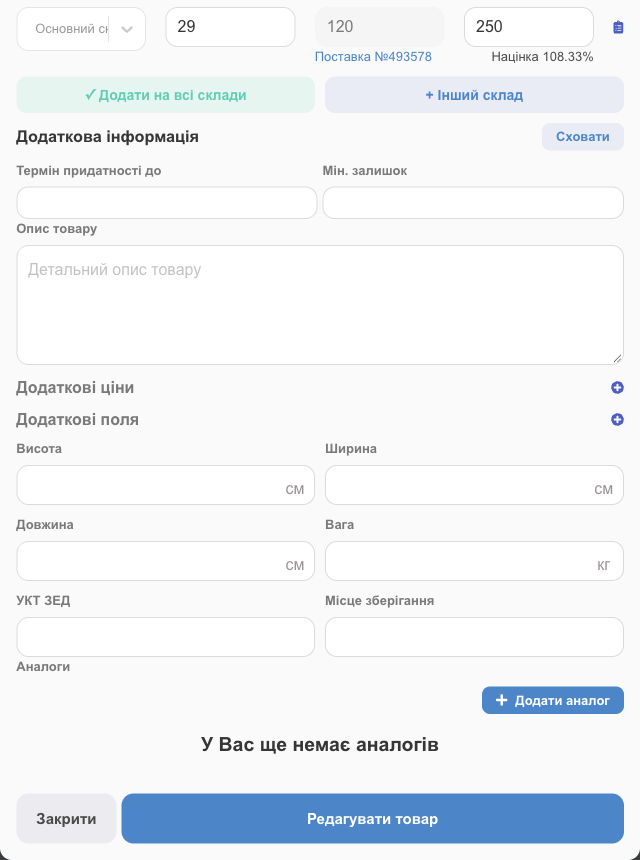
| Field | What to enter |
|---|---|
| Product name* | Required. This is how the product appears in sales, receipts, reports, and on marketplaces. |
| Type | Simple; Variable: has variants (size, color); Bundle: made up of other products; Services: no stock. See Variants, bundles, services. |
| Category | A product group. Used for filters, category reports, and exports to marketplaces. You can create a new category right here. |
| Brand | The manufacturer or trademark, for filters and the brand report. |
| Units | How the product is counted: units, kg, g, ml, meters, centimeters, m², m³, pairs, pallets, tons, packs, sets, cuts, and so on. |
| Barcode | Lets you find the product with a scanner in sales, at the register, and during stocktaking. Don't have one? Click Generate Barcode. If you leave the field empty, HugeProfit generates a barcode when you save the product (and when you import from Excel). |
| SKU | Your product code. It's used for search and for linking products to marketplaces. You can click Generate SKU. |
Warehouse, stock, cost price, price
Each warehouse that holds the product gets its own row:
| Field | What it means |
|---|---|
| Warehouse | Where the product is stored. |
| Units in Stock | How many you have now. You set it when creating the product; after that, shipments, sales, stock moves, and stocktaking change the stock. |
| Cost price | What one unit cost you. Profit is calculated from it. If the product came in a shipment, the field is grayed out and has a Shipment #… link below it: the cost price comes from the shipment, so you change it there. In the product list, next to the cost price, there's Calculate, a calculator: the purchase price plus extra costs as separate lines (shipping, packaging, customs duty) → the Total becomes the cost price. |
| Selling price | What you sell it for. The Margin percentage appears right below the field. |
- Add to all warehouses adds rows for all your warehouses at once; + Other warehouse adds one for a warehouse you choose.
- 🗑 next to a row removes the product from that warehouse (if it has no stock there).
- The list icon next to a row opens Detalization: serial numbers and expiration dates of the units in that warehouse.
💡 The price and cost price can differ between warehouses. For example, a retail store can charge more than a wholesale warehouse.
Additional information
Click Expand:
| Field | What it's for |
|---|---|
| Expiration date up to | The date until which the product is good. You can filter products that are about to expire. |
| Min. stock | Below this stock level, the product is marked Requires purchase and its stock number turns red. You can turn on Telegram notifications about such products. Default minimum stock levels for categories are in Product settings. |
| Product Description | A detailed description for your website, the HugeProfit online store, and marketplaces. |
| Additional prices | A wholesale, dropshipping, or other price. You create price types in Settings → Products → Additional prices; here you enter the amount for this product. You can pick an additional price in a sale or export it to a marketplace. |
| Additional fields | Height, width, length (cm), and weight (kg) for shipping; UKTZED, the product code for fiscal receipts; Storage location; and your own custom fields (created in Settings → Products → Additional fields). |
| Analogs | Similar products you can offer the client instead of this one. Use Add analog. |
Click Add New Item (or Edit Item).
Photos
Right after you create a product, the Images step opens: click Choose images..., select one or more photos, then click Done. Later, you can add or change photos by clicking the product thumbnail in the list.
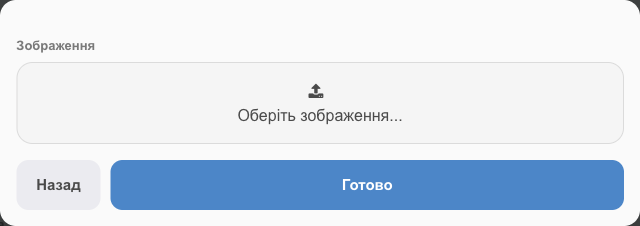
You can pull photos from marketplaces in bulk: select the products → Print & export → Uploading photos from the marketplace.
The Info card
The Info button in the list opens everything about the product in tabs: Description, Sales, Movement of stock (where each unit came from and where it went), Shipments, Product by suppliers, Moving, Write off, History (who changed what), Analogs, Files. A tab appears only if the related module is turned on.
Copying and deleting
- ⧉ Create a copy of the product creates a new card with the same fields. Handy for similar products.
- 🗑 deletes the product. Sales that include it stay in the history. For a product in several warehouses, 🗑 in the summary row deletes it from all warehouses, while 🗑 in a warehouse row (expand the product) deletes it from that warehouse only. You can restore a product deleted by mistake, along with its stock and prices: Restoring deleted products.
Who can change products
An employee needs the Changing the item and selling price (fields and prices), Change in stock (quantity), and Editing the cost price permissions. Without them, the card opens as read-only. See Employees and access rights.
The cost price in the card is what HugeProfit uses to calculate the margin on every sale. To see how this works across your whole business, read about tracking cost price and margin.