
Sale statuses and sales channels in HugeProfit
Statuses show what stage a sale or order is at, and channels show where the client came from (store, Instagram, Prom, website). Besides the standard ones, you can create your own statuses and channels, and set up a commission for marketplace channels.
Both catalogs are in Settings → Catalogs. Click an item to edit it, or click Expand to show them all.
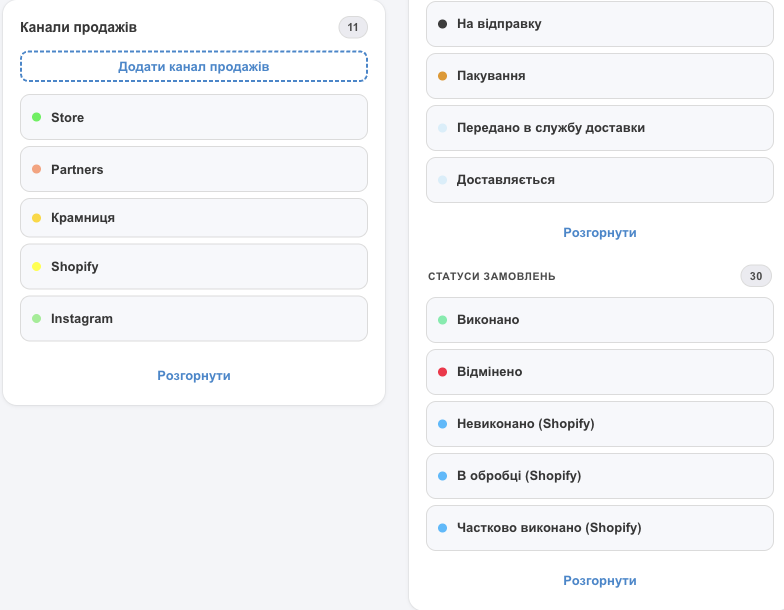
Statuses
Standard sale statuses
Sold, Reserved, Packaging, Awaiting dispatch, Transferred to delivery service, On delivery, Collect COD, Refusal to receive, Rejection. To learn how they change, see Delivery and waybills (TTN).
Custom status
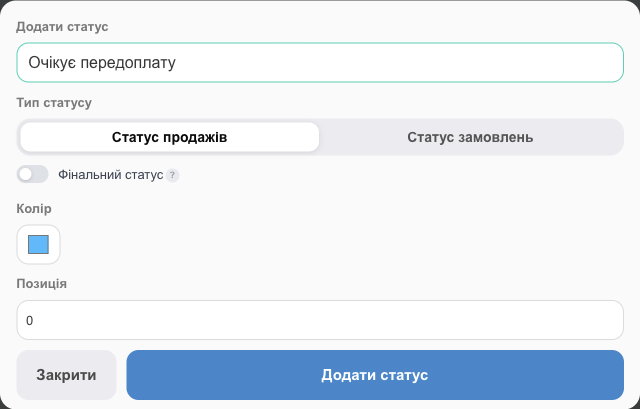
For example, “Awaiting prepayment”, “Confirm size”, or “Hand over to courier”.
- Click Add status in the Statuses block (or ⊕ next to the status tabs in Sales).
- Enter a name and choose the Status type: Sales status (for sales with delivery) or Orders status (for orders from websites and marketplaces).
- Final status: for a sale status. Once a sale is in this status, waybill tracking no longer changes its status automatically.
- Set the Color and Position (tab order).
- Click Add status.
A custom sale status appears as a tab in Sales and in the left menu with a counter, and in the status picker on the Delivery tab of the sale window.
- Order statuses from websites and marketplaces (for example, “Processing (Shopify)”) come from integrations; you can map them to your own. See Orders.
- You can delete only a status that isn't used anywhere: first move its sales to another status.
Sales channels
Each sale has a channel (Sales channel/Tags). Orders from integrations get a channel automatically. Channels drive a dashboard widget and reports, so you can see which sources bring in money.
New channel
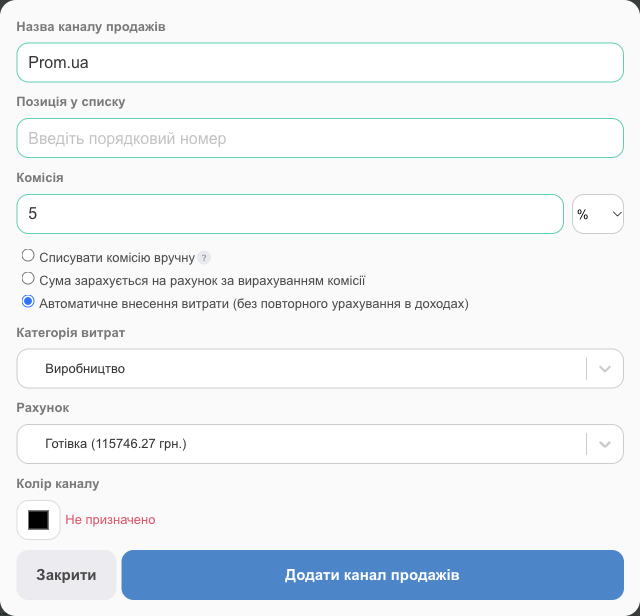
- Click Add sales channel.
- Fill in Sale Channel name, Position In The List, and Channel color.
- Commission: if the marketplace takes a percentage or a fixed amount from each sale (Prom, Rozetka, OLX, an agent). Choose how to account for it:
- Write off the commission manually: HugeProfit only calculates the commission, and you record the expense yourself;
- The amount will be credited to the account minus the fee: the sale's account receives the amount minus the commission;
- Automatic entry of expenses (without re-accounting in income): each sale creates an expense in the selected Expenses Category from the selected Account (without counting it again in income).
- Click Add sales channel.
⚠️ A sale can have only one channel with a commission.
Channel commissions appear in the sales list totals (Commission) and in the Commission filter.
Statuses and channels show where sales come from and what stage each order is at. They're the foundation of CRM for an online store.