
How to connect Shopify to HugeProfit
Integration with a Shopify store: syncing products, stock, and prices, receiving orders, and sending status updates. You connect through the HugeProfit app in Shopify, so there are no keys to enter: just install the app and grant access.
1. Install the HugeProfit app in Shopify
- In HugeProfit: Settings → Integration → CMS → Shopify → Connect → Install from Shopify App Store. The HugeProfit app page opens in the Shopify App Store.
- Click install and choose your store (you need to sign in to the Shopify admin as the owner or as staff with access to apps).
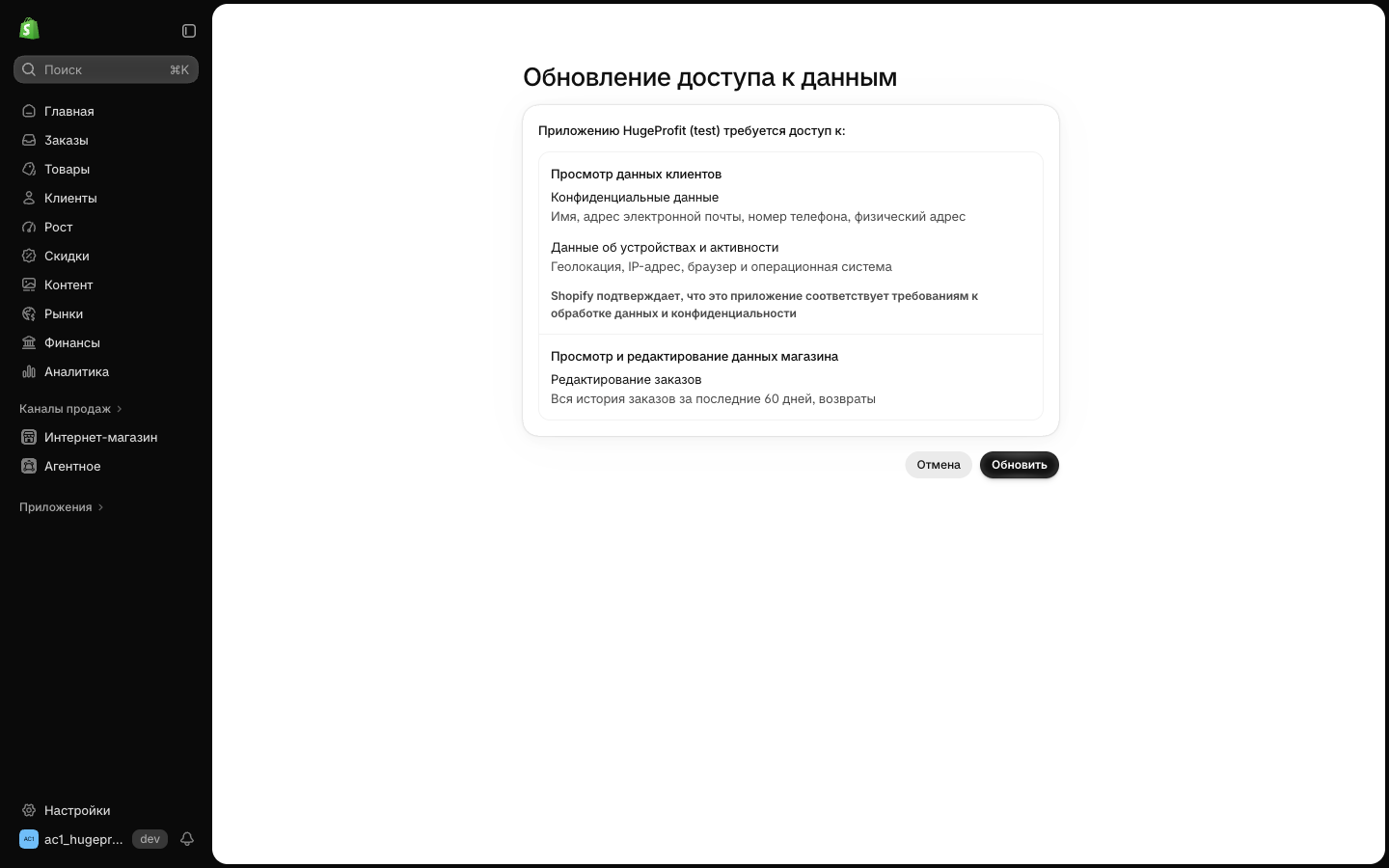
- Shopify shows which data the app is requesting access to: customer data (name, email, phone, address, for orders), products and stock, and orders. Confirm.
- After installation, Shopify returns you to HugeProfit, where the integration settings form opens with the Shopify store domain already filled in.
💡 Don't have a HugeProfit account? Sign up after installing the app, and the integration will be linked to the new account. For accounts created through Shopify, HugeProfit is billed through your Shopify bill.
2. Settings in HugeProfit
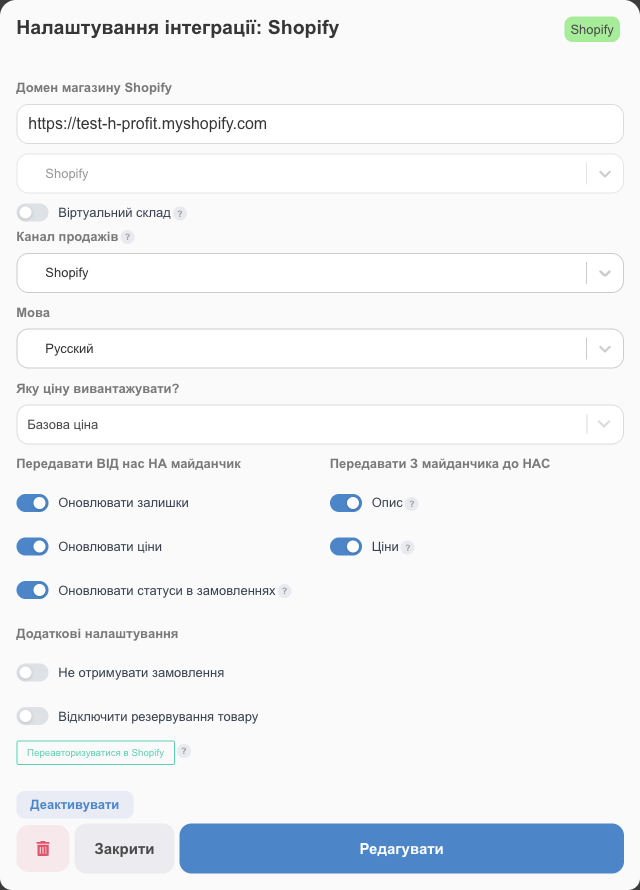
- Shopify store domain: an address like
mystore.myshopify.com(filled in automatically; you can't change it). - Language: which language to take product names and descriptions in (Ukrainian, English, or Russian).
- Warehouse, virtual warehouse, sales channel, price, sync, and additional settings work as in Prom.
- Click Save. If Shopify asks you to confirm access again, the store authorization window opens; confirm.
Next, import products from Shopify or export yours to Shopify (see below).
3. Products: import, linking, export
⚠️ HugeProfit and Shopify products are linked by matching SKU (the variant SKU in Shopify). If the SKUs differ, the product won't link, and an import that creates products will add a new card in HugeProfit with the name from Shopify. So before the first import, make the SKUs match in both systems.
- Import products on the Shopify card offers the same options as for other websites; if your catalog is already in HugeProfit, start with Link existing products WITHOUT creating new ones (see the integrations overview). HugeProfit takes the category from the Shopify product category, or, if there isn't one, from the “Product type” field.
- Export products from CRM to the site creates products in Shopify that aren't there yet and links them right away. Variants (color, size) become variants of a single Shopify product, and the HugeProfit category name (deepest level) is written to “Product type”.
- Orders from Shopify come in for unlinked products too, but then you'll have to choose the product manually in the sale every time. It's easier to link the products once (Linking products to integrations).
4. Re-authorization
Re-authorize Shopify in the settings of a connected integration refreshes access. You need it only when access is lost (the app was removed and reinstalled, or permissions changed); you don't need it for regular settings changes.
Troubleshooting
| Problem | What to do |
|---|---|
| The notification “Shopify: Authorization error” | The HugeProfit app was removed from the store or access was revoked. In Shopify, check Settings → Apps to see whether HugeProfit is installed; then click Re-authorize Shopify. |
| Shopify asks you to update data access | The app has new capabilities. Approve the update, or part of the sync won't work. |
| Orders aren't coming in | Make sure Do not receive orders is off and the integration is active. |
| A product from Shopify is duplicated | The SKUs in HugeProfit and Shopify differ. Make them match, delete the extra card, and link the product manually (Linking products). |
Learn how HugeProfit helps online stores on any platform on the CRM for an online store page.